A remote tenant is a Monopam installation that the customer runs in its own environment, with its own database, vault key and identity provider. It connects to the provider by itself over one outbound WebSocket; the provider never opens a connection to the customer. The provider proposes which of its people may enter, and the customer approves each person and chooses what they see.
Applies to | Who can do this |
|---|---|
Monopam v2026.10 | Provider side: super administrators of the main tenant ( |
Before you begin
- The customer installation can reach the provider's address over HTTPS (outbound). No inbound rule is needed at the customer.
- The clocks of both installations are within 120 seconds of each other.
- The customer installation has a single tenant and does not manage tenants itself.
1. Register the customer on the provider
- Open System → Tenants and click New Remote Tenant. Enter the title (the name is derived from it) and the expiry.
- Choose the Offline tolerance (1): how long provider access keeps working on the customer when its connection to the provider is down (1 hour, 4 hours, 24 hours or 7 days). Past it, provider access stops by itself. Shared vault items never work without the connection.
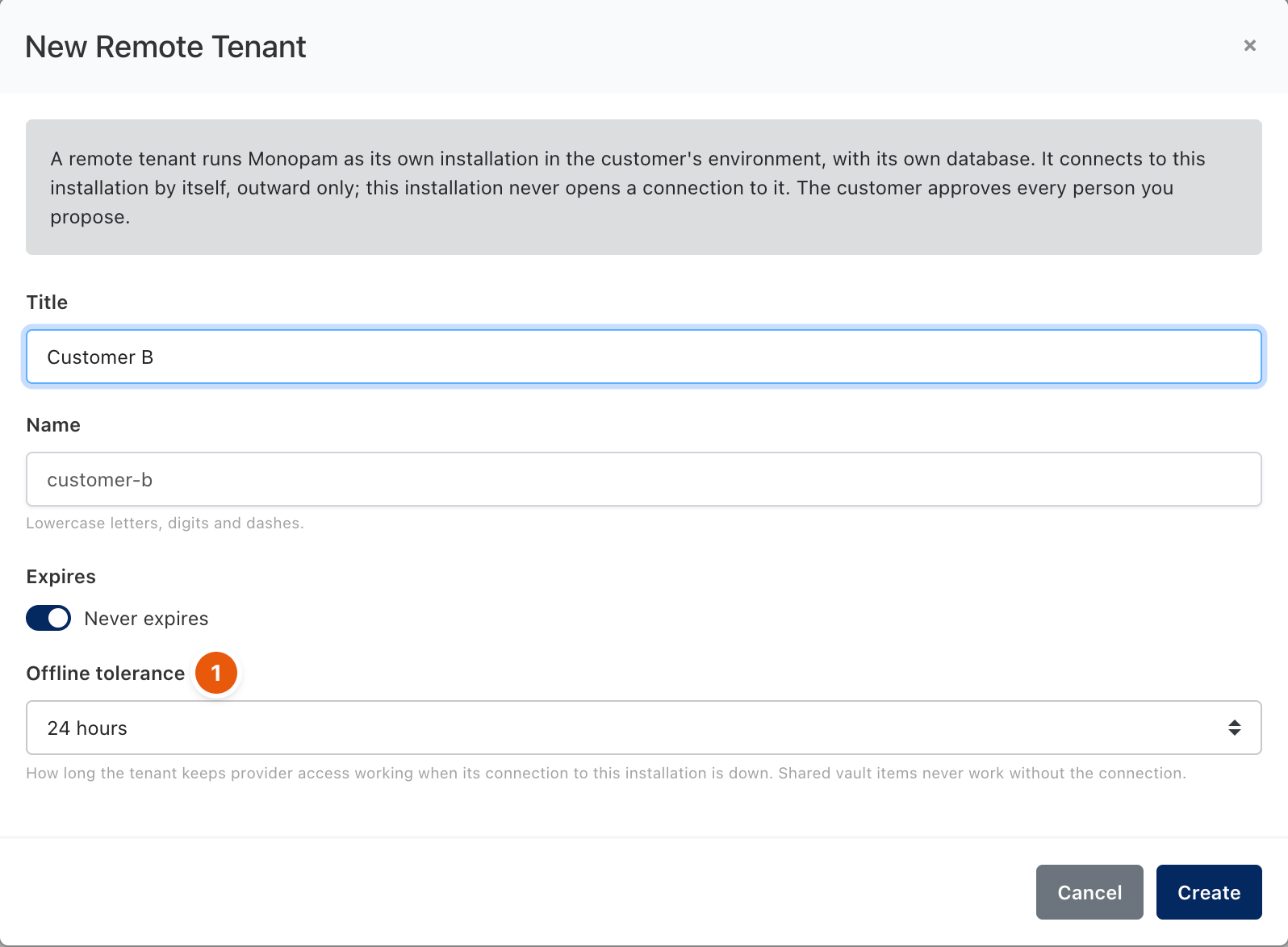
Figure 1. Registering a customer-hosted installation.
- Click Create. Monopam shows a one-time Enrollment Code (1), valid for 24 hours and shown only once: the provider keeps only a hash of it. Hand it to the customer's administrator over a trusted channel.
2. Give the customer its deployment files
The same dialog, the tenant's Deployment Options tab and the row menu of the Tenants list produce ready deployment files for the customer. The environment block (2) shows the three values the customer sets before the first start. Choose the Platform (3): Docker Compose (docker-compose.yml, monopam.env, first-setup.json, install.sh, README.md), Kubernetes or OpenShift (monopam-tenant.yaml, monopam-gateway.yaml, first-setup.json, README.md). Choose the Database (4): PostgreSQL next to the application, or the customer's own database server. Enter the tenant's address, its sign-in and identity admin addresses, and whether to include the gateway and Monosign.
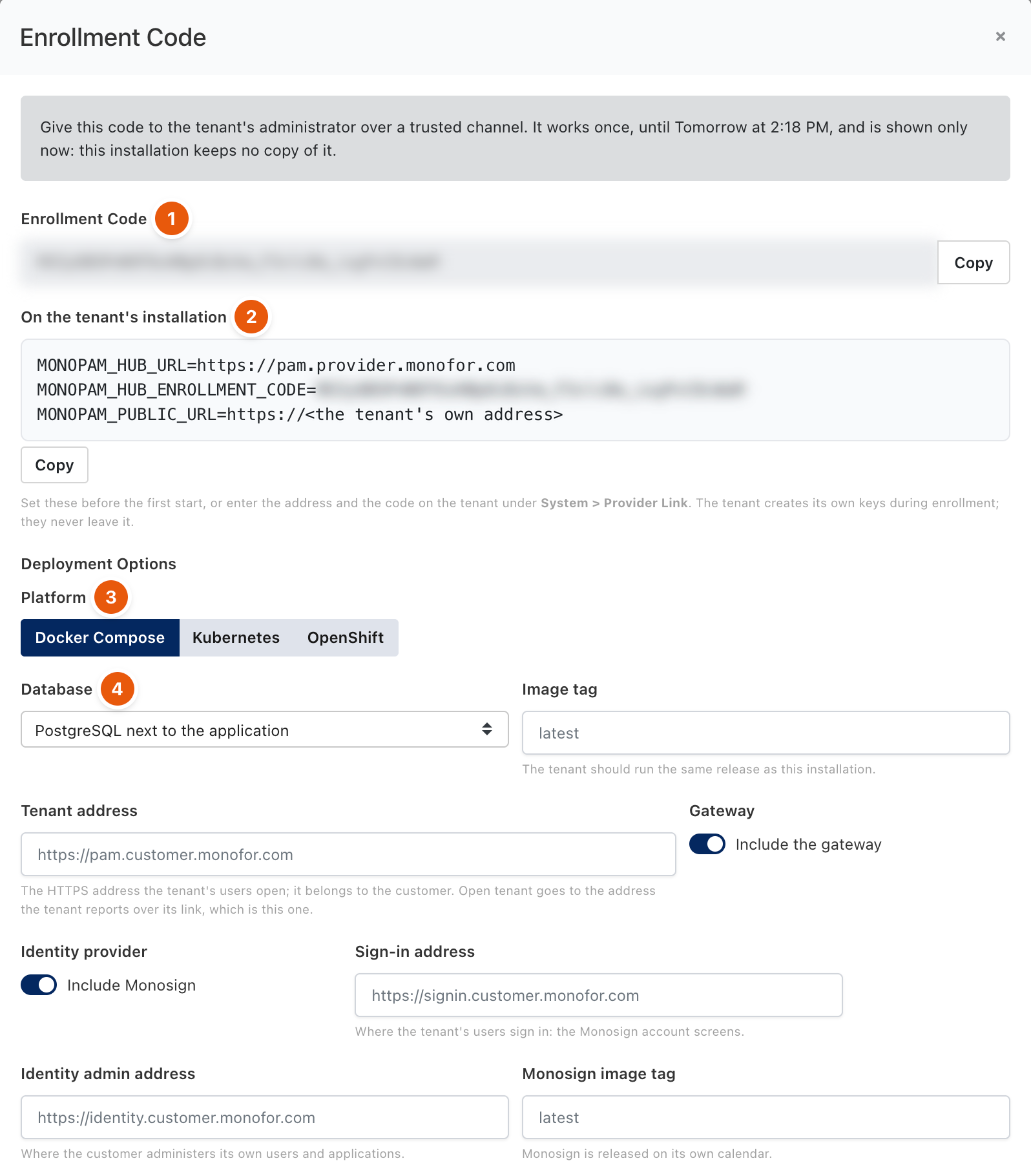
Figure 2. Enrollment code and deployment files (code blurred).
- Every secret in the files (database password, vault key, cache password, gateway key) is a
CHANGE_ME_…placeholder.install.shmakes them up on the customer's own machine; they never reach the provider. - Files opened later carry
PASTE_THE_ENROLLMENT_CODEinstead of the code. Files that contain a code are as sensitive as the code. - The application listens on HTTP 8080. The customer puts its own reverse proxy, ingress or route in front of it, passing the original
Hostheader andX-Forwarded-Proto: https. - The vault key in the customer's files encrypts the customer's whole vault. If the customer loses it, the provider cannot recover it.
3. Enroll on the customer side
The customer either sets these values before the first start, or enters the provider address and the code under System → Provider Link:
MONOPAM_HUB_URL=https://pam.provider.example.com
MONOPAM_HUB_ENROLLMENT_CODE=<one-time code>
MONOPAM_PUBLIC_URL=https://pam.customer.example.com
During enrollment the customer installation creates its own signing and encryption keys; the private keys never leave it. The provider then sees the link state, address, version, last seen and last synchronisation on the tenant's Tenant Link panel, and can suspend or resume the link.
4. Approve provider staff (customer)
- Accesses the provider grants (see Provider access) arrive on the customer as Waiting for the tenant. A user of the customer approves each person under System → Provider Link and picks the customer's own policies for that person, or rejects them.
- A change of person, role or end date on the provider asks for approval again and ends an open session.
- The customer can reject or suspend an access at any time, also while the link is down.
- Disconnect Provider is the customer's kill switch: the link closes, every provider session ends within seconds, nobody from the provider can enter and shared vault items stop working until Reconnect Provider.
- Optional: Offer the provider on this installation's sign-in page adds Sign in as service provider to the customer's sign-in page. Entry still needs a grant the customer approved.
What travels over the link
Direction | Content |
|---|---|
Provider → customer | Provider roles (with their read-only mark), proposed accesses, the keys that sign entry links, shared vault item descriptions, tenant type and expiry. The provider only says "something changed, pull again"; the customer also pulls every 60 seconds. |
Customer → provider | Link state, version and the decisions on proposed accesses. Shared vault item secrets are requested at the moment of use and arrive sealed to the customer's key. |
Never | The customer's database connection, vault key, policies or data. |
Every message is signed by its sender, carries its time and a one-time id, and is refused when forged, altered, older than 120 seconds or seen before.
Troubleshooting
What you see | Why | What to do |
|---|---|---|
The customer log shows Tenant link is down: … Retrying in … s. | The customer cannot reach the provider's address. | Check outbound HTTPS/WebSocket from the customer to the provider. Provider access continues until the offline tolerance runs out. |
The message time is outside the allowed window. | The clocks differ by more than 120 seconds. | Synchronise both installations with NTP. |
The code is refused. | It was used already or is older than 24 hours. | Issue a New Enrollment Code on the provider. This also removes the customer's previous keys and closes its link. |
Provider staff cannot enter although granted. | The customer has not approved the access yet. | The customer approves it under System → Provider Link. |
Related
- Service Provider Guide
- Provider access
- Shared vault items
- Tenants and tenant databases