Everything Monopam can do with a BIG-IP: read what is already on it, put a certificate on it, see which virtual servers serve it, split a shared profile without disturbing its neighbours, and undo any of it. All over the iControl REST API. No agent, no SSH, nothing installed on the appliance.
| How it connects | iControl REST, HTTPS to the management address |
|---|---|
| What it writes | A sys/crypto cert and key pair in a partition |
| What it repoints | One client-SSL profile, or a new one (cloned or fresh, with its own TLS versions, ciphers and SNI) bound to named virtual servers |
| Undo | Removing what was written. A BIG-IP never hands back a private key, so the earlier one cannot be restored |
- Before you start
- 1. Get the certificate into Monopam
- 2. Add the BIG-IP as a deployment target
- 3. Deploy it
- 4. When a policy asks for approval
- 5. Undoing a deployment
- 6. Renewals
- Read what is already on the appliance
- See which virtual servers serve it
- One profile, many virtual servers
- A second certificate
- When somebody changes it outside Monopam
- Pushing to every target at once
- When something goes wrong
Before you start
On the BIG-IP, you need a management account that can create SSL objects: an Administrator or Certificate Manager role is enough. Reading certificates back during a scan additionally needs an account the appliance lets run its file utility. Monopam reaches the management address directly over HTTPS, so that address has to be reachable from the Monopam server. A single-NIC BIG-IP moves its management interface to port 8443; a box with a dedicated management interface keeps 443.
Decide two names before you open the dialog, because they are what the appliance will carry afterwards:
- the object name for the cert/key pair, for example
portal_example_com. BIG-IP object names cannot contain dots, so a name derived from a hostname uses underscores. - the client-SSL profile you want repointed, if any. Leave it empty and Monopam installs the objects without touching traffic; set it and the profile serves the new certificate as soon as the deployment finishes.
One profile, many virtual servers. A client-SSL profile is often shared. Repointing it changes the certificate for every virtual server that uses it, in one step. If only one service should move, don't repoint the shared profile: use a building template, which clones it instead.
1. Get the certificate into Monopam
A certificate can only be deployed if Monopam holds its private key. Go to Certificates → Inventory → Import and upload a PFX (or a PEM certificate together with its key file). If the file is password protected, type the password in the same dialog: Monopam reads the file there and then, and refuses it immediately if it cannot, rather than failing later on the appliance.
A certificate that was only discovered by a scan has no key and cannot be deployed. Its row shows TRACKING ONLY instead of PRIVATE KEY.
2. Add the BIG-IP as a deployment target
Open the certificate, go to its Deployment tab and choose Add Target. Set Server Type to F5 BIG-IP and the rest of the form changes to the fields below.
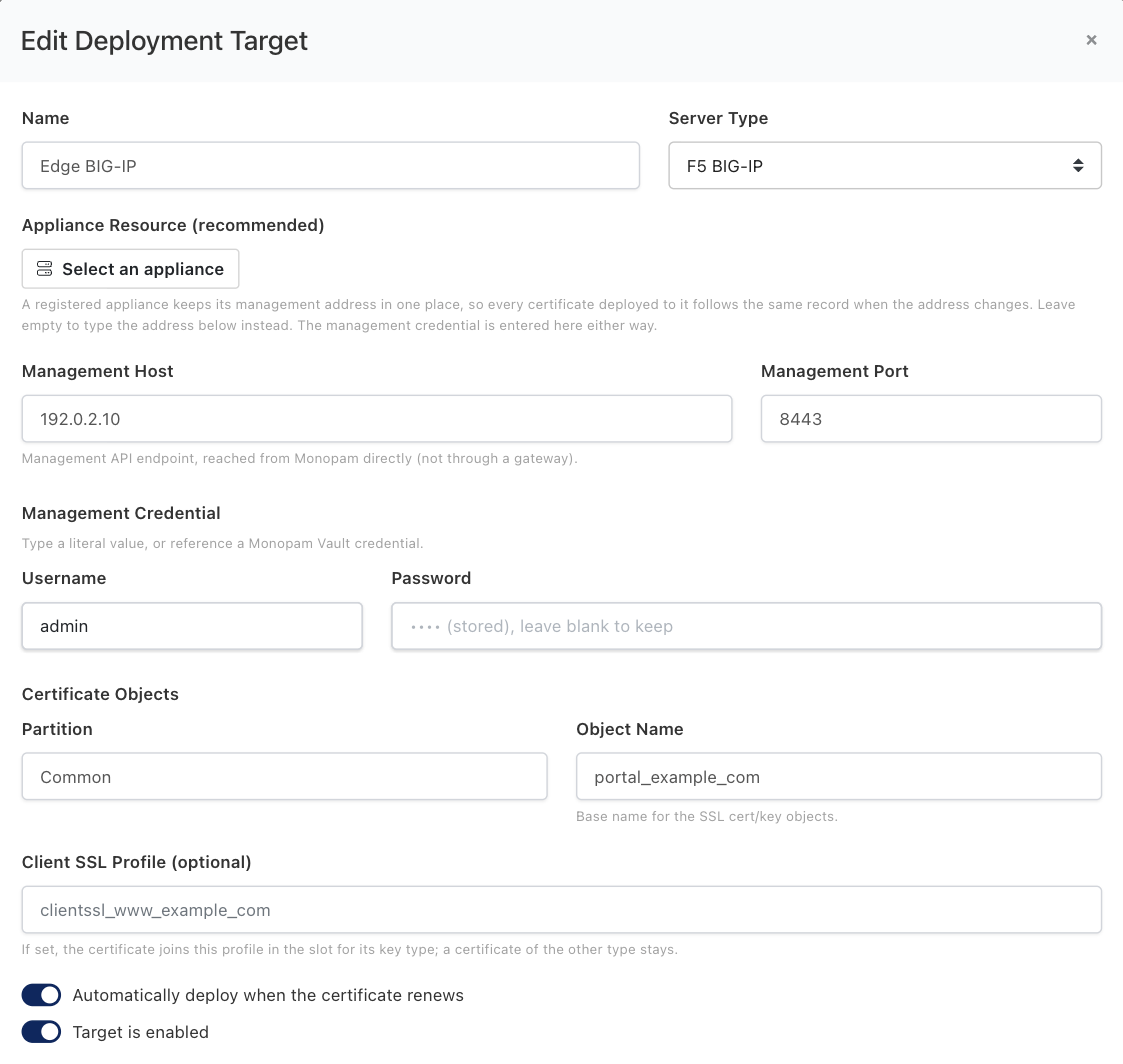
The F5 BIG-IP target. Values shown are examples.
| Field | What it means | Required |
|---|---|---|
| Name | What this target is called in Monopam. Use the appliance's role, not its address, so the name survives a change of IP. | |
| Appliance Resource | A registered appliance keeps its management address in one place, so every certificate deployed to it follows the same record when the address changes. Leave it empty to type the address below instead. | Recommended |
| Management Host / Port | The iControl REST endpoint, reached from Monopam directly and not through a gateway. Use 8443 on a single-NIC BIG-IP. | Required unless an appliance is selected |
| Username / Password | The management credential. Type a literal value, or reference a Monopam Vault credential as {{Vault.<name>.Password}} so the appliance password lives in the vault and rotates with it. | Required |
| Partition | The BIG-IP administrative partition the objects belong to. Common unless your estate separates tenants. | Required |
| Object Name | Base name for the SSL cert/key objects. Monopam creates <name>.crt and <name>.key, and overwrites that same pair on every later deployment, so renewals land in place instead of accumulating. | Required |
| Client SSL Profile | If set, the certificate joins this profile's cert-key-chain once the objects are installed. It takes the slot for its key type: a profile serving an RSA and an ECDSA certificate side by side keeps the other one. Leave empty to install without changing what the appliance serves. | Optional |
| Automatically deploy when the certificate renews | On by default. A renewed certificate is pushed to this target without anyone clicking. | |
| Target is enabled | Turn off to keep the configuration but stop all deployments and retries, for example while the appliance is out of service. |
3. Deploy it
Press Deploy on the target's row. Monopam confirms first, because this changes what the appliance is serving right now.
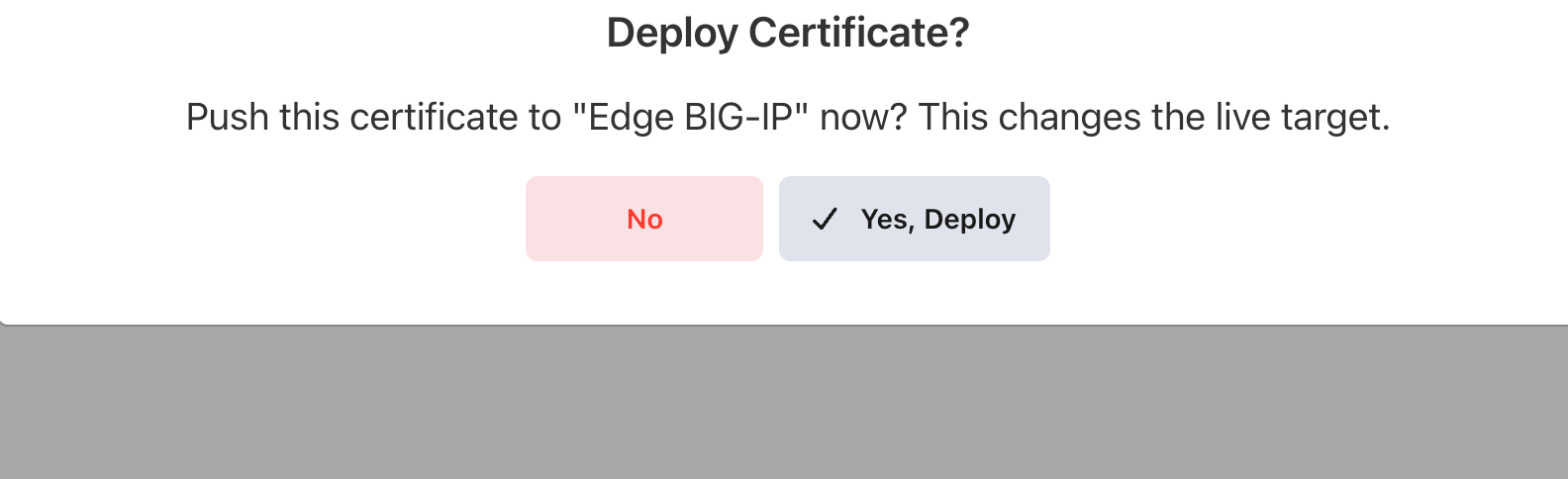
Every deployment is confirmed before it runs.
The run happens in the background and the result lands on the target's row and in Certificates → Deployments → History.

What a finished deployment looks like.
Installed on F5 as 'portal_example_com'.
The cert and key objects are on the appliance. No profile was named, so nothing changed for live traffic.
Installed on F5 as 'portal_example_com'; repointed 'clientssl_portal_example'.
The named client-SSL profile now serves the new key pair.
4. When a policy asks for approval
If a Certificate Approval Policy covers this operation, the deployment does not run on the click. Monopam raises a request, tells you so, and carries the deployment out itself the moment somebody approves it. You do not come back and press the button again.
The approver sees which certificate is going where, on the request itself:
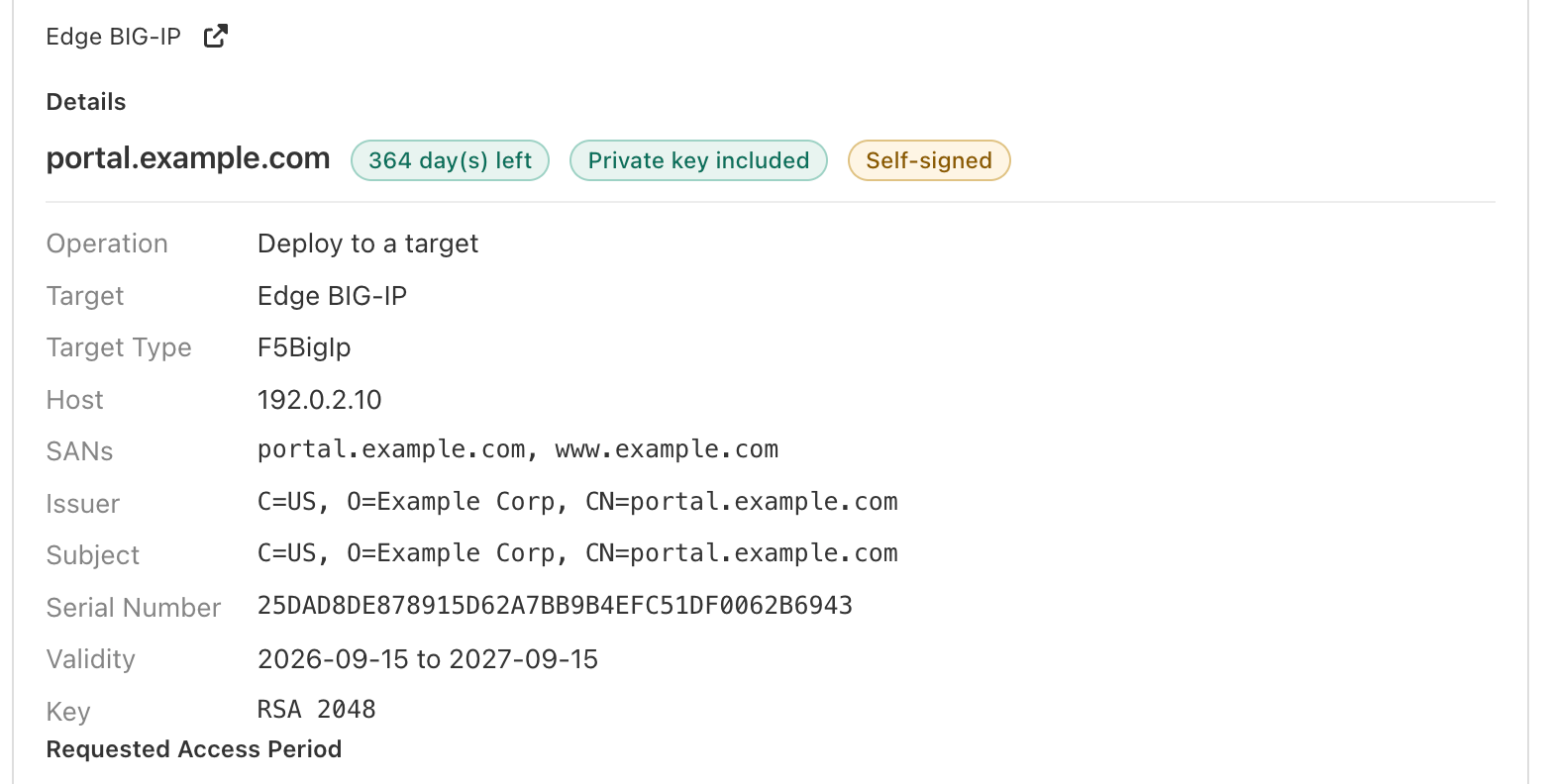
The request names the certificate, how long it has left, whether its private key came with it, and the appliance it is bound for.
If the policy is set to refuse rather than to ask, the deployment stops immediately with the policy's own wording, and no request is raised. Either outcome is written to Audits against the certificate.
5. Undoing a deployment
Every deployment records what it found on the appliance before it wrote anything. In Certificates → Deployments → History, tick a run and the undo actions appear above the list.

Two ways back. On a BIG-IP only the second one is ever available.
Why "Restore previous certificate" is greyed out here. A BIG-IP never exports a private key, so Monopam cannot capture the certificate that was in place and put it back byte for byte. What it can do is undo its own change: point the profile back at the object it served before, and delete the cert/key objects this deployment created. Objects that already existed are left alone.
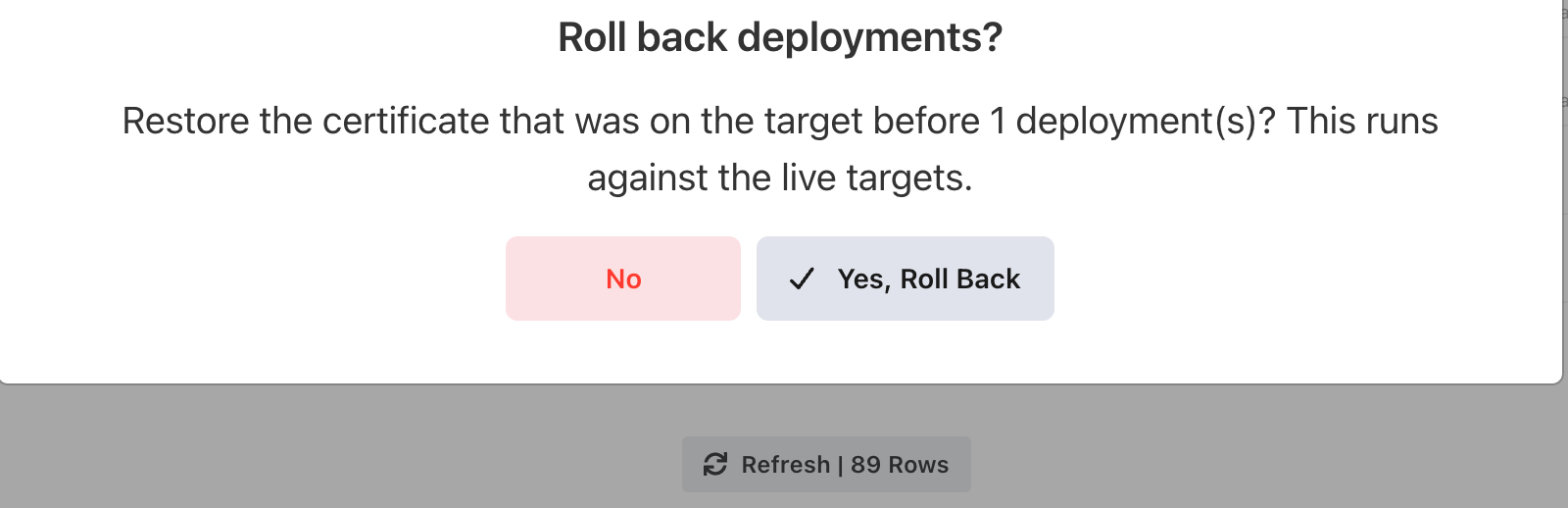
Undo is confirmed too, and states that it runs against the live appliance.
Removed 'portal_example_com.crt'; removed 'portal_example_com.key'.
This deployment created those objects, so undoing it took them away.
Objects that existed before the deployment were left in place.
Nothing was removed, on purpose: the objects were already on the appliance before this run, so this run is not what put them there. Roll back the earlier run that created them instead.
6. Renewals
With Automatically deploy when the certificate renews left on, a renewed certificate is pushed to this target on its own. It overwrites the same object name, so the appliance keeps one pair per service rather than collecting one per renewal, and a repointed profile follows it without further action.
A deployment that fails is retried on a widening schedule; the row shows the attempt count and when the next one is due. A target that is switched off is skipped entirely, and says so.
Read what is already on the appliance
Deployment answers "put this certificate there". A resource scan answers the opposite question: what is on that box already, including the certificates no virtual server serves and nobody remembers installing.
Register the appliance as a resource first, then go to Certificates → Resource Scan → Scan a resource.
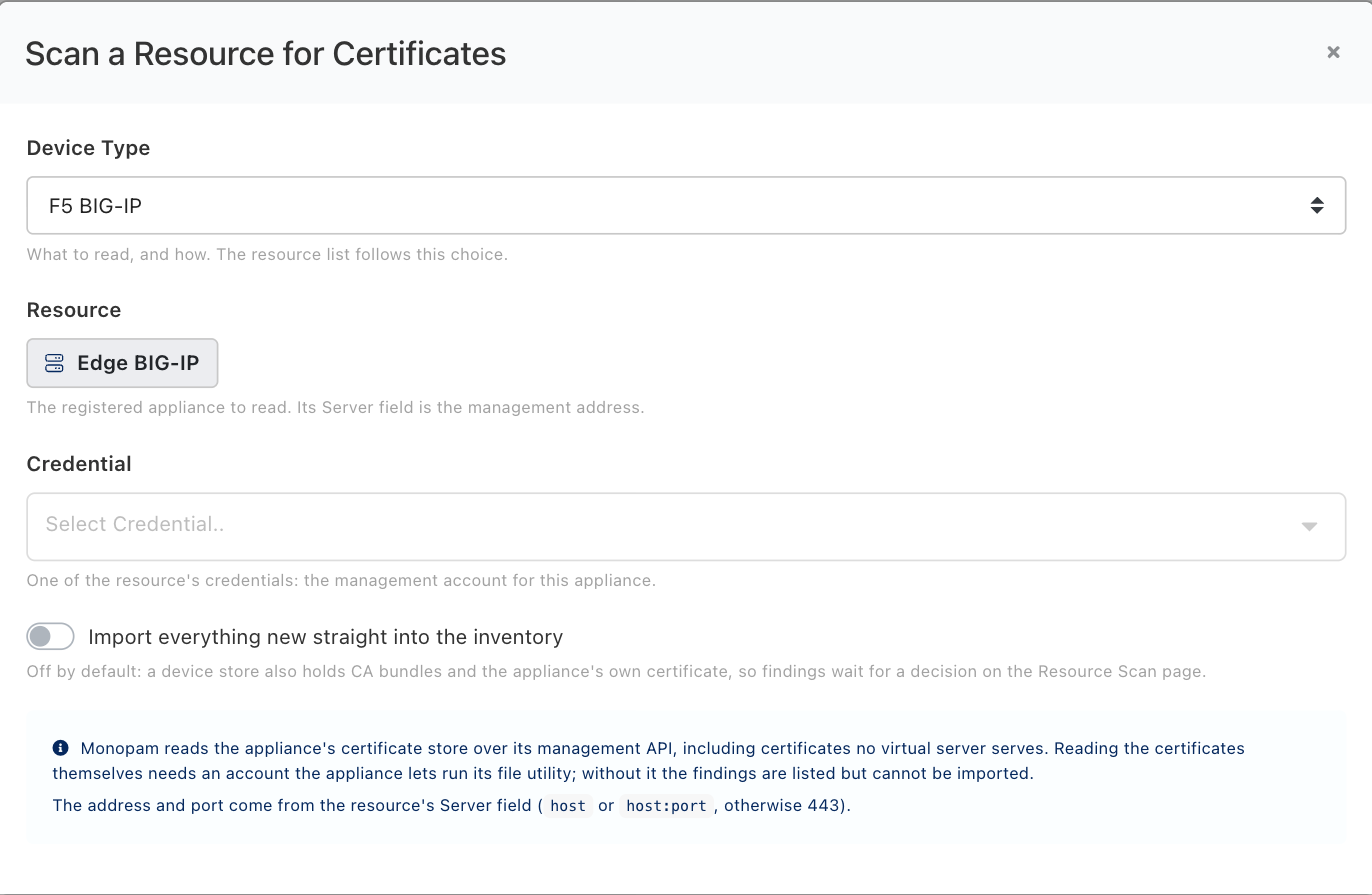
A scan is read-only. It changes nothing on the appliance.
Leave Import everything new straight into the inventory off the first time. A device store also holds CA bundles and the appliance's own certificate, and you rarely want those as managed rows; with the switch off, every finding waits for you to import or ignore it.
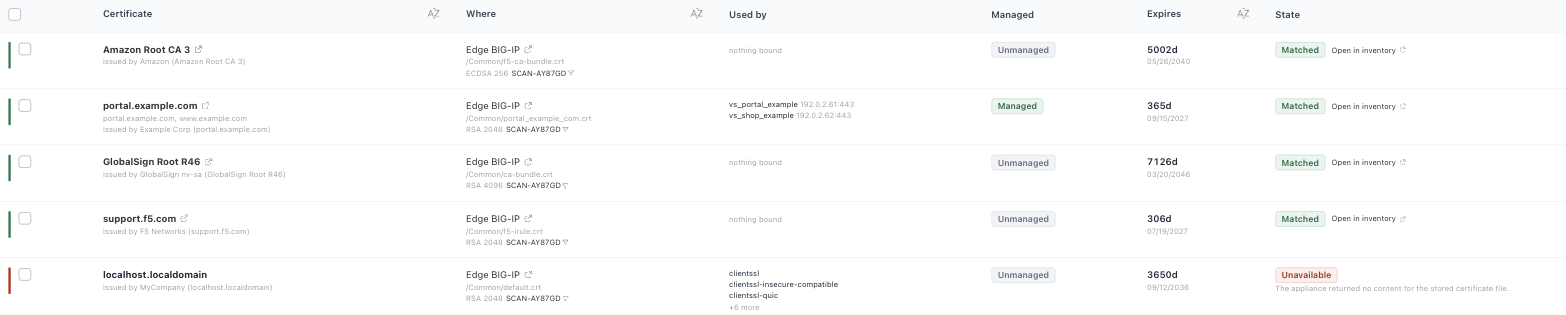
One scan of a BIG-IP. Read the Used by and Managed columns first.
Three things in that list are worth knowing:
- MANAGED means Monopam holds this certificate and can renew and redeploy it. Unmanaged means the appliance has it and Monopam does not: that is the backlog a first scan exists to find.
- Used by resolves the client-SSL and server-SSL profiles and the virtual servers those profiles front, with each VIP's address and port. A certificate that says nothing bound is installed but serving no traffic.
- Unavailable with
The appliance returned no content for the stored certificate file.means the account could not run the appliance's file utility, so the object is listed but its certificate cannot be read or imported. Give the scan an account that can, or leave those rows alone.
A scan remembers your decisions: re-scanning never re-raises something you imported or ignored, unless the object's certificate changed. The appliance's own trust store is deliberately not read: the roots that ship with a BIG-IP are not an inventory of what your organisation issued.
See which virtual servers serve it
On an F5 target's row there is a third button, Discover VIPs. It walks the appliance's virtual servers and records, on each managed certificate, every VIP that serves it.

The certificate's Locations tab after a VIP discovery.
This is how you find out, before touching anything, that two virtual servers are sitting behind one profile. Which is the situation the next section exists for.
One profile, many virtual servers
The screenshot above is the ordinary F5 problem: vs_portal_example and vs_shop_example both use clientssl_example_shared. Repointing that profile moves both. Giving the portal its own certificate without touching the shop needs a different move: build a profile of its own, put the new certificate on it, and bind only the portal's VIP to it.
That move is a building template: an ordered plan that runs as one transaction. Go to Certificates → Building Templates → New Template, add a step, set Device to F5 BIG-IP and Operation to F5 clone + bind VIPs.
Connect, and let the appliance fill the choices in
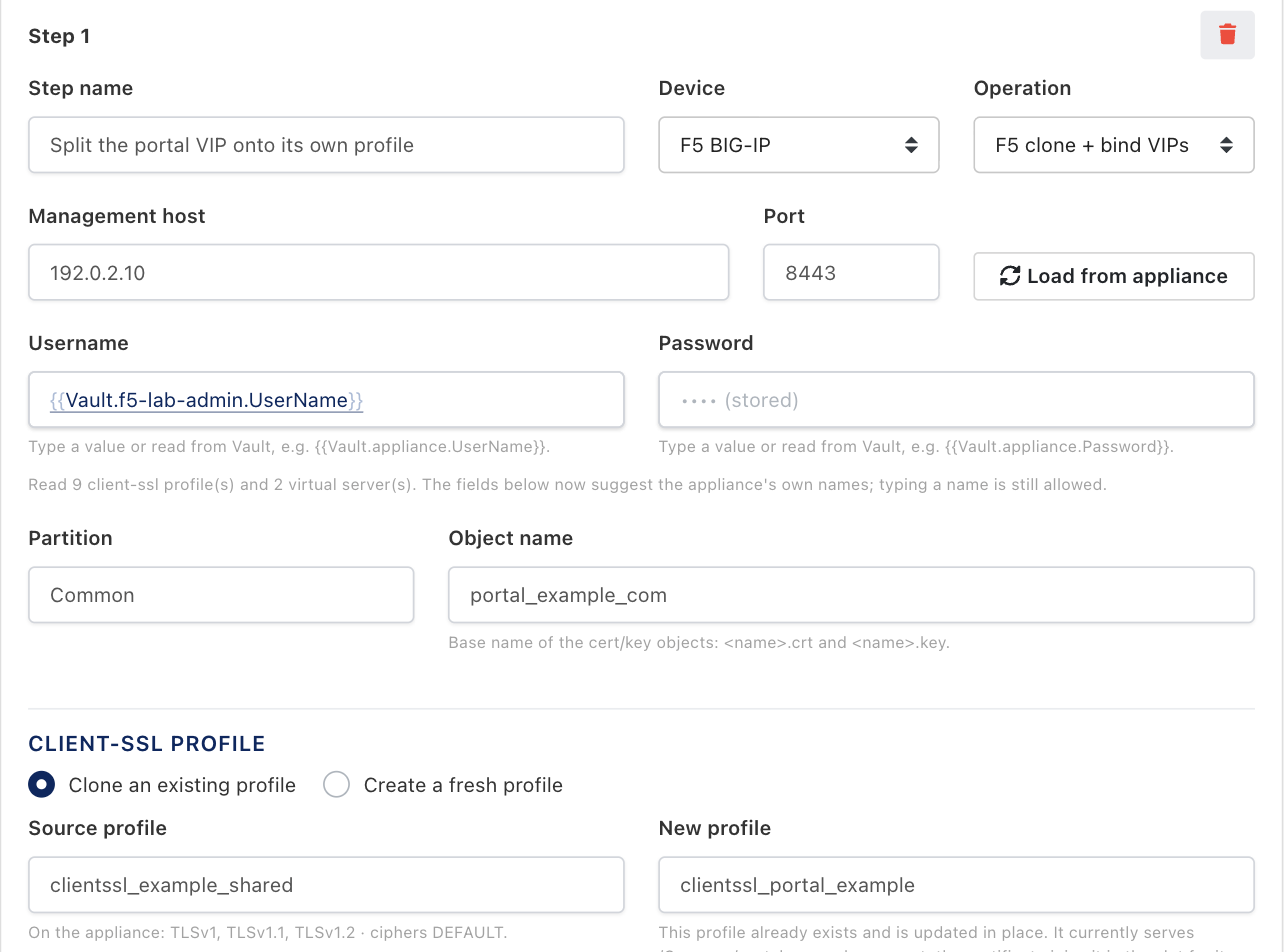
Type the management address and credential, then press Load from appliance. Values shown are examples.
Load from appliance reads the BIG-IP's partitions, client-SSL profiles, virtual servers and cipher groups, and nothing else: it changes nothing on the box. From then on every name field suggests what the appliance really has, the virtual servers appear as a list with their addresses and the profiles bound to them, and the profile fields describe what is on the box today. Typing a name by hand still works; the list is there so you do not have to.
On a saved step the password field is left blank and reads (stored); loading then uses the stored password. A username or password written as a Vault reference, such as {{Vault.<name>.UserName}}, is resolved first, exactly as a run resolves it.
The profile, TLS versions and ciphers
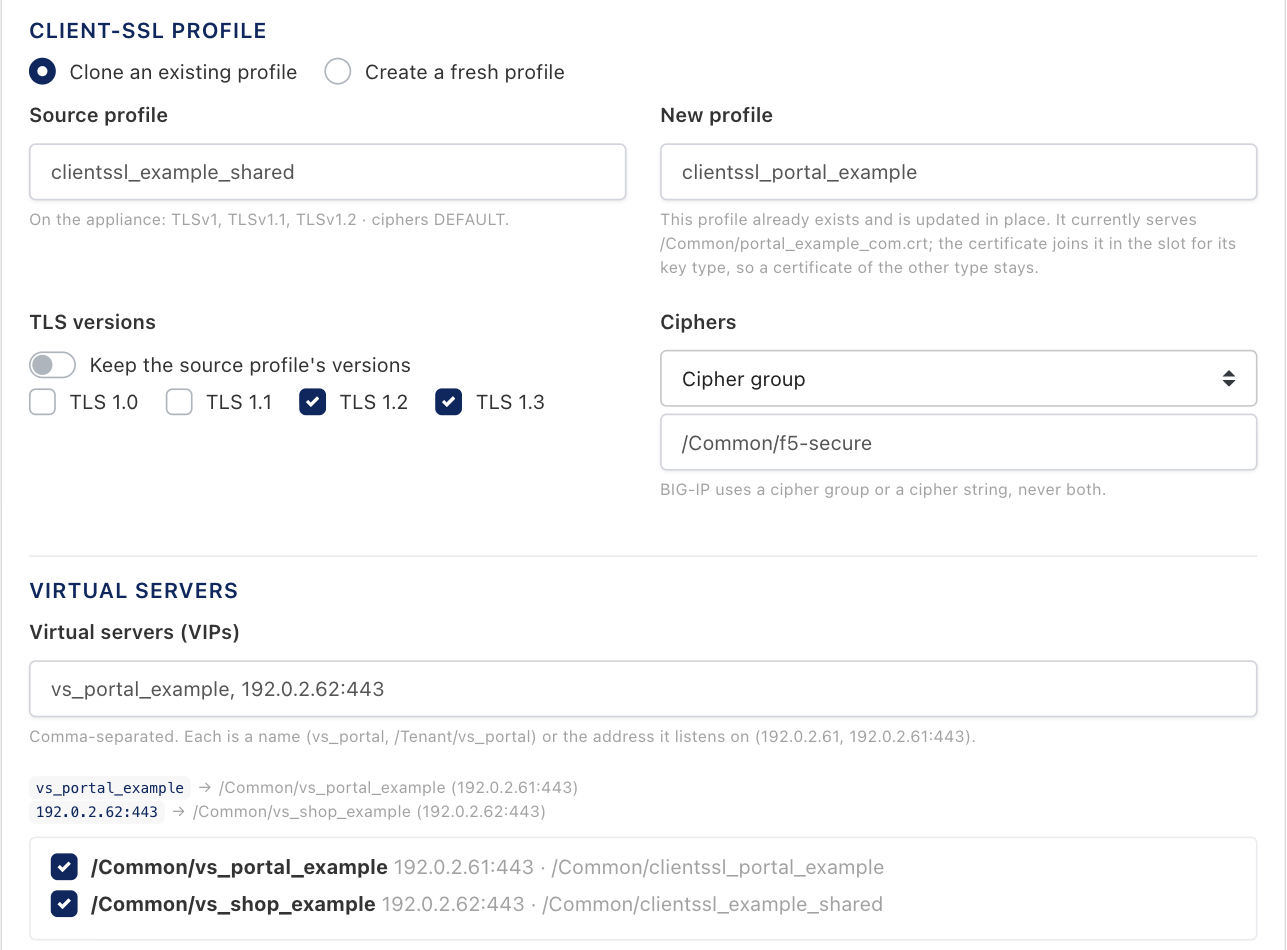
A new profile that clones the shared one's settings, then allows TLS 1.2 and 1.3 only, with a cipher group.
| Field | What it means | Required |
|---|---|---|
| Object name | Base name for the cert/key objects the step installs, exactly as on a deployment target. | Required |
| Clone an existing profile / Create a fresh profile | Clone copies the source profile's settings (TLS options, ciphers, mTLS, renegotiation, session tickets) into the new one. Fresh starts from the appliance's own client-SSL defaults instead. Either way the new profile is standalone: later changes to the source never reach it. | Required |
| Source profile | The profile to clone. It is read, never changed. If it does not exist on the appliance the step stops before anything is written, rather than quietly creating a profile with default settings. | Required when cloning |
| New profile | The profile that gets the certificate. The first run creates it. If it already exists (a second run, or a profile you made by hand) it is updated in place, and its cert-key-chain keeps any certificate of the other key type. The hint under the field says which case you are in. | Required |
| TLS versions | Leave Keep the source profile's versions on to inherit them. Turn it off to choose TLS 1.0, 1.1, 1.2 and 1.3 explicitly; only the version switches change, every other option stays as the base profile had it. At least one version must stay on. | |
| Ciphers | Keep the base profile's ciphers, a Cipher group such as /Common/f5-secure, or a Cipher string. BIG-IP holds one or the other, never both, so the one not chosen is cleared. TLS 1.3 needs a cipher group: the appliance refuses TLS 1.3 with a cipher string, and so does the step. |
Virtual servers: by name or by address
Write each VIP the way you know it. Virtual servers (VIPs) takes a comma-separated list, and every entry can be:
| You write | It means |
|---|---|
vs_portal_example | The virtual server of that name in the step's partition. |
/Tenant/vs_portal | The virtual server of that name in another partition. |
192.0.2.61:443 | The virtual server listening on that address and port. Route domains are ignored, so a VIP on 192.0.2.61%2:443 matches too. |
192.0.2.61 | The virtual server listening on that address, on any port. |
[2001:db8::10]:443 | The same for IPv6, with or without the port. |
A name always wins: a virtual server may legitimately be named after an address, and then that is the one meant. An address written without a port often matches two listeners, typically an HTTP redirect on :80 and the HTTPS service on :443. The step then takes the one that already terminates TLS. If that still leaves more than one, the run stops and names them, rather than guessing which one a certificate belongs on. The same VIP written twice (once by name, once by address) is bound once.
Once the appliance is loaded, the editor shows under the field what each entry resolves to, and ticks the matching rows in the list. Ticking a row adds its name; unticking removes whichever entry pointed at it. The run resolves the entries again on the appliance itself, so the result is always what the box says at the moment of the run.
A template is a plan, not a property of a certificate: you choose the certificate when you run it.

Templates are not F5-only. A step can target any supported device, so one plan can carry a certificate across a BIG-IP, a FortiManager and a Panorama in a single transaction. F5 clone + bind VIPs is the one operation that exists on this device and nowhere else.
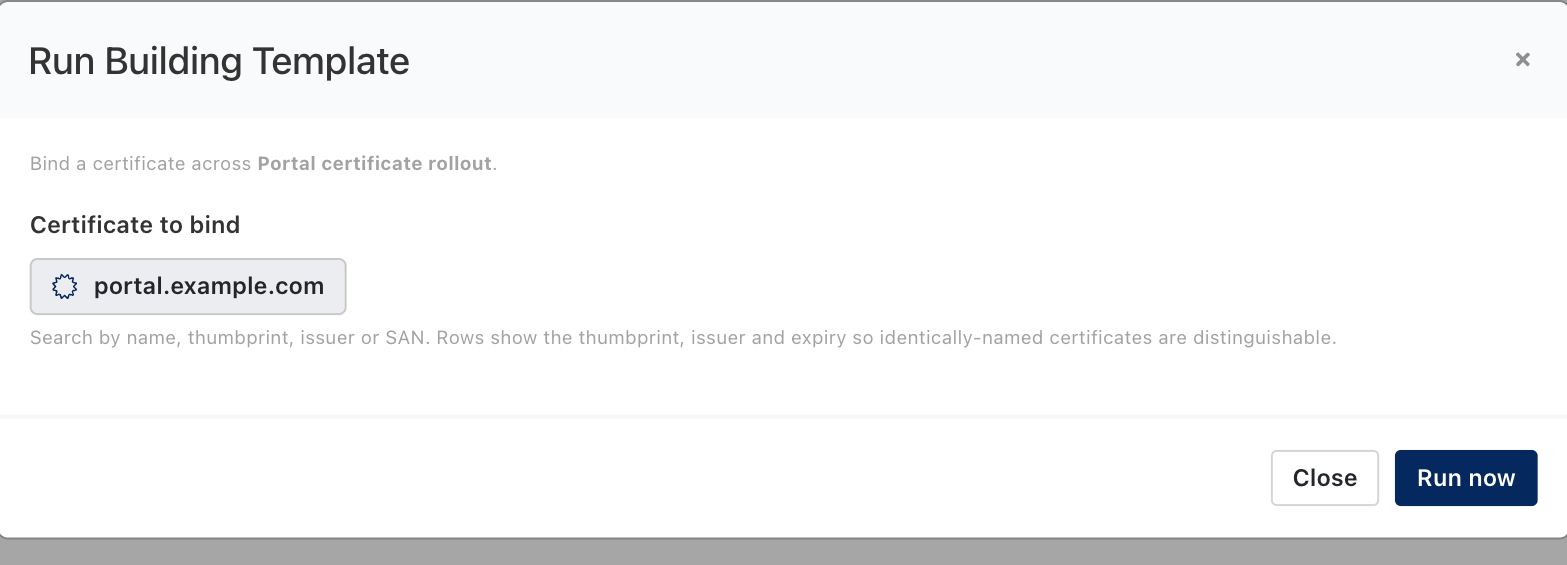
Running a template against a certificate.
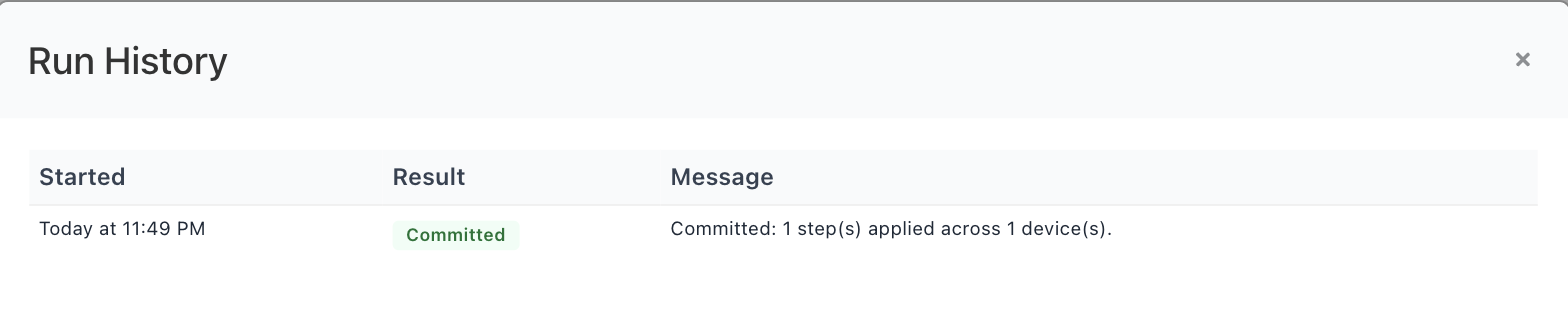
The run's own history. Committed means every step succeeded.
Bound 'clientssl_portal_example' to 2 VIP(s) on F5: /Common/vs_portal_example (192.0.2.61:443), /Common/vs_shop_example (192.0.2.62:443).
The step's own result names every VIP it bound and the address it resolved, so an entry written as an address can be checked against what it meant.
All or nothing, and checked before anything changes. Before a step writes to the appliance it resolves every VIP, reads the source profile, checks the TLS and cipher choice, and checks the SNI rules below against the profiles already on each VIP. Any of those failing stops the run with nothing to undo. Once the certificate and key are installed, the step sends the rest of its change (the profile, any SNI default it moves, and the VIP bindings) to the appliance as a single transaction, so BIG-IP accepts the finished change as a whole or none of it. After that, steps run in order and the first failure undoes every step that already succeeded, in reverse, from what that step captured off its own device: the VIPs get their previous client-SSL profiles back, a profile the step created is deleted, a profile that already existed gets its previous cert-key-chain, TLS versions, ciphers and SNI settings back, and a profile the step made the SNI default gets its previous value back. A run ends as Committed or RolledBack; there is no half-applied state to clean up by hand. A template that has already committed cannot be rolled back from here: undo it on the appliance, or run a template that puts it back. Every run is still on record under Building template runs, on the certificate's Deployment tab and below Deployments → History, with its steps and devices; those rows are a record and offer no restore.
A second certificate
"Add a second certificate" means one of two different things on a BIG-IP, and Monopam does both.
On a VIP: a second hostname, chosen by SNI
One virtual server can present different certificates to different hostnames. It does that with several client-SSL profiles bound side by side, each answering for its own server name. In the step, turn Replace the client-ssl profiles already on the VIPs off: the new profile is then added beside the ones already there instead of replacing them.
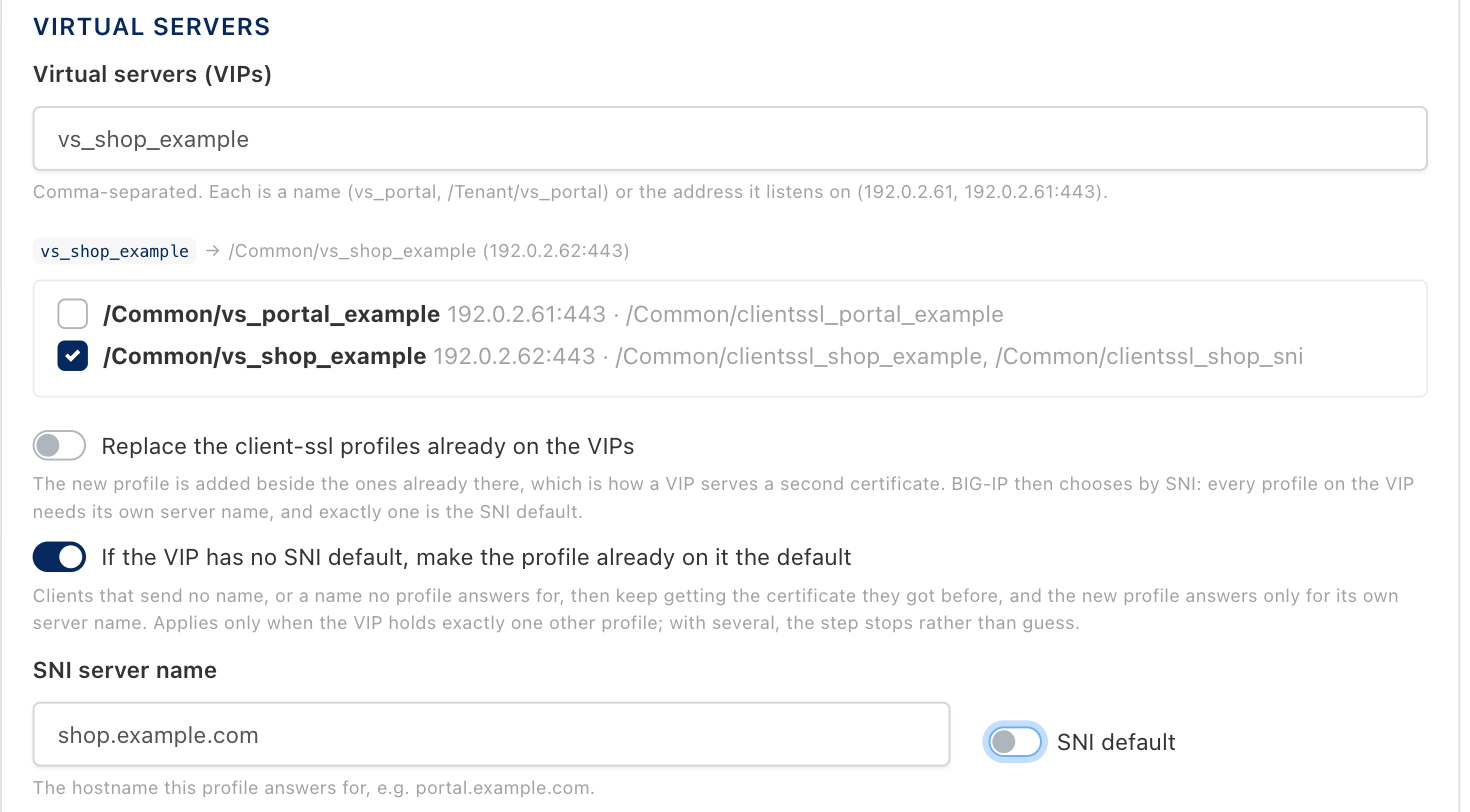
A second hostname on the shop VIP, answering for shop.example.com. The profile already on the VIP keeps serving everyone else.
BIG-IP applies three rules to several client-SSL profiles on one virtual server, and the step checks all three against the VIP before it changes anything:
- Every profile answers for a different server name. A profile with no server name counts as a name, so two unnamed profiles clash. Set SNI server name on the new profile.
- Exactly one profile is the SNI default, the one a client gets when it sends no name or a name nobody answers for. Turn SNI default on for the new profile only if none of the existing ones is the default.
- Only one. Two defaults on one VIP are refused.
Who gets which certificate: the SNI default
The SNI default decides what a client gets when it sends no name, or a name no profile answers for. When a VIP served a single profile, every client got that profile's certificate. Adding a hostname should not change that for them, so by default the step keeps it that way:
- If the VIP has no SNI default, make the profile already on it the default is on. When the VIP holds exactly one other profile and neither it nor the new one is the default, the existing profile is made the default. Existing clients keep their certificate; the new profile answers only for its own server name.
- Turn SNI default on for the new profile instead only when the new certificate really should become the catch-all, for example when it replaces a wildcard.
- With several profiles already on the VIP and none of them the default, which one should catch the rest is not guessed: the step stops and names them.
The run says when it did this, so the change to a profile the step did not name is never silent:
Committed: 1 step(s) applied across 1 device(s). Step 1 ('Edge BIG-IP'): Bound 'clientssl_shop_sni' to 1 VIP(s) on F5: /Common/vs_shop_example (192.0.2.62:443). Made '/Common/clientssl_shop_example' the SNI default, so clients without a matching name keep the certificate they had.
The existing profile is now the catch-all; the new one answers for shop.example.com.
BIG-IP writes the default flag on the profile, not on the VIP, and checks every virtual server that uses the profile. So before making a profile the default, the step also checks the other virtual servers that use it; if one of them already has a different default, it stops rather than let the appliance refuse halfway:
'/Common/clientssl_shop_example' cannot be made the SNI default: it is also used by VIP '/Common/vs_other_example', where '/Common/clientssl_other_example' is already the default.
Nothing was changed. Make the new profile the default instead, or sort out the defaults on the other VIP first.
A rollback puts the promoted profile's SNI default back to what it was, after the new profile is off the VIP again.
A step with the switch off and neither a server name nor the default cannot even be saved: a profile added that way could never be chosen.
In one profile: RSA and ECDSA side by side
A single client-SSL profile can hold one certificate per key type in its cert-key-chain, so that modern clients get ECDSA and older ones RSA, on the same hostname. You do not configure anything for this. Both the deployment target and the template step put the new certificate in the slot for its own key type:
- an entry with the same object name is replaced in place (a renewal);
- otherwise an entry holding a certificate of the same key type is replaced (a renewal under a new object name);
- otherwise the certificate is added, which is how an ECDSA certificate is put beside an RSA one.
So renewing the RSA certificate of a dual profile leaves its ECDSA certificate serving, and the other way round. To add the second key type, deploy that certificate to the same profile with its own object name.
Earlier builds replaced the whole chain. Before this change both paths wrote a one-entry cert-key-chain, so the first renewal of a dual profile silently removed the certificate of the other key type. If a profile of yours lost its ECDSA or RSA certificate after a Monopam renewal, that is why; deploy the missing one again with a current build.
When somebody changes it outside Monopam
A certificate Monopam manages can still be replaced on the appliance by someone with a console and a reason. The next scan notices: the object now holds a different certificate from the one Monopam put there, so the finding is marked as changed, the displaced certificate is named, an alert goes out on the certificate alert channels and an audit entry is written. It is raised once per replacement, because it is a security event and not a line in a report.
Replaced portal.example.com on Today at 2:20 AM. Monopam did not make this change.
How the changed finding reads on the Resource Scan page. The Changed filter above the list collects them.
The displaced certificate's own page says so too, with a banner naming what is on the device now and two ways out:

The banner sits above the tabs, so the owner does not have to go looking. This example was captured on a sibling appliance; the BIG-IP banner is the same, with the F5 object path in place of the ADOM path.
- Put this certificate back deploys it again, through the existing target, which means the approval policy applies to it like any other deployment.
- Accept the new certificate takes what is there into the inventory and closes the question, changing nothing on the appliance.
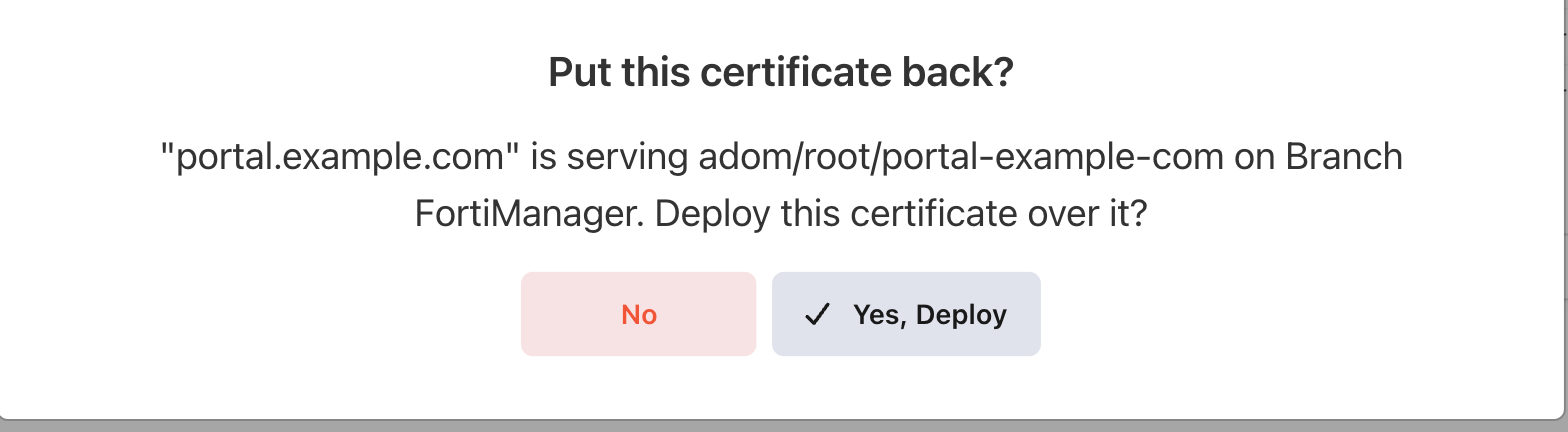
Putting it back is a deployment, and is confirmed like one. The dialog names whatever object and appliance the finding came from.
Either answer clears the mark. Monopam also stops claiming the device for the displaced certificate: its sighting for that object is removed, so the certificate's page no longer names a box it is not on.
Link the target to the appliance resource. Put this certificate back is offered only when a deployment target for that resource exists. A target whose address was typed by hand is not recognised as the scanned appliance even when the address matches, and the banner then reads There is no deployment target for this device, so Monopam cannot put the certificate back by itself. Choosing the appliance in Appliance Resource is what makes the difference.
Pushing to every target at once
A certificate with several targets has a Deploy to all targets button on its Deployment tab. It is all-or-nothing: targets are done in order, and the first failure puts back every target already done, in reverse. Use it when a service is only correct if all of its devices carry the same certificate; use the per-target button when getting three of four devices done is better than none.
It is offered only when the certificate has more than one enabled target, and refused outright when deployment history is turned off, because the captured state is what an undo restores from.
When something goes wrong
| What you see | What it means |
|---|---|
HTTP 401 on the first step | The management credential was refused. If the password is a Vault reference, check that the reference resolves and that the vault entry holds the appliance password rather than a personal one. |
| Operation timed out | The management address is not reachable from the Monopam server, or the port is wrong. Remember the single-NIC case: management moves to 8443. |
| A scan lists a certificate as Unavailable | The account could not run the appliance's file utility, so the object is listed but its certificate cannot be read or imported. Scan again with an account that can. |
| Certificate has no private key to deploy. | The row is a discovered, public-only certificate. Import the PFX, or issue the certificate through an issuer, and try again. |
| This certificate is archived. Unarchive it before deploying. | A retired certificate is deliberately kept away from live endpoints. Unarchive it from the inventory first. |
| Deployment is running in the background, and it stays that way | The Monopam service was restarted mid-run. The run is closed as failed within twenty minutes and the button becomes available again. |
| Succeeded, but the service still serves the old certificate | The objects were installed but no client-SSL profile was named, so nothing was repointed. Set the profile on the target and deploy again, or build a profile of its own with a template if the profile is shared. |
No virtual server named '…' in partition 'Common', and it is not an address. | The VIP entry is neither a virtual server in that partition nor an address. Check the partition, write it as /Partition/name, or pick it from the list after Load from appliance. |
No virtual server listens on '192.0.2.61:8443'. | Nothing on the appliance listens on that address and port. Leave the port out to match any port, or check the address in the loaded list. |
'192.0.2.61' matches 2 virtual servers: … Name one of them, or add the port. | Several listeners share the address and none, or more than one, already terminates TLS. Write the port, or the name. |
Source profile '…' was not found on the appliance. | The profile to clone does not exist in that partition. Nothing was written. Correct the name, or choose Create a fresh profile. |
TLS 1.3 needs a cipher group on BIG-IP. | TLS 1.3 is ticked but the ciphers are a string, or are kept from a base profile that uses a string. Choose a cipher group such as /Common/f5-secure, or leave TLS 1.3 off. |
VIP '…' already has '…' answering for 'portal.example.com'. or …with no SNI server name. | Two profiles on one VIP would answer for the same name. Give the new profile its own SNI server name. |
VIP '…' would have no SNI default profile. … | Either If the VIP has no SNI default, make the profile already on it the default is off, or the VIP already holds several profiles and none is the default. Turn the option on, turn SNI default on for the new profile, or mark one of the existing profiles as default on the appliance. |
VIP '…' would have more than one SNI default profile. | An existing profile is already the default. Turn SNI default off on the new profile. |
'…' cannot be made the SNI default: it is also used by VIP '…' | The profile to promote is shared with another VIP that has its own default. Make the new profile the default instead, or change the defaults on that VIP first. |
A run says Nothing was changed: the run stopped before writing to any device. | A step stopped in its own checks before anything was written, so there was nothing to roll back. The rest of the message says why. |
What this target type does not do
- It does not create virtual servers. A deployment target repoints an existing profile; a building template builds a profile and binds existing VIPs to it.
- It does not change the source profile of a clone, or any profile on a VIP beyond adding or replacing the one the step names.
- It does not manage the trust chain store; intermediates travel with the certificate, and the appliance's own root bundle is left alone.
- It does not sync an HA pair. Deploy to the address that owns the configuration, and let the appliance's own sync carry it.
- It does not read private keys during a scan. An imported finding is a tracking-only row until you supply the key.
Monopam Certificate Manager. Addresses, names and certificates in the screenshots are examples.
Device guides: F5 BIG-IP · FortiManager · NetScaler · Panorama