Everything Monopam can do with a FortiManager: read the certificates already held in its global store, its ADOMs and the FortiGates it manages, put a certificate on a managed FortiGate and map it into its ADOM, repoint an SSL-inspection profile at it, install the change down to a device, and undo any of it. All over the JSON-RPC API. No agent, no SSH, nothing installed on the appliance.
How it connects | JSON-RPC over HTTPS, to |
|---|---|
What it writes | A certificate in a managed FortiGate's own store, mapped into the ADOM as a dynamic local certificate of the same name |
What it repoints | One |
Undo | Points the profile back and deletes the certificate the deployment created |
- Before you start
- 1. Get the certificate into Monopam
- 2. Add FortiManager as a deployment target
- 3. Deploy it
- 4. When a policy asks for approval
- 5. Undoing a deployment
- 6. Renewals
- Read what is already on the appliance
- One certificate across several appliances
- Giving one service its own certificate
- When somebody changes it outside Monopam
- Pushing to every target at once
- When something goes wrong
Before you start
You need a FortiManager administrator that can use the JSON-RPC API and write in the ADOM you are targeting. Monopam reaches the management address directly over HTTPS on port 443.
The decision that matters most here is not an address, it is which field of the inspection profile you are filling, because the two take different kinds of certificate:
Profile field | Inspection mode | Certificate it takes |
|---|---|---|
| Certificate inspection, where the FortiGate presents a certificate on behalf of a server | An ordinary server certificate with its private key |
| Deep inspection, where the FortiGate re-signs traffic | A CA certificate. A server leaf is rejected outright |
Most certificate lifecycle work is the first row. Pick caname only when you are rotating the re-signing CA itself.
ADOM names are checked, not guessed. FortiManager answers every request in a non-existent ADOM with the same "invalid url" error it uses for a wrong path, so a typo used to look exactly like an empty store. Monopam verifies the ADOM before it does anything and fails with ADOM '<name>' was not found on the appliance. if it is wrong.
1. Get the certificate into Monopam
A certificate can only be deployed if Monopam holds its private key. Go to Certificates → Inventory → Import and upload a PFX, or a PEM certificate together with its key file, entering the file's password in the same dialog. Monopam reads the file there and then, and refuses it immediately if it cannot, rather than failing later on the appliance.
A certificate that was only discovered by a scan has no key and cannot be deployed: its row shows TRACKING ONLY instead of PRIVATE KEY.
2. Add FortiManager as a deployment target
Open the certificate, go to its Deployment tab and choose Add Target. Set Server Type to Fortinet FortiManager and the rest of the form changes to the fields below.
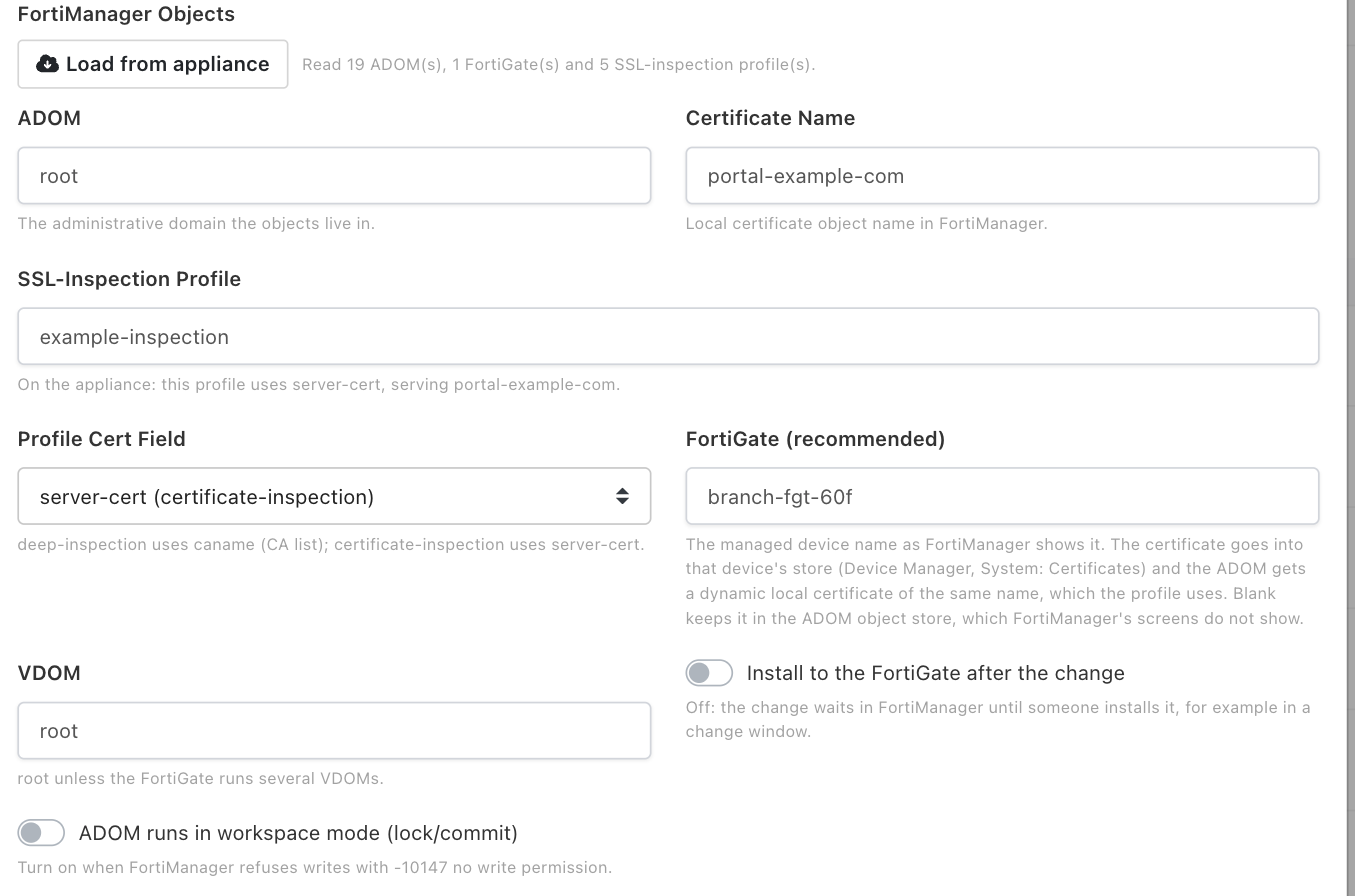
The FortiManager objects of a target that writes to a managed FortiGate. Values shown are examples.
Field | What it means | Required |
|---|---|---|
Name | What this target is called in Monopam. Use the appliance's role rather than its address, so the name survives a change of IP. | |
Appliance Resource | A registered appliance keeps its management address in one place, so every certificate deployed to it follows the same record when the address changes. It is also what lets a scan finding and a deployment target recognise each other as the same box, which is what makes the drift remedy below available. | Recommended |
Management Host / Port | The JSON-RPC endpoint, reached from Monopam directly and not through a gateway. | Required unless an appliance is selected |
Username / Password | The management credential. A literal value, or a Monopam Vault reference such as | Required |
Load from appliance | Reads the appliance and fills the lists below: its ADOMs (marked by whether they manage FortiGates), the FortiGates in the chosen ADOM with their VDOMs, the SSL-inspection profiles with the field each one uses today and the certificate it serves, and the certificate names already on the device. Picking a profile also sets Profile Cert Field to the one that profile actually uses. Reading changes nothing on the appliance. On a saved target the stored password is used, so the field can stay blank. | |
ADOM | The administrative domain whose certificate store the certificate is written to. | Required |
Certificate Name | Local certificate object name in FortiManager. The same name is reused on every later deployment, so a renewal replaces the object instead of adding one. | Required |
SSL-Inspection Profile | The | Optional |
Profile Cert Field | Which field of that profile to fill: | Required when a profile is set |
FortiGate | The managed device name exactly as FortiManager lists it. The certificate goes into that device's own store, and the ADOM gets a dynamic local certificate of the same name mapped to it, which is what the profile uses. Left blank, the certificate stays in the ADOM's object store, which none of FortiManager's screens show. | Recommended |
VDOM | Shown once a FortiGate is set. | |
Install to the FortiGate after the change | Shown once a FortiGate is set, on by default. Off leaves the change in FortiManager for you to install, for example in a change window. | |
ADOM runs in workspace mode (lock/commit) | Turn on when the ADOM requires an explicit lock and commit; FortiManager then refuses any other write with | |
Automatically deploy when the certificate renews | On by default. A renewed certificate is pushed to this target without anyone clicking. | |
Target is enabled | Turn off to keep the configuration but stop all deployments and retries, for example while the appliance is out of service. |
3. Deploy it
Press Deploy on the target's row. Monopam confirms first, because this changes what the appliance is serving right now.
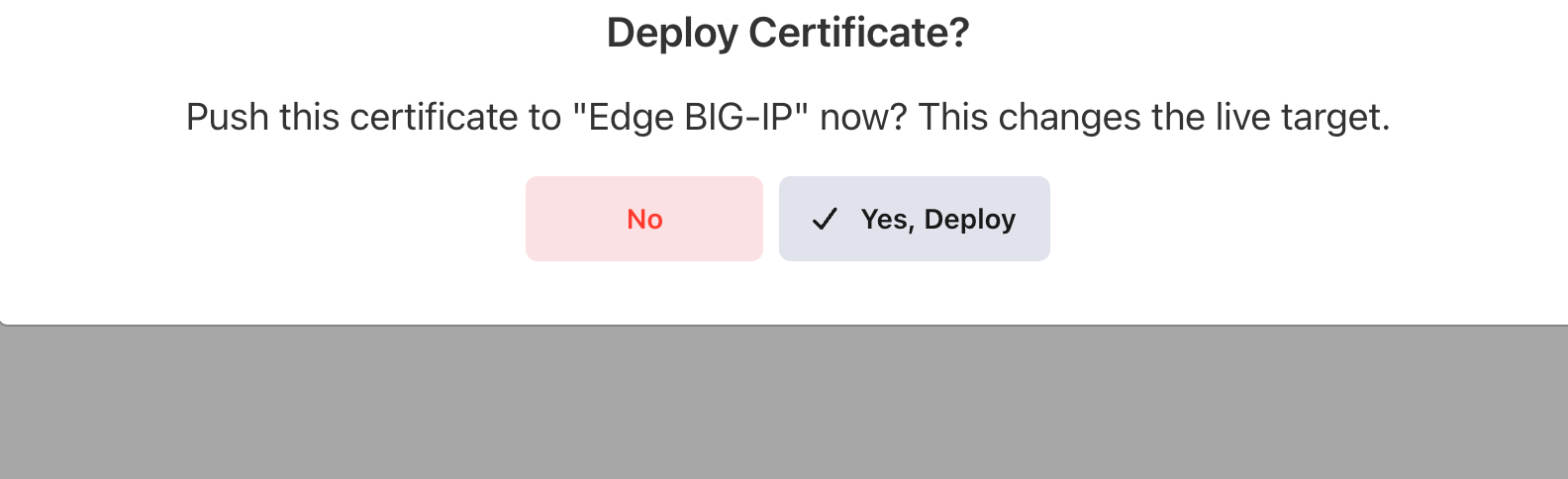
Every deployment is confirmed before it runs.
The run happens in the background and the result lands on the target's row and in Certificates → Deployments → History.

What a finished deployment looks like.
Repointed 'example-inspection' at 'portal-example-com' on FortiManager.
The certificate is in the ADOM store and the named inspection profile now uses it.
"Succeeded" here means the appliance was read back. When a profile is in re-signing mode, FortiManager accepts a write to server-cert with an OK and then discards it. Monopam therefore sets the matching mode in the same write and reads the profile back afterwards to confirm it really names the certificate. A deployment that reports success has been verified on the appliance, not merely acknowledged by it.
4. When a policy asks for approval
If a Certificate Approval Policy covers this operation, the deployment does not run on the click. Monopam raises a request, tells you so, and carries the deployment out itself the moment somebody approves it. You do not come back and press the button again.
The approver sees which certificate is going where, on the request itself:
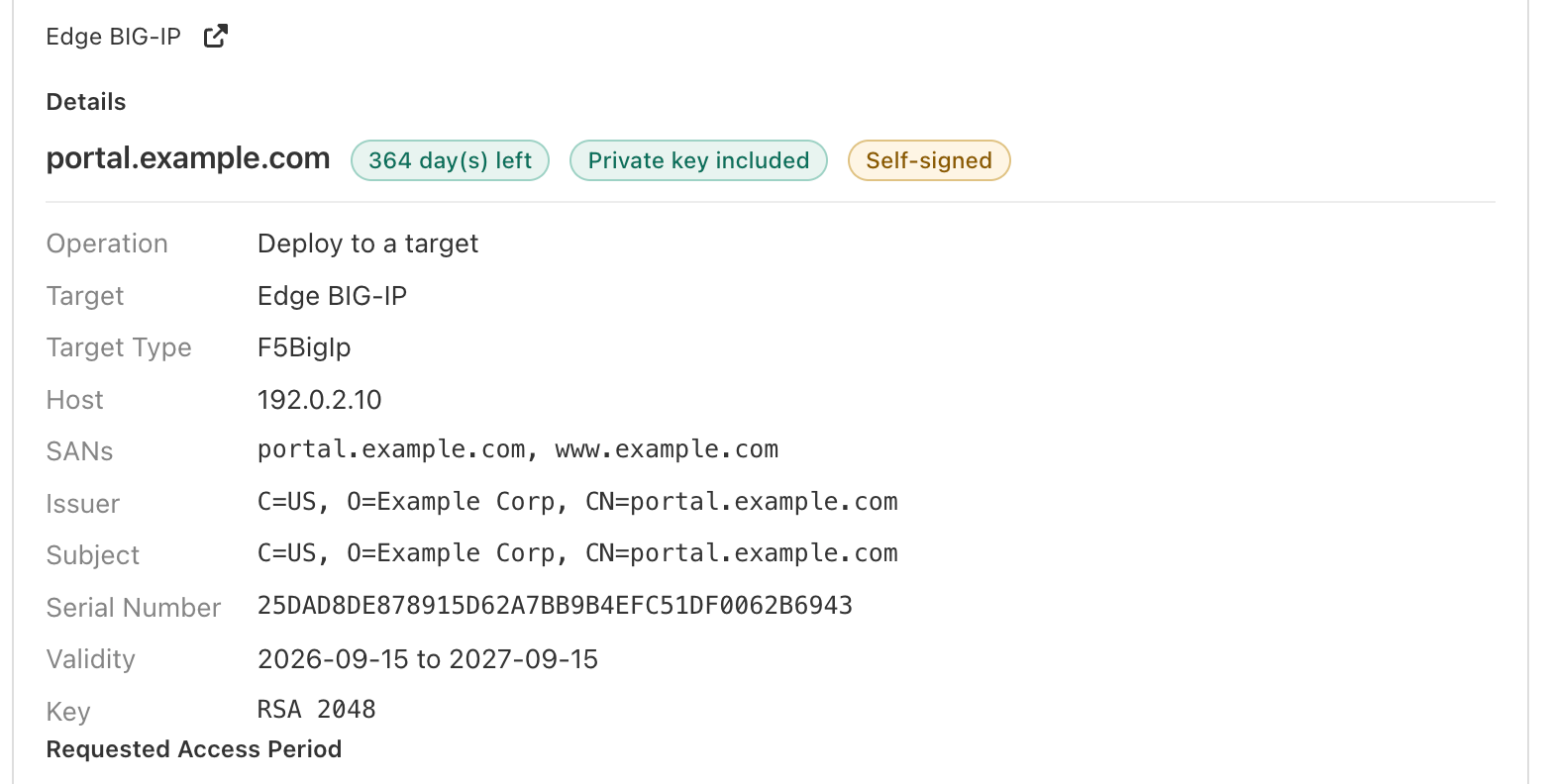
The request names the certificate, how long it has left, whether its private key came with it, and the appliance it is bound for.
If the policy is set to refuse rather than to ask, the deployment stops immediately with the policy's own wording, and no request is raised. Either outcome is written to Audits against the certificate.
5. Undoing a deployment
Every deployment records the profile's binding and whether the certificate object already existed. In Certificates → Deployments → History, tick a run and the undo actions appear above the list.

Two ways back. Which ones are offered depends on what the run captured.
Unlike a BIG-IP, FortiManager hands back the object it was holding, so Restore previous certificate is genuinely available here when the profile named something before. A button that cannot work on the runs you selected is disabled and says why when you hover it, rather than failing after the fact.
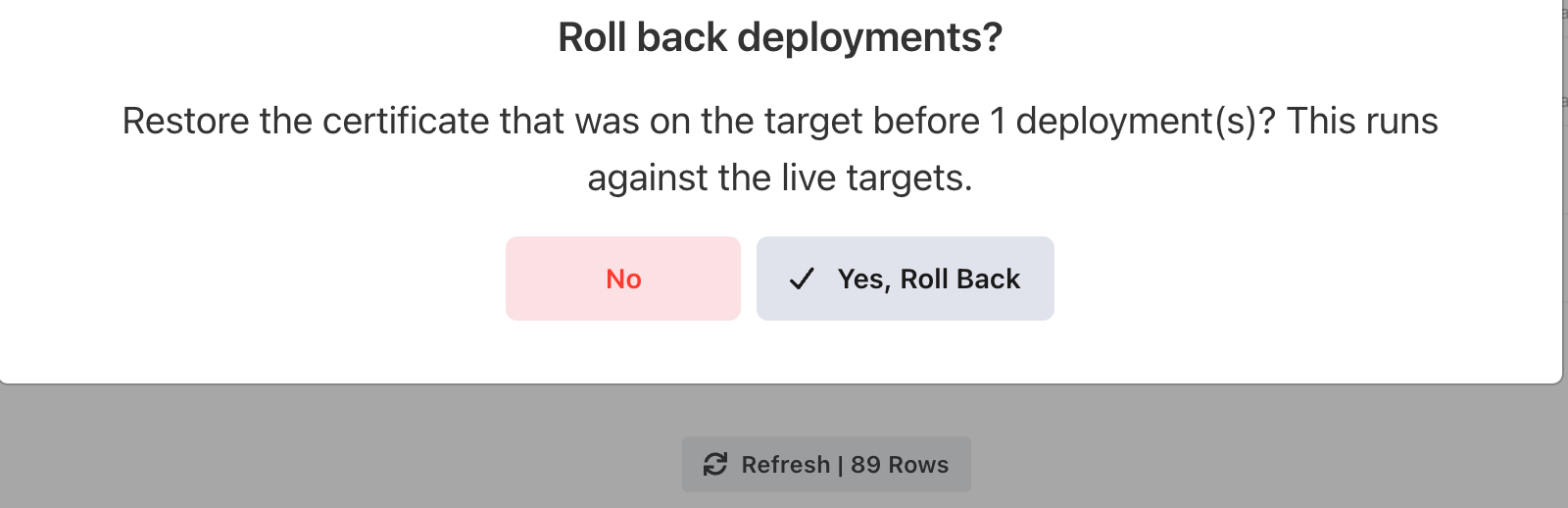
Undo is confirmed too, and states that it runs against the live appliance.
profile 'example-inspection' repointed; certificate 'portal-example-com' removed.
The profile serves what it served before, and the certificate this deployment created is gone.
certificate 'portal-example-com' existed before this deployment and was left in place
The certificate object was already on the appliance before this run, so this run is not what created it. Only the profile binding was put back.
Undoing does not reach a FortiGate the deployment installed to. If Install to the FortiGate after the change was on, run your own install after the rollback so the device picks up the restored configuration. A rollback also puts the ADOM's dynamic local certificate back: it deletes one the deployment created, and restores the device's mapping in one that was already there.
6. Renewals
With Automatically deploy when the certificate renews left on, a renewed certificate is imported under the same certificate name, the profile follows it, and the change is committed. The appliance keeps one object per service rather than collecting one per renewal.
A deployment that fails is retried on a widening schedule; the row shows the attempt count and when the next one is due. A target that is switched off is skipped entirely, and says so.
Read what is already on the appliance
Deployment answers "put this certificate there". A resource scan answers the opposite question: what is on that box already, including the certificates no profile uses and nobody remembers importing.
Register the appliance as a resource first, then go to Certificates → Resource Scan → Scan a resource and set Device Type to Fortinet FortiManager.
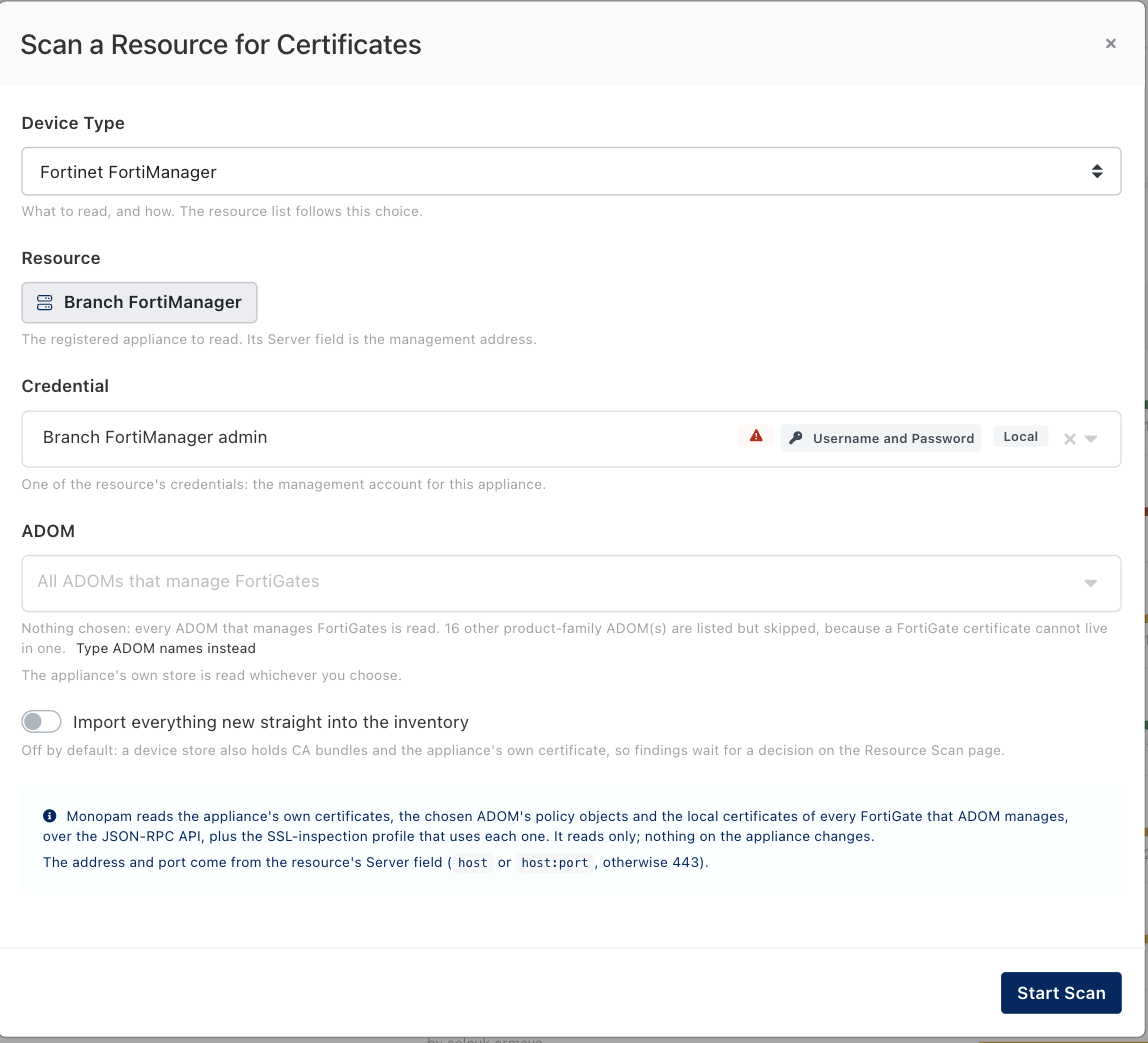
A scan is read-only. It changes nothing on the appliance.
A FortiManager scan reads three places, and the Where column tells you which one each finding came from:
Scope | What it holds |
|---|---|
| The appliance's own store, including the Fortinet and public CA certificates the box ships with, for example |
| An ADOM's policy objects: the certificates your own work put there, for example |
| The local certificate store of a FortiGate that ADOM manages, read through FortiManager rather than from the device directly. |
Leave ADOM empty and every ADOM that manages FortiGates is read. The dialog says how many other ADOMs it found and skipped: a FortiManager that also has FortiAnalyzer or FortiWeb ADOMs cannot hold a FortiGate certificate in them, so reading them would only produce noise. Name ADOMs explicitly when you want a narrower scan.

The global store is mostly the roots the appliance shipped with. This is why findings wait for a decision by default.
Leave Import everything new straight into the inventory off the first time, exactly because of the screenshot above: a device store also holds CA bundles and the appliance's own certificate, and you rarely want those as managed rows. With the switch off, every finding waits for you to import or ignore it.
The findings that repay attention are the ones in an ADOM with something in Used by:

One certificate, three appliances, one list. The FortiManager row names the inspection profile that uses it and the ADOM it lives in.
MANAGED means Monopam holds this certificate and can renew and redeploy it. Unmanaged means the appliance has it and Monopam does not: that is the backlog a first scan exists to find.
Used by resolves the SSL-inspection profile that names each certificate, with the scope it lives in. A certificate that says nothing bound is imported but no profile uses it.
Matched means the certificate on the appliance is byte for byte the one in the inventory. That is the state the next section watches for changes.
A scan remembers your decisions: re-scanning never re-raises something you imported or ignored, unless the object's certificate changed.
One certificate across several appliances
A deployment target is one appliance. When a service is only correct if the FortiManager, the load balancer and the firewall management plane all carry the same certificate, you want the three changes to succeed or fail together. That is a building template: an ordered plan that runs as one transaction.
Go to Certificates → Building Templates → New Template, add a step, and set Device to Fortinet FortiManager. The step is then configured by exactly the fields the deployment target uses.
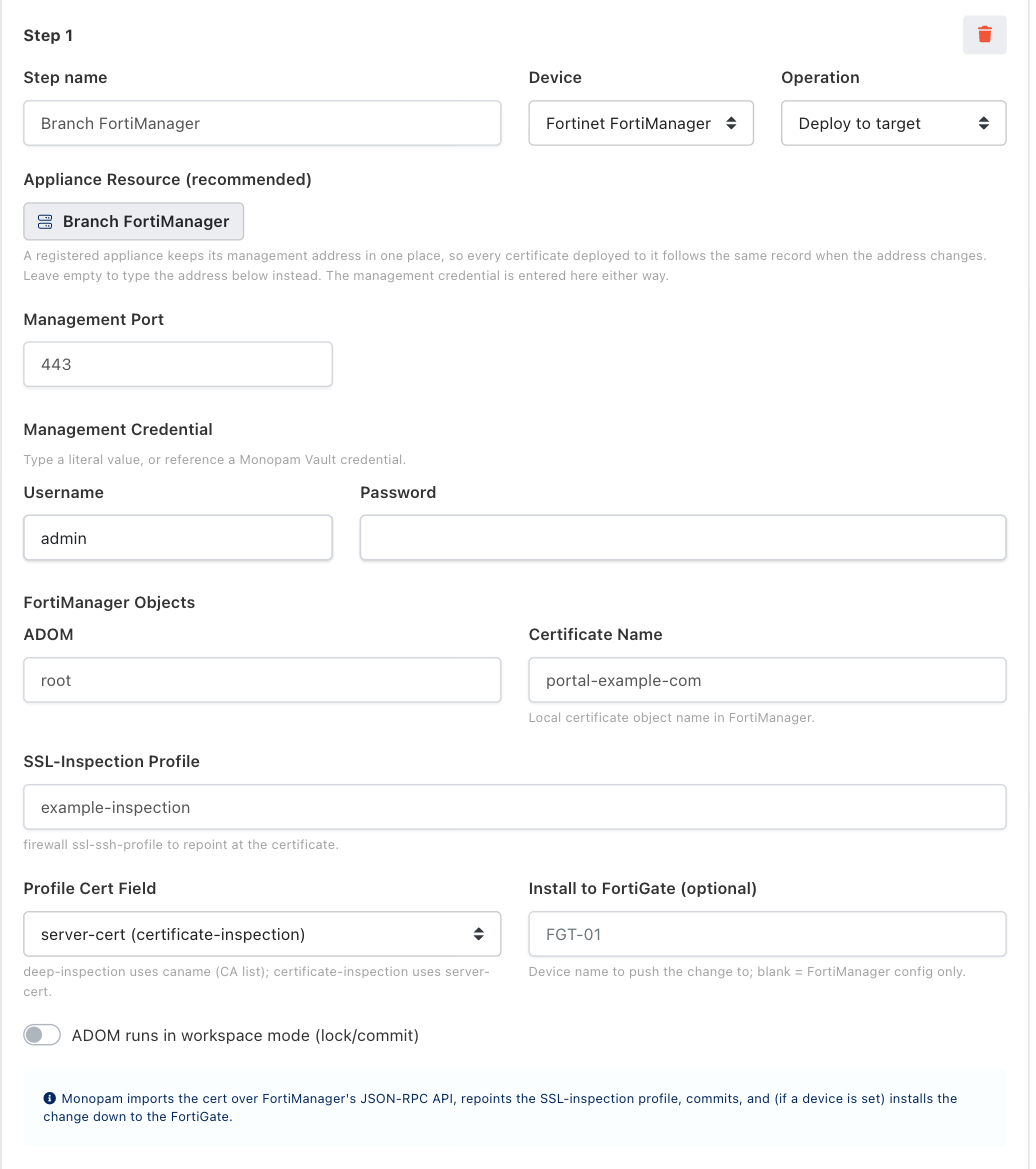
A FortiManager step. This device offers two operations: Deploy to target, which is the deployment above, and FortiManager clone + move policies, which is below.

A template is a plan, not a property of a certificate: you choose the certificate when you run it.
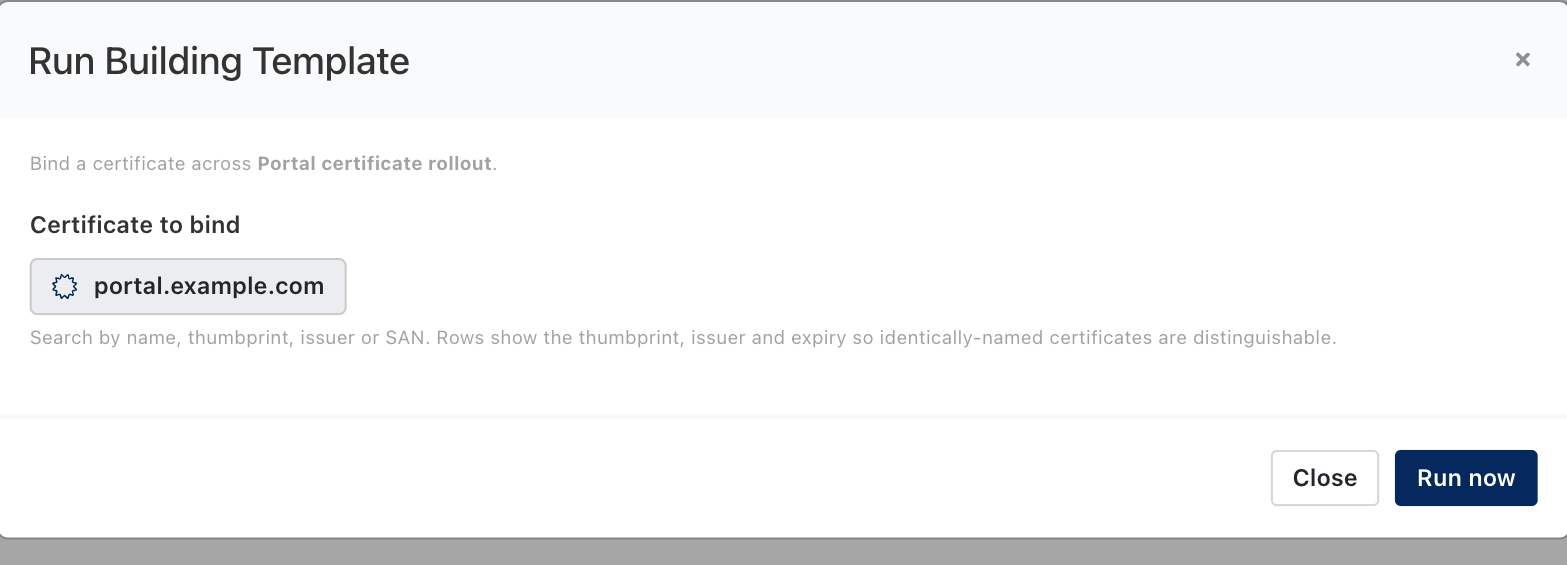
Running a template against a certificate.
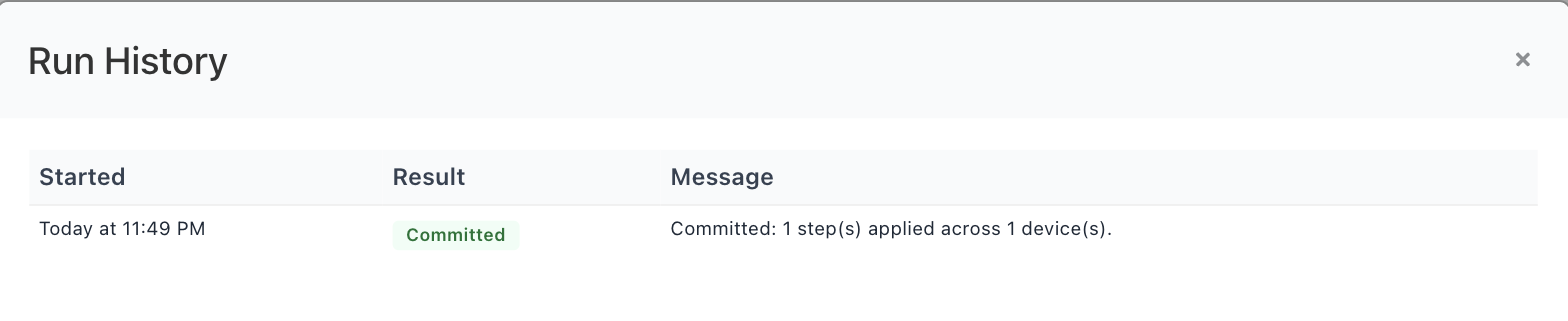
The run's own history. Committed means every step succeeded.
All or nothing. Steps run in order, and the first failure undoes every step that already succeeded, in reverse, from what that step captured off its own device. A run ends as Committed or RolledBack; there is no half-applied state to clean up by hand. The flip side: a template that has already committed cannot be rolled back, neither from here nor from the deployment history, where its steps appear as step of template … with no restore offered. Undo a committed change by running the template again with the earlier certificate. Every run stays on record under Building template runs, on the certificate's Deployment tab and below Deployments → History.
Giving one service its own certificate
On a FortiGate the certificate is not a property of a policy. It lives in an SSL-inspection profile, and a firewall policy names that profile. Several services normally share one profile, so replacing the certificate in it replaces the certificate for all of them at once. Four services behind four addresses, all inspected by deep-inspection, are four services on one certificate.
To change the certificate of one of them and leave the other three alone, that service's policy has to move onto a profile of its own. The second operation this device offers, FortiManager clone + move policies, does that as one transaction: it copies the shared profile under a new name with FortiManager's own clone, writes the certificate into the copy, and repoints only the policies you name. The shared profile is read, never written.
Read this before you start: it only works if each address has its own policy. Monopam moves a policy; it never creates, splits or edits one. If one policy's destination carries all four addresses, moving that policy moves all four. The next section tells you which of the two you have, in about ten seconds, before anything is changed.
Step 0. Which shape is your estate in?
Go to Certificates → Building Templates → New Template → Add step, set Device to Fortinet FortiManager and Operation to FortiManager clone + move policies, fill in the management address and credential, and press Load from appliance. Choose the Policy package, then type the address of the one service into the box above the policy list.
Read what comes back. Each policy is labelled name → destination objects (their addresses) · uses profile, and that label is the answer:
What the search shows | Shape | What to do |
|---|---|---|
One policy, and the addresses in brackets are only the address you typed | A. One policy per service. The normal case | Carry straight on. Moving this policy moves only this service |
One policy, and the brackets carry several addresses, with a warning under the list | B. One policy serves several services. Either its destination lists several objects, or it names one group that holds them | Stop. The firewall administrator splits that policy first (see below). Then come back and the search shows shape A |
Several policies | C. Several policies reach the same address, for example one per source zone | Select all of them. A service is only moved consistently if every policy in front of it moves |
Nothing, and the empty-state message appears | D. The address is not reachable from this package's destination objects | Check the package and the ADOM first, then search by the policy's name. See When the search finds nothing below |
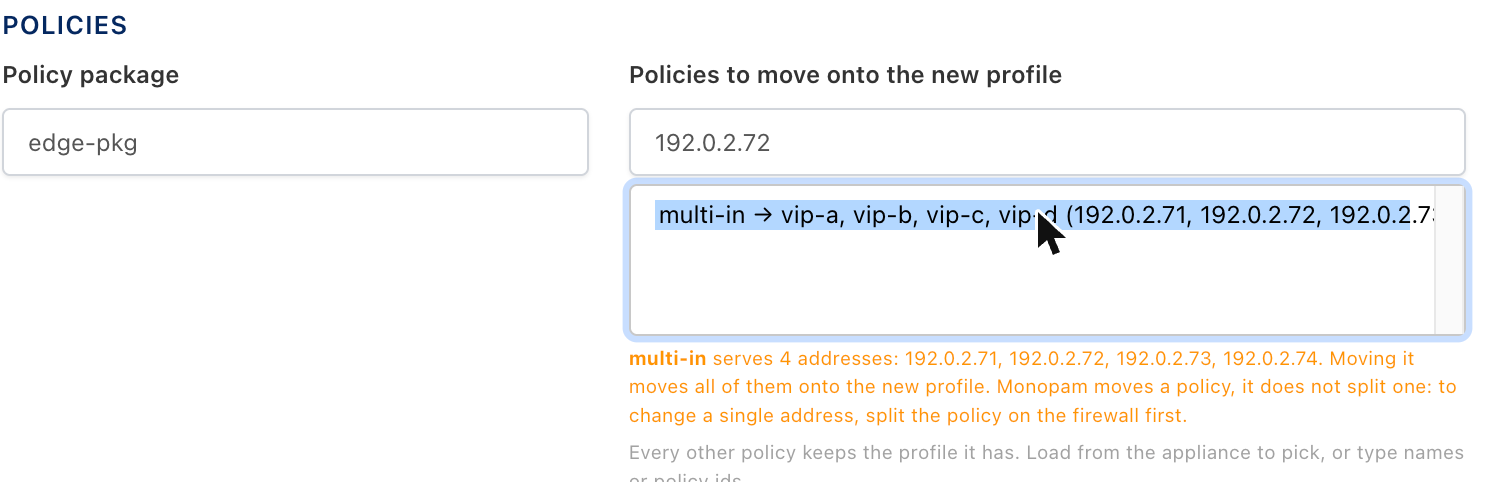
Shape B, caught before anything is changed: one policy carries four addresses, and the list says so.
Splitting a policy (shape B), on the firewall, not here. In FortiManager Policy & Objects, clone the policy, leave the one address on the copy and remove it from the original (or, where the destination is a group, take the member out of the group and give it its own policy), then order the two so the specific one is matched. Install the package. The addresses, the service and the action stay as they were; only the destination differs. Monopam does not do this because splitting a policy changes what the firewall permits, which is a firewall decision, not a certificate one.
Step 1. Fill in the step
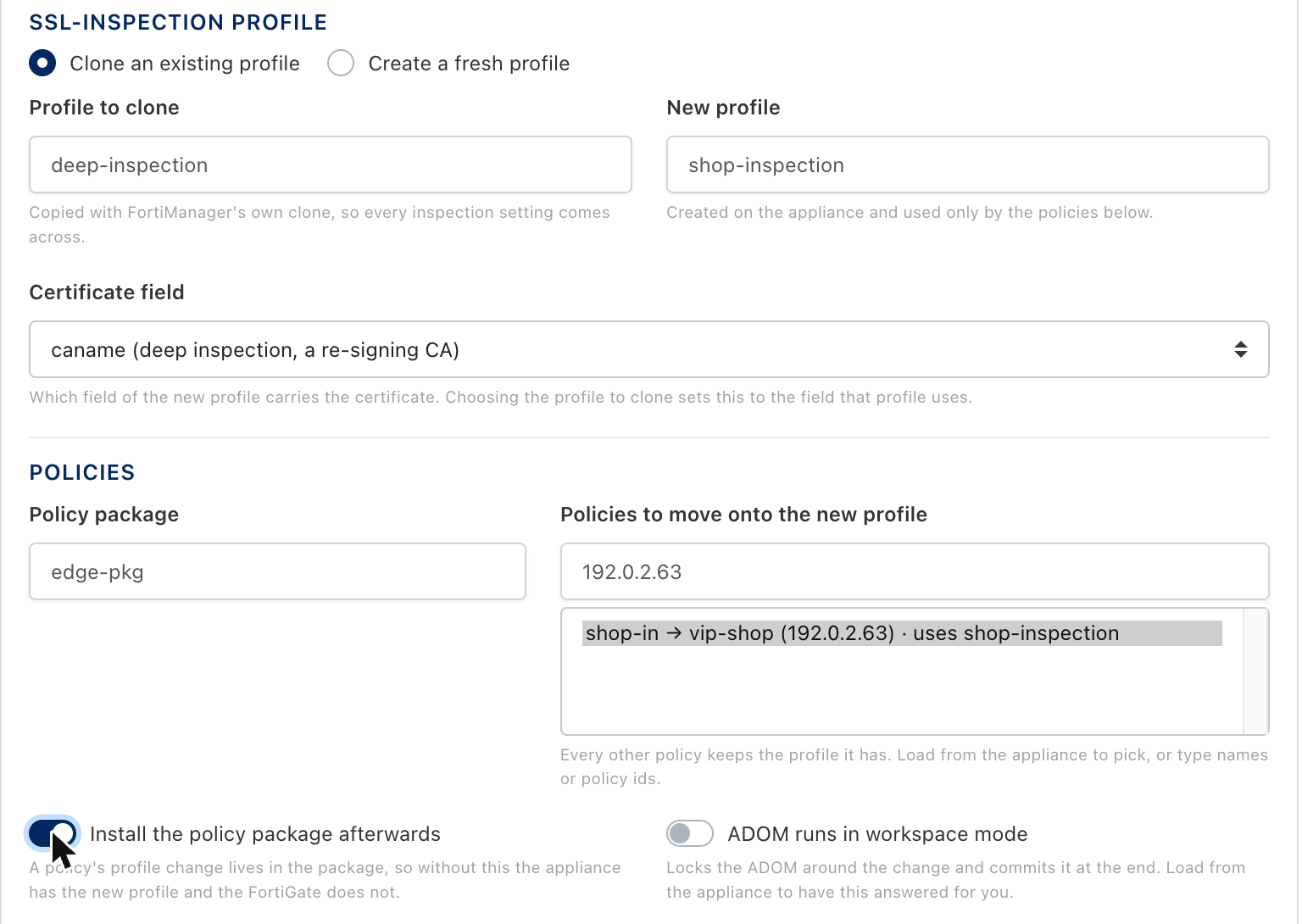
Finding the one policy to move by the address the service answers on.
Field | What to put in it |
|---|---|
Management host / Port / Username / Password | The FortiManager and an administrator on it. A Vault reference such as |
ADOM | The administrative domain everything below lives in. Every name offered after Load from appliance belongs to this ADOM, so set it first |
FortiGate / VDOM | The device whose store holds the certificate, and which the package installs to. An SSL-inspection re-signing certificate is device-scoped: it has to live on the box that uses it |
Certificate name | The certificate object created on the device and mapped into the ADOM. Give each service its own name; a name another object already holds in the ADOM is retired first, and one that something else still uses stops the step with |
Profile source | Clone an existing profile in nearly every case. Create a fresh profile starts from the appliance's defaults and loses whatever the shared profile had been tuned to do |
Profile to clone | The shared profile, for example |
New profile | The name the copy gets, for example |
Certificate field | Set for you when you choose the profile to clone. Leave it alone. See Which certificate the profile needs below |
Policy package | The package the policies live in. A package inside a folder is named |
Policies to move onto the new profile | Type the address the service answers on, for example |
Install the policy package afterwards | Leave on. A policy's profile change lives in the package, so without an install FortiManager has the new profile and the FortiGate does not |
ADOM runs in workspace mode | Locks the ADOM around the change and commits at the end. Load from appliance answers this for you |
The certificate itself is chosen when the template is run, not here. A template is a plan; the same plan can be run against this year's certificate and next year's.
Searching by address, and what it can and cannot see
FortiManager cannot be asked which policy serves an address, because a policy holds only object names in its destination. Monopam reads the ADOM's address book once (VIPs, address objects, address groups and VIP groups) and resolves each policy's destinations into the addresses they stand for. That resolution is what makes the search work, and it also fixes its limits:
Typed | Finds |
|---|---|
| A VIP whose external address is that, an address object that is exactly that, and any subnet or range that contains it. A VIP with no external address contributes its mapped address instead |
| The policy whose destination is |
An address inside a group | The policy that names the group. Groups of groups are followed too |
A name, an id, or part of one | The policy's name, its policy id, and its destination object names, as plain text. |
A catch-all destination is deliberately never an address match. A policy whose destination is all or 0.0.0.0/0 contains every address, so matching it would hand back the same policy whatever you typed and tell you nothing. It is still found by its name.
When the search finds nothing (shape D), work down this list:
The policy package is wrong, or the ADOM is. Both are easy to get wrong when several ADOMs carry similarly named packages.
The address only appears in the policy's source. Only destinations are resolved, because that is where a service being inspected sits.
The destination is a dynamic object (EMS tag, SDN connector). It has no address of its own until its connector resolves one, so it contributes nothing to the search. Search by name.
The service is reached through an object this package's policies do not name at all, for example a VIP referenced only in another package.
In all of these the policy is still selectable: clear the box and pick it from the full list, or type its name or policy id.
Naming the policy package
FortiManager lets packages sit in folders, and a package inside one is addressed by its full path, folder/package, not by its own name. The appliance refuses the bare name with [-6] Invalid url, which is the same answer it gives for a package that does not exist, so the two look identical from outside.
Where the package is | What to type |
|---|---|
At the top of the ADOM |
|
In a folder |
|
In a folder inside a folder |
|
Do not type it at all if you can avoid it. After Load from appliance the field suggests every package in the ADOM, folders walked, each with its full path. Picking from that list is the one way to be sure the name is right.
If the run stops with this, the message names the fix:
Nothing was changed: the run stopped before writing to any device.
The policy package 'istanbul-pkg' could not be read in ADOM 'root': [-6] Invalid url.
A package that sits in a folder is named 'folder/package'; the bare name is refused
the same way a missing package is. Press Load from appliance and pick it from the
list, which gives the full path.
Nothing is written before the package and every named policy have been read, so a wrong package name costs nothing but the run.
Which certificate the profile needs
A FortiGate inspection profile holds the certificate in one of two fields, and they want different kinds of certificate:
Profile does | Field | Certificate it needs |
|---|---|---|
Deep inspection: it re-signs the traffic it opens |
| A CA certificate with its private key. The clients have to trust it |
Replace mode (protecting a server you publish) |
| A server certificate with its private key |
Choosing the profile to clone sets the field to whatever that profile uses, which is right by construction. Overriding it produces -10131 Only CA certificate is allowed, or a profile that the appliance accepts and then quietly does not use, which the step catches by reading the profile back: FortiManager accepted the change but '<profile>' still does not use '<cert>' in its <field>.
What the run does, in order
Reads the package and every policy named, and captures the profile each one uses today. A name that matches nothing stops the run here, before any write.
Writes the certificate into the FortiGate's own store and maps it into the ADOM as a dynamic local certificate, exactly as a deployment target does.
Clones the source profile under the new name and points its certificate field at the certificate, then reads the profile back to confirm it took.
Moves each named policy onto the new profile.
Installs the policy package to the FortiGate, if that is on.
If any later step of the template fails, this one is undone in the order the appliance accepts: the policies go back to the profile they named, then the new profile is removed, then the certificates. The order is not a preference: a profile that a policy still names cannot be deleted. Two things are deliberately not undone, and the run says so instead of claiming a clean rollback: an install that already reached the FortiGate, and a profile that existed before the step, whose certificate field is restored rather than the profile deleted, because somebody else may maintain it.
A policy with UTM off names a profile that the FortiGate does not apply. The step moves it anyway and the list marks it UTM off, so a service whose behaviour does not change after a successful run is explained rather than mysterious. Turning inspection on is a security decision and Monopam does not make it.
After the split: keeping it that way at renewal
A building template is not wired to renewal. It runs when somebody presses Run. The split is a one-off; the renewal needs its own arrangement.
Once the service has a profile of its own, add an ordinary FortiManager deployment target on the certificate, pointing SSL-Inspection Profile at the new profile, and turn on Automatically deploy when the certificate renews. Only that one service uses the profile now, so every future renewal changes only that service, with no template and no policy move. In short:
Once: the building template step, to separate the service.
From then on: a deployment target on the new profile, to carry renewals.
Worked example: four addresses, one certificate, change one
An estate where 192.0.2.62, 192.0.2.63, 192.0.2.64 and 192.0.2.65 are all inspected by deep-inspection, so all four present the same certificate. Only the third is to change.
Field | Value |
|---|---|
ADOM / FortiGate / VDOM |
|
Certificate name |
|
Profile source / Profile to clone / New profile | Clone / |
Certificate field |
|
Policy package |
|
Policies | type |
Install the policy package afterwards | on |
The run reports:
Committed: 1 step(s) applied across 1 device(s).
Step 1: Built 'shop-inspection' on 'shop-example-com' and moved 'shop-in' onto it
and installed 'edge-pkg' to 'edge-fgt'.
On the appliance afterwards, one policy has moved and three have not:
Address | Policy | Profile | Certificate |
|---|---|---|---|
192.0.2.62 |
|
| unchanged |
192.0.2.63 |
|
| the new one |
192.0.2.64 |
|
| unchanged |
192.0.2.65 |
|
| unchanged |
Then add the deployment target on shop-inspection with auto-deploy on renewal, and the arrangement looks after itself.
When this operation goes wrong
What you see | What it means | What to do |
|---|---|---|
The operation is not in the Operation list | The step's device is not FortiManager | Set Device first; the operations offered follow it |
| The package is not in that ADOM, or it sits in a folder and was named without it | Load from appliance and pick the package; the list gives the full path |
| The policy name or id does not exist in that package | Pick from the list. Nothing was written |
The warning that the policy serves several addresses | Shape B: moving it moves every address on it | Split the policy on the firewall first |
| A deep-inspection profile was given a server certificate | Let the clone set Certificate field; bind a CA certificate with its private key |
| The field written is not the one this profile's inspection mode uses | Choose the profile to clone again, which sets the field |
| An ADOM object of that name is still used by something else | Use a different certificate name, or stop using that object first |
The run committed but the FortiGate still inspects with the old certificate | The install is off, or it failed | Turn the install on and run again, or install the package from FortiManager. The step message says which |
The run committed and nothing changed for the service | That policy has UTM off, so the FortiGate names the profile without applying it | Expected. Enabling inspection is a firewall decision |
A rollback left the profile behind | The profile existed before the step | Expected: its certificate field was put back instead of the profile being deleted |
What this operation does not do
It does not create, split, reorder or delete a policy, a package, an address object or a VIP. It moves existing policies between profiles.
It does not edit the profile it clones, or any profile other than the one it creates.
It does not turn UTM on.
It does not run from the certificate's own Deploy dialog. That is Deploy to target, which repoints an existing profile and therefore changes the certificate for every service that profile inspects.
It does not renew anything by itself. Use a deployment target for that.
When somebody changes it outside Monopam
A certificate Monopam manages can still be replaced on the appliance by someone with a console and a reason. The next scan notices: the object now holds a different certificate from the one Monopam put there, so the finding is marked as changed, the displaced certificate is named, an alert goes out on the certificate alert channels and an audit entry is written. It is raised once per replacement, because it is a security event and not a line in a report.
Replaced portal.example.com on Today at 2:20 AM. Monopam did not make this change.
How the changed finding reads on the Resource Scan page. The Changed filter above the list collects them.
The displaced certificate's own page says so too, with a banner naming what is on the device now and two ways out:

The banner sits above the tabs, so the owner does not have to go looking.
Put this certificate back deploys it again, through the existing target, which means the approval policy applies to it like any other deployment.
Accept the new certificate takes what is there into the inventory and closes the question, changing nothing on the appliance.
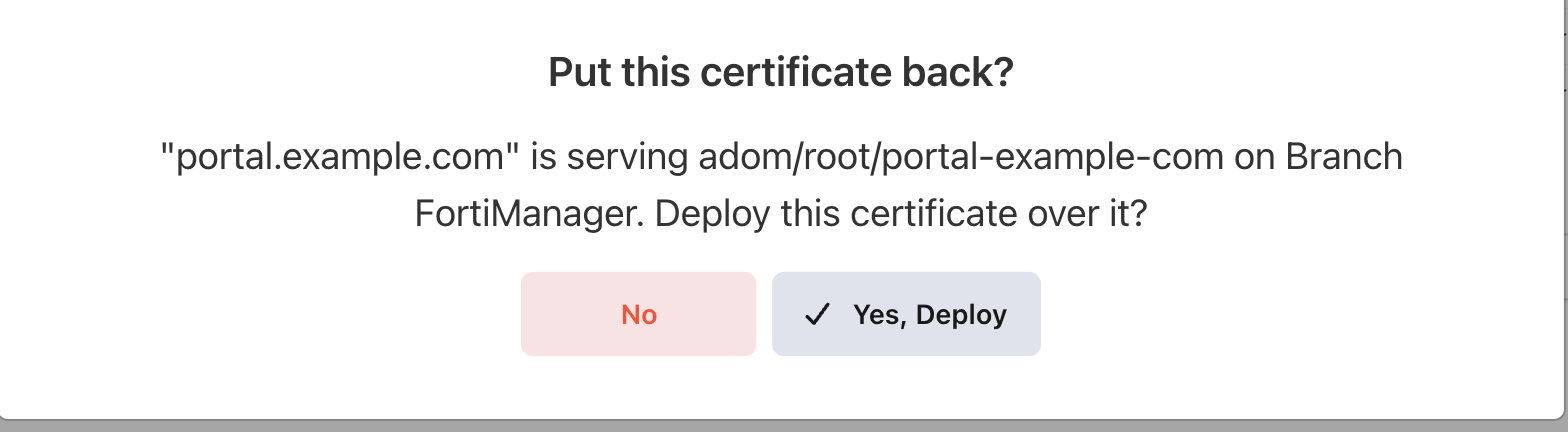
Putting it back is a deployment, and is confirmed like one.
Either answer clears the mark. Monopam also stops claiming the device for the displaced certificate: its sighting for that object is removed, so the certificate's page no longer names a box it is not on.
Link the target to the appliance resource. Put this certificate back is offered only when a deployment target for that resource exists. A target whose address was typed by hand is not recognised as the scanned appliance even when the address matches, and the banner then reads There is no deployment target for this device, so Monopam cannot put the certificate back by itself. Choosing the appliance in Appliance Resource is what makes the difference.
Pushing to every target at once
A certificate with several targets has a Deploy to all targets button on its Deployment tab. It is all-or-nothing: targets are done in order, and the first failure puts back every target already done, in reverse. Use it when a service is only correct if all of its devices carry the same certificate; use the per-target button when getting three of four devices done is better than none.
It is offered only when the certificate has more than one enabled target, and refused outright when deployment history is turned off, because the captured state is what an undo restores from.
Where to see the certificate in FortiManager. With a FortiGate set, open Device Manager → Device & Groups, click the device, then System → Certificates. If that menu is missing, turn on Certificates under System in the device's Feature Visibility. The profile shows it under Policy & Objects → Security Profiles → SSL/SSH Inspection, in Server Certificate. System Settings → Certificates is FortiManager's own store; Monopam never writes there.
When something goes wrong
What you see | What it means |
|---|---|
The deploy succeeded, but the certificate is nowhere in FortiManager and the profile's Server Certificate looks empty | The target has no FortiGate, so the certificate went into the ADOM's object store, which FortiManager's screens do not show. Set the device and deploy again. Do not save that profile in FortiManager in the meantime: its screen shows the field as empty and saving would clear it. |
| The ADOM runs in workspace mode. Turn on ADOM runs in workspace mode (lock/commit). A missing write right on the API account reads differently: |
| An earlier deploy without a device left an ADOM object of that name, and another profile uses it, so it cannot become the device's dynamic certificate. When only the target's own profile uses it, Monopam replaces it by itself. Use another certificate name, or move that other profile off the object first. |
| The target fills |
| The ADOM name is wrong. FortiManager reports a missing ADOM and a wrong path identically, so Monopam checks the name first rather than reporting an empty store. |
| Reported by builds before 2026-09-13, which wrote the ADOM case to a path this firmware does not implement. Update; there is nothing to change on the appliance. |
Succeeded, but the profile still serves the old certificate | Also a pre-2026-09-13 build: |
| The management credential was refused. If the password is a Vault reference, check that it resolves and holds the appliance password rather than a personal one. |
Operation timed out | The management address is not reachable from the Monopam server, or JSON-RPC is not enabled for that administrator. |
A scan returns only | The account can read the appliance's own store but not the ADOM's policy objects. Scan again with an administrator that has ADOM access. |
Certificate has no private key to deploy. | The row is a discovered, public-only certificate. Import the PFX, or issue the certificate through an issuer, and try again. |
This certificate is archived. Unarchive it before deploying. | A retired certificate is deliberately kept away from live endpoints. Unarchive it from the inventory first. |
Deployment is running in the background, and it stays that way | The Monopam service was restarted mid-run. The run is closed as failed within twenty minutes and the button becomes available again. |
A template step fails and the whole run says RolledBack | Working as intended: the steps that already succeeded were undone from what they captured, so no device is left half-changed. Fix the failing step and run it again. |
What this target type does not do
It does not create inspection profiles. It repoints one that already exists.
It does not touch the appliance's trust store. The Fortinet and public roots that ship with the box are not an inventory of what your organisation issued, which is why a scan lists them but imports nothing by default.
It does not install to every managed device. One target names at most one FortiGate; add a target per device if several need the change pushed.
It does not read private keys during a scan. An imported finding is a tracking-only row until you supply the key.
Monopam Certificate Manager. Addresses, names and certificates in the screenshots are examples.
Device guides: F5 BIG-IP · FortiManager · NetScaler · Panorama