
Kerberos Authentication can be configured in two modes: Keytab and SPN + Password. This document describes the SPN + Password mode. In this mode you do not need to generate a keytab file with ktpass. Monosign derives the Kerberos keys from the service account password and the Service Principal Name (SPN) you provide.
The selected mode is what validates sign-ins (after Save). The other mode's stored values are kept but ignored. If you prefer to use a keytab file instead, please read the Kerberos with Keytab documentation.
You can find the following information provided by Microsoft. https://learn.microsoft.com/en-us/windows-server/security/kerberos/kerberos-authentication-overview
Client computer and browser configuration (Windows, macOS) is the same for both modes. Please follow the Kerberos Authentication page for those steps.
Configuring Active Directory
We need an Active Directory service user and a Service Principal Name (SPN) mapped to this user. A keytab file is not required.
Finding the Realm
The Kerberos realm is the DNS name of your Active Directory domain in UPPERCASE. You will use it in the SPN and in Monosign. Run the following command on the Active Directory machine to find it.
(Get-ADDomain).DNSRoot
(Get-ADDomain).DNSRoot.ToUpper()
For example, if the first command returns corp.local, the realm is CORP.LOCAL.
Creating a User
You need to create a service user for the Kerberos Authentication process. Please change parameters for your requirements.
|
Property |
Value |
Description |
|---|---|---|
|
Name |
|
Keep Name, SamAccountName and the UserPrincipalName prefix the same. |
|
SamAccountName |
|
Maximum 20 characters. This value is used as |
|
UserPrincipalName |
|
Use your Active Directory domain name. |
|
AccountPassword |
|
Use unique generated password. This password is also entered in Monosign. |
|
Enabled |
|
|
|
PasswordNeverExpires |
|
Password should never expire |
|
CannotChangePassword |
|
|
|
Description |
Service account for Monofor Kerberos Authentication |
Description of the user |
You can use the following Powershell on the Active Directory machine to create the user.
New-ADUser -Name "svc-monofor-krb" `
    -SamAccountName "svc-monofor-krb" `
    -UserPrincipalName "svc-monofor-krb@your-domain.com" `
    -AccountPassword (ConvertTo-SecureString "YourP@ssw0rd123!Secure" -AsPlainText -Force) `
    -Enabled $true `
    -PasswordNeverExpires $true `
    -CannotChangePassword $true `
    -Description "Service account for Monofor Kerberos Authentication"
Setting the Service Principal Name
Now we are gonna set an SPN for the created user. The host name in the SPN must be the same host name that users type in the browser for the account application. Add the SPN both without realm and with realm. Use the realm you found in the previous step.
setspn -S HTTP/your-account-app.domain.com svc-monofor-krb
setspn -S HTTP/your-account-app.domain.com@YOUR-REALM.COM svc-monofor-krb

setspn -L svc-monofor-krb
Example output of setspn -L should be like following;
Registered ServicePrincipalNames for CN=svc-monofor-krb,CN=Users,DC=your-domain,DC=com:
        HTTP/your-account-app.domain.com
        HTTP/your-account-app.domain.com@YOUR-REALM.COM
An SPN can be registered on only one account in the forest. setspn -S checks for duplicates before adding and aborts with Duplicate SPN found if another account already has it. See the Troubleshooting section. If users reach the sign-in page with more than one host name, register each additional host name as an SPN on the same service account.
Setting the Supported Encryption Type
Now, we are gonna set the user's Supported Encryption Type to AES-256.
Set-ADUser -Identity "svc-monofor-krb" -Replace @{
    "msDS-SupportedEncryptionTypes" = 24
}
You can validate the created information with the following Powershell command.
Get-ADUser "svc-monofor-krb" -Properties * |
    Select-Object Name,
    SamAccountName,
    UserPrincipalName,
    ServicePrincipalNames,
    Enabled,
    PasswordNeverExpires,
    PasswordExpired,
    LockedOut,
    CannotChangePassword,
    @{Name='EncryptionTypes';Expression={$_.'msDS-SupportedEncryptionTypes'}}
Example output should be like following;
# Example Output
Name                  : svc-monofor-krb
SamAccountName        : svc-monofor-krb
UserPrincipalName     : svc-monofor-krb@your-domain.com
ServicePrincipalNames : {HTTP/your-account-app.domain.com@YOUR-REALM.COM, HTTP/your-account-app.domain.com}
Enabled               : True
PasswordNeverExpires  : True
PasswordExpired       : False
LockedOut             : False
CannotChangePassword  : True
EncryptionTypes       : 24
Configuring Monosign
Opening the Directory Source
Log in to Monosign as an administrator and follow these steps.
-
Open Directory from the left menu.
-
Click Sources.
-
Select the Active Directory source you want to enable Kerberos for.
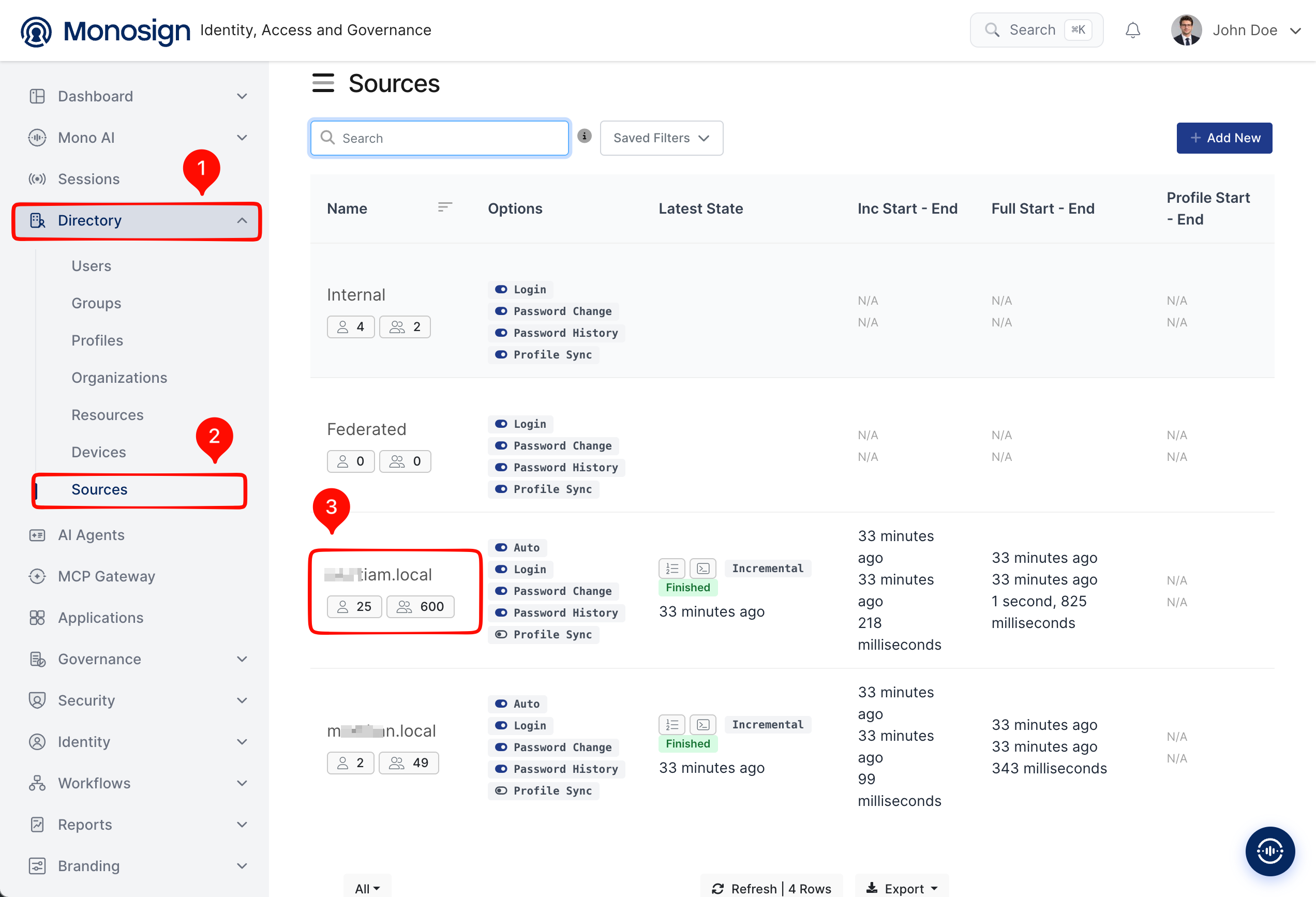
On the source update page (Active Directory / LDAP User Provider), click the Settings button at the top right.
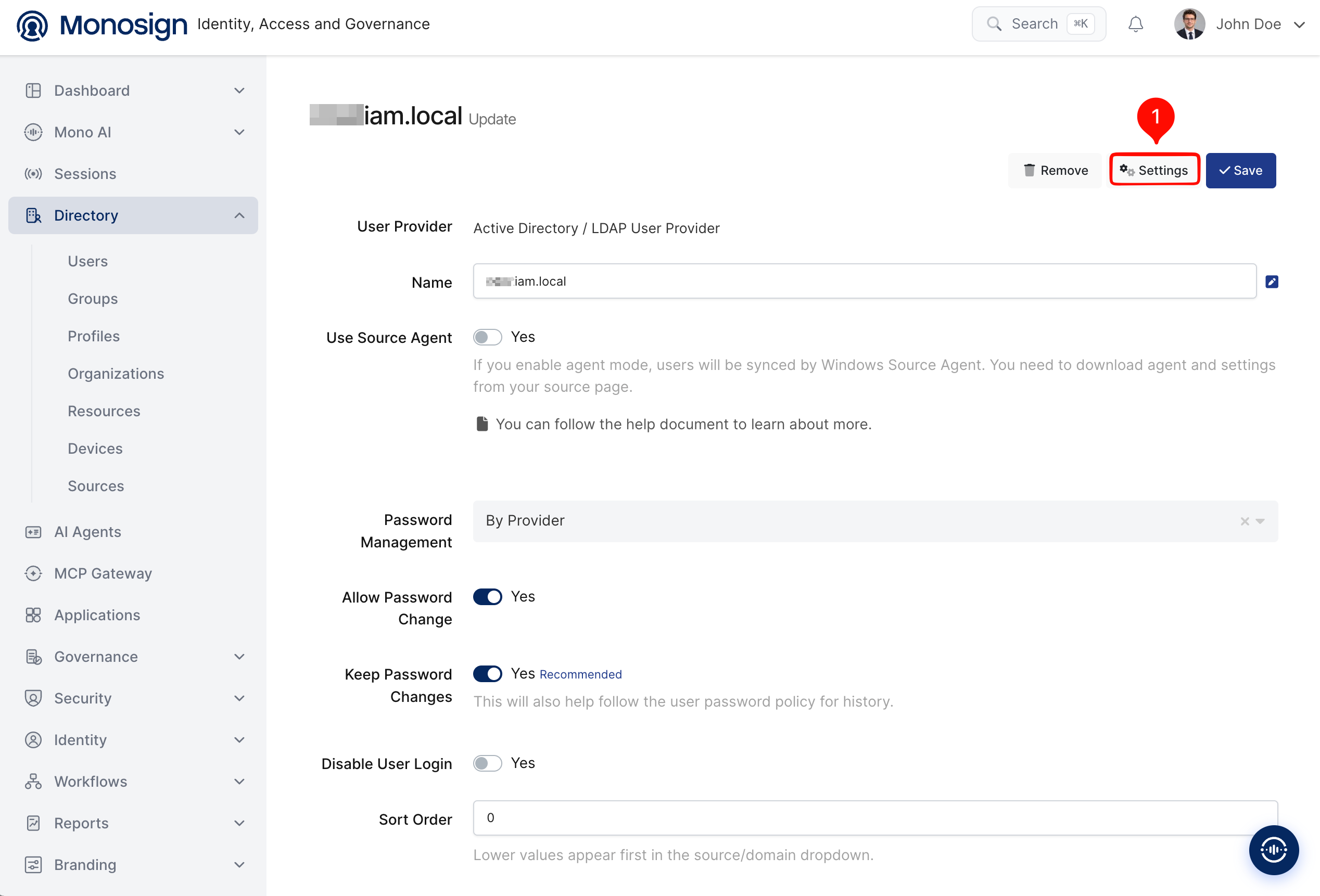
Configuring Kerberos (Windows SSO)
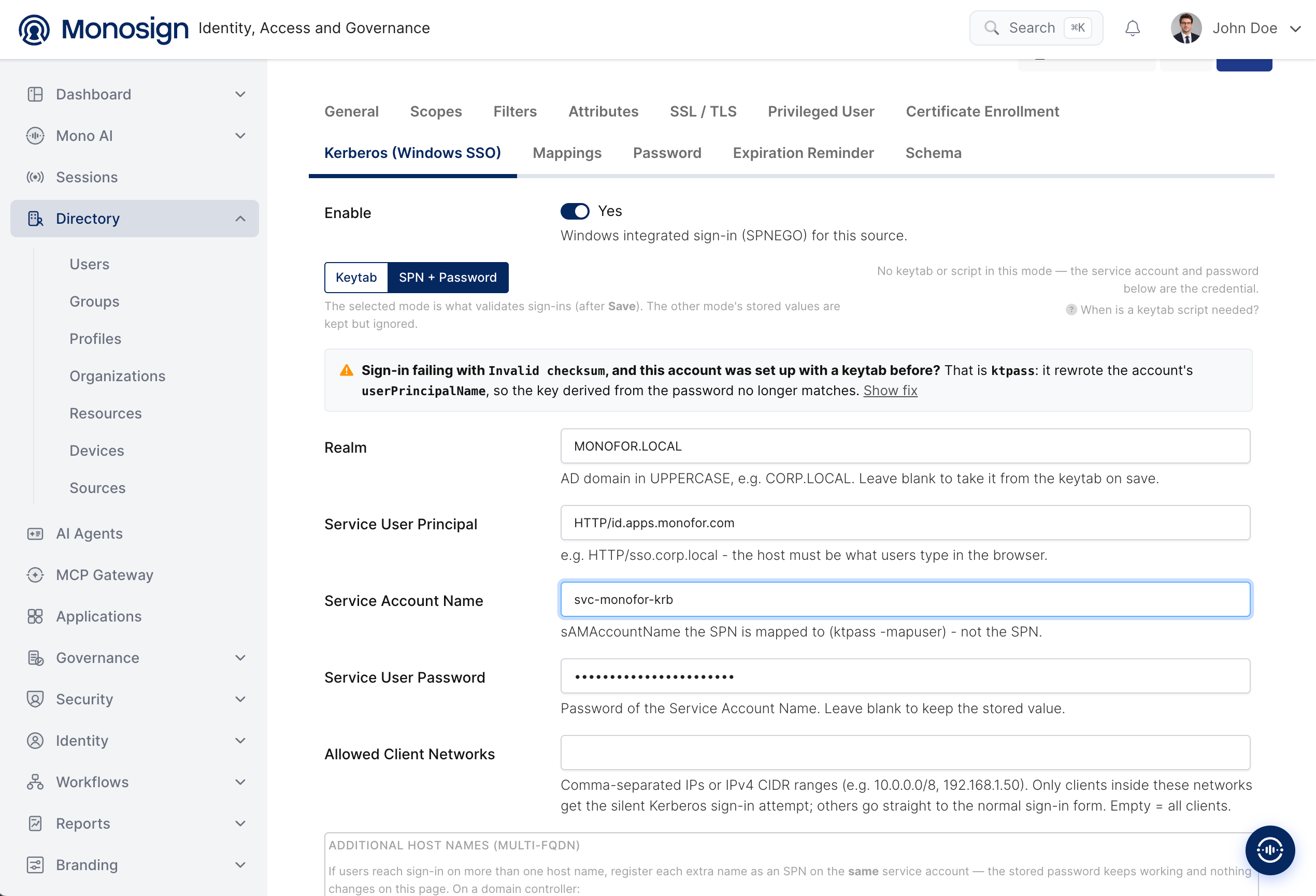
Open the Kerberos (Windows SSO) tab. Enable the feature, switch the mode to SPN + Password and fill in the fields as described below.
|
Field |
Example Value |
Description |
|---|---|---|
|
Enable |
|
Windows integrated sign-in (SPNEGO) for this source. |
|
Mode |
|
The selected mode is what validates sign-ins (after |
|
Realm |
|
AD domain DNS name in UPPERCASE, e.g. |
|
Service User Principal |
|
The SPN without realm, e.g. |
|
Service Account Name |
|
The |
|
Service User Password |
|
Password of the Service Account Name. Leave blank to keep the stored value. |
|
Allowed Client Networks |
|
Optional. Comma-separated IPs or IPv4 CIDR ranges. Only clients inside these networks get the silent Kerberos sign-in attempt; others go straight to the normal sign-in form. Empty = all clients. |
|
Additional Host Names (Multi-FQDN) |
|
Optional. If users reach sign-in on more than one host name, register each extra name as an SPN on the same service account. The stored password keeps working and nothing changes on this page. |
Click Save to apply the configuration.
Use the same Service Account Name and password that you set while creating the user in Active Directory. When editing an existing configuration, you can leave Service User Password blank to keep the stored value.
Testing
On a domain-joined Windows client where the account application URL is added as a Trusted Site, check that a Kerberos ticket can be received for the SPN.
klist get HTTP/your-account-app.domain.com
If a ticket is returned, open the account application URL in the browser. The sign-in should complete without asking for credentials.
Troubleshooting
Duplicate SPN found, aborting operation
setspn -S aborts when the SPN is already registered on another account. Find the account that owns the SPN first.
setspn -Q HTTP/your-account-app.domain.com
If the old account does not need the SPN anymore, remove it and add it to the service user. setspn -D expects the sAMAccountName or the full distinguished name of the account, not the display name (CN). Otherwise it fails with Unable to locate account.
# Use the sAMAccountName or the distinguished name of the old account
setspn -D HTTP/your-account-app.domain.com "CN=old-account,CN=Users,DC=your-domain,DC=com"

setspn -S HTTP/your-account-app.domain.com svc-monofor-krb
setspn -L svc-monofor-krb
Before removing an SPN from another account, make sure no other service uses it. Removing it will break Kerberos for that service.
To scan the whole forest for duplicate SPNs, run setspn -X.
The name provided is not a properly formed account name
The SamAccountName can be a maximum of 20 characters. Use a shorter value such as svc-monofor-krb. The Name (CN) has no such limit, but it is recommended to keep it the same as the SamAccountName.
The specified account already exists
A user with the same Name or SamAccountName already exists, possibly created by a previous attempt. Check it before creating a new one.
Get-ADUser -Filter "Name -like 'svc-monofor*'" -Properties UserPrincipalName, ServicePrincipalNames |
    Select-Object Name, SamAccountName, UserPrincipalName, ServicePrincipalNames
Invalid checksum
Monosign shows a warning on this tab: Sign-in failing with Invalid checksum, and this account was set up with a keytab before?
This happens because ktpass rewrites the account's userPrincipalName, so the key derived from the password no longer matches. If the same service account was previously used with the Keytab mode, restore its userPrincipalName and set the password again.
# Restore the original UserPrincipalName
Set-ADUser -Identity "svc-monofor-krb" -UserPrincipalName "svc-monofor-krb@your-domain.com"

# Reset the password, then enter the same password in Monosign
Set-ADAccountPassword -Identity "svc-monofor-krb" -Reset -NewPassword (ConvertTo-SecureString "YourP@ssw0rd123!Secure" -AsPlainText -Force)
For other cases, please check the following items.
-
The host in the SPN is exactly the host name that users type in the browser.
-
The SPN is registered only once in the forest (
setspn -X). -
The realm is the AD domain DNS name written in UPPERCASE (for example
CORP.LOCAL, not a different domain). -
The password entered in Monosign matches the Active Directory password of the service account.
-
The client is inside one of the
Allowed Client Networks, if the field is not empty.