
This section explains how users should proceed in scenarios where the Monosign application is unavailable (such as services not running, the application certificate having expired, the application server being down, or the machine with MFA enabled being unable to reach the Monosign SSO page).
The possible scenarios are listed below in order:
Note: In all of the disaster scenarios described below, push notification — the primary preferred verification method — cannot be delivered due to the conditions of these scenarios, and the user will not receive a push notification.
-
Monosign Services Not Running
When the Monosign services are not running, the user enters their username and password and then receives a warning indicating that the services are unavailable, after which the system waits for an OTP code. At this point, the Device PIN — which is stored on the mobile Identity application and generated specifically for that device — is used as the OTP code to log in.
The Device PIN generated here is continuously updated by changing at regular intervals, so it does not pose any security concern.
The process steps are listed below in order:

In the OTP code request step, the Device PIN obtained from the mobile application must be entered into field number 2.
-
Offline Mode (No Internet Access)
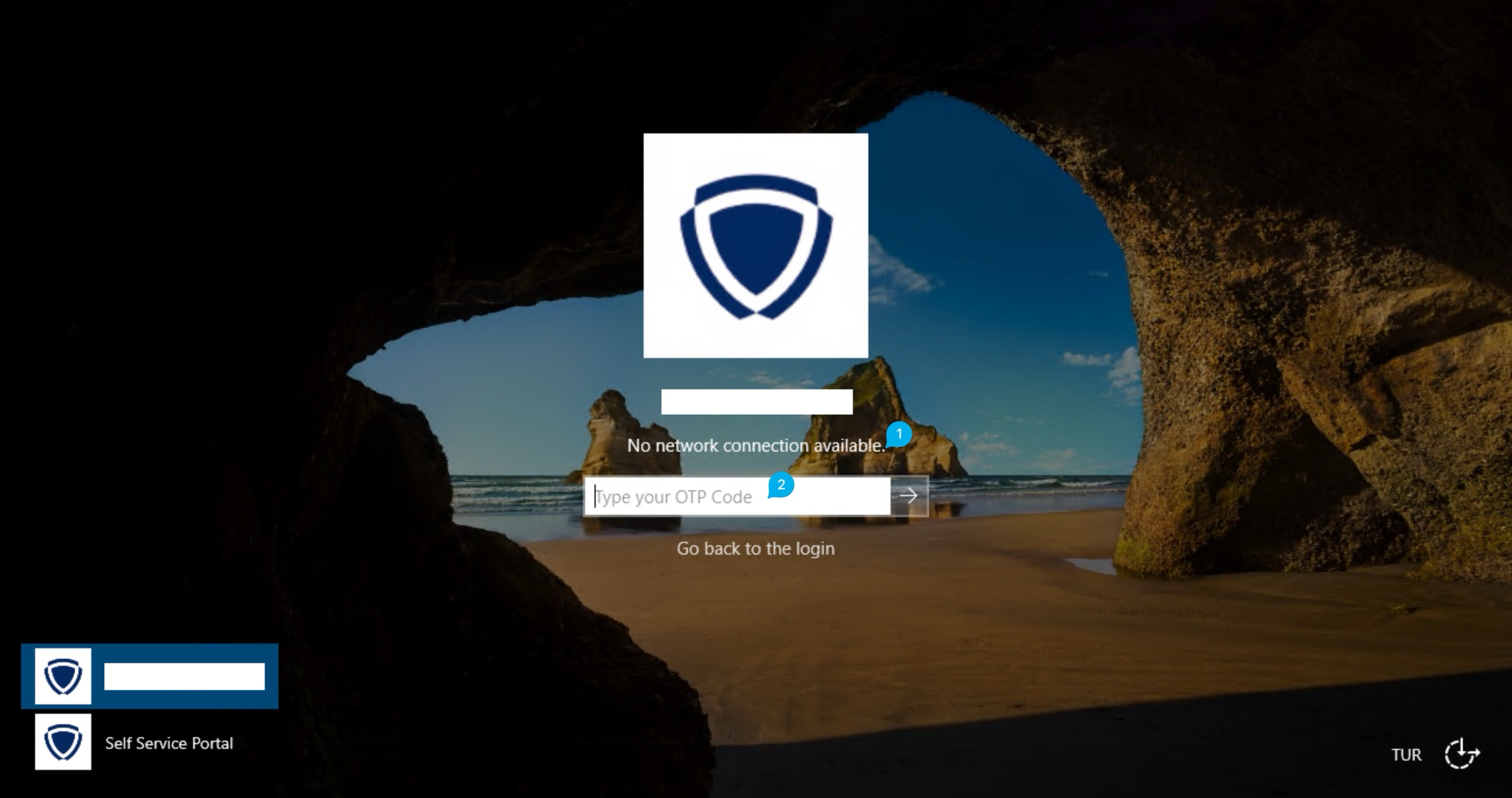
When the device is offline (no internet access), the user enters their username and password and then receives a warning indicating that there is no internet connection, after which the system waits for an OTP code. At this point, the Device PIN — which is stored on the mobile Identity application and generated specifically for that device — is used as the OTP code to log in. The Device PIN generated here is continuously updated by changing at regular intervals, so it does not pose any security concern.
The process steps are listed below in order:
-
Offline Mode and Monosign Services Not Running
When the device is offline (no internet access) and the Monosign services are not running at the same time, a recovery code is used. In the normal flow, after the user enters their username and password, the MFA system sends a push notification to verify the user and allow them to log in. However, when the device is offline and the services are down, the services cannot communicate and the system is unable to send a push notification. In this case, the user must contact the relevant Monosign administrator and request a recovery code, which is specific to their device and changes at regular intervals. The administrator generates a recovery code specific to that user's device and provides it to the user. The user can then log in by entering this code instead of the OTP code.
Note: In order to use the Offline MFA Device PIN, a one-time login must have been previously completed on the relevant device for that user.
Steps for the Admin User to Generate a Recovery Code
-
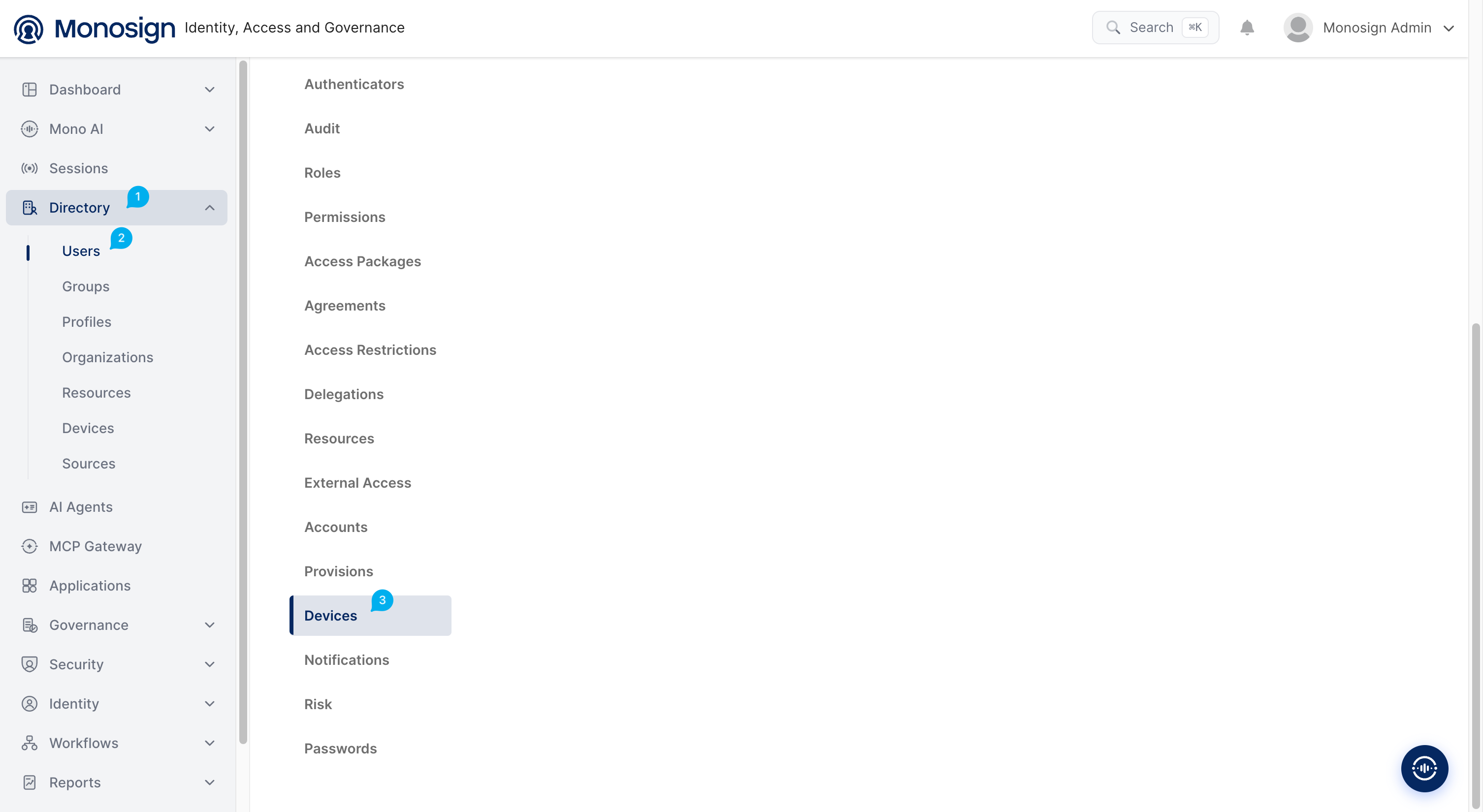
In the left-hand menu, go to the Directory section.
-
Click the Users tab and select the relevant user.
-
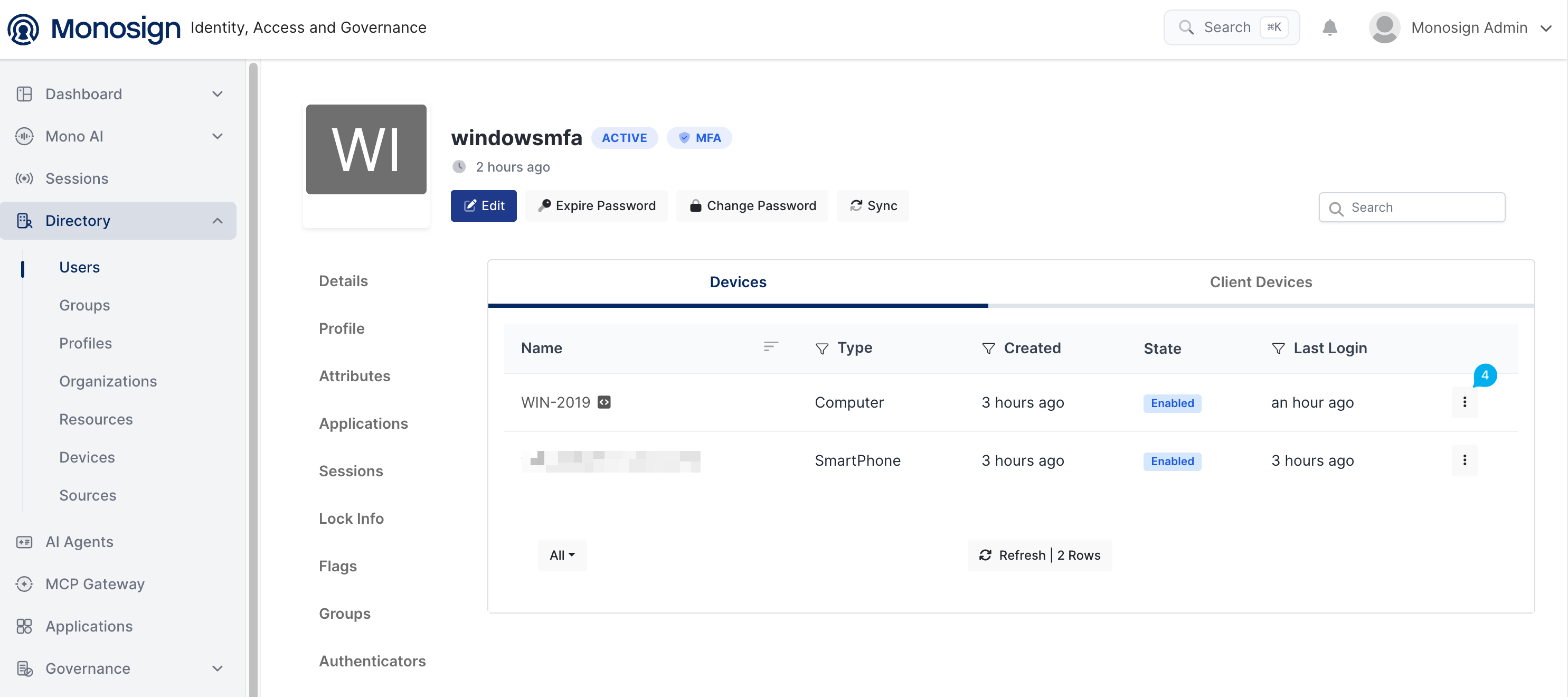
In the panel that opens on the right, click Devices.
-
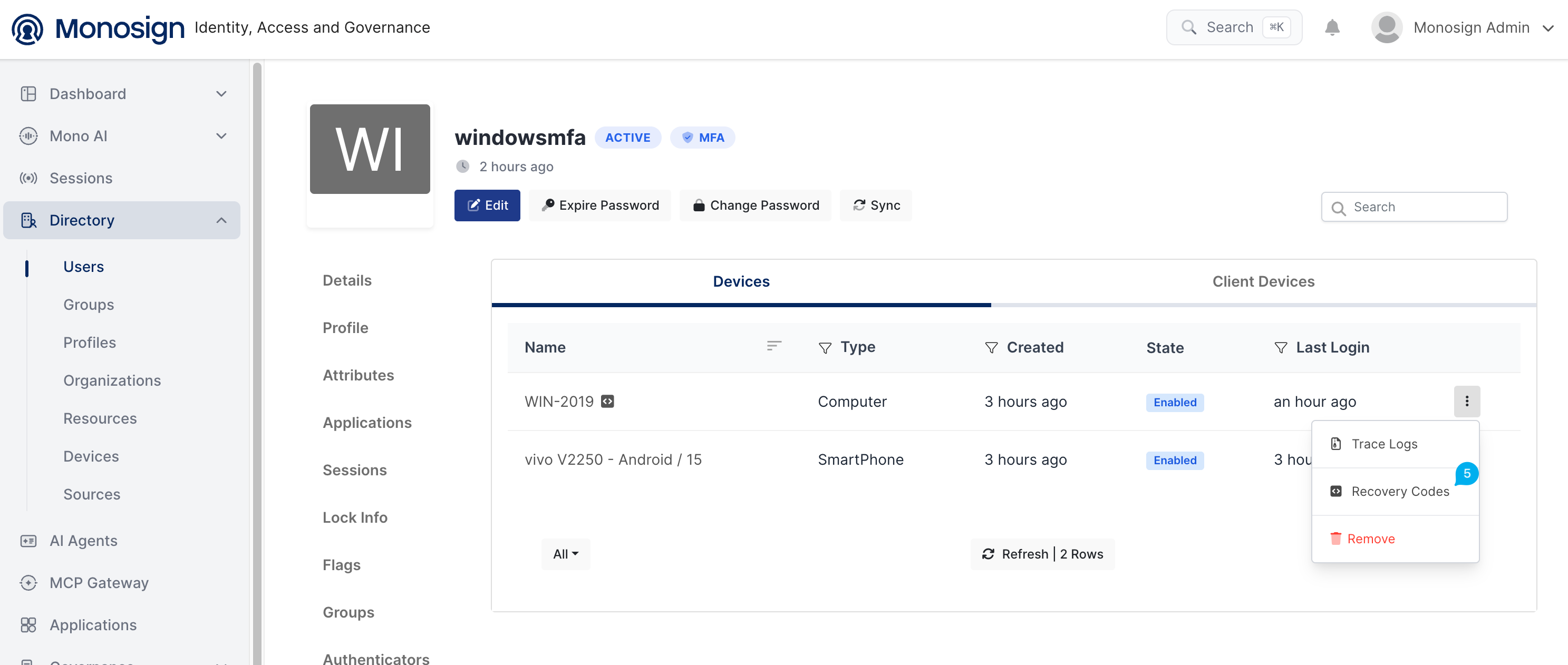
In the user's device list, click the three-dot (⋮) menu on the row of the device for which the recovery code will be generated (WIN-2019).
-
Click Recovery Codes from the menu.
-
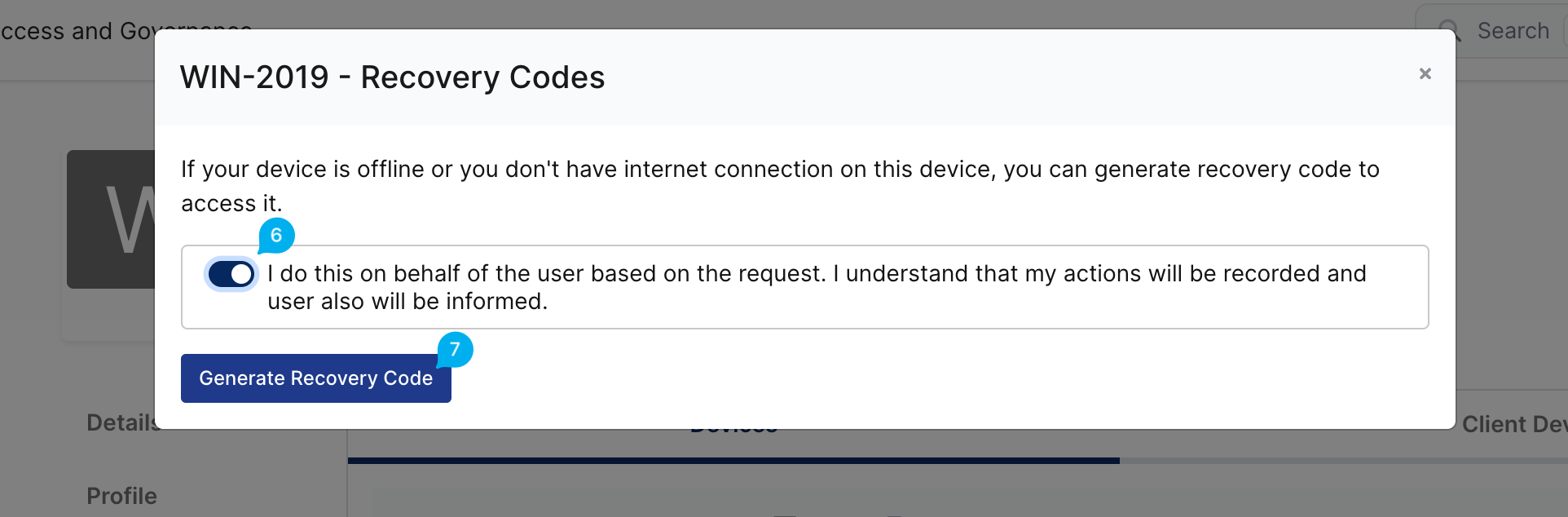
In the window that opens, enable the "I do this on behalf of the user based on the request..." option, confirming that the action is performed on behalf of the user upon their request.
-
Click the Generate Recovery Code button.
-
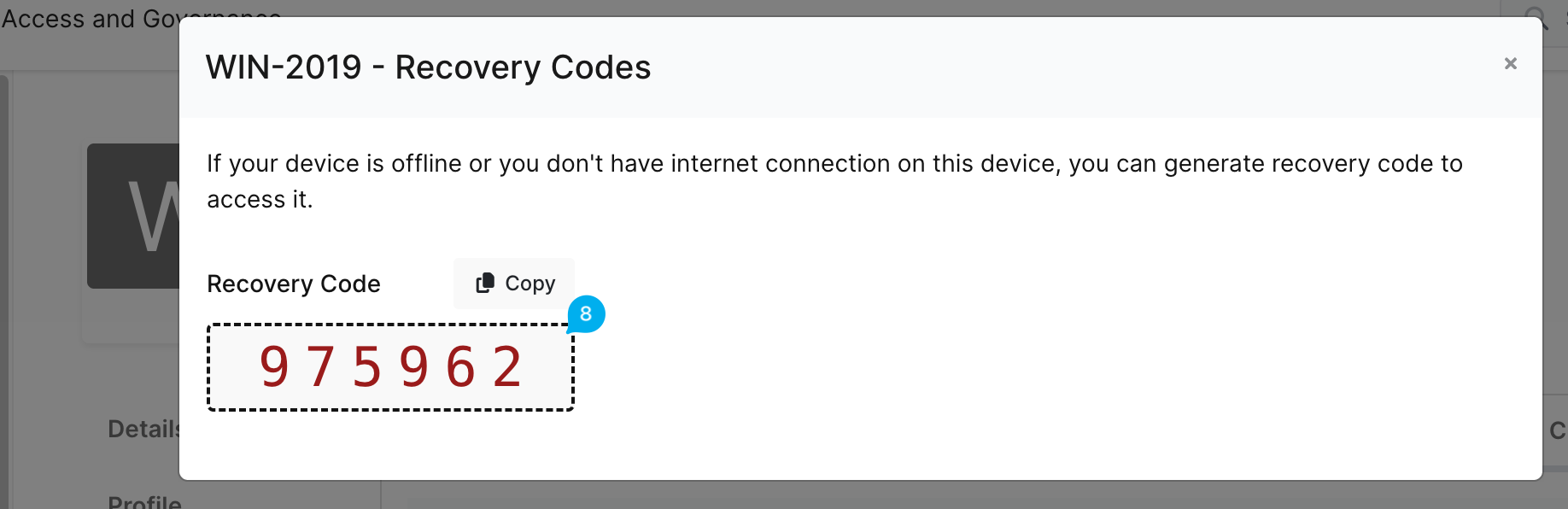
The generated Recovery Code is displayed on the screen; copy it using the Copy button and share it with the user.
Recovery code verification is based on codes generated uniquely for each user and device. The Identity Client installed on the device and the mobile Identity application both derive synchronized (matching) codes from the same base value, and verification is achieved when these codes match.