
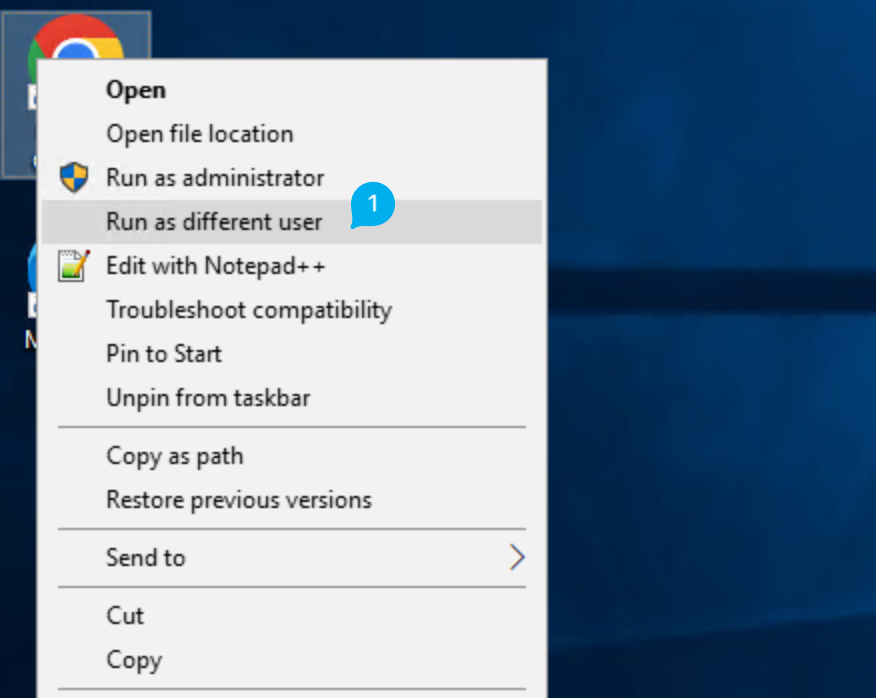
When an application needs to be run under a different user account on Windows (Run as different user), MFA verification is triggered after the relevant user's username and password are entered. At this stage, the user is presented with MFA verification options such as push notification, OTP code, authenticator, and similar methods; the user completes verification using one of these methods and can then run the application under the relevant account. Thanks to this feature, MFA verification is enforced even when running an application under a different user account, preventing unauthorized access and strengthening the security of privileged accounts.
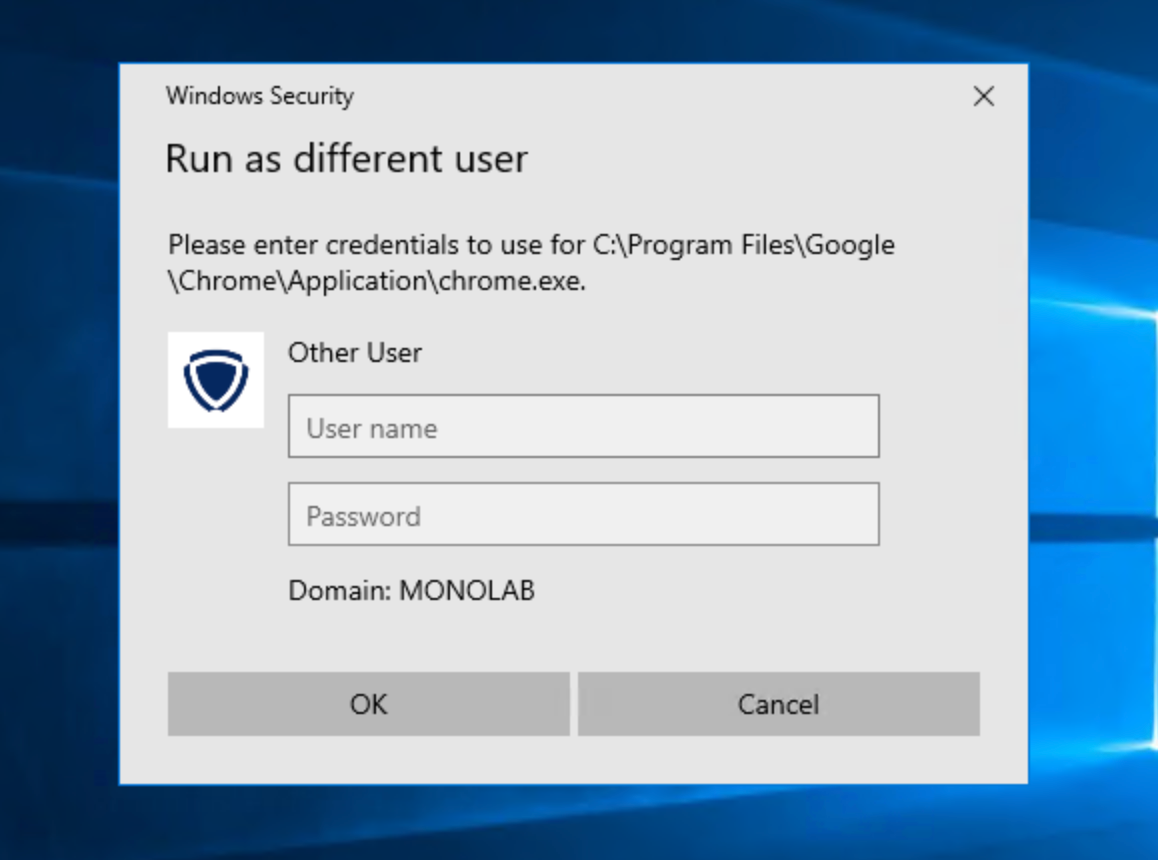
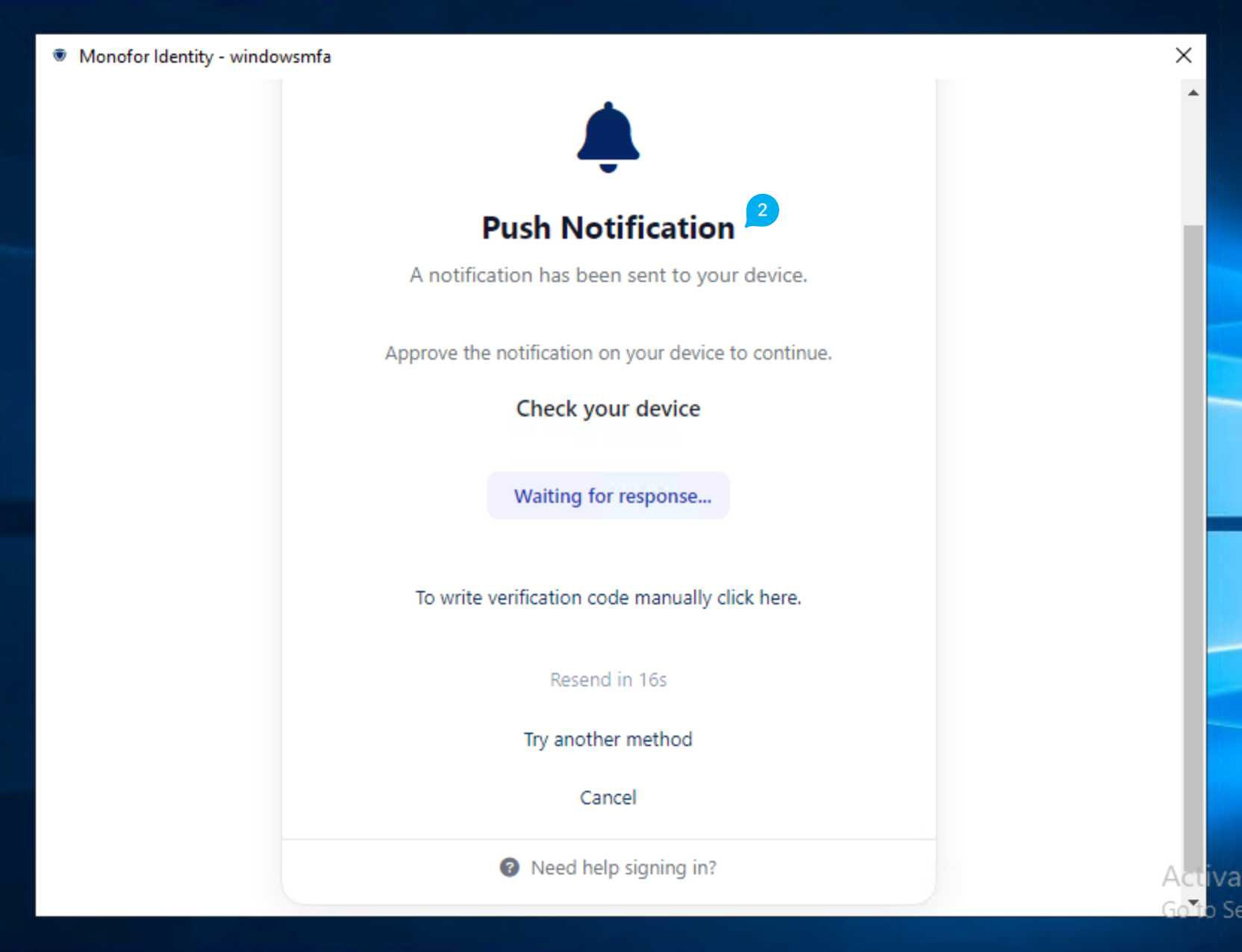
After the credentials are entered, MFA verification is triggered and the Push Notification screen is displayed. A notification is sent to the user's device; the user completes verification by approving the notification on their device. This screen also provides options to enter the verification code manually (To write verification code manually click here) or to select a different verification method (Try another method).