
Seatsurfing OAuth2 Integration
This guide explains how to configure Seatsurfing (open-source desk and room booking) to sign users in through Monosign using OAuth 2.0 (Authorization Code flow).
Seatsurfing supports only a generic OAuth2 provider type, so no ID token or issuer validation is performed. In Monosign the key is created as OIDC/OpenID, and Seatsurfing consumes it as plain OAuth2 (authorize, token and userinfo endpoints).
Prerequisites
-
A running Seatsurfing instance reachable over HTTPS, for example
https://<SEATSURFING_HOST>, and an administrator account. -
The Seatsurfing organization has a domain that matches the e-mail domain of the users (for example
example.com). Users are matched to the organization by the domain of their e-mail address. -
The Seatsurfing server must be able to reach the Monosign host (
https://<IDP_HOST>). -
Administrator access to Monosign.
Part 1: Create the application in Monosign
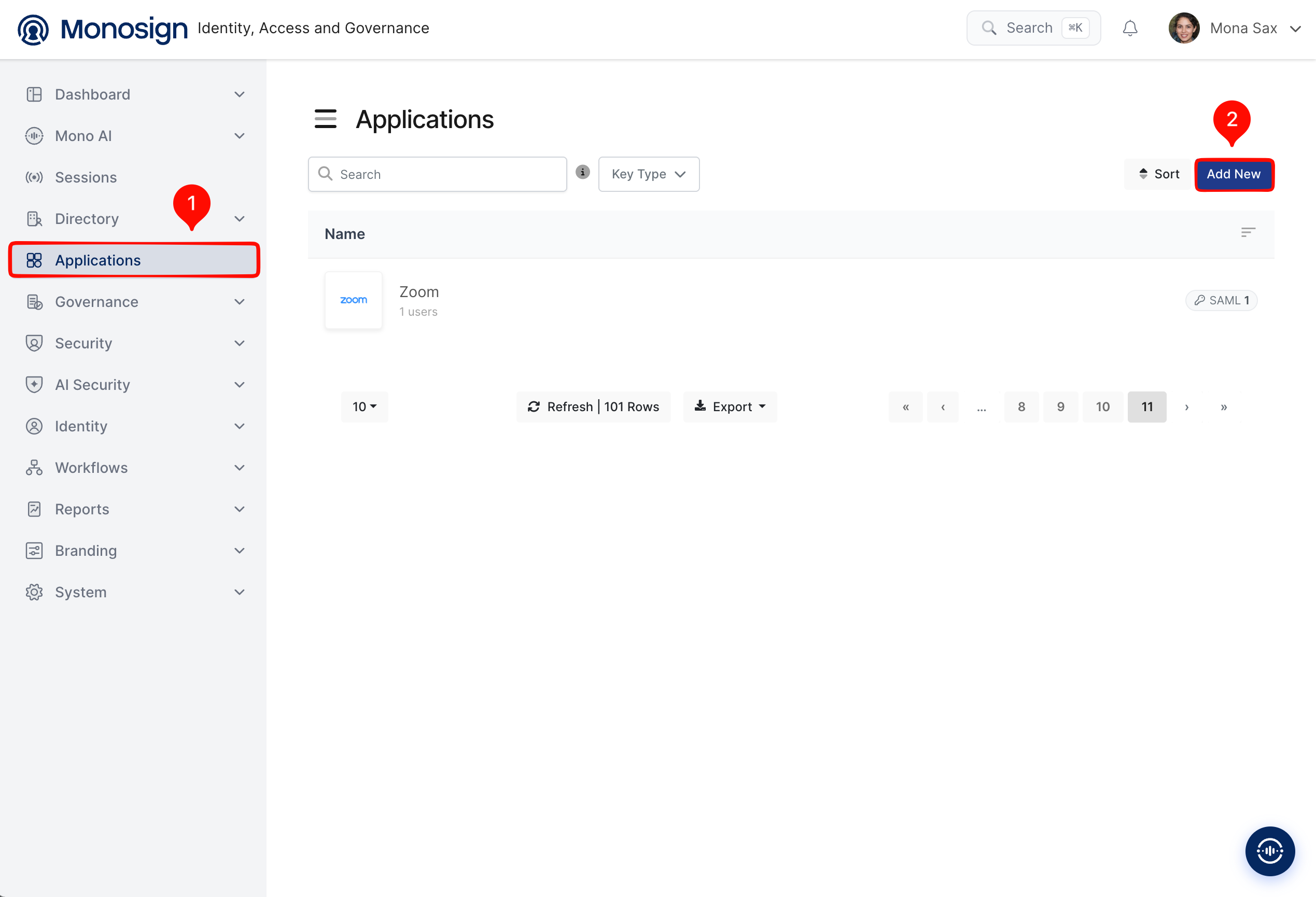
Step 1. In Monosign, open Applications and click Add New.
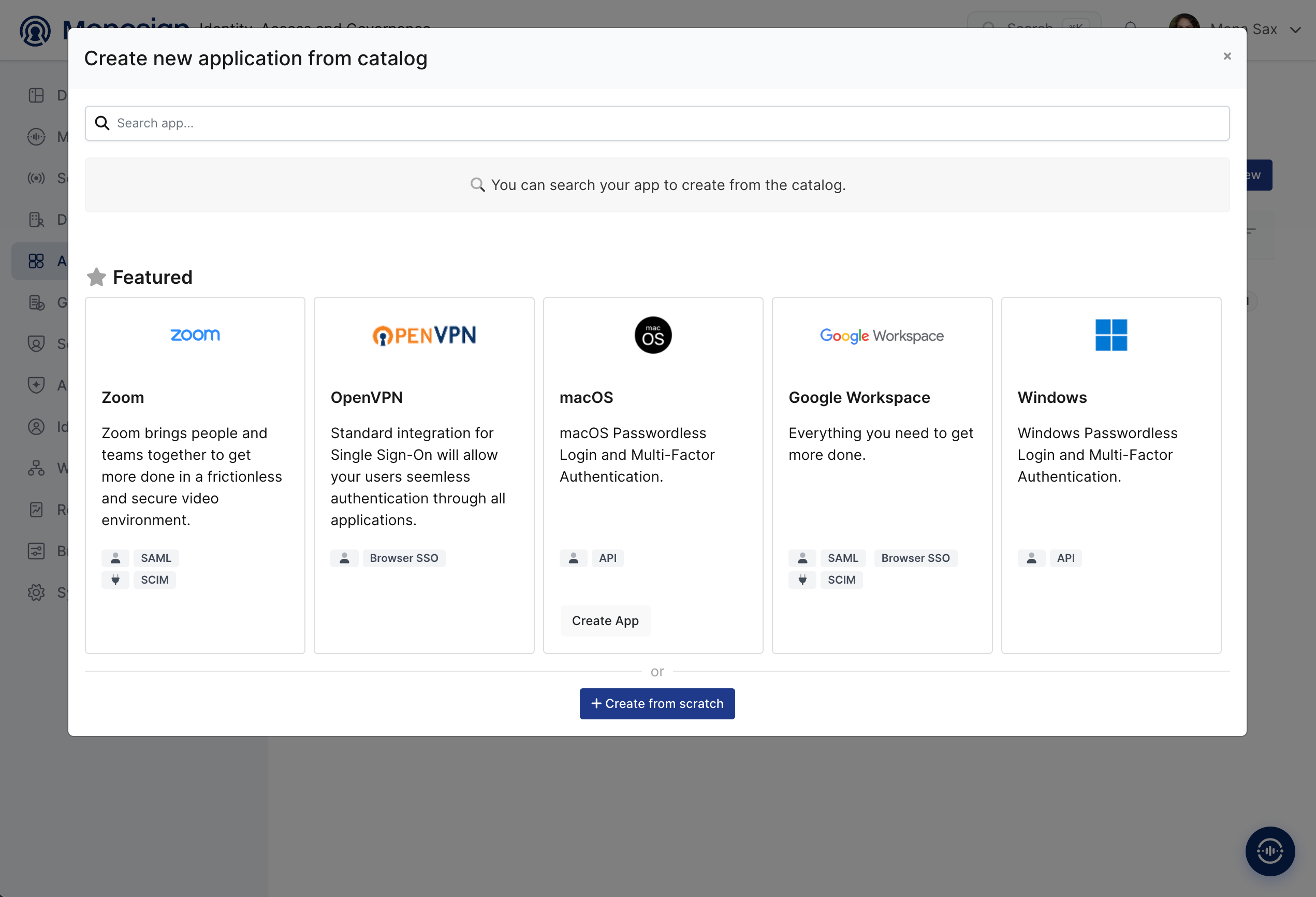
Step 2. Seatsurfing is not in the catalog, so click Create from scratch.
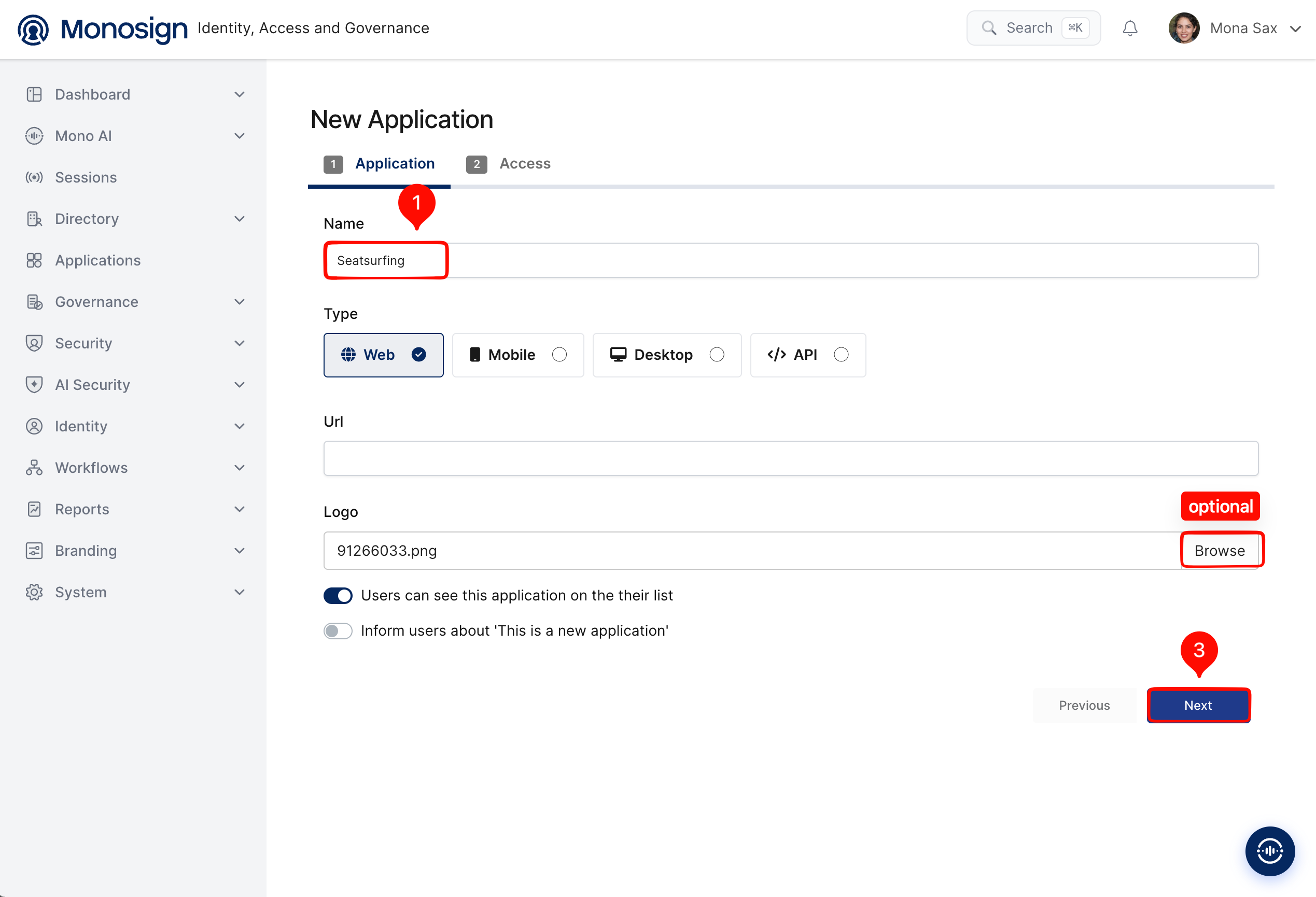
Step 3. On the Application tab, enter the name (Seatsurfing), keep the type Web, optionally upload a logo and click Next.
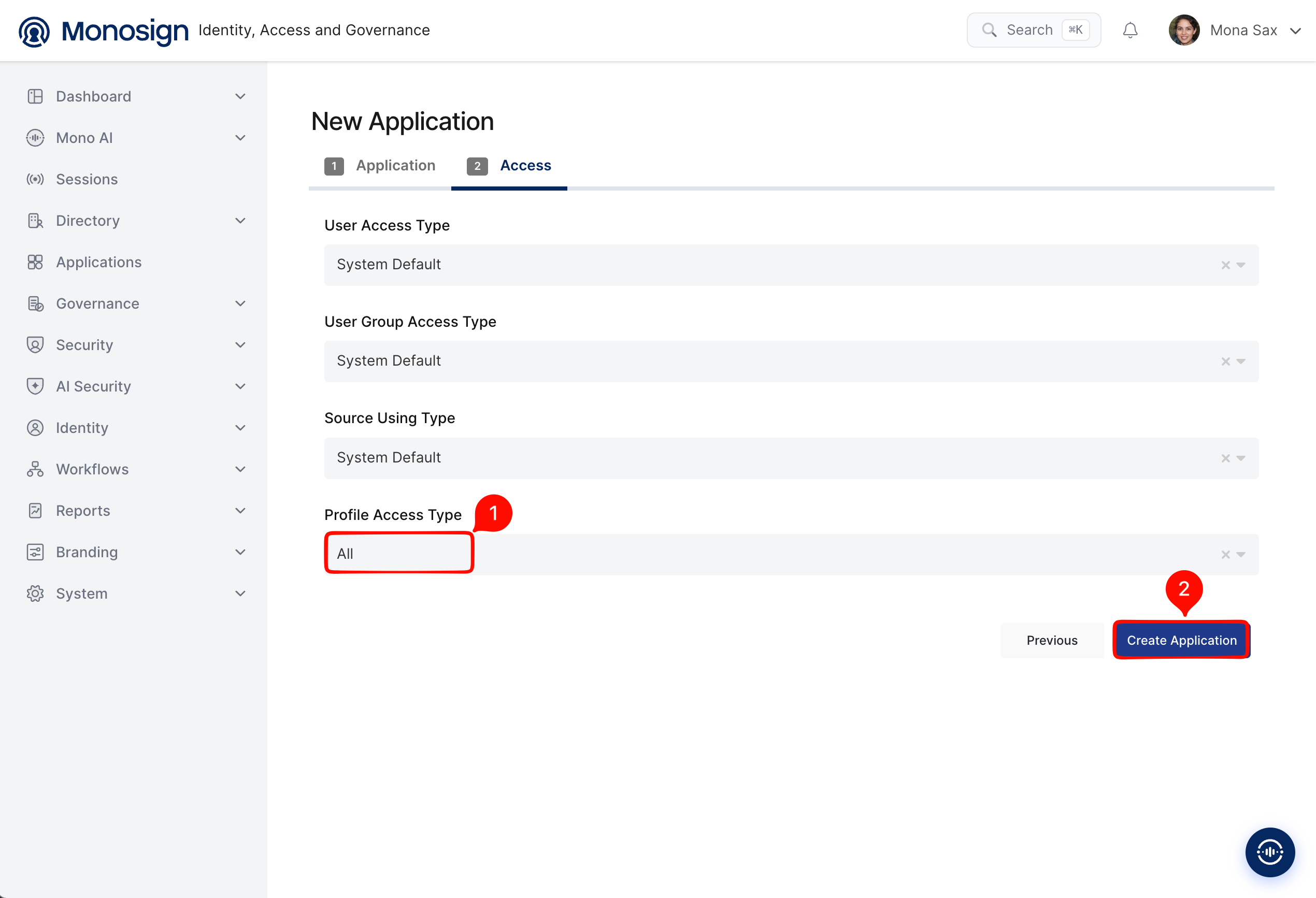
Step 4. On the Access tab, set the access types as required for your environment and click Create Application.
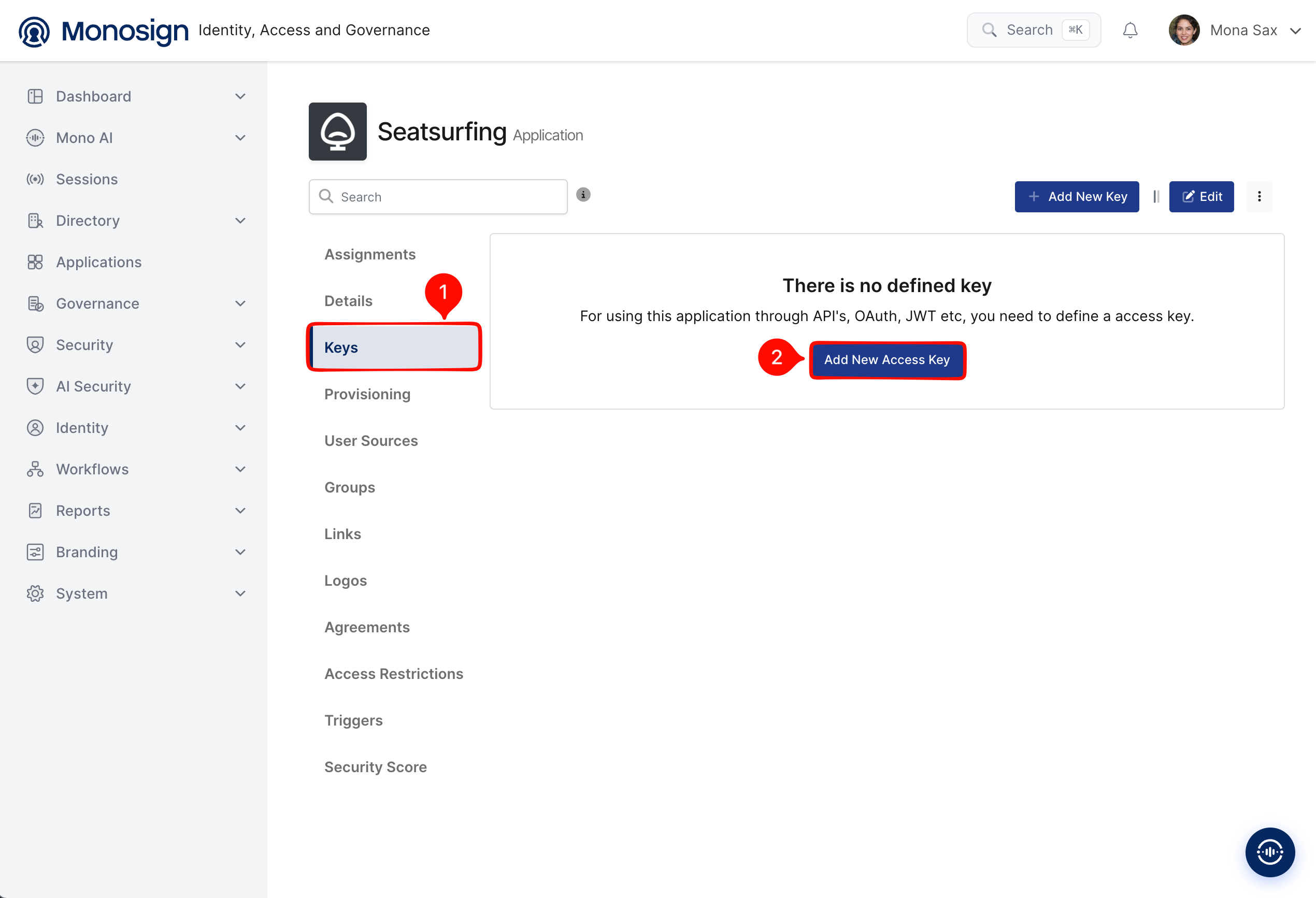
Step 5. Open the application, go to Keys and click Add New Access Key.
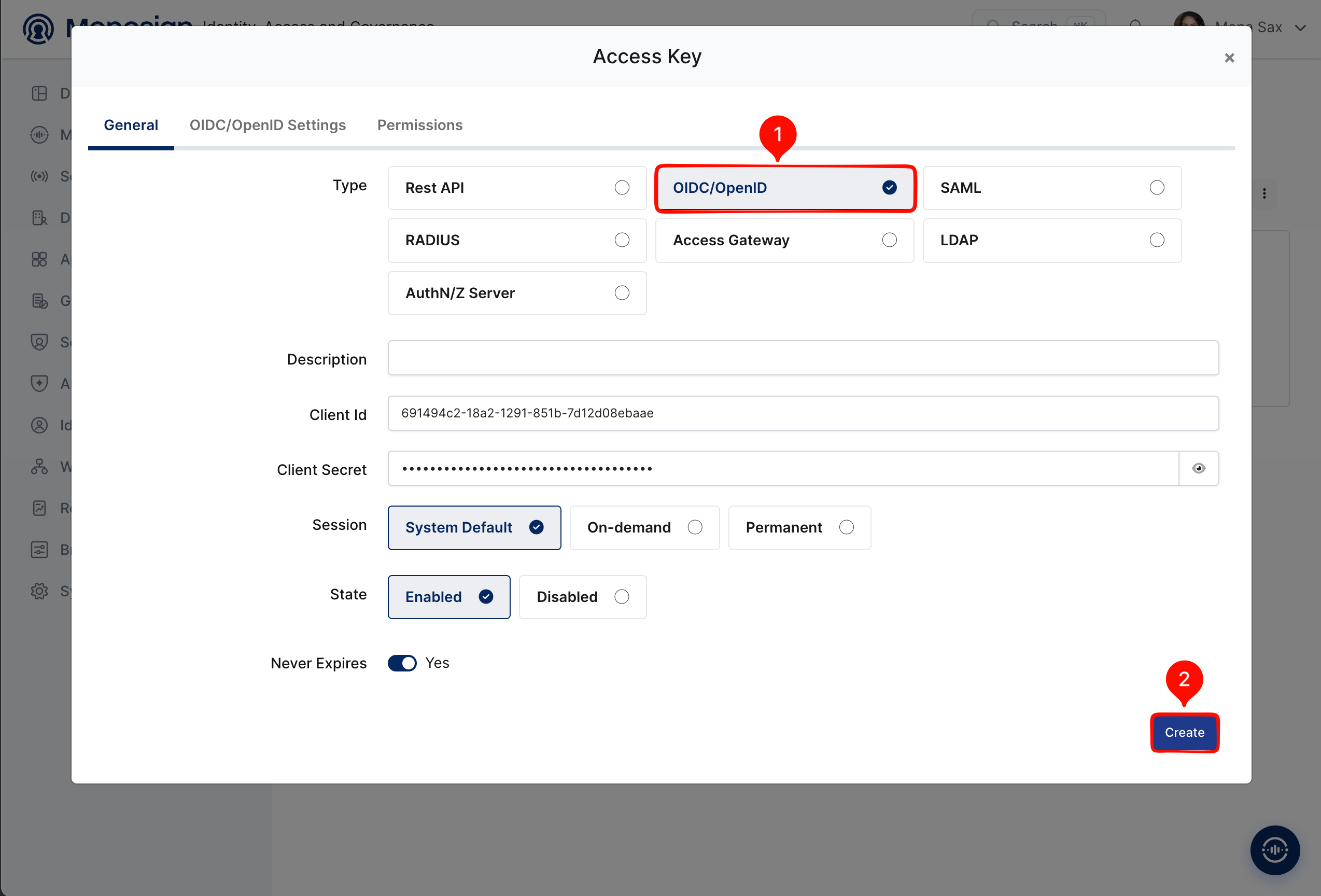
Step 6. Select the type OIDC/OpenID, keep the session and state defaults and click Create.
Step 7. Note the Client Id and Client Secret and the three endpoints shown on the key. They are entered into Seatsurfing in Part 2.
-
Auth Url:
https://<IDP_HOST>/openid/authorize -
Access Token Url:
https://<IDP_HOST>/openid/token -
User Info Url:
https://<IDP_HOST>/openid/userinfo
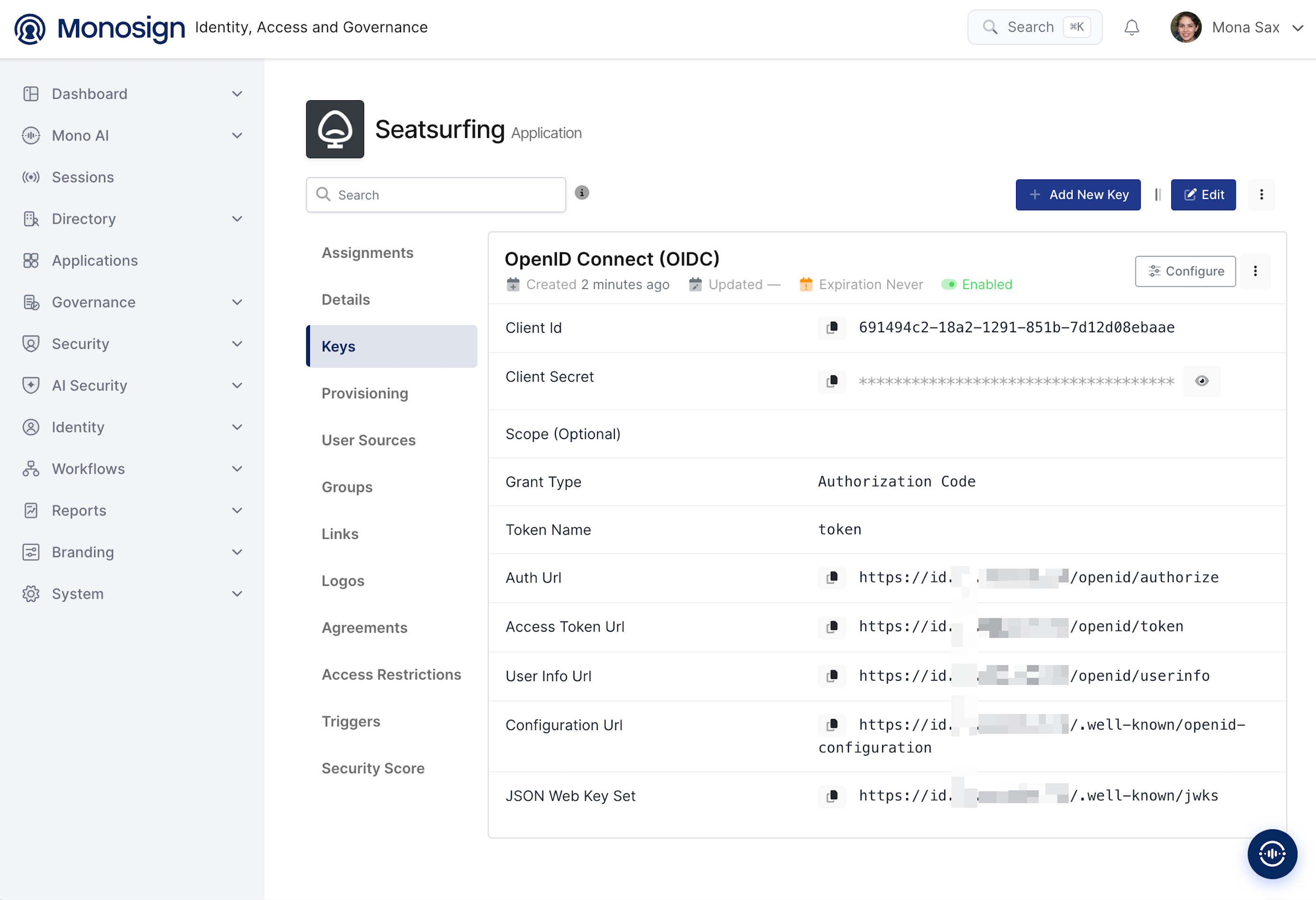
Treat the Client Secret like a password. Do not share it in chat or store it in documents.
Part 2: Add the OAuth2 provider in Seatsurfing
Step 8. Sign in to Seatsurfing as an administrator, open Settings, scroll to Auth providers and click Add. The option Allow login of all authenticatable users decides whether users that do not exist yet are created automatically on their first sign-in.
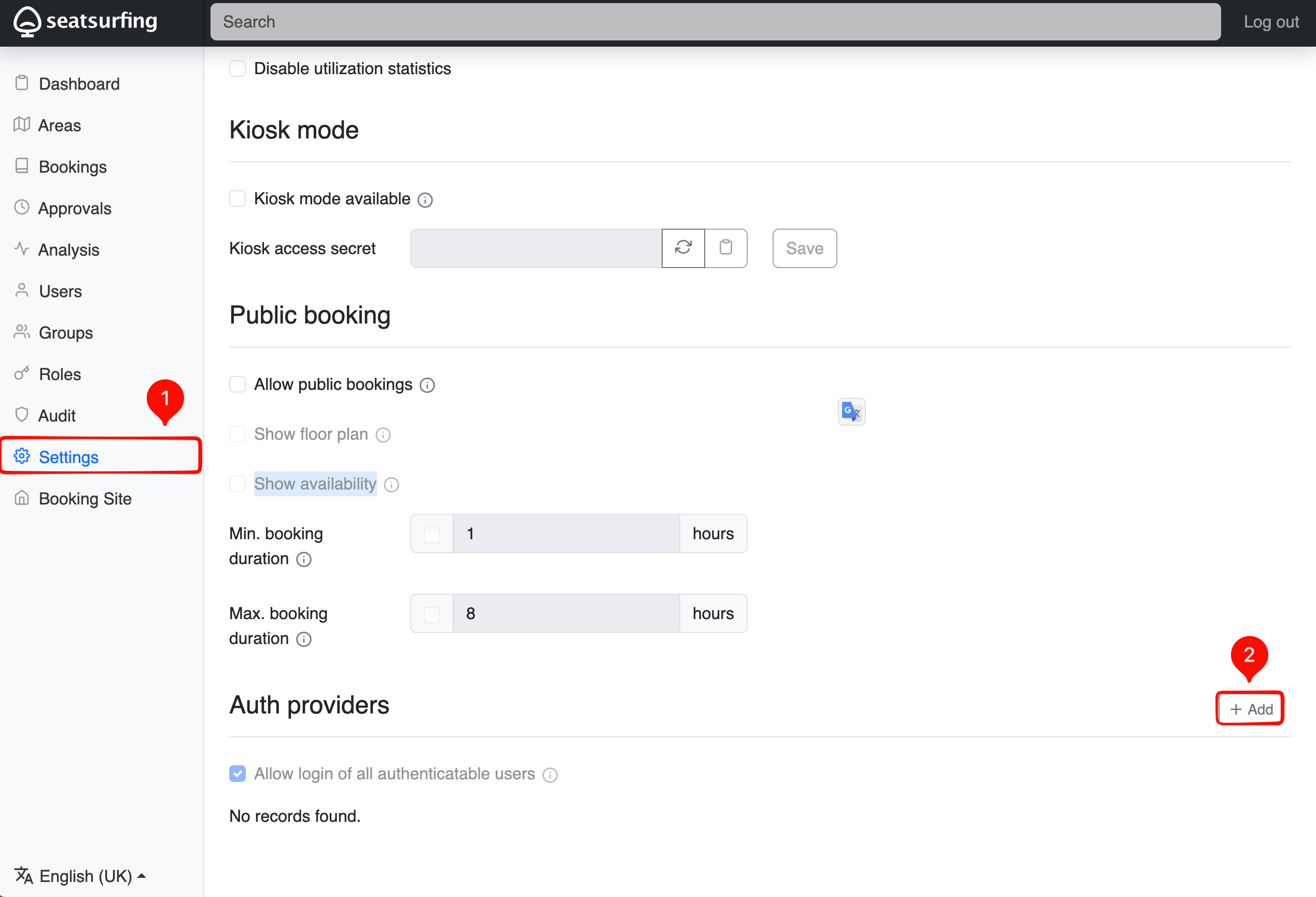
Step 9. Fill in the provider form. The value of Name is the text shown on the sign-in button.
|
Field |
Value |
|---|---|
|
Name |
Monofor (any display name) |
|
Type |
OAuth 2 |
|
Auth URL |
|
|
Token URL |
|
|
Auth Style |
automatic |
|
Scopes |
|
|
Client ID |
|
|
Client Secret |
|
|
Userinfo URL |
|
|
Userinfo Email field |
|
|
Userinfo Firstname field |
claim name that carries the first name (see note below) |
|
Userinfo Lastname field |
claim name that carries the last name (see note below) |
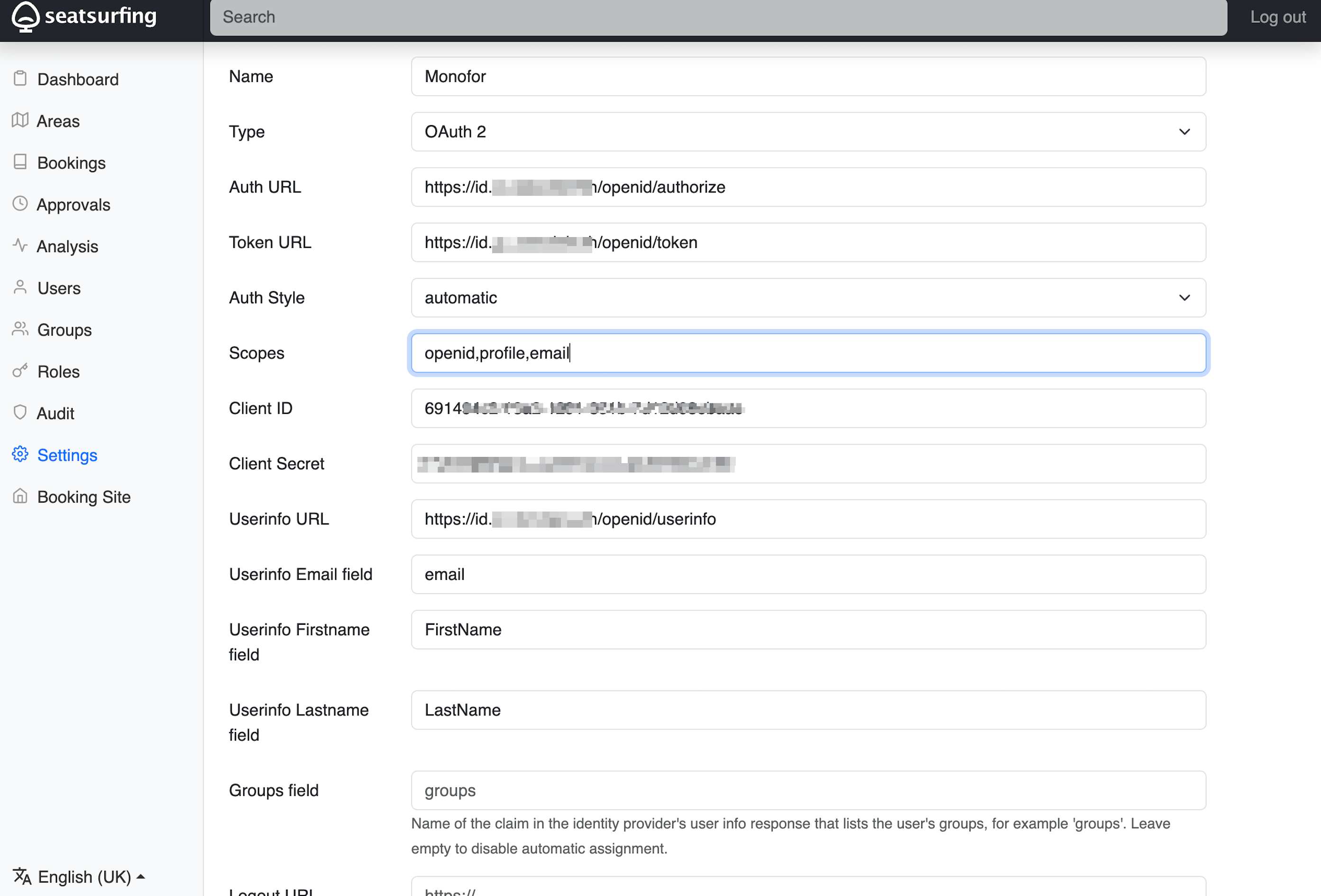
The e-mail address is the key that links a Monosign user to a Seatsurfing user, and Monosign returns email natively. The first name and last name fields must match claim names that exist in the userinfo response. If Monosign does not return them natively, add them under the key Claim Mapping (for example FirstName={{Profile.FirstName}} and LastName={{Profile.LastName}}) and press Update. If these fields stay empty, sign-in still works but the name is left blank. Leave Groups field, Logout URL and Profile Page URL empty unless needed.
Step 10. Save the provider. Seatsurfing now shows the Callback URL of this provider at the bottom of the form. It contains the provider ID and has the form below. Copy it for the next part.
https://<SEATSURFING_HOST>/auth/<PROVIDER_ID>/callback
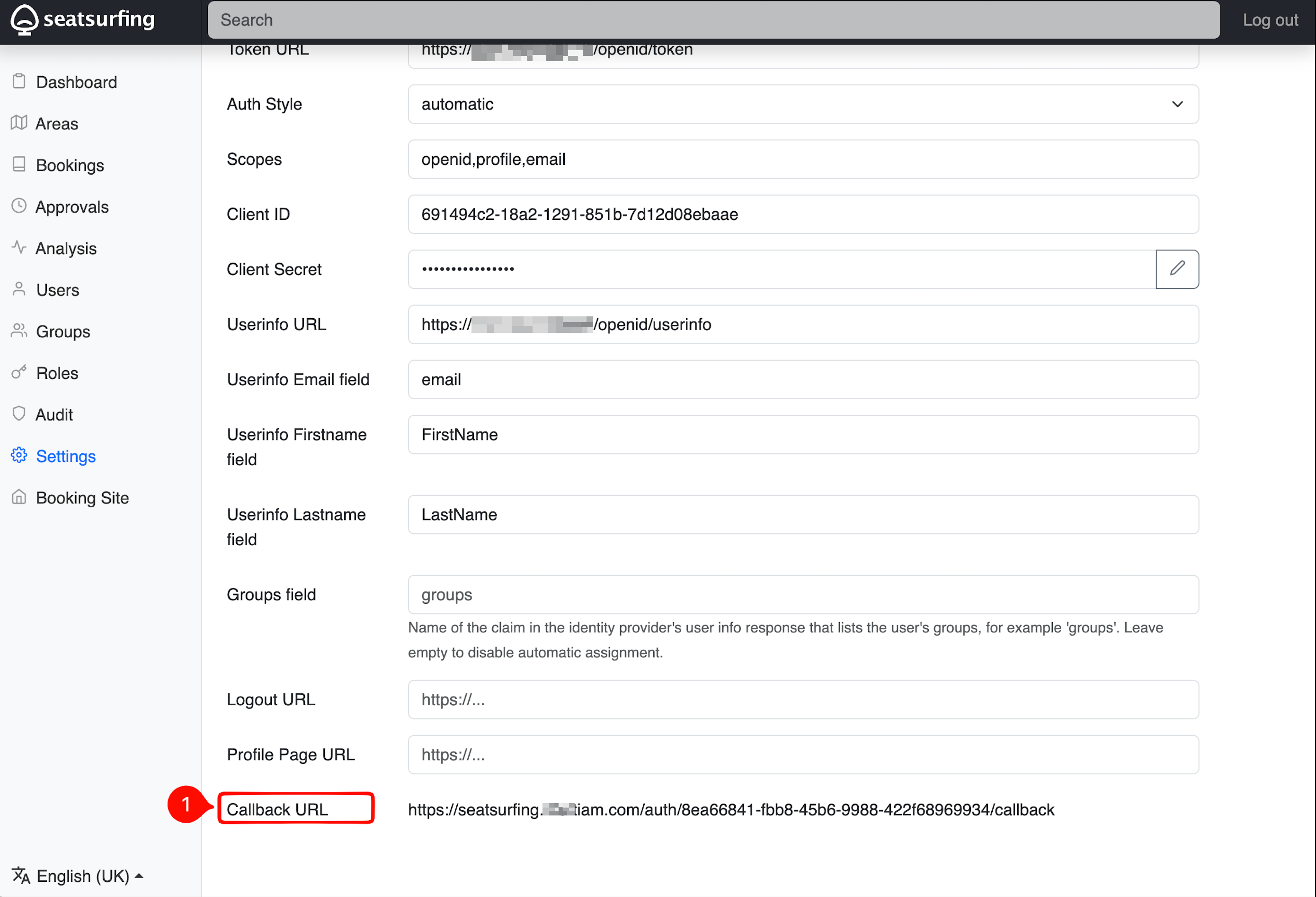
Seatsurfing builds the callback address (and the redirect_uri it sends to Monosign) from the primary domain of the organization, not from the address in the browser. If the primary domain is the e-mail domain (for example example.com), the Callback URL shows the wrong host and Monosign rejects the login because the redirect URI does not match. Add the public host name of Seatsurfing (<SEATSURFING_HOST>) as a domain of the organization and make it the primary domain. Keep the e-mail domain as an additional domain so that users are still matched to the organization by their e-mail address. Reload the provider page afterwards and check that the Callback URL shows the public host.
Part 3: Register the redirect URI in Monosign
Step 11. Back in Monosign, open the key of the Seatsurfing application and click Edit. Under Scope enter openid, profile and email. Paste the Callback URL from Seatsurfing into Allowed Redirect URIs and press Update.
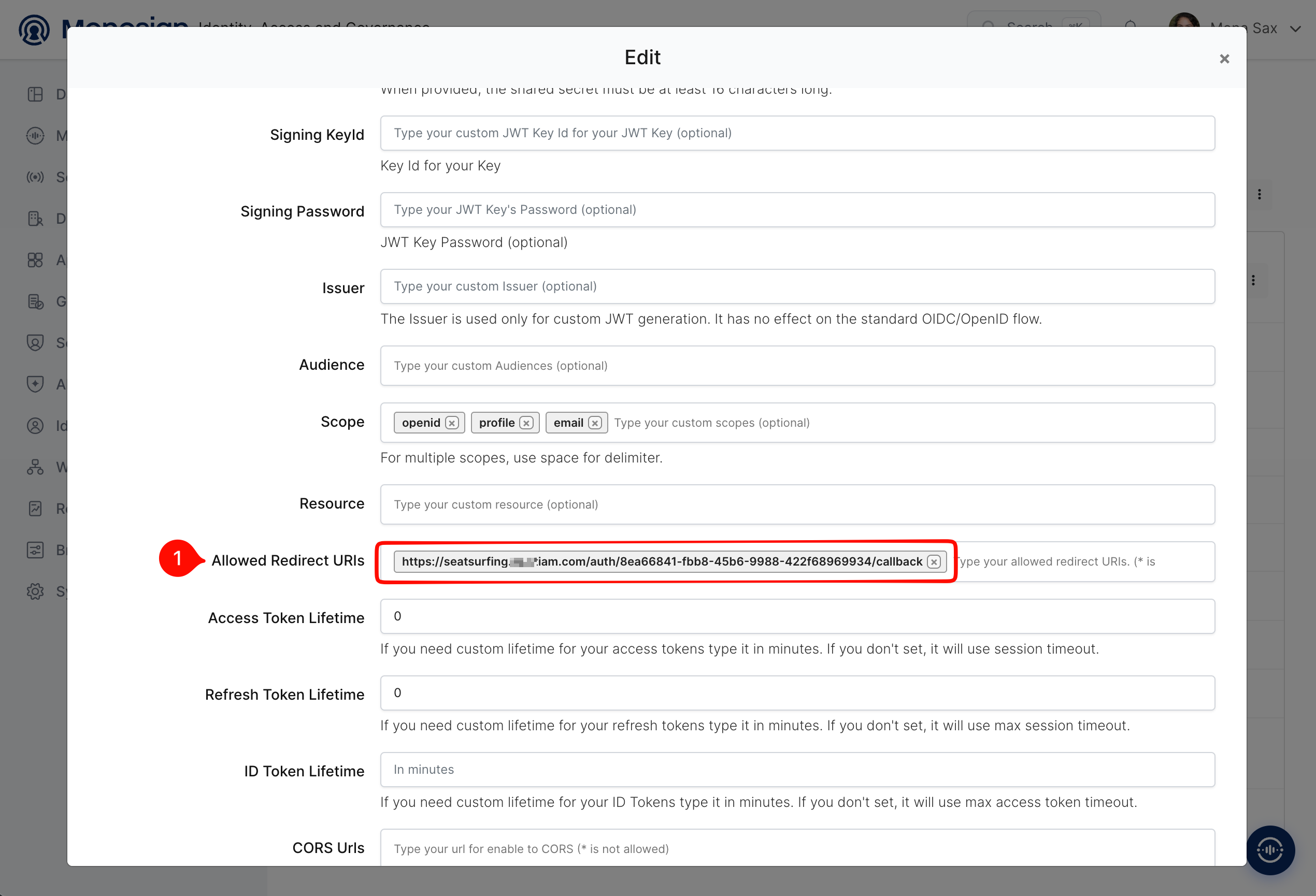
Assign the application to the users that should be allowed to sign in. The e-mail address of each assigned user must match a Seatsurfing user, or Allow login of all authenticatable users must be enabled so that the user is created automatically.
Part 4: Test the sign-in
Step 12. Open the Seatsurfing sign-in page. A button with the provider name is shown next to the link Sign in with username and password. Local password login stays available. Click the provider button and authenticate at Monosign.
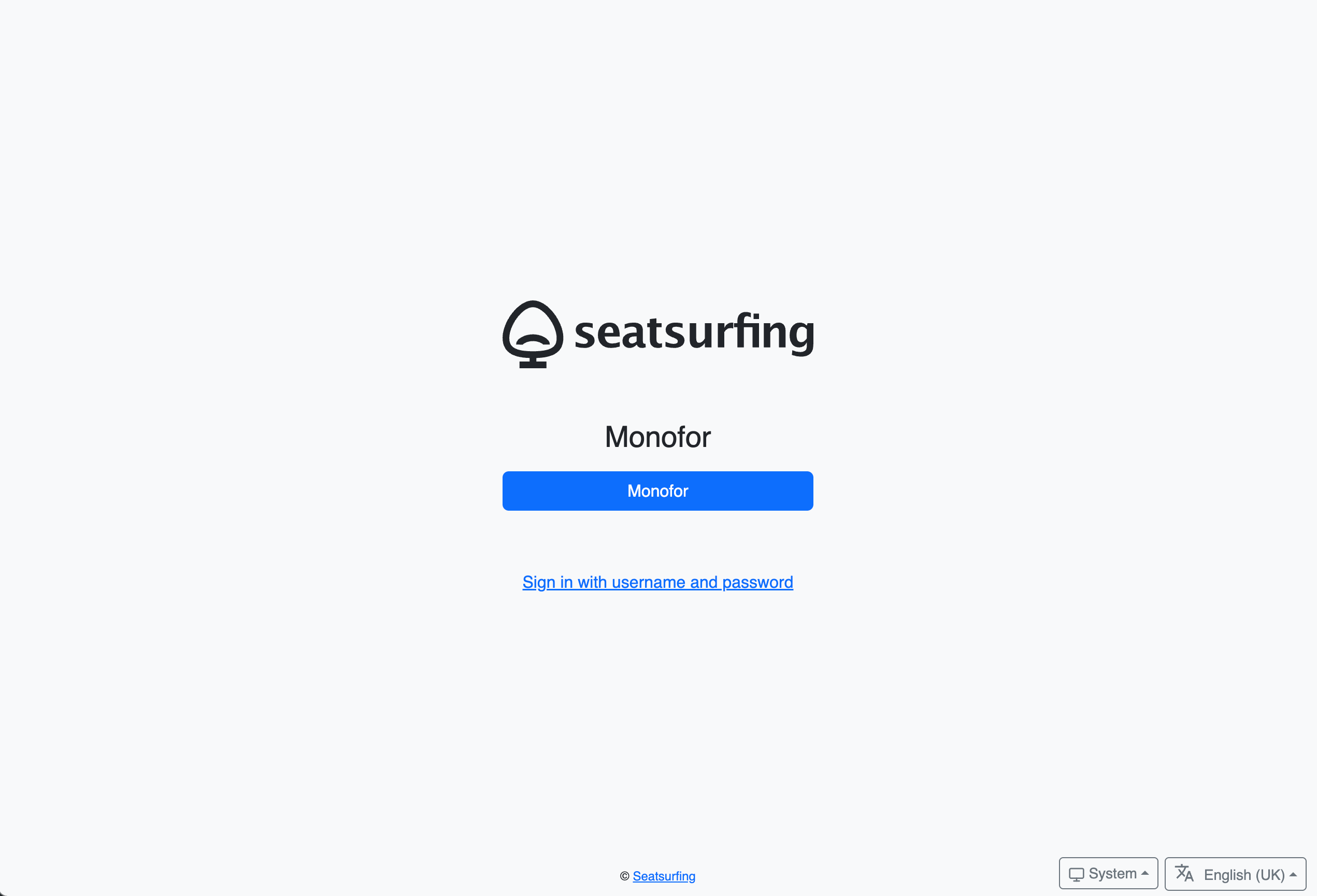
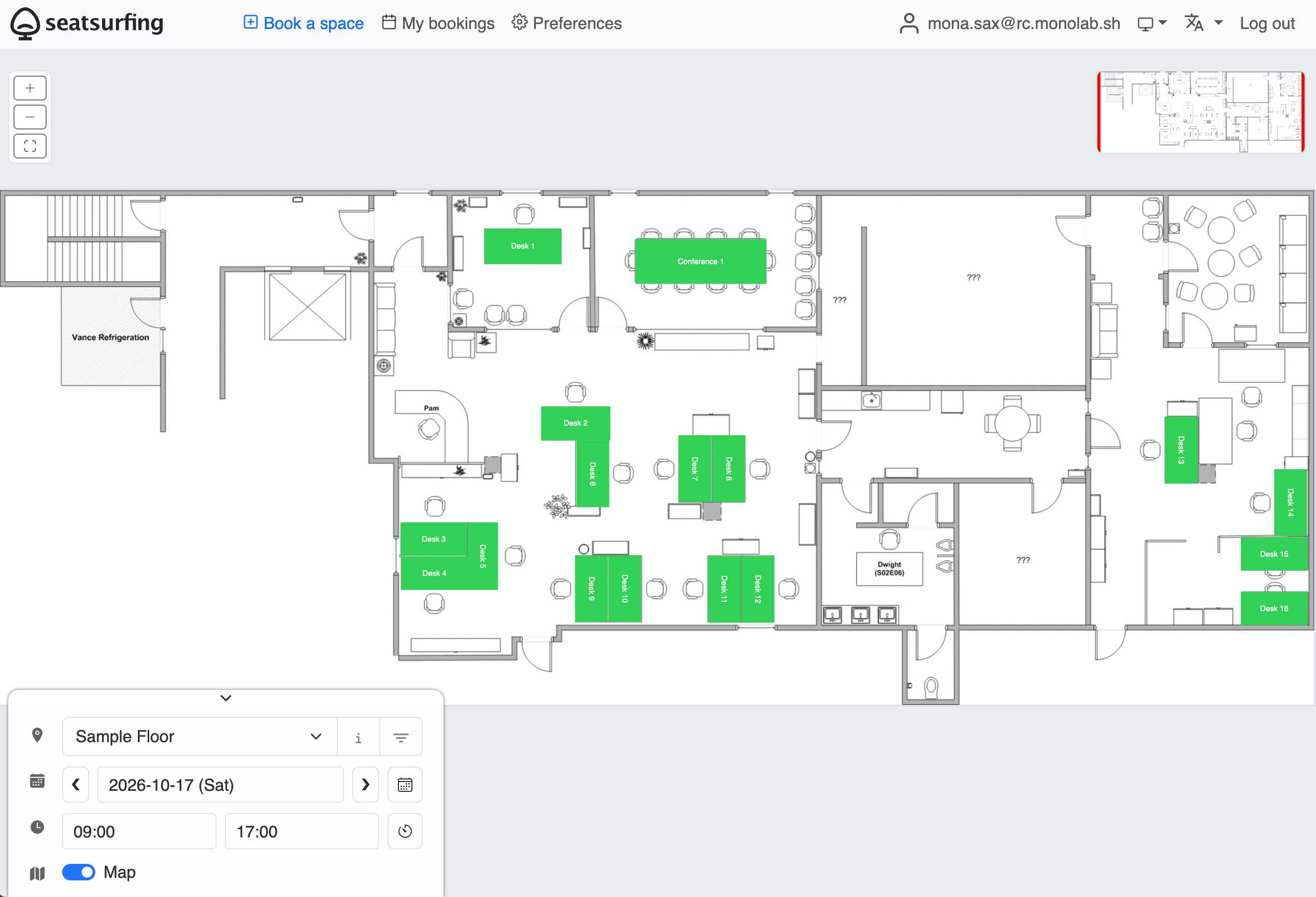
Step 13. After a successful authentication the user is redirected back to Seatsurfing and lands on the booking page, signed in with the e-mail address from Monosign.
Notes
-
Seatsurfing matches users by e-mail address. A user is bound to a single auth provider, so after the first SSO sign-in that user cannot sign in through another provider.
-
Users that are not yet known to Seatsurfing are only created automatically when Allow login of all authenticatable users is enabled.
-
Only the generic OAuth2 provider type is available. The provider is configured in the Seatsurfing admin interface, not in environment variables.
-
If Seatsurfing runs without a fixed JWT key, restarting it signs all users out.
Troubleshooting
|
Symptom |
Check |
|---|---|
|
Monosign reports an invalid or unregistered redirect URI |
The Callback URL shown in Seatsurfing must be identical to the entry under Allowed Redirect URIs. Verify that the primary domain of the organization is the public Seatsurfing host. |
|
Error after returning from Monosign |
The Seatsurfing server must reach the token and userinfo endpoints of Monosign. Check the Client ID and Client Secret. |
|
Sign-in works but the name is empty |
Add the first name and last name claims in Claim Mapping and set the same names in the provider form. |
|
User is not allowed to sign in |
Create the user in Seatsurfing or enable Allow login of all authenticatable users, and assign the application to the user in Monosign. |