This document explains how to implement Monosign with Roundcube, an open source webmail client. It covers Single Sign-On with OpenID Connect (OIDC). Roundcube reads the Monosign addresses from the OIDC discovery document and uses the Authorization Code flow with PKCE, so the OIDC/OpenID access key of Monosign is used. Before you continue, it is better to read the Roundcube configuration documentation (opens in a new tab) about the oauth_* options.
This configuration was tested with Roundcube 1.7.5 and the mail server Dovecot 2.3. If your versions are different, please check the Roundcube and Dovecot documentation.
OIDC is configured in the Roundcube configuration file config/config.inc.php with the oauth_* options. There is no setting screen in the Roundcube interface. SAML is not available.
Monofor has no responsibility to do Roundcube and mail server configurations. If you need support please contact the Roundcube community or your Roundcube support provider.
Prerequisite: the mail server must accept the Monosign token. Roundcube is a mail client. After the sign-in on Monosign it logs in to the IMAP (and SMTP) server with the access token of the user, using the mechanism XOAUTH2 or OAUTHBEARER. The IMAP server must therefore be able to validate the Monosign access token with the user information address of Monosign and use the e-mail address of the user as the mailbox name. Step 4.2 shows the settings for Dovecot. If your mail server does not support OAuth, see oauth_password_claim in the Roundcube documentation. Without this, the sign-in on Monosign succeeds but Roundcube shows Login failed and cannot open the mailbox.
Instructions
This documentation contains 5 main steps for integration.
Creating an application on Monosign
Configuring the OIDC/OpenID settings on Monosign
Assign a user to the Roundcube application
Configuration Single Sign-On for Roundcube and the mail server
Sign In Test
1- Creating an Application on Monosign
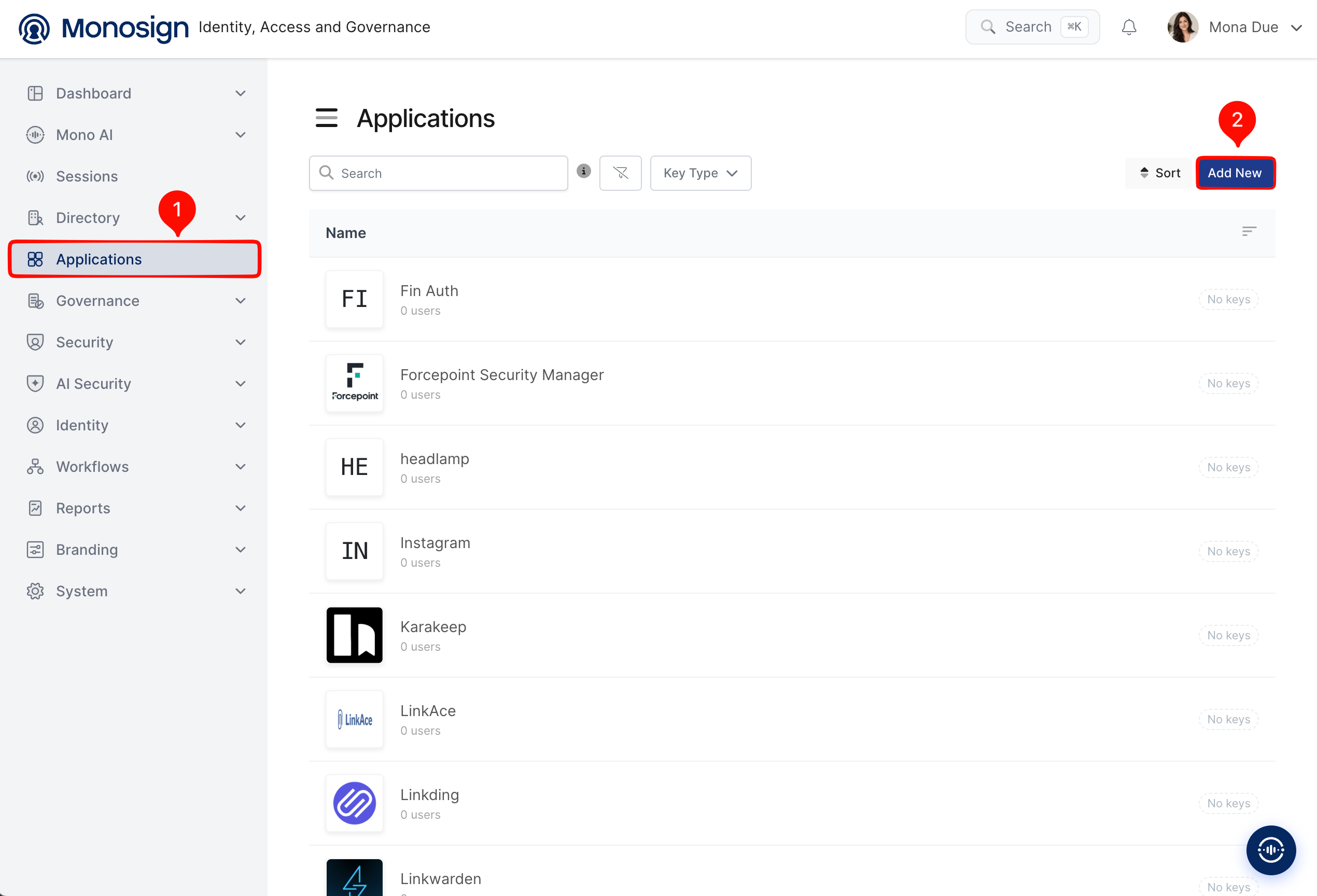
Create your application on Monosign first. Open the Applications page from the left menu and click Add New.
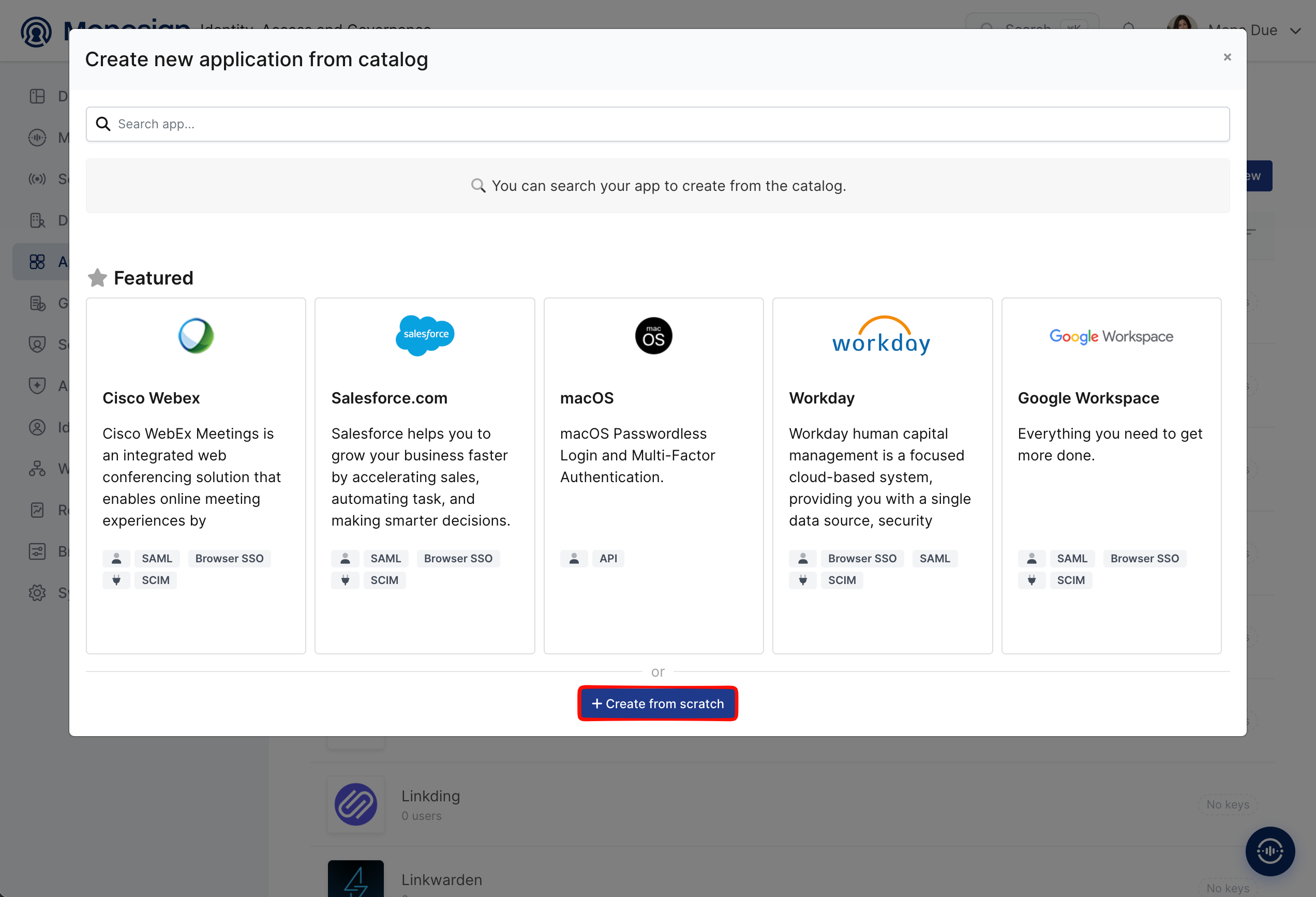
Roundcube is not in the application catalog, so click Create from scratch.
Fill in the application details on the Application tab and click Next.
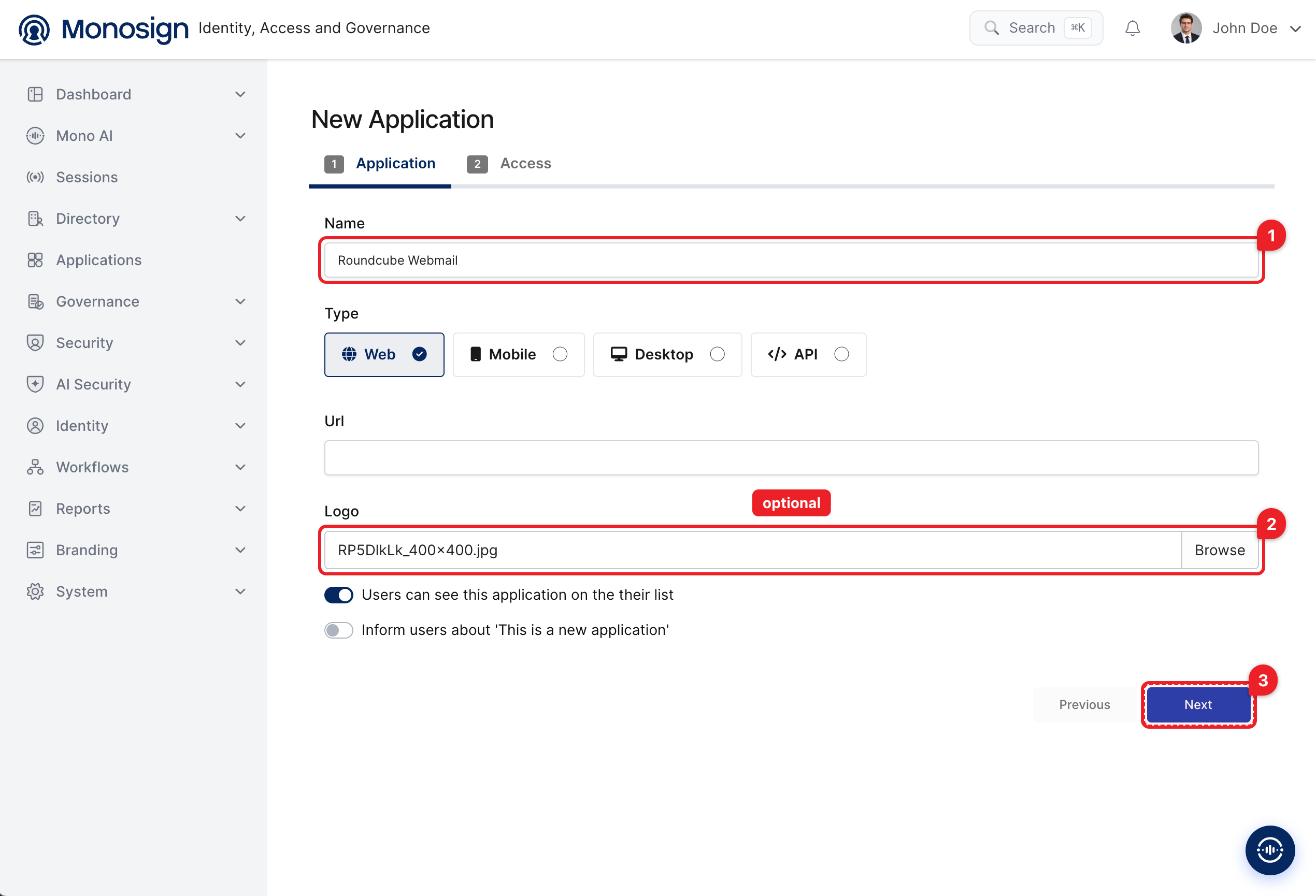
Property | Value | Description |
|---|---|---|
Name |
| Name of the application shown to users on the Monosign portal and on the Monosign sign-in page. |
Type |
| Roundcube is accessed through a web browser. Options: Web, Mobile, Desktop, API. |
Url | Optional | Leave empty or enter the address of Roundcube (for example |
Logo | Optional | Browse and upload a logo; it is also shown on the Monosign sign-in page. |
Users can see this application on their list |
| Displays the application on the user portal. |
On the Access tab define who can reach the application and click Create Application.
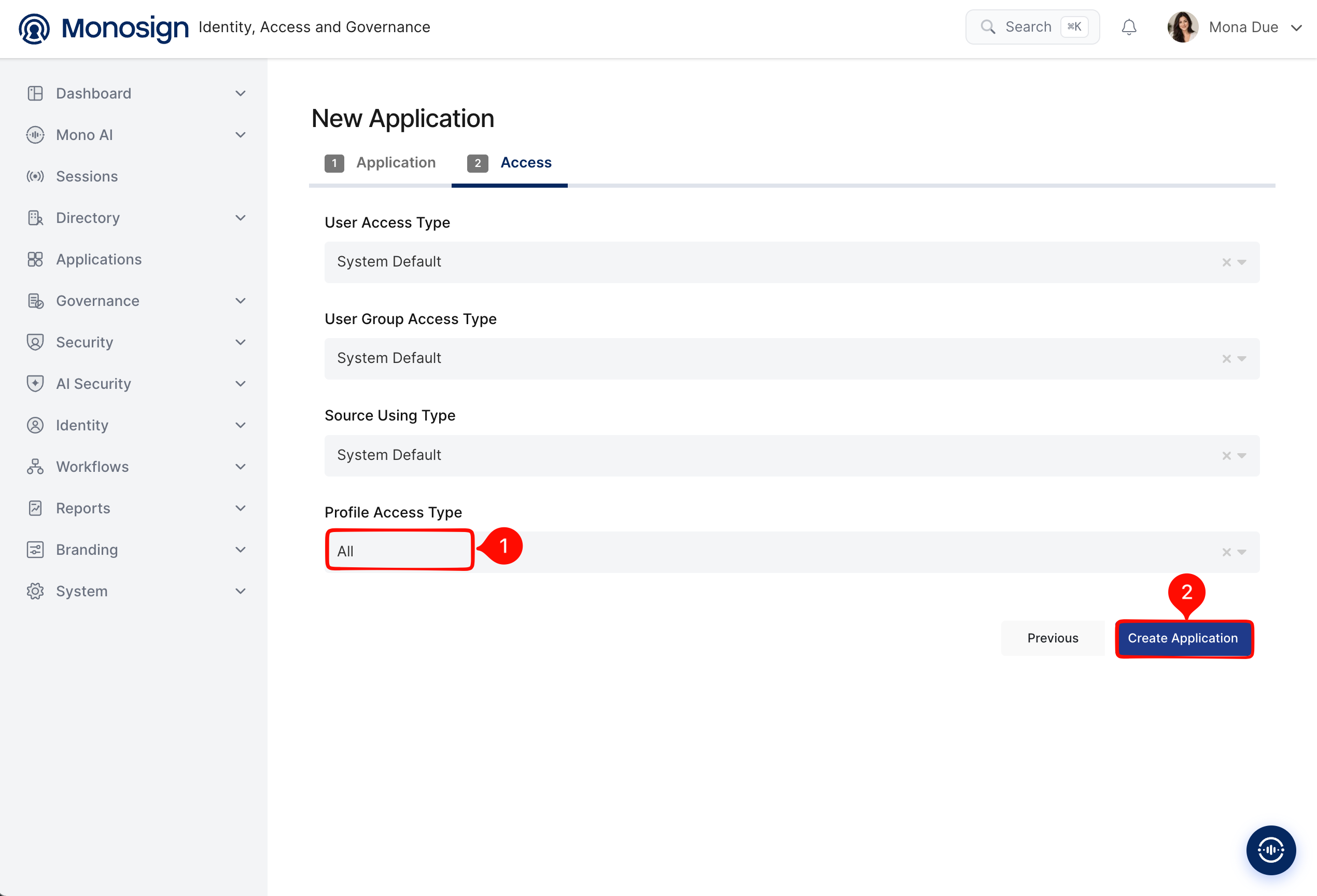
Property | Value | Description |
|---|---|---|
User Access Type |
| Defines which users can access this application. Options: Only Assigned Users, All Users, System Default. |
User Group Access Type |
| Defines the application’s user group access. |
Source Using Type |
| Defines which user sources the application can use. |
Profile Access Type |
| Defines which user profile attributes are available to the application (Options: Restricted, All). Roundcube needs the e-mail address and the name of the user. |
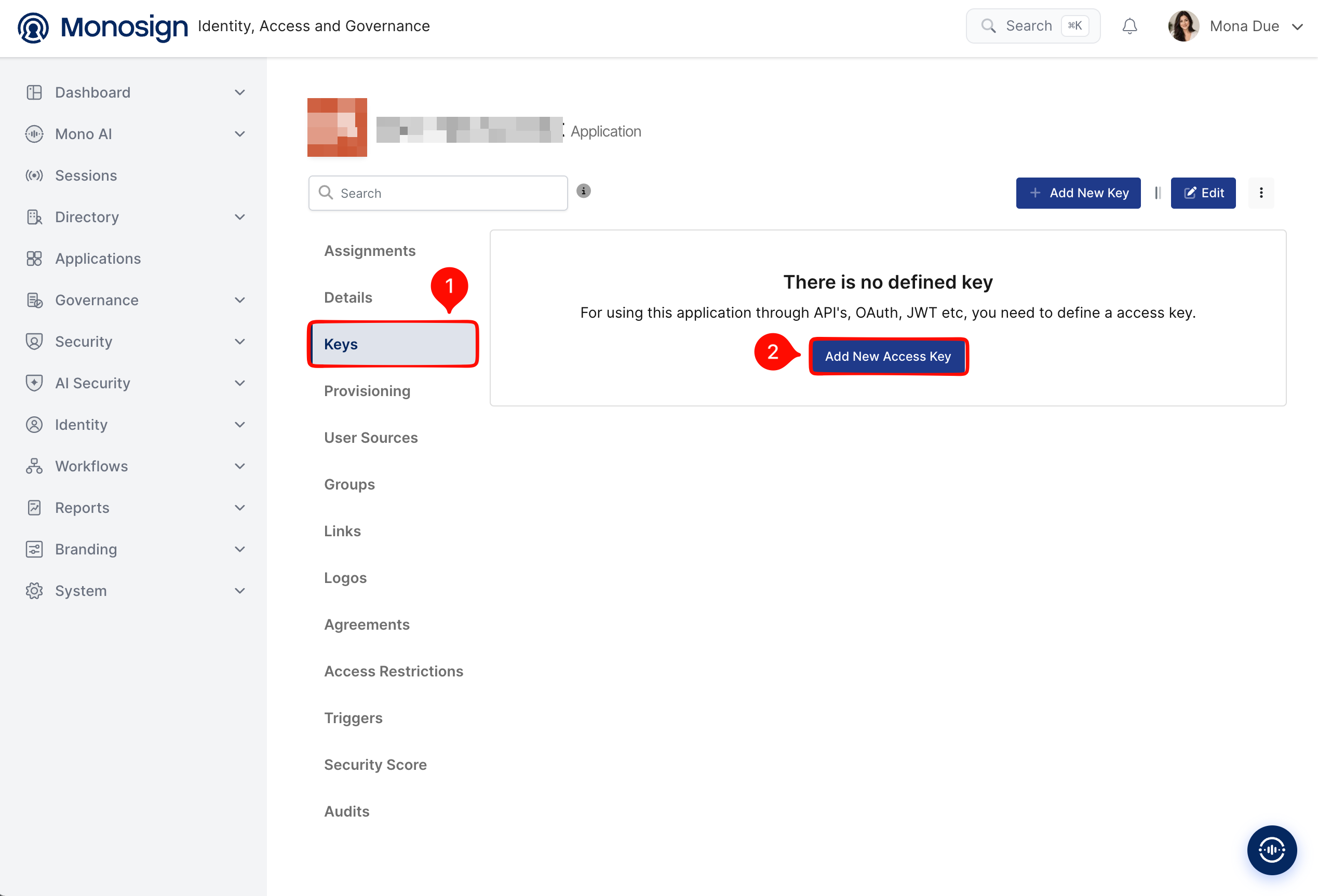
After the application is created, click Keys and add a new Access Key for OIDC/OpenID access.
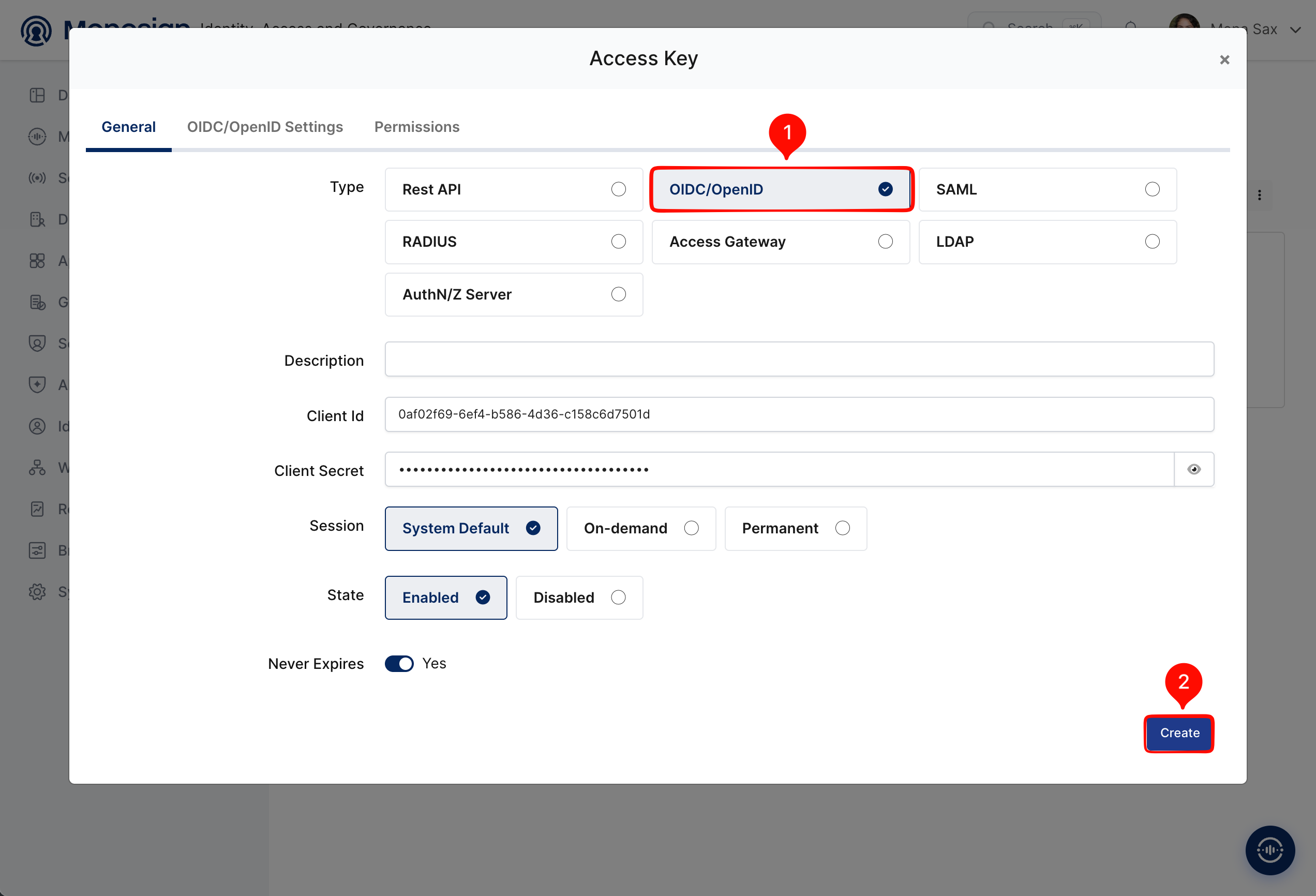
Select OIDC/OpenID as the key type and click Create. Monosign generates the Client Id and Client Secret automatically.
Configuration details for the Roundcube application are provided as follows:
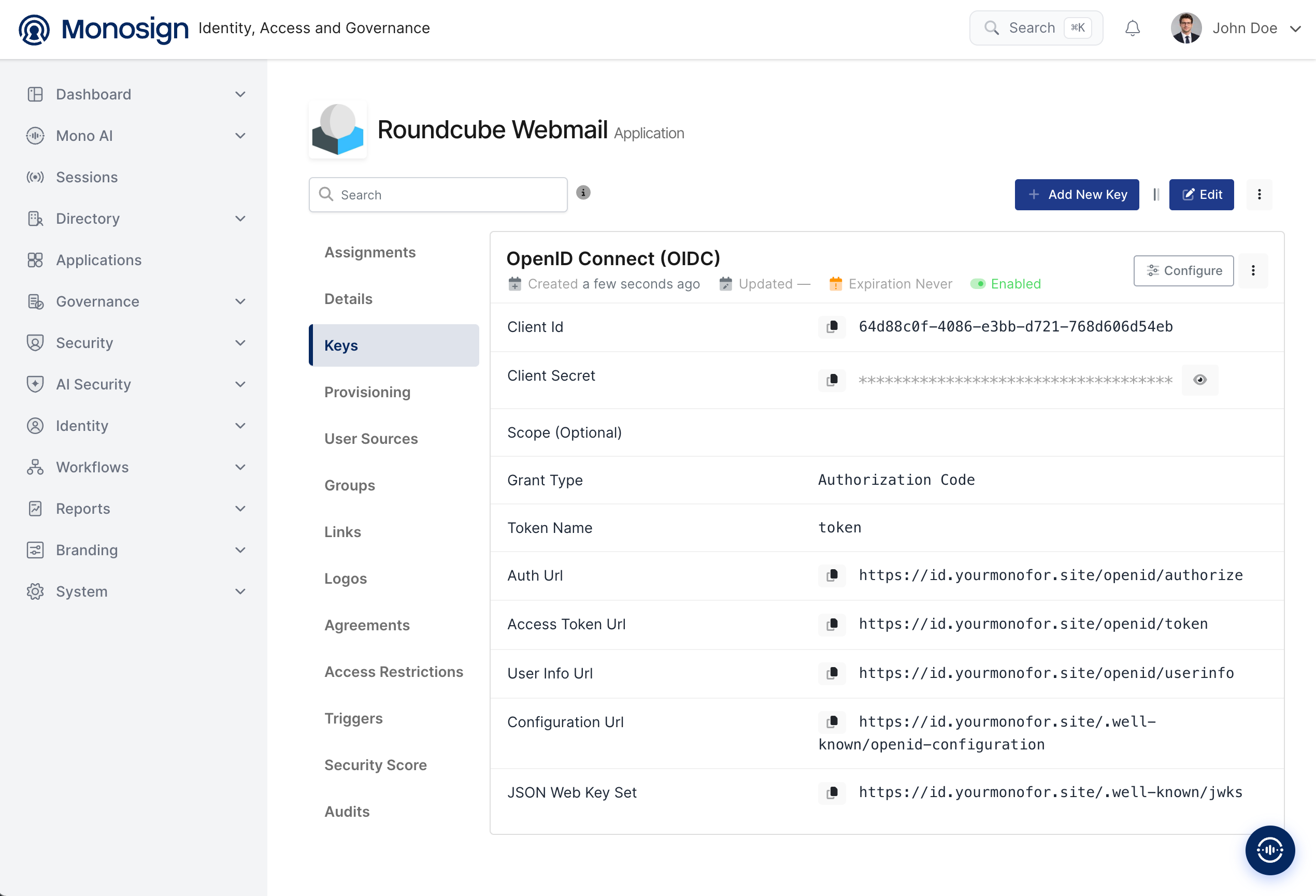
Monosign value | Example | Used in Roundcube as |
|---|---|---|
Client Id |
|
|
Client Secret |
|
|
Configuration Url |
|
|
User Info Url |
| Used by the mail server to validate the access token (step 4.2). |
2- Configuring the OIDC/OpenID Settings on Monosign
Open the Keys tab of the application and click the Configure button of the OpenID Connect (OIDC) key to open the OIDC/OpenID settings.
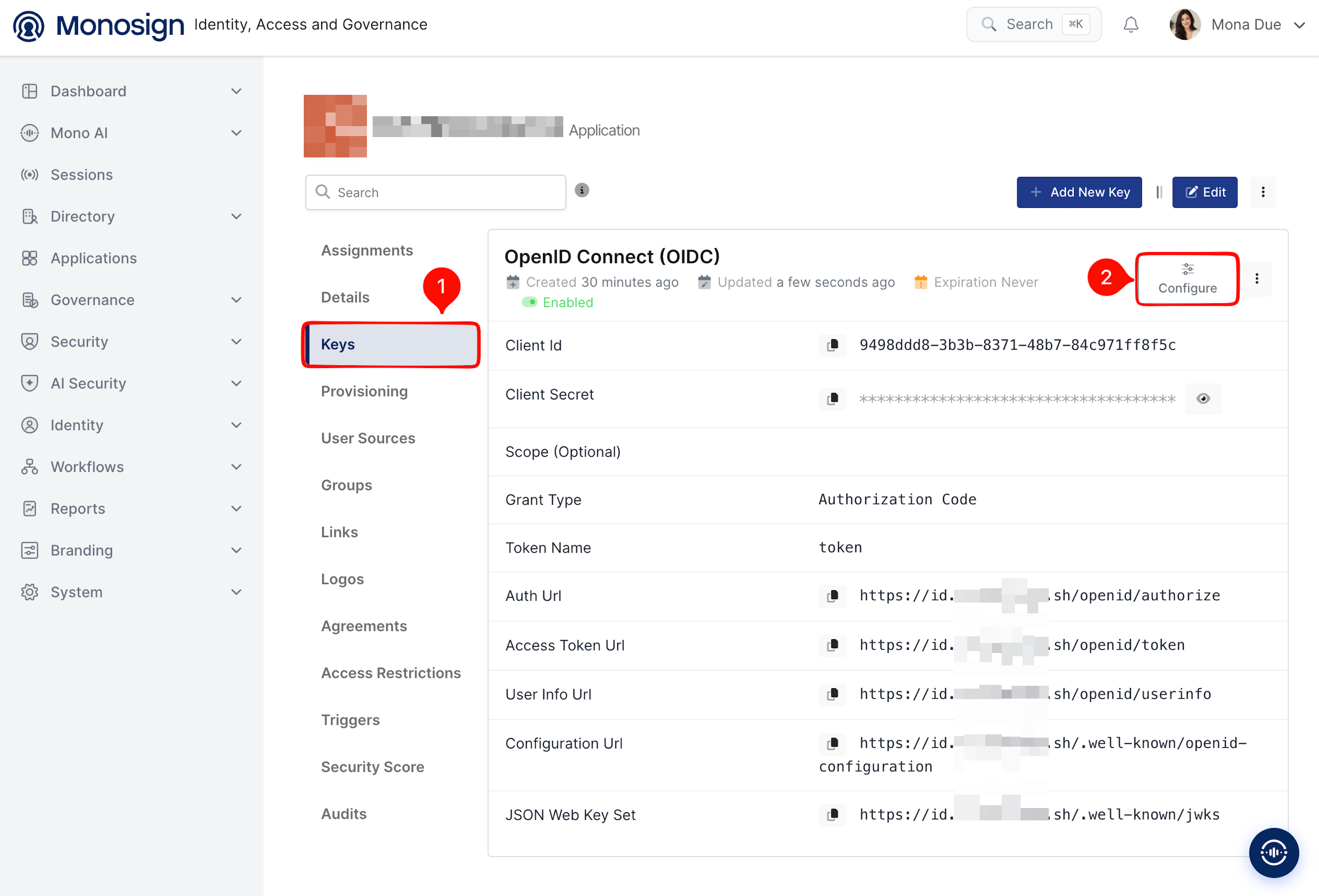
Add the callback address of Roundcube to Allowed Redirect URIs, enter the scopes in the Scope field, then press Update.
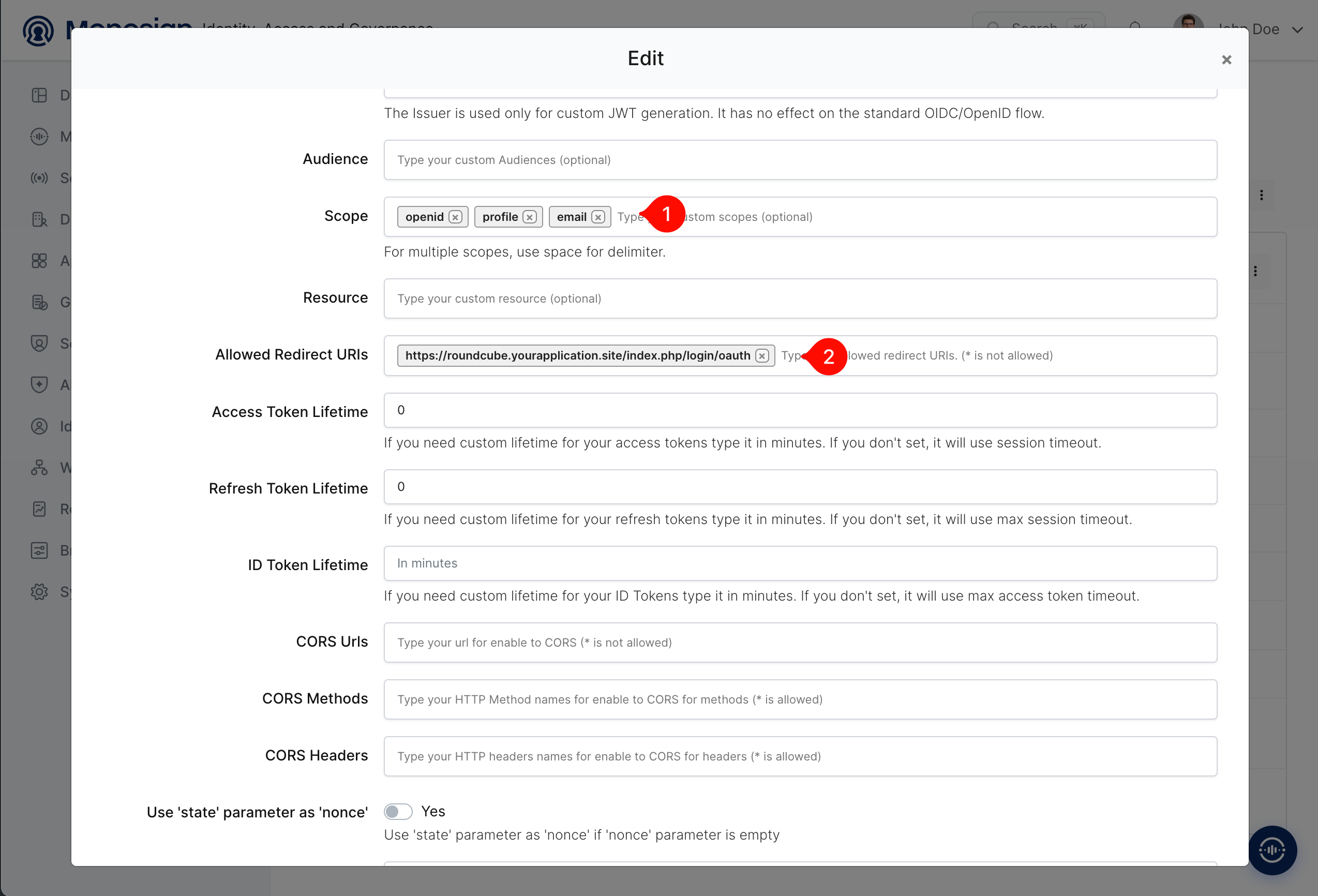
Property | Value | Description |
|---|---|---|
Allowed Redirect URIs |
| The address where Monosign sends the user back after sign-in. Roundcube builds it from its own address; use the public (HTTPS) address, exactly as it is written here. |
Scope |
| Enter the three scopes one by one. |
Other fields | Empty / default | The other fields (Issuer, Audience, Resource, token lifetimes, CORS) are not needed. |
3- Assign a User to the Roundcube Application
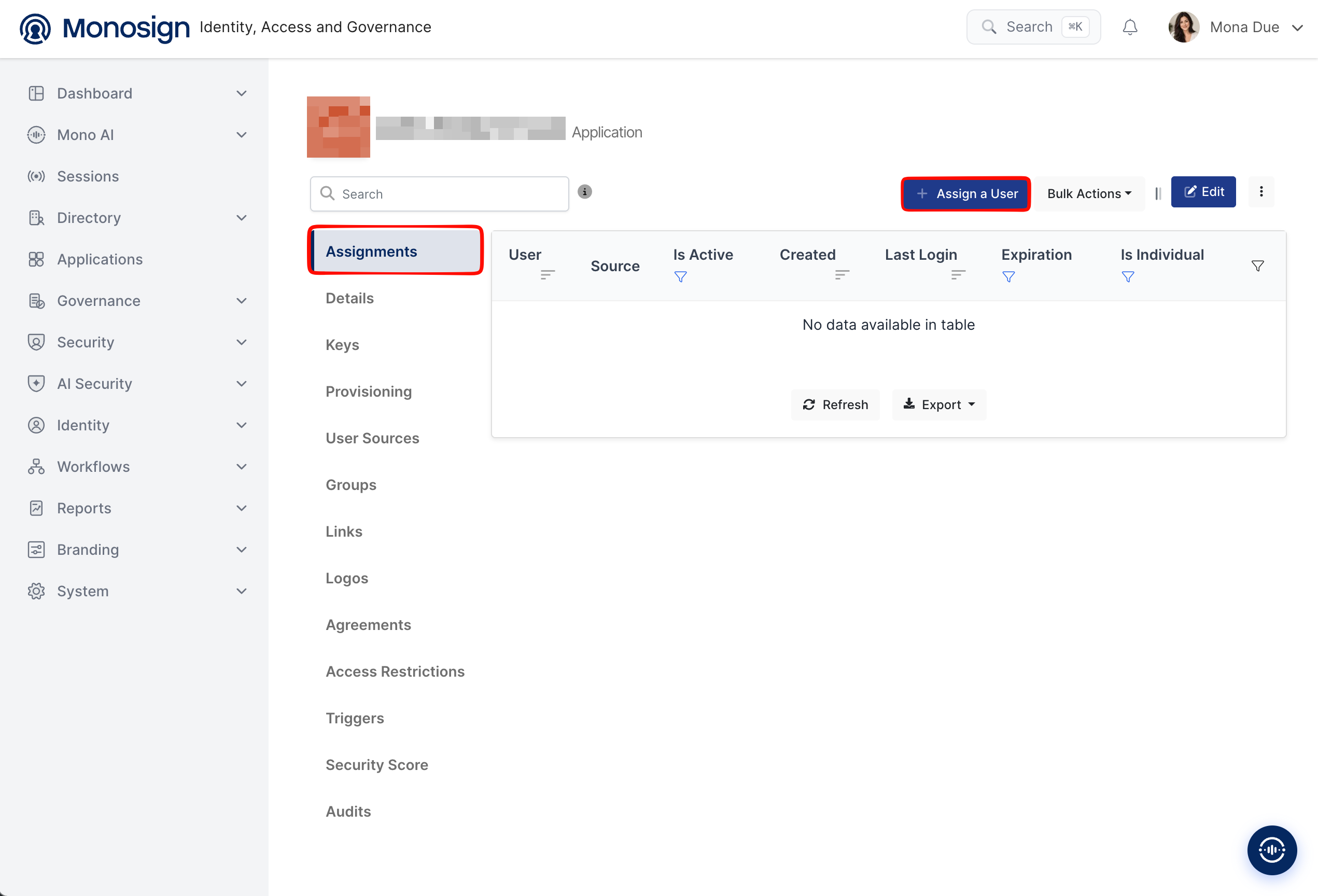
Open the application in Monosign, click the Assignments tab and click Assign a User.
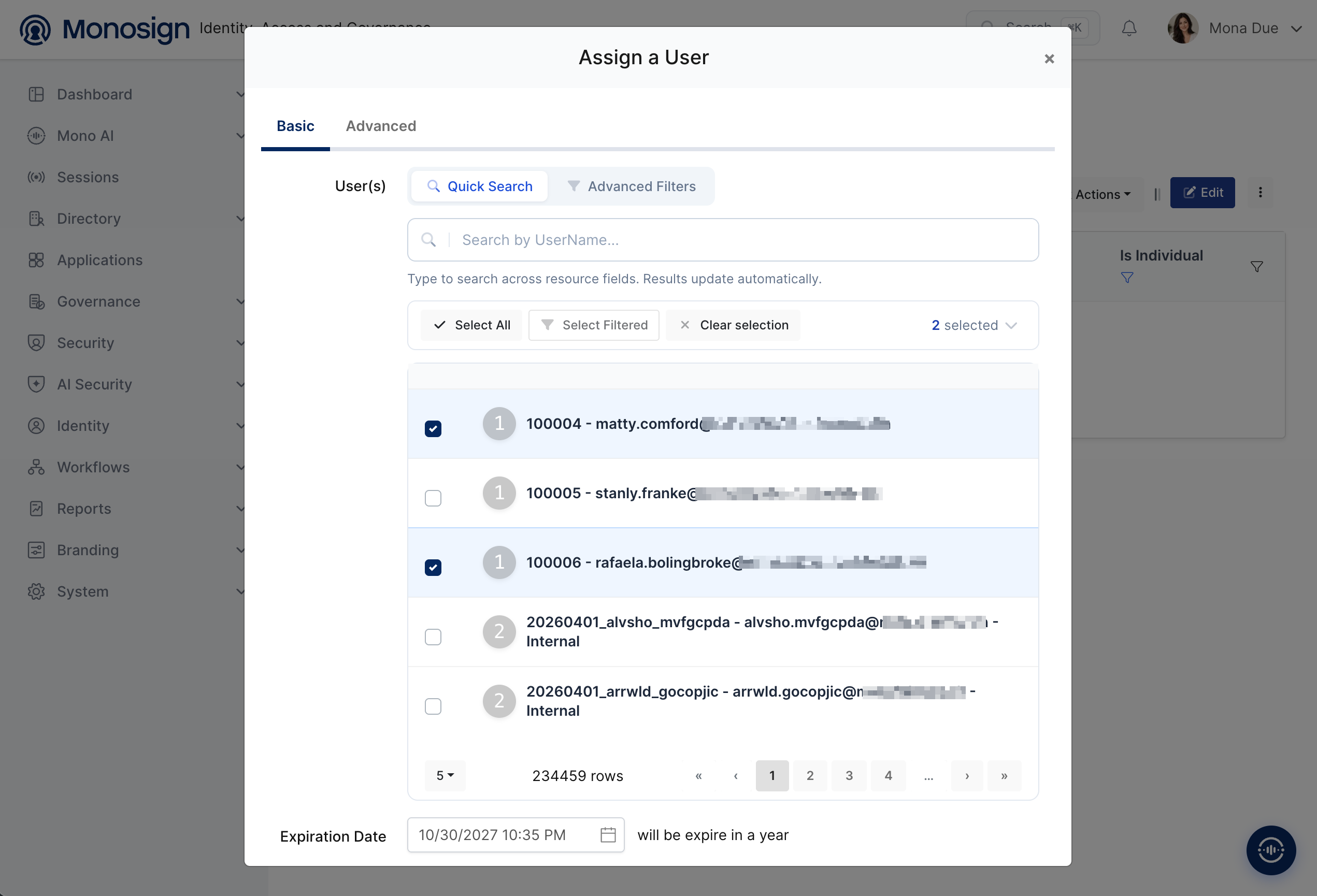
Search and select the users who can sign in to Roundcube, check the Expiration Date and save. You can select more than one user. Every user needs an e-mail address in Monosign, and the mailbox with the same address must exist on the mail server.
4- Configuration Single Sign-On for Roundcube and the Mail Server
4.1 Roundcube
As we mentioned at the start, please check out the Roundcube documentation first. Add the following lines to the file config/config.inc.php of Roundcube (with the Docker image of Roundcube you can add them to a file in the folder /var/roundcube/config) and replace the placeholder values. Reload the page after saving; a restart is not needed.
$config['oauth_provider'] = 'generic';
$config['oauth_provider_name'] = 'Monosign';
$config['oauth_client_id'] = '<client-id>';
$config['oauth_client_secret'] = '<client-secret>';
$config['oauth_config_uri'] = 'https://<monosign-host>/.well-known/openid-configuration';
$config['oauth_scope'] = 'openid profile email';
$config['oauth_identity_fields'] = ['email'];
$config['oauth_login_redirect'] = false;
// when Roundcube is behind an HTTPS reverse proxy
$config['use_https'] = true;
Option | Value | Description |
|---|---|---|
oauth_provider |
| Enables OAuth/OIDC with a standard provider. |
oauth_provider_name |
| Name on the sign-in button of the login page (Login with Monosign). |
oauth_client_id and oauth_client_secret | Client Id and Client Secret | Copied from the Monosign OIDC/OpenID Access Key Details created in the first step. |
oauth_config_uri |
| The discovery address of Monosign. Roundcube must be able to open it from its server. |
oauth_scope |
| The scopes that Roundcube requests; they must be the same as in step 2. |
oauth_identity_fields |
| The claim that is used as the user name (mailbox name) of the user. |
oauth_login_redirect |
| If it is |
use_https |
| Needed behind an HTTPS reverse proxy. Without it Roundcube sends the redirect address with |
oauth_debug |
| Writes the OAuth messages to the log of Roundcube; useful during the tests. |
PKCE (S256) is used by default (oauth_pkce). oauth_auth_type can force the mechanism that is used towards the mail server (XOAUTH2 or OAUTHBEARER); by default Roundcube selects it automatically. The configuration file must be readable by the user of the web server; otherwise Roundcube ignores it and the Monosign button is not shown.
4.2 Mail server (Dovecot example)
The IMAP server must accept the Monosign access token. In Dovecot enable the mechanisms and add an oauth2 password database in dovecot.conf:
auth_mechanisms = xoauth2 oauthbearer

passdb {
  driver = oauth2
  mechanisms = xoauth2 oauthbearer
  args = /etc/dovecot/dovecot-oauth2.conf.ext
}
The file dovecot-oauth2.conf.ext tells Dovecot how to validate the token:
introspection_mode = auth
introspection_url = https://<monosign-host>/openid/userinfo
username_attribute = email
tls_ca_cert_file = /etc/ssl/certs/ca-certificates.crt
Option | Value | Description |
|---|---|---|
introspection_mode |
| Dovecot sends the token in the header |
introspection_url |
| The User Info Url of the Monosign key (step 1). |
username_attribute |
| The claim that Dovecot uses as the user name. It must be the same as the claim of |
tls_ca_cert_file | CA bundle file | Dovecot must trust the certificate of Monosign. Do not disable the certificate check. |
The mailbox of the user must exist on the mail server (in Dovecot a userdb that returns the e-mail address as the user name). The Monosign token is only used to prove who the user is; the mail server still needs a mailbox for it. If Roundcube also sends mail, configure the SMTP server in the same way.
5- Sign In Test
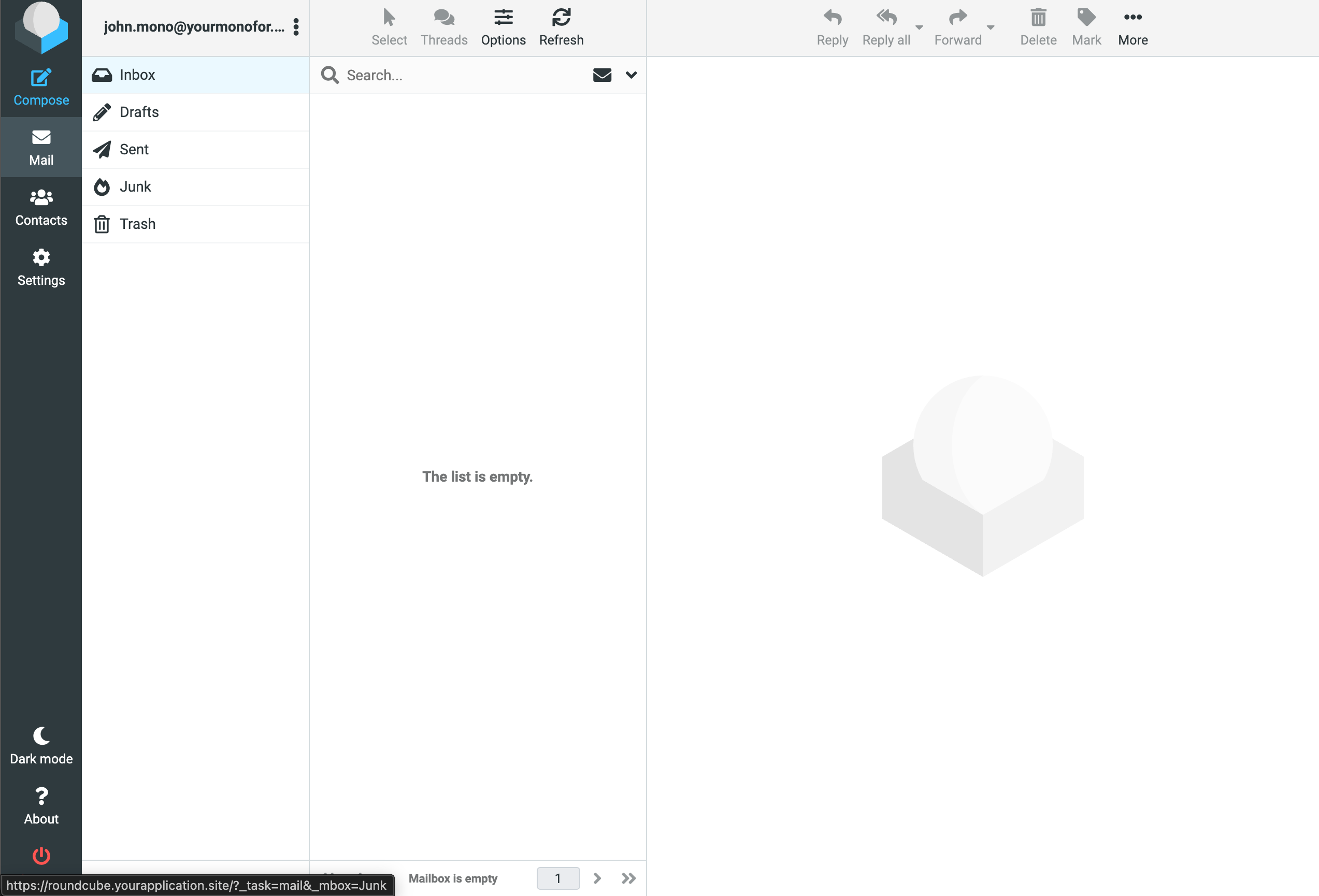
Now try to log in to Roundcube using Monosign SSO. Open a new browser window (or a private window) and type the address of Roundcube. The login page shows the Login with Monosign button.
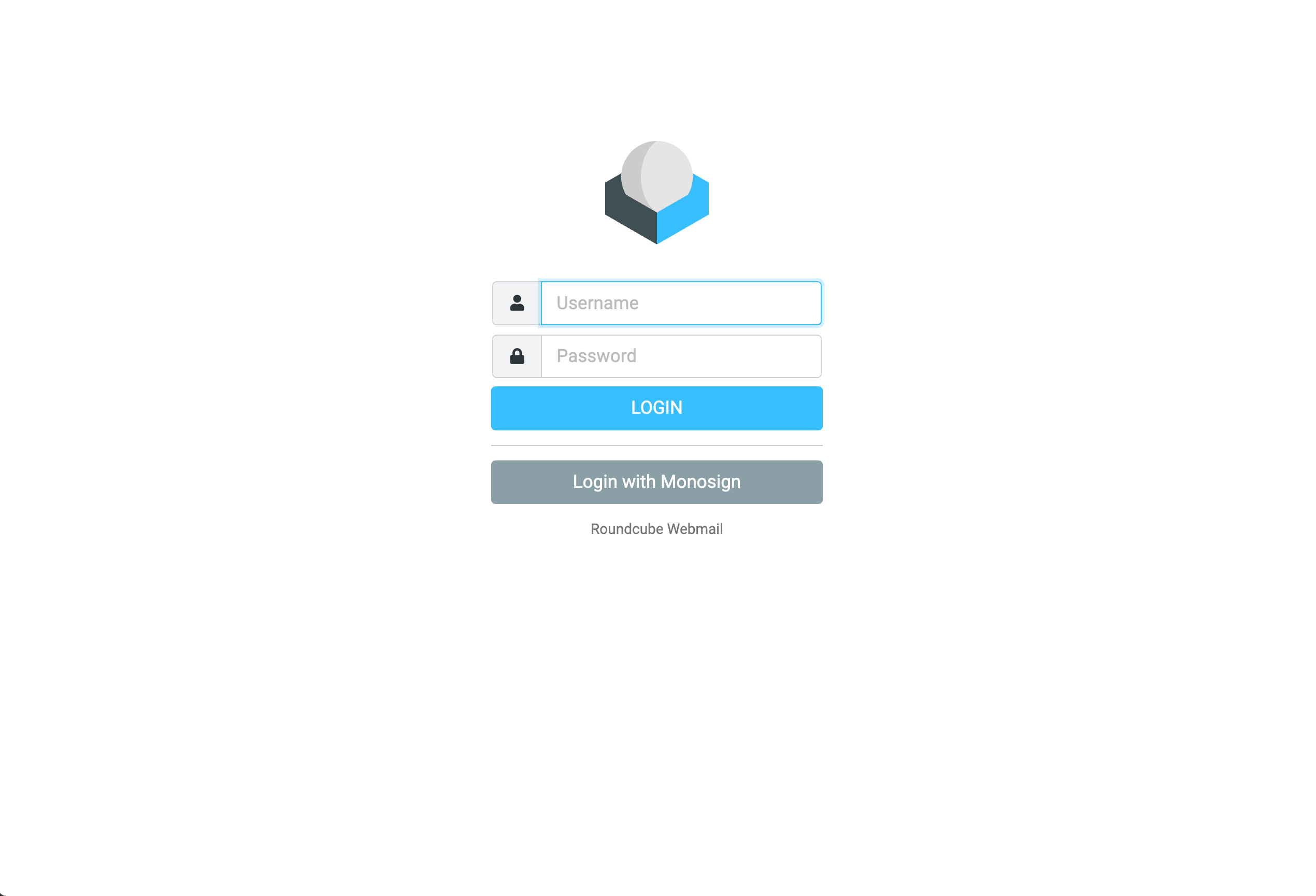
Click the Login with Monosign button once and wait for the redirects to finish.
On the Monosign sign-in page log in passwordless with your QR code (Monofor Identity), with a Passkey or with your user name and password (Sign in with Password). If you are already signed in to Monosign, the page is skipped.
After the sign-in Monosign redirects the browser back to Roundcube (
/index.php/login/oauth), Roundcube logs in to the mail server with the access token and opens the mailbox of the user.
Start the sign-in only once. Roundcube keeps one PKCE code in the session of the browser. If the sign-in is started twice (double click, two tabs, back button), the first answer of Monosign is refused with the error OAuth failed; close the other tabs and try again from the login page.
Troubleshooting
Symptom | Cause | Solution |
|---|---|---|
The Monosign button is not shown |
| Check step 4.1, give the file to the web server user and reload the page. |
Monosign shows a redirect URI error | The callback address does not exactly match the Allowed Redirect URIs, for example because Roundcube sends | Use |
An error appears after returning from Monosign | The Client Id or Client Secret is wrong, or Roundcube cannot open the discovery address of Monosign. | Copy the values again from the Monosign access key (step 1), set |
OAuth failed and the log shows The specified code_verifier is invalid or state parameter mismatch | The sign-in was started more than once in the same browser session. | Close the other tabs, open the login page again and click the button only once. |
The sign-in on Monosign succeeds but Roundcube shows Login failed | The mail server does not accept the Monosign access token, or the mailbox of the e-mail address does not exist. | Read the log of the mail server and check step 4.2. If the log shows a 404 answer from Monosign, |
A user cannot sign in | The user is not assigned to the application. | Assign the user in step 3. |
After completing the configuration on Roundcube and Monosign, it is better to test in a new private browser window if the OIDC SSO doesn’t work, because old session cookies may cause errors.