This document explains how to implement Monosign with Sentry, the open-source error-tracking and performance-monitoring platform. It covers Single Sign-On using SAML 2.0, where Monosign acts as the Identity Provider (IdP) and Sentry as the Service Provider (SP). Before you continue, it is better to read the Sentry Single Sign-On (SAML2) documentation (opens in a new tab).
This configuration is done with self-hosted Sentry 9.1.2 (Docker image sentry:9.1.2) — the last Sentry release before the Kafka/ClickHouse architecture, so it is lightweight — with the official generic SAML2 plugin sentry-auth-saml2 installed. SAML 2.0 single sign-on is configured per organization in the Sentry web interface (Settings → Auth). If your Sentry version or deployment type is different, please check the Sentry documentation.
Monofor has no responsibility to do Sentry configurations. If you need support please contact the Sentry community or your Sentry support provider.
Sentry is open source. On self-hosted Sentry the SAML2 single sign-on is free: it is enabled with the organizations:sso-saml2 feature flag together with the sentry-auth-saml2 plugin. On Sentry's hosted SaaS (sentry.io), SAML single sign-on is part of the Business plan.
Instructions
This documentation contains 5 main steps for integration.
Creating an application on Monosign
Configuring the SAML settings on Monosign
Assign a user to the Sentry application
Configuration Single Sign-On for Sentry
Sign In Test
1- Creating an Application on Monosign
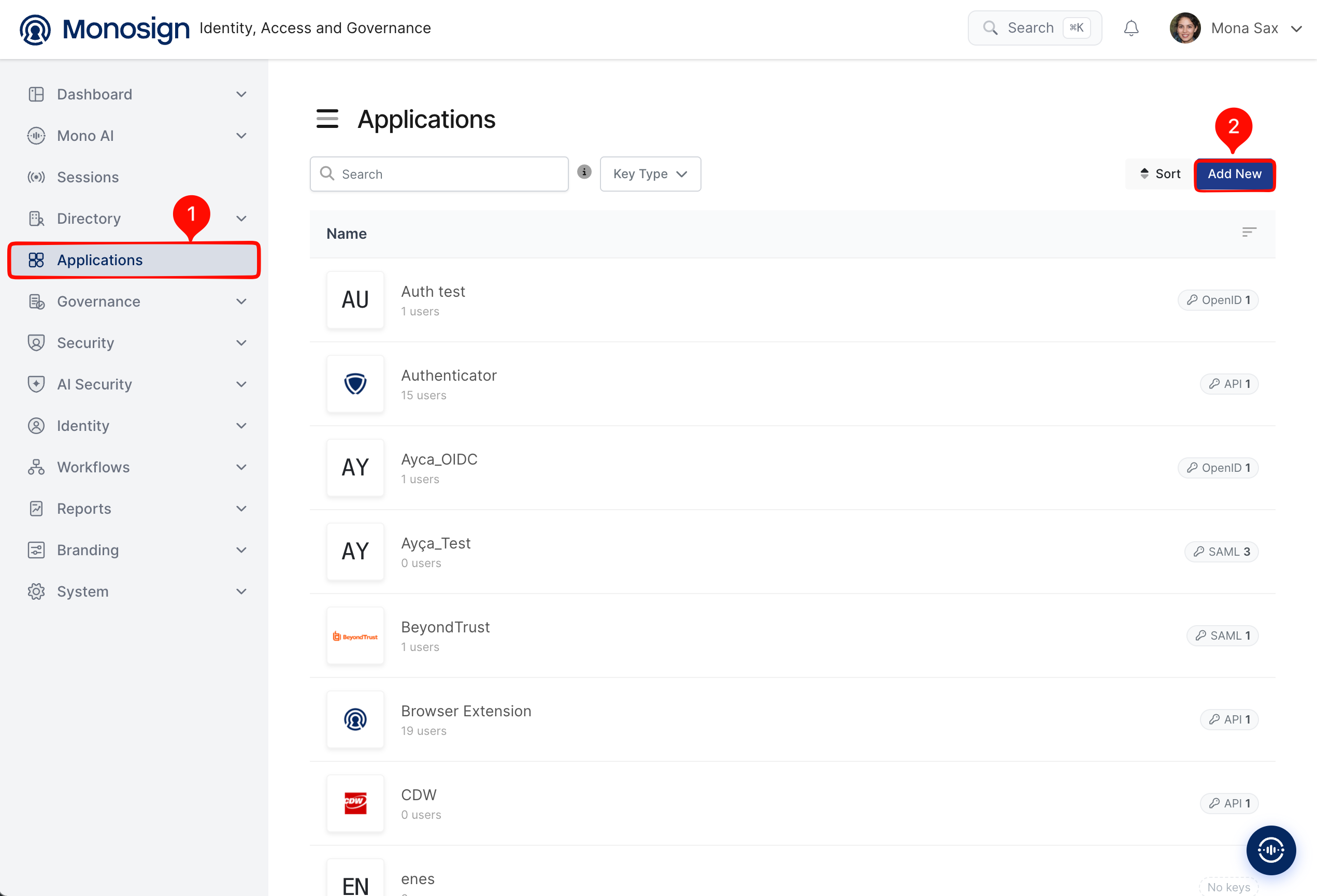
Create your application on Monosign first. Open the Applications page from the left menu and click Add New.
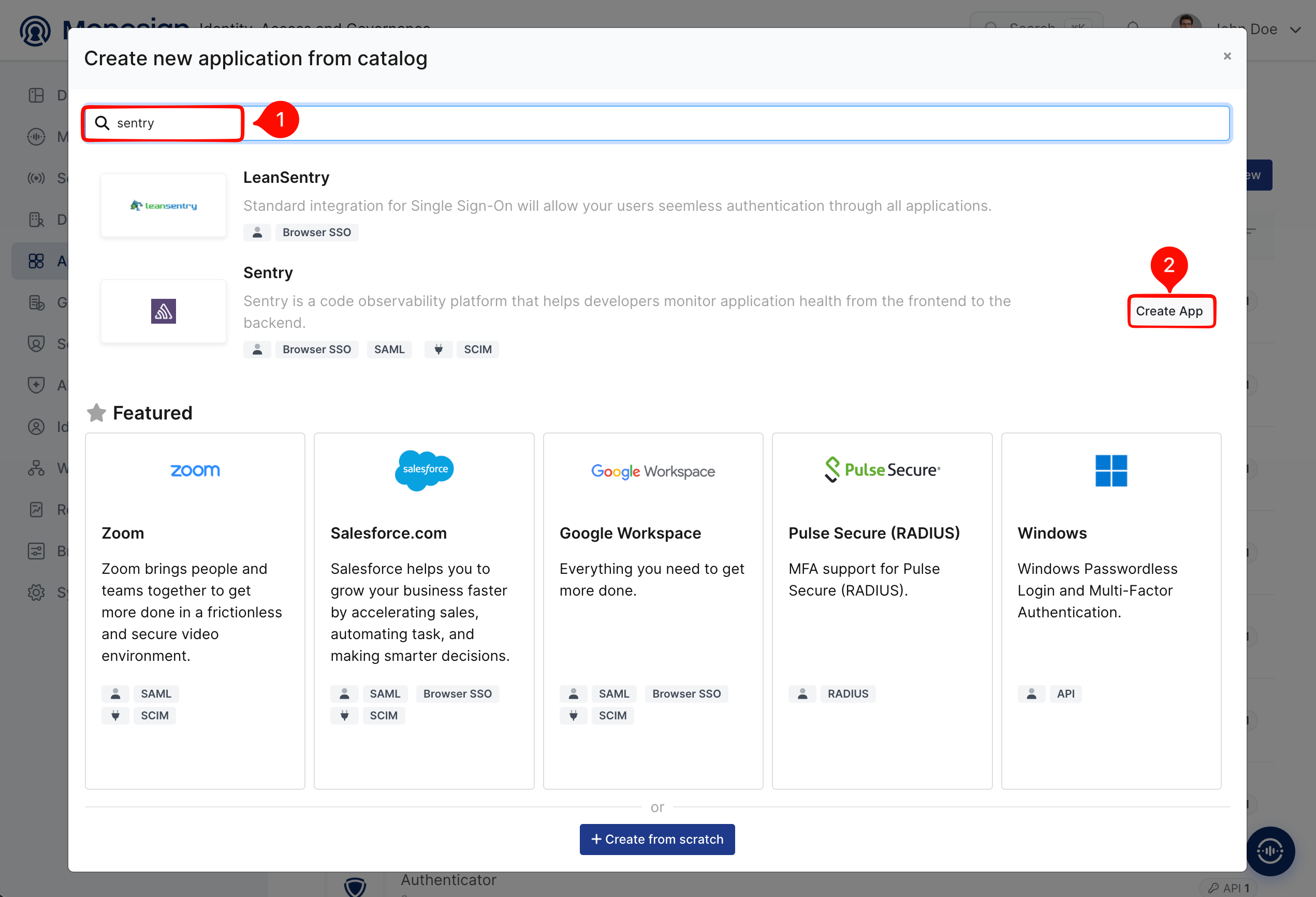
Sentry is already in the Monosign application catalog. Type Sentry in the search box of the Create new application from catalog window and click Create App on the Sentry entry. The catalog application comes pre-configured as a SAML service provider.
After the application is created, open the Keys tab and select the SAML 2 key. The key page shows the Monosign values that are needed in the Sentry configuration (step 4).
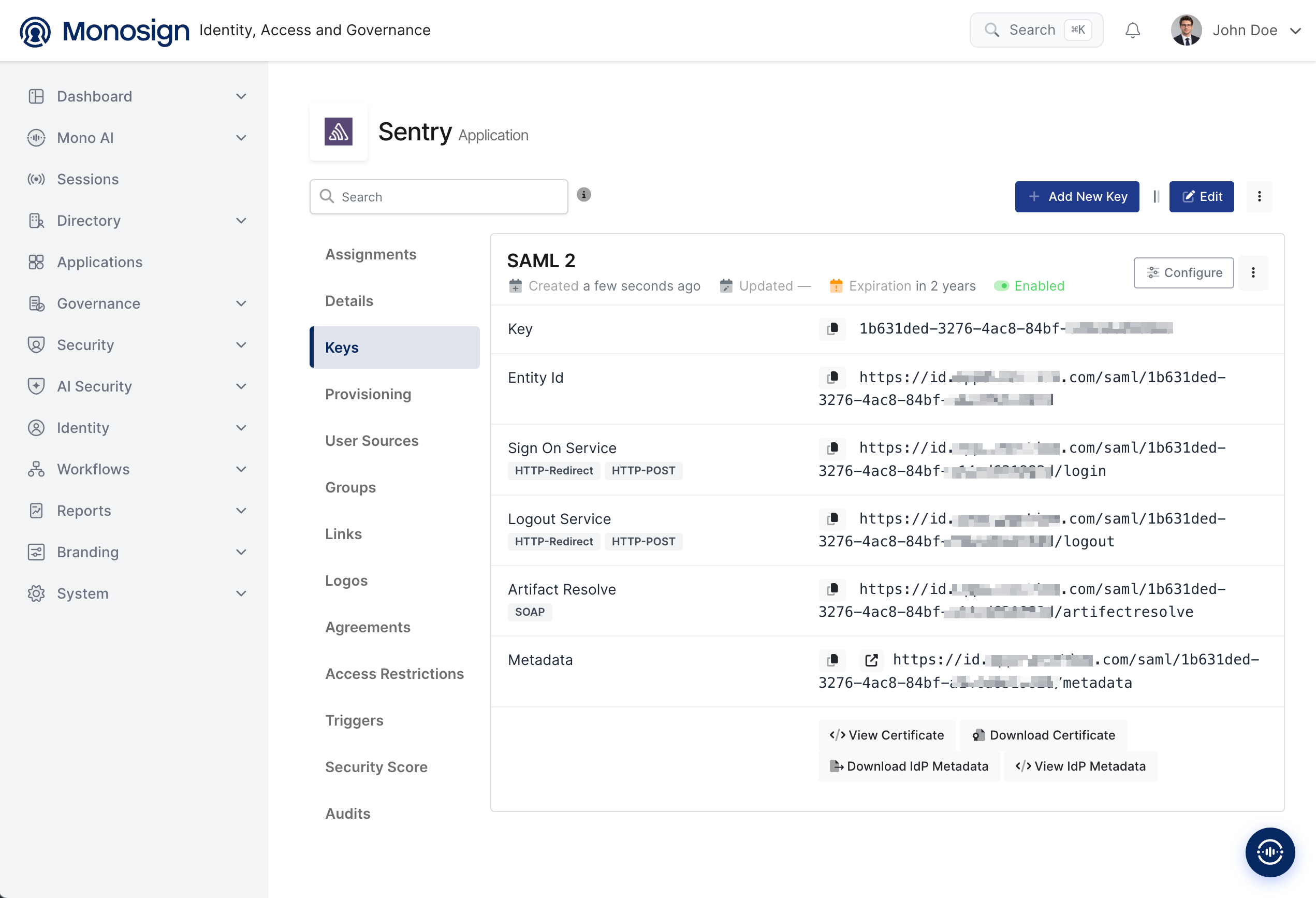
Monosign value | Example | Used in Sentry as |
|---|---|---|
Sign On Service |
| Identity Provider Single Sign-On URL. |
Entity Id |
| Identity Provider Issuer (IdP Entity ID). |
View / Download Certificate | X.509 certificate of Monosign | IdP X.509 public certificate. |
Metadata |
| IdP metadata URL. Sentry reads the three values above from it automatically (recommended), instead of entering them by hand. |
2- Configuring the SAML Settings on Monosign
Open the Edit screen of the SAML key and go to the SAML Settings → Configuration tab. Enter the Sentry Assertion Consumer address in Assertion Consumer Url and set the Name Id to the e-mail address of the user.
Property | Value | Description |
|---|---|---|
Assertion Consumer Url |
| The address where Sentry receives the SAML response. The path |
ACS Validation Mode |
| Default. With |
Name Id |
| Sentry identifies the user by e-mail address, so the NameID must be the e-mail address. |
Open the Attribute Mapping tab and add the email attribute, then click Update to save. Without an attribute mapping Monosign sends no AttributeStatement and Sentry rejects the sign-in (see Troubleshooting).
Attribute | Value | Description |
|---|---|---|
| E-mail address of the user. Required; it is the identifier Sentry maps the account to. |
Map on the Sentry side only attributes that are always populated. Do not bind a Sentry field to a possibly-empty profile property such as {{Profile.FirstName}}: when the value is empty, Monosign sends an empty attribute and the Sentry plugin fails (see Troubleshooting). The e-mail is enough; the user's first and last name are left unmapped on the Sentry side in step 4.
3- Assign a User to the Sentry Application
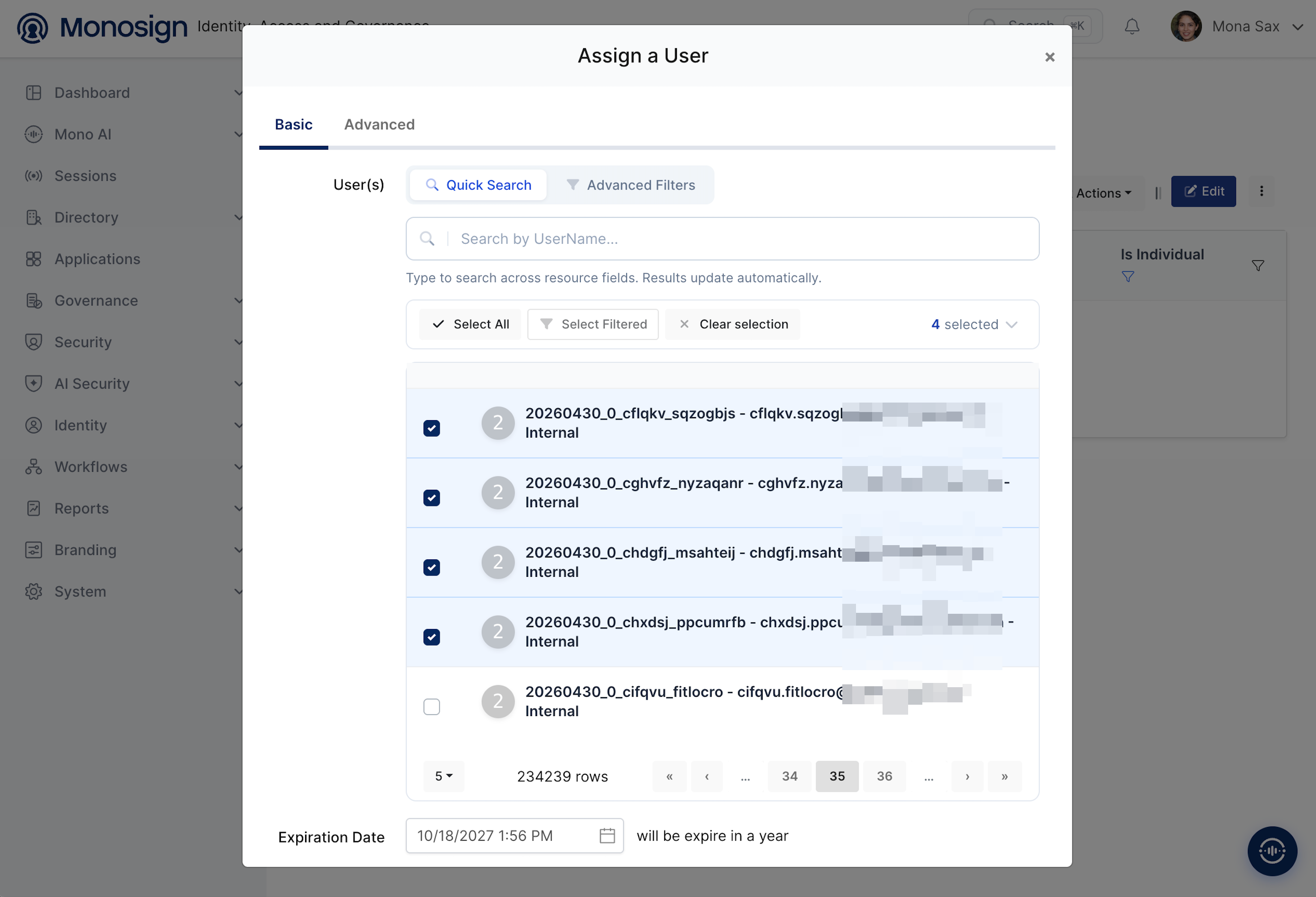
Please follow the below instructions on how to assign a user to the application. Open the application, click the Assignments tab and click Assign a User.
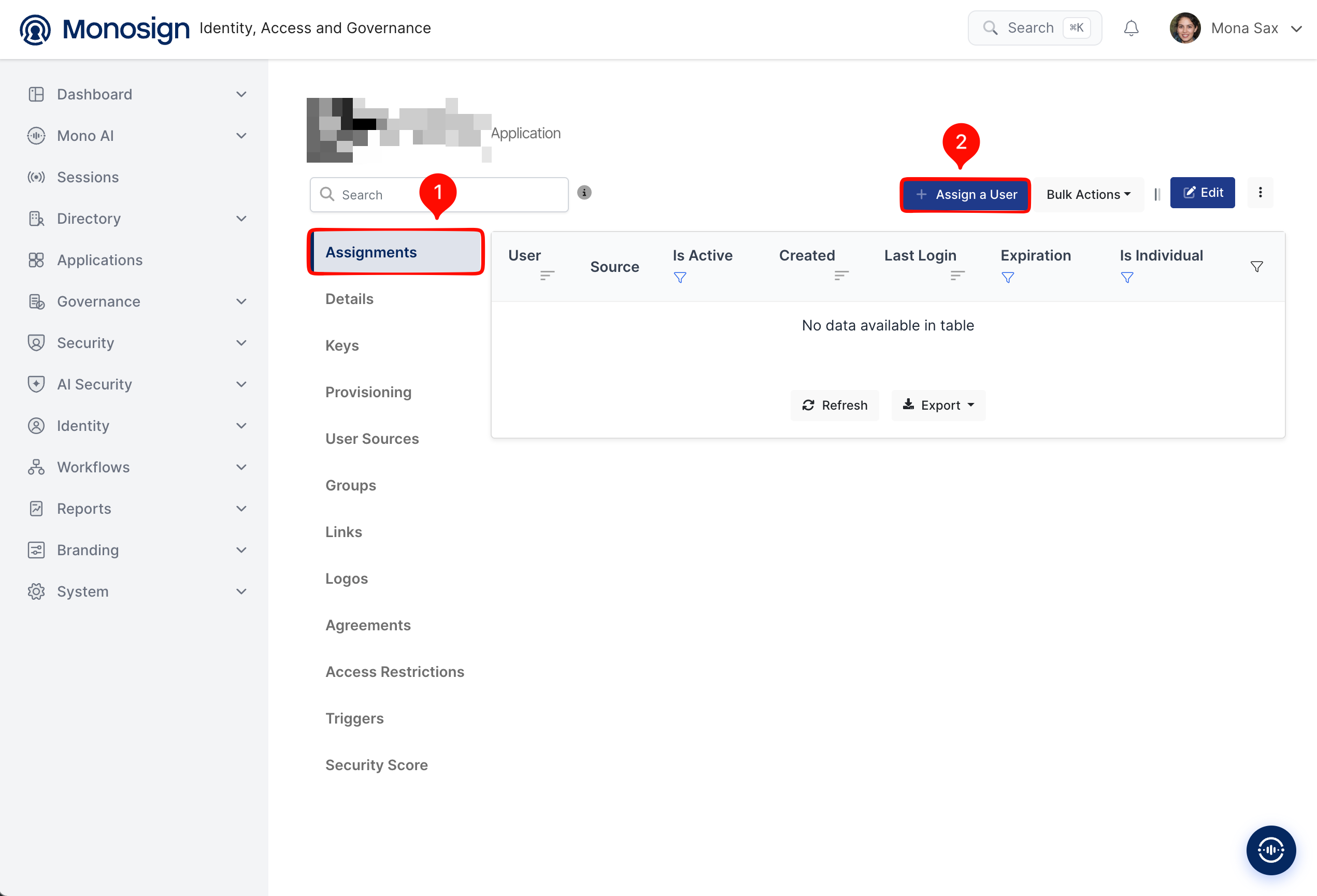
Search and select the users who can sign in to Sentry, check the Expiration Date and save. You can select more than one user.
4- Configuration Single Sign-On for Sentry
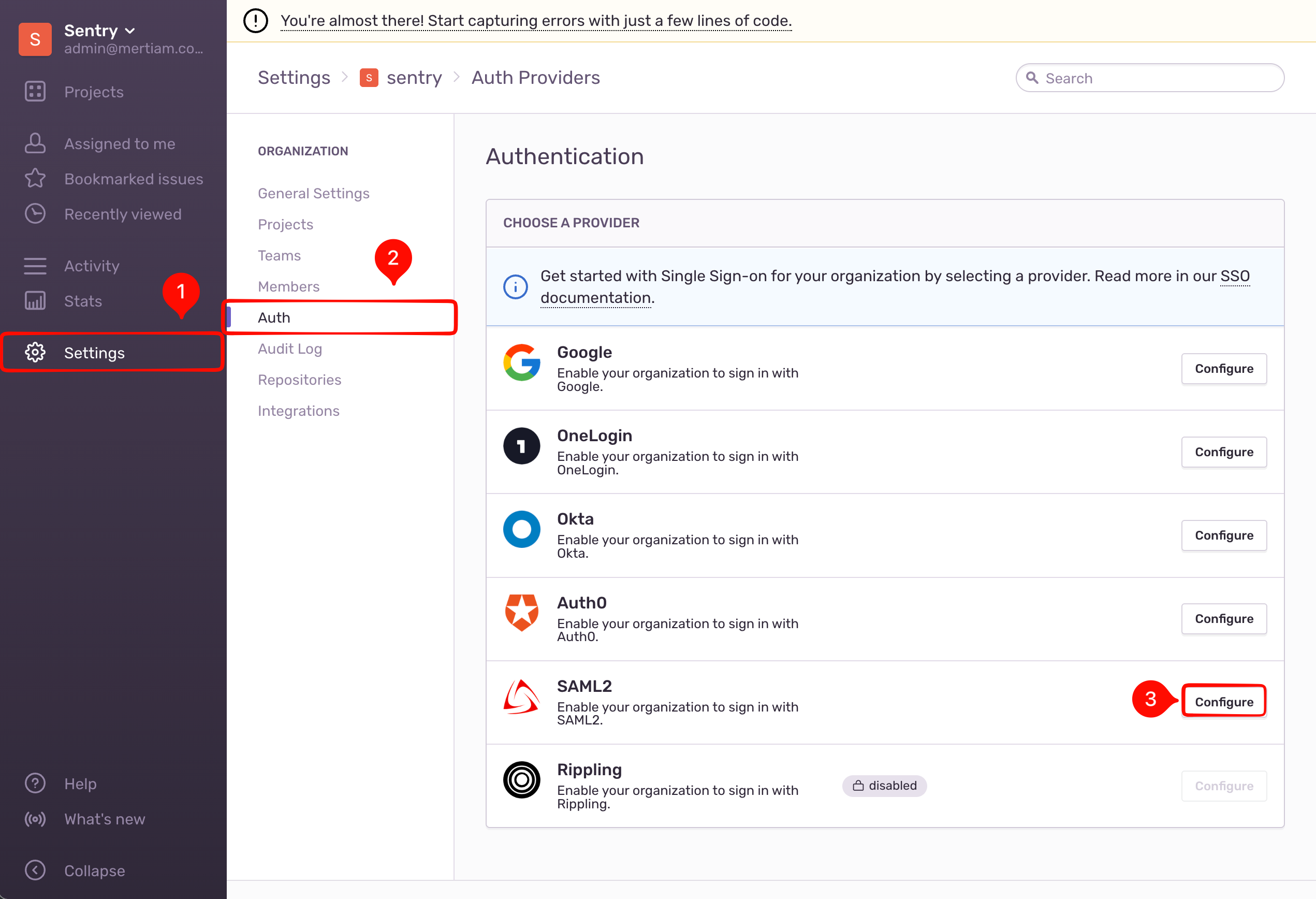
The SAML settings are made in the Sentry web interface by an organization owner. Log in with the local owner account, open Settings → Auth, find SAML2 in the provider list and click Configure.
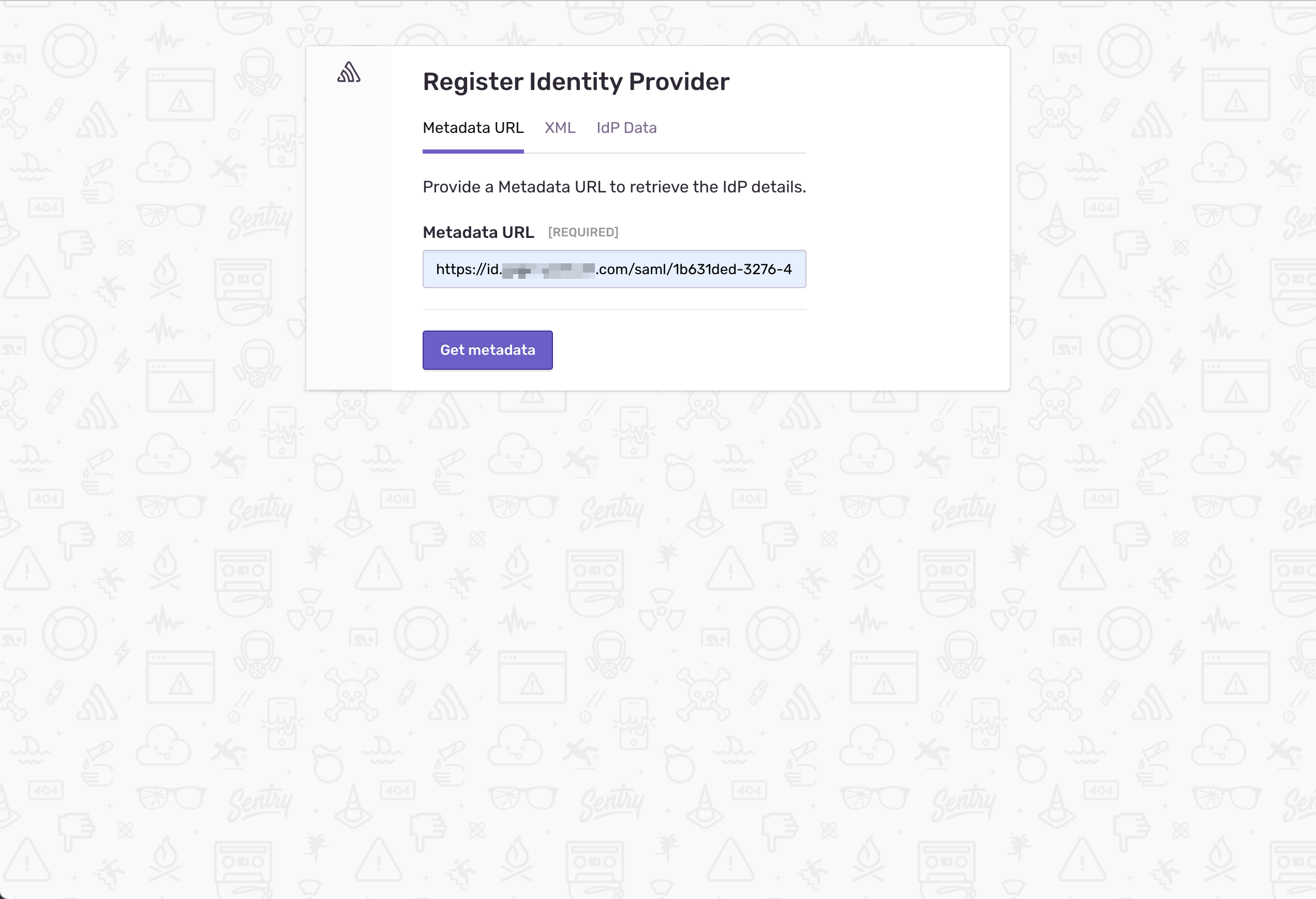
On the Register Identity Provider screen, keep the Metadata URL tab, paste the Monosign Metadata URL from step 1 and click Get metadata. Sentry reads the Single Sign-On URL, the Issuer and the certificate from it automatically.
On the Map Identity Provider Attributes screen, set the attribute keys and click Save Attributes. Use email for both required fields and leave First Name and Last Name empty.
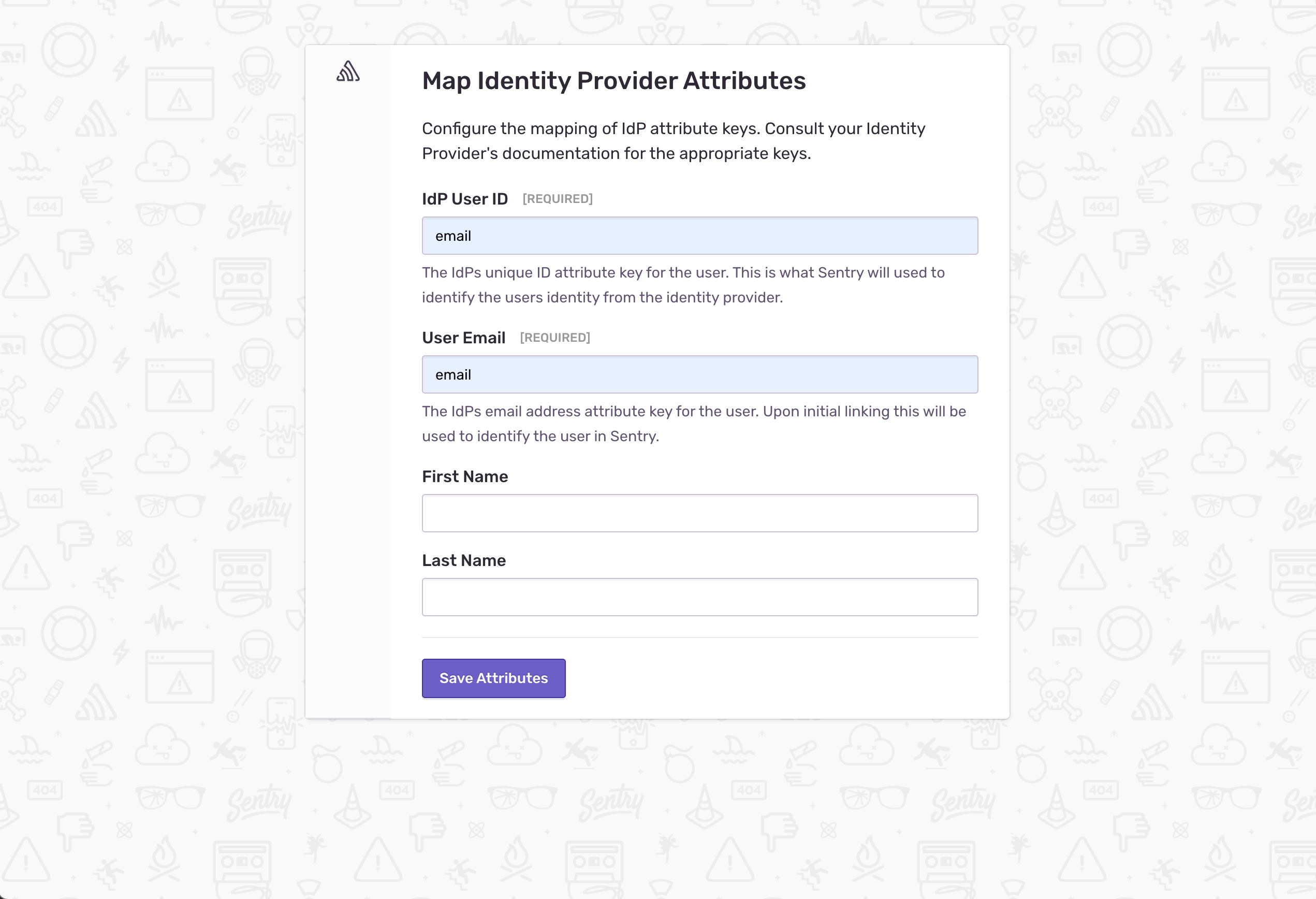
Field | Value | Description |
|---|---|---|
IdP User ID (required) |
| The attribute Sentry uses to identify the user. The |
User Email (required) |
| The attribute that carries the e-mail; used to link the account on the first sign-in. |
First Name | empty | Left blank. Mapping it to a profile field that can be empty makes the plugin fail (see Troubleshooting). |
Last Name | empty | Left blank for the same reason. |
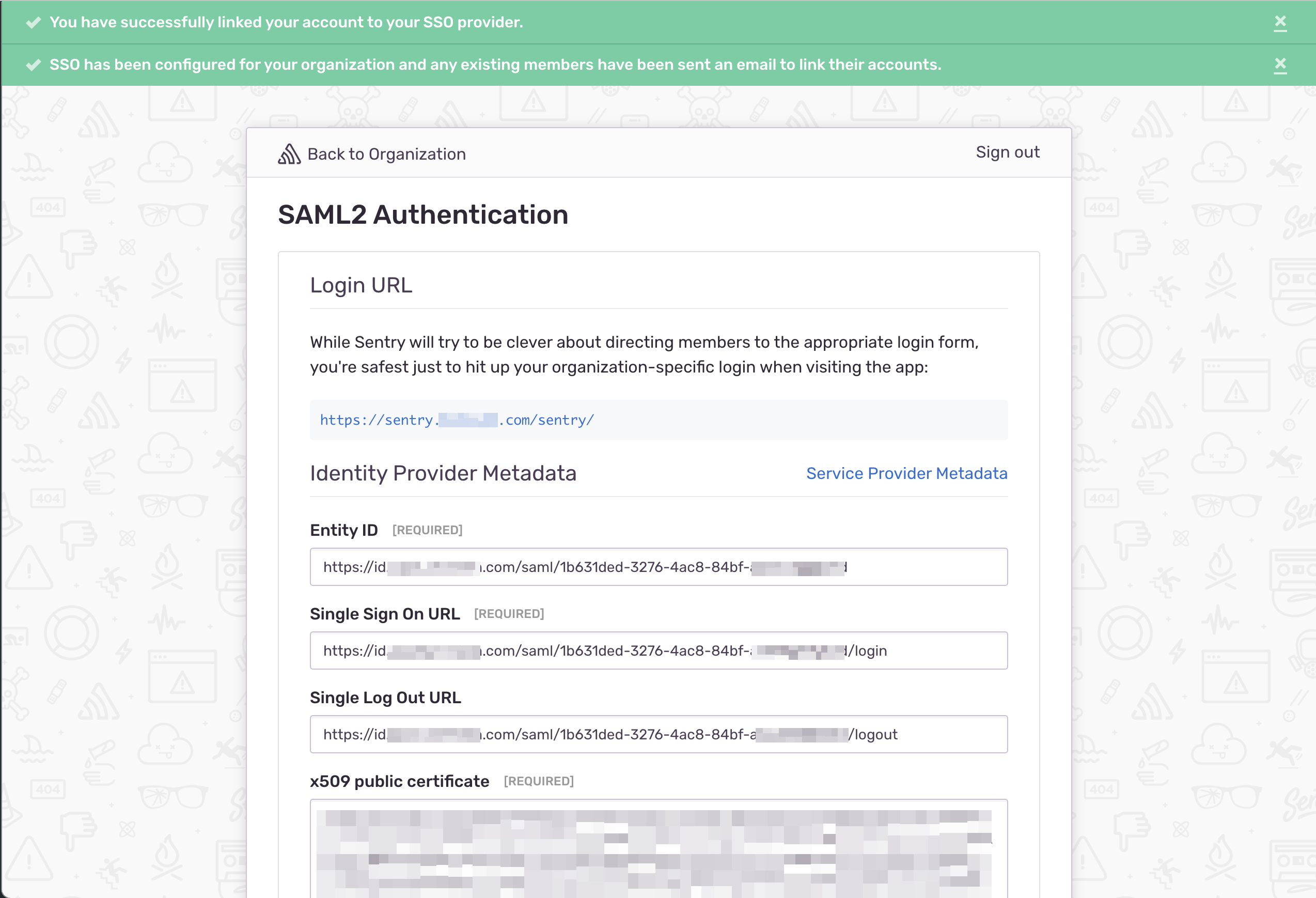
Sentry links the current owner account and reports that SSO is configured. The SAML2 Authentication page then shows the organization sign-in URL and the IdP values that were read from the metadata.
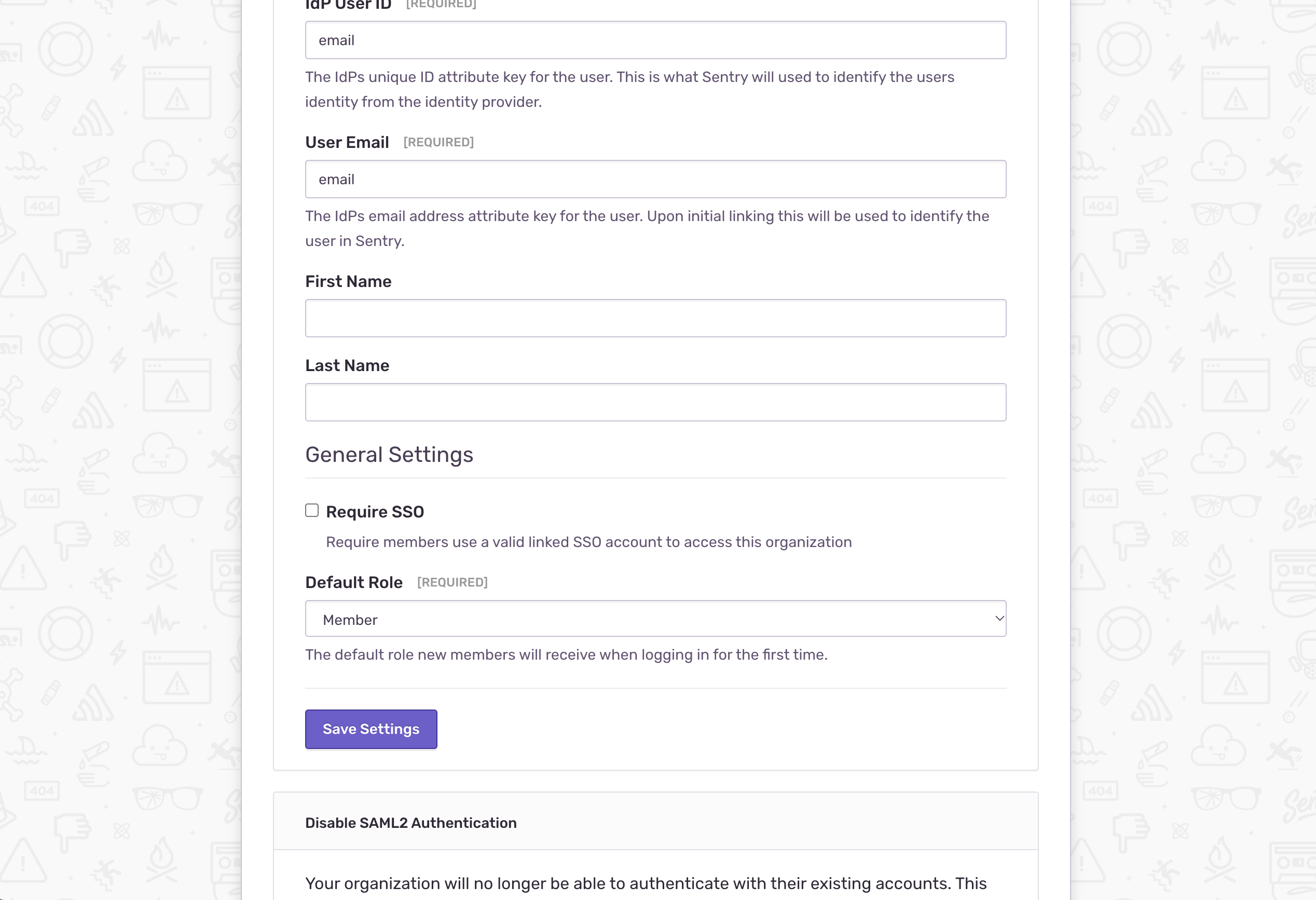
Lower on the same page, under General Settings, leave Require SSO unchecked so that members can sign in with either SSO or their e-mail and password. Check it only if you want to force SSO for every member.
Sentry SP endpoint | Address |
|---|---|
Assertion Consumer Service (ACS) URL |
|
SP Metadata |
|
Single Logout (SLS) |
|
For both the password login and the SSO login to stay available, the server setting SENTRY_SINGLE_ORGANIZATION must be False in sentry.conf.py. While it is True (the on-premise default) every login is scoped to the single organization and only the SSO button is shown; there is no UI toggle for it.
Do not close your own session before the sign-in test is successful. If the single sign-on fails, you can still log in with a local Sentry account at https://<sentry-address>/auth/login/ and correct the settings.
5- Sign In Test
Now try to log in to Sentry. With Require SSO off, both login methods are available on separate URLs:
Login method | URL |
|---|---|
E-mail & password |
|
Single Sign-On |
|
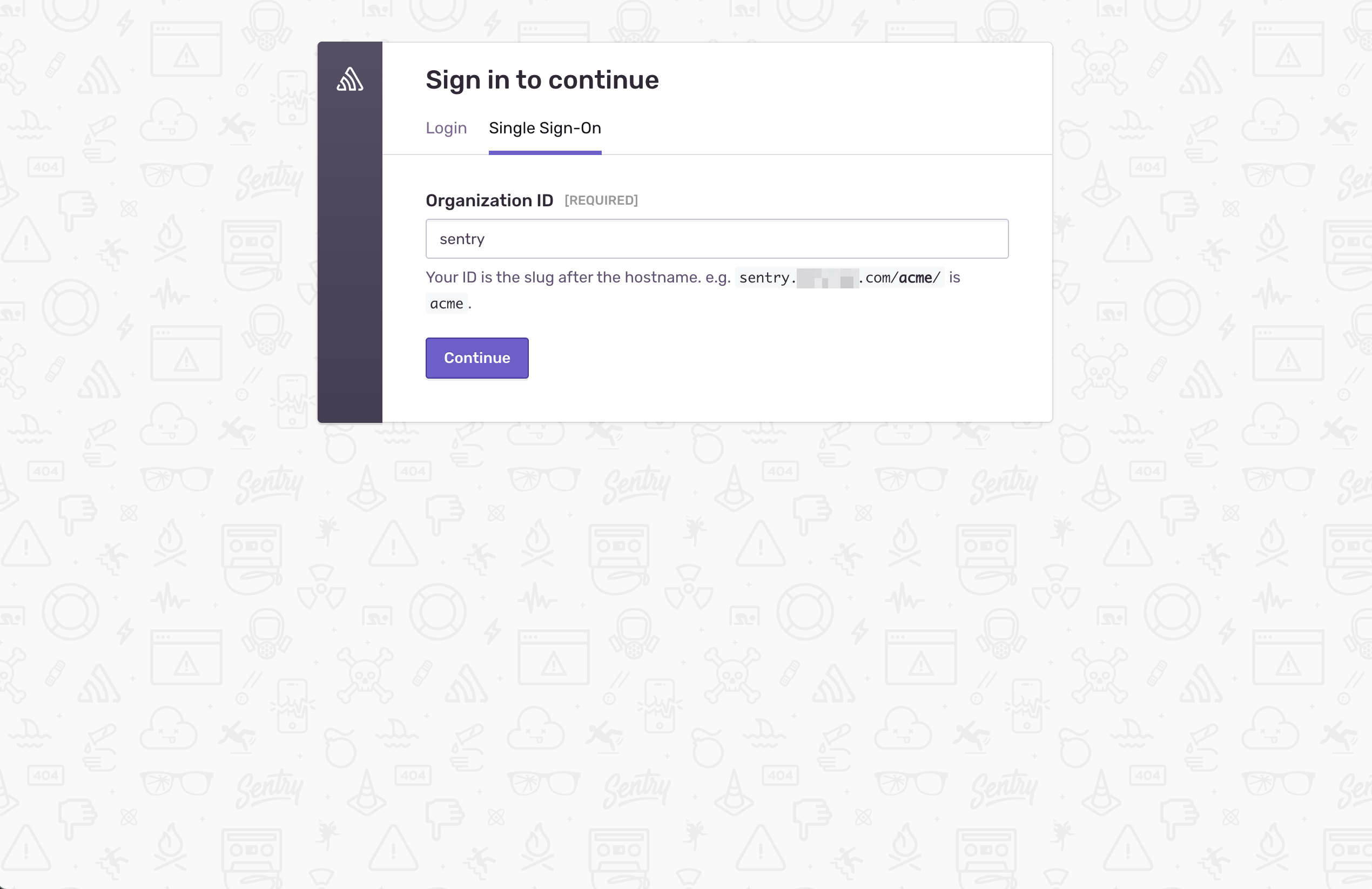
On the sign-in page the Login and Single Sign-On tabs are both present. On the Single Sign-On tab, enter the organization slug (sentry) and continue.
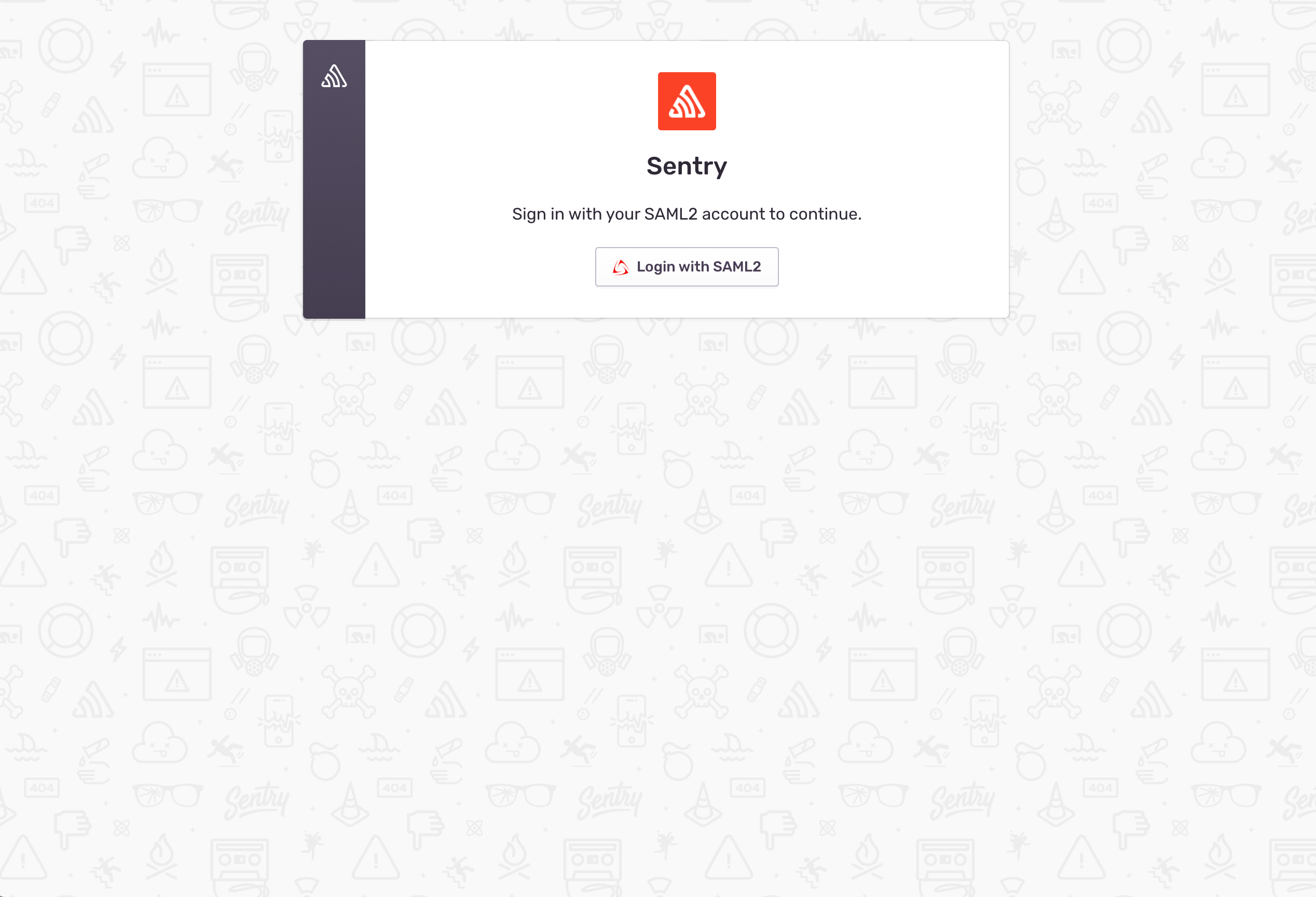
Click Login with SAML2. Sentry redirects the browser to the Monosign sign-in page. You can log in passwordless with your QR code (Monofor Identity), with a Passkey or with your user name and password. If you are already signed in to Monosign, the page is skipped.
After the sign-in Monosign sends the SAML response to the ACS URL of Sentry and the user is logged in.
Troubleshooting
Symptom | Cause | Solution |
|---|---|---|
SAML2 is not shown under Settings → Auth | The | Enable the feature flag in |
| The Monosign SAML key has no attribute mapping, so the response carries only the NameID and no attributes. | Add at least the |
Server API error ( | A mapped attribute arrives empty — Monosign sends an empty attribute when its value (e.g. | Map in Sentry only attributes that always have a value. Leave First Name and Last Name empty in the Map Identity Provider Attributes screen (step 4), or bind them to an always-present value such as |
Only the SSO button is shown; the password login never appears, even at | Single-organization mode is on, so every login is scoped to the one org and its SSO. | Set |
The sign-in succeeds on Monosign but Sentry does not log in | The Issuer or certificate is wrong, the NameID is not the e-mail, or the user is not a member of the organization. | Re-read the metadata from the Monosign key (step 1), set Name Id to |
A user cannot sign in | The user is not assigned to the application in Monosign. | Assign the user in step 3. |
After completing the configuration on Sentry and Monosign, it is better to test in a new private browser window if the SAML SSO doesn’t work, because old session cookies may cause errors.