This page describes Monofor Identity Client for macOS 2.4.20. It replaces the documentation of the 1.0.x installer, which is no longer valid.
What it does
The client puts Monosign in front of every place where macOS asks who you are:
Login window and lock screen: sign in with a QR code, a push notification or an offline code instead of a password.
Administrator prompts (System Settings, installers, any "wants to make changes" dialog): approved in a compact Monofor window that says what is being approved.
sudo in Terminal: the same approval window, through a PAM module.
Touch ID for administrator prompts and sudo: after a one-time QR or push approval, a linked user can approve with a fingerprint. Each use is checked with Monosign. Not available at the login window or lock screen (macOS does not allow it for third-party sign-in screens, and FileVault needs the password after a restart).
Just-in-time local accounts: a Monosign user without a Mac account gets one on first sign-in, if the Identity Client policy allows it. Administrator rights come from a Monosign group; Monosign decides both at sign-in and the client only applies the decision.
Password sync: the local password is the user's Monosign password and is updated after it changes in Monosign.
Offline sign-in: when Monosign cannot be reached, a time-based code from the Monofor Identity mobile app unlocks the Mac.
Remote lock and unlock from Monosign.
Language and branding from the tenant: texts in English and Turkish, the company logo on the sign-in screen and inside the QR code.
Audit: sign-ins, approvals and enrollments are sent to the Monosign audit log, the same event types as the Windows client.
User-facing flows with screenshots: macOS Passwordless Login. Problems and their fixes: macOS Troubleshooting.
Requirements
macOS 13 Ventura or later, Apple silicon or Intel (tested on macOS 26 and 27).
A Monosign tenant with an application key for the Identity Client (see Monosign side below).
Users have the Monofor Identity mobile app with a registered authenticator (needed for QR, push and offline codes).
Network at the login window for online sign-in. Without network the offline code works. Enterprise networks with 802.1X need a system-level network profile so the Mac is online before anyone signs in.
For sudo approval: Full Disk Access for the daemon, given by hand or by the MDM profile below.
For Touch ID approval: a Mac with Touch ID and enrolled fingers.
Download
monofor-identity-client-v2.4.20.pkg (opens in a new tab) (universal, signed and notarized by Apple)
SHA-256: 6e95d91f41846b5c06b3c525753b375757eb808ae7c99a3d2155736e64c00059
Components
Component | Where | Role |
|---|---|---|
Identity-Daemon |
| Runs as root. The only part that holds secrets and talks to Monosign. Other parts reach it over code-signature checked XPC; it has no network listener. The command line options ( |
Sign-in plugin |
| Draws the Monofor screens at the login window, lock screen and administrator prompts. |
pam_monofor |
| Sends sudo to the Monofor approval window. |
Configurator |
| Settings app for administrators. |
Helper and Overlay | LaunchAgent | Per-session helpers: switch to the login window on lock, remote lock, the Touch ID key. If macOS fails to switch to the Monofor login window on lock, the helper tries once more after 40 seconds and logs the failure. |
monofor-identity-reset |
| Puts macOS sign-in back to stock, optionally uninstalls. |
Installation
Interactive
Open the PKG and finish the installer.
The Configurator opens. Fill in the Connection tab and save (details below).
Lock the screen: the Monofor sign-in screen appears.
Installing from the command line (installer -pkg, MDM, Monopam) does not open the Configurator window.
Mass deployment (MDM)
Deploy the PKG.
Deploy the Privacy Preferences (PPPC) profile
com.monofor.identity-pppc.mobileconfig. It givesIdentity-Daemonthe SystemPolicySysAdminFiles permission needed to write/etc/pam.d/sudo_local. Without it, sudo stays on the macOS password and the Configurator shows Needs Full Disk Access.Configure with a script run as root:
sudo /usr/local/bin/Identity-Daemon --configure \
  url=https://account.example.com key=<app key> secret=<app secret> tenant=<tenant id> \
  mode=monofor branding=true sudo-fallback=true
The command runs through the daemon (root-only XPC service com.monofor.identity.cli), so the daemon must be running. This is needed because from macOS 27 a root shell cannot read or write the client configuration directly. A change is applied only after it was saved; if saving fails, nothing changes and an error is printed. The same applies to --status and --check-offline.
Key | Values | Meaning |
|---|---|---|
url, key, secret, tenant | Monosign account URL (https), application key and secret, tenant ID. | |
mode | monofor | default | Administrator prompts and sudo. |
login | monofor | macos | Login window and lock screen. Default |
branding | true | false | Show the tenant logo on the sign-in screen and in the QR code. |
sudo-fallback | true | false | If a sudo approval is cancelled, ask for the macOS password. |
prompt-fallback | true | false | Offer a macOS password tab, next to QR and push, to accounts not linked on this Mac yet (online or not). Default |
offline-only | true | false | Only offline codes (for Macs that never reach Monosign at sign-in). |
touch-id | true | false | Allow Touch ID for administrator prompts and sudo, checked with Monosign each time. Default |
Only the keys given are changed. The secret is stored root-only and is never shown again.
Update with a script (Monopam Scripts or MDM)
monofor-identity-update.sh (in the release package folder) updates a Mac to a signed, notarized package without asking anything and without opening a window. Run it with Monopam Scripts or MDM:
It must run as root. The Monopam agent runs scripts as root; for SSH targets turn on Run as sudo. Recommended timeout: 600 seconds.
Exit codes:
0updated or nothing to do,1failed (nothing changed),2not run as root.Variables at the top:
VERSION,PKG_URL,PKG_SHA256(SHA-256 of the package; set to the 2.4.20 value below, update it with each release; empty means only the signature is checked),INSTALL_IF_MISSING(1also installs on Macs without the client,0updates existing installs only).Environment:
FORCE=1reinstalls the same version,DRY_RUN=1downloads and verifies without installing.
What it does:
Compares the installed version with the target. It never installs an older version over a newer one.
Downloads the package over https.
Checks the SHA-256 if
PKG_SHA256is set.Checks the Developer ID Installer signature for team
57F4MWPKDQand Gatekeeper acceptance (notarization) withspctl.Installs with
installer.Verifies the installed version and that the daemon is running.
The configuration and the linked accounts are kept.
#!/bin/bash
# Monofor Identity Client for macOS: update to a signed, notarized package.
#
# For Monopam Scripts (or any root shell: MDM, SSH with sudo). Runs as root, asks nothing and
# opens no window: the package skips the configurator on command-line installs, keeps the
# configuration and the linked accounts, and restarts the daemon and the session helpers.
#
# Exit codes: 0 updated or nothing to do, 1 failed (nothing changed), 2 not run as root.
# Set FORCE=1 to reinstall the same version, DRY_RUN=1 to download and verify without installing.
# Older versions are never installed over newer ones.

set -u
export PATH=/usr/bin:/bin:/usr/sbin:/sbin

VERSION="2.4.20"
PKG_URL="https://download.monofor.com/identity/monofor-identity-client-v${VERSION}.pkg"
# SHA-256 of that package (from the release notes). Empty: only the signature is checked.
PKG_SHA256="6e95d91f41846b5c06b3c525753b375757eb808ae7c99a3d2155736e64c00059"
# 1: install on Macs that do not have the client yet. 0: update existing installs only.
INSTALL_IF_MISSING=0

TEAM_ID="57F4MWPKDQ"
PKG_ID="com.monofor.identityclient"

say() { echo "[monofor-identity-update] $*"; }
fail() { say "FAILED: $*"; exit 1; }

[ "$(id -u)" -eq 0 ] || { say "Run as root (in Monopam, turn on Run as sudo for SSH targets)."; exit 2; }

# true when version $1 is newer than $2
newer() {
  [ "$1" = "$2" ] && return 1
  [ "$(printf '%s\n%s\n' "$1" "$2" | sort -t. -k1,1n -k2,2n -k3,3n | tail -n 1)" = "$1" ]
}

installed=$(pkgutil --pkg-info "$PKG_ID" 2>/dev/null | awk '/^version:/ {print $2}')
say "$(scutil --get ComputerName 2>/dev/null || hostname): installed ${installed:-none}, target $VERSION"

if [ -z "$installed" ] && [ "$INSTALL_IF_MISSING" != 1 ]; then
  say "The client is not installed on this Mac; nothing to update."
  exit 0
fi
if [ -n "$installed" ] && [ "${FORCE:-0}" != 1 ]; then
  if [ "$installed" = "$VERSION" ]; then say "Already up to date."; exit 0; fi
  if newer "$installed" "$VERSION"; then say "A newer version is installed; left as it is."; exit 0; fi
fi

work=$(mktemp -d /private/tmp/monofor-identity-update.XXXXXX) || fail "no temporary directory"
trap 'rm -rf "$work"' EXIT
pkg="$work/monofor-identity-client.pkg"

say "Downloading $PKG_URL"
curl -fsSL --proto '=https' --retry 3 --retry-delay 5 --connect-timeout 20 --max-time 900 -o "$pkg" "$PKG_URL" \
  || fail "download"

if [ -n "$PKG_SHA256" ]; then
  sum=$(shasum -a 256 "$pkg" | awk '{print $1}')
  [ "$sum" = "$PKG_SHA256" ] || fail "SHA-256 mismatch (got $sum)"
fi

# Signed by Monofor's Developer ID Installer certificate and notarized by Apple.
sig=$(pkgutil --check-signature "$pkg" 2>&1)
echo "$sig" | grep -q "Status: signed by a developer certificate issued by Apple for distribution" \
  || fail "the package is not signed with a Developer ID certificate"
echo "$sig" | grep -m1 "Developer ID Installer:" | grep -q "($TEAM_ID)" \
  || fail "the package is not signed by Monofor ($TEAM_ID)"
spctl --assess --type install "$pkg" >/dev/null 2>&1 || fail "Gatekeeper did not accept the package (not notarized?)"

if [ "${DRY_RUN:-0}" = 1 ]; then say "Package verified; not installed (DRY_RUN=1)."; exit 0; fi

say "Installing"
installer -pkg "$pkg" -target / >"$work/installer.log" 2>&1 || { cat "$work/installer.log"; fail "installer"; }

after=$(pkgutil --pkg-info "$PKG_ID" 2>/dev/null | awk '/^version:/ {print $2}')
[ "$after" = "$VERSION" ] || fail "installed version is ${after:-none} after the install"

# The daemon is restarted by the package; give launchd a moment.
running=no
for _ in 1 2 3 4 5 6 7 8 9 10; do
  if launchctl print system/com.monofor.identity-daemon 2>/dev/null | grep -q "state = running"; then running=yes; break; fi
  sleep 1
done
[ "$running" = yes ] || fail "updated to $after, but the Monofor Identity daemon is not running"

say "Updated to $after; the daemon is running."
exit 0
Configurator
The Configurator has a status rail on the left (connection, login screen and number of linked accounts, sudo approval, version) and four tabs. Command+1 to Command+4 switch the tabs. Saving asks for administrator approval.
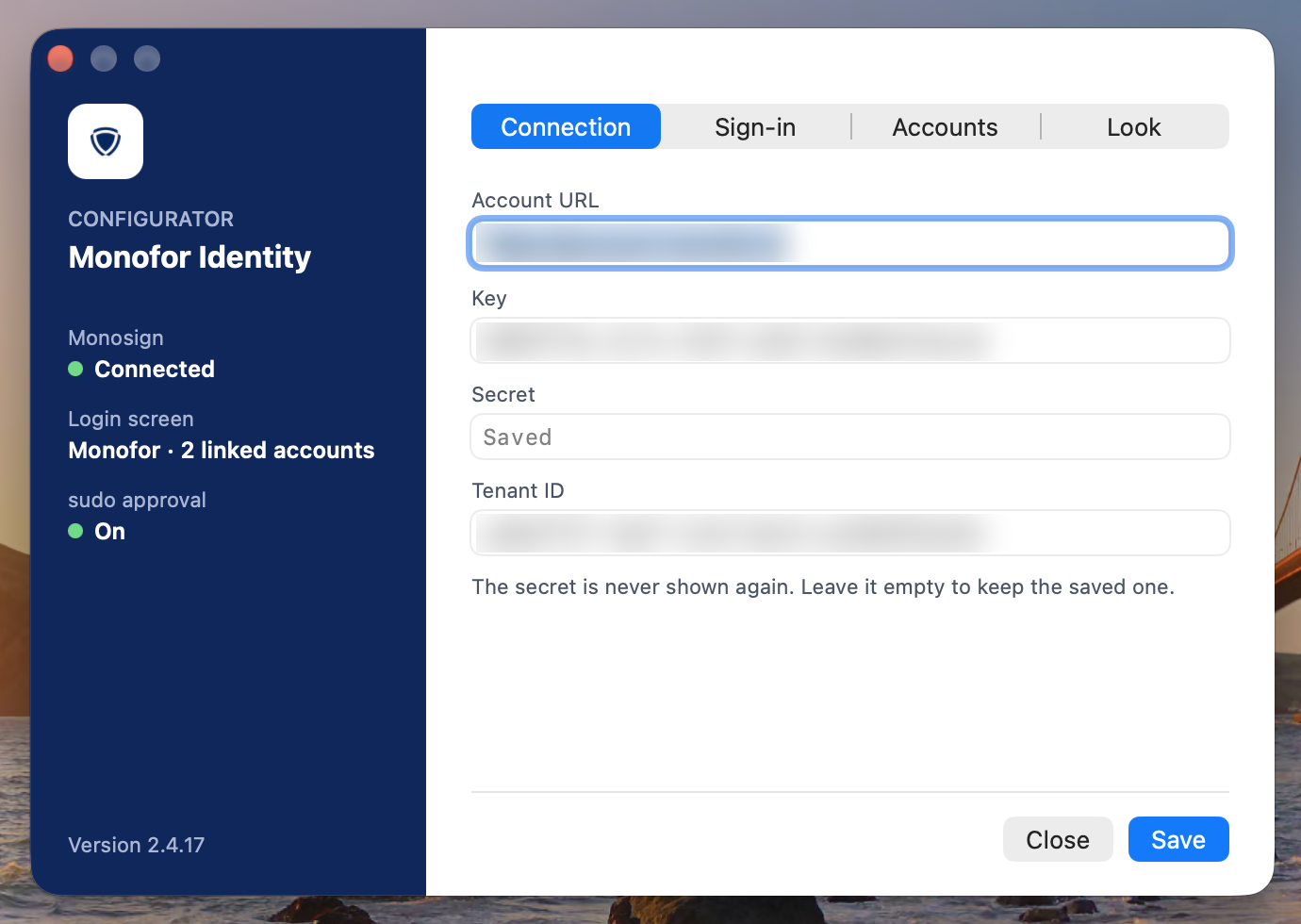
Connection: Account URL, Key, Secret, Tenant ID (values hidden here)
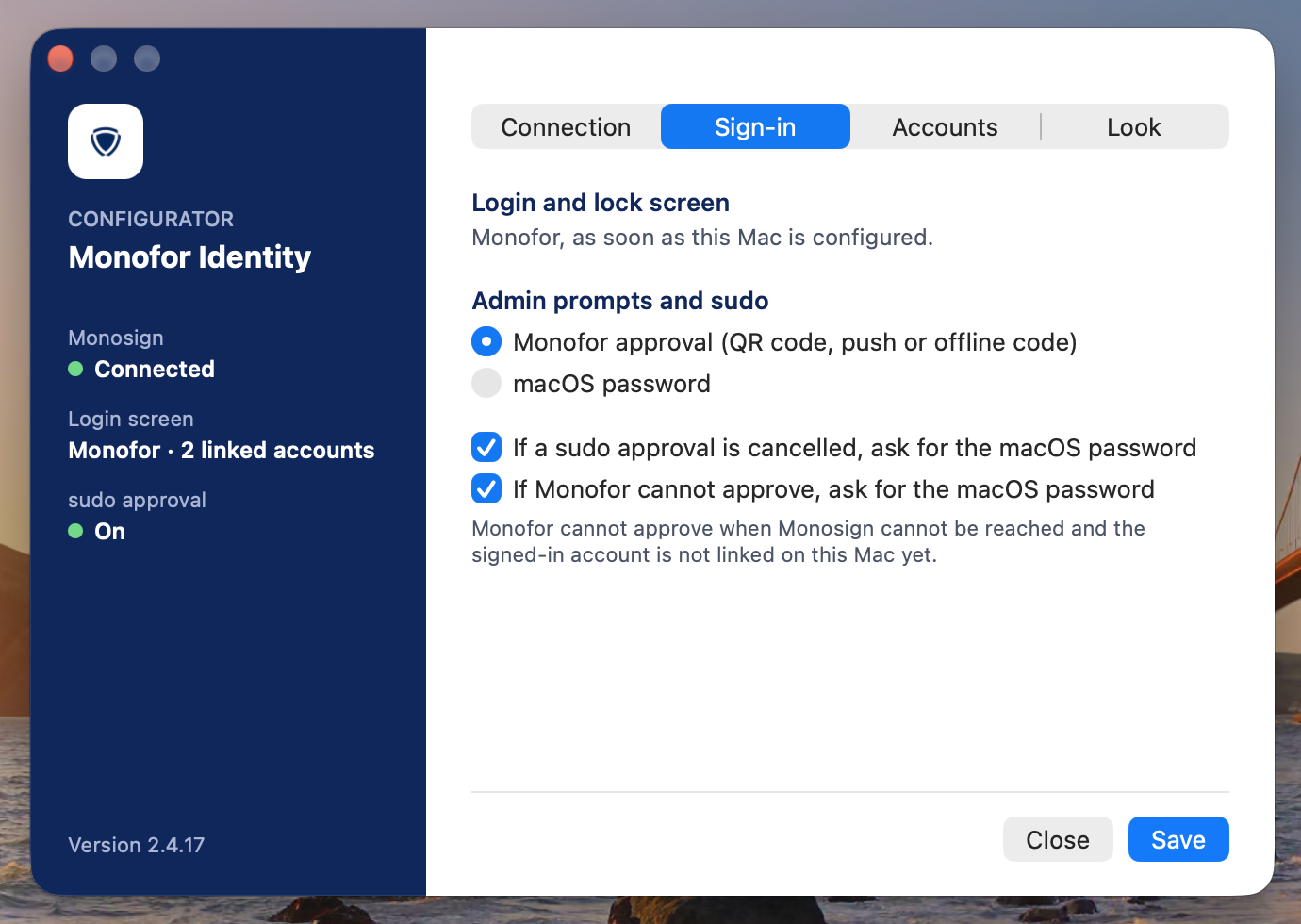
Sign-in: login and lock screen, administrator prompts and sudo, fallbacks
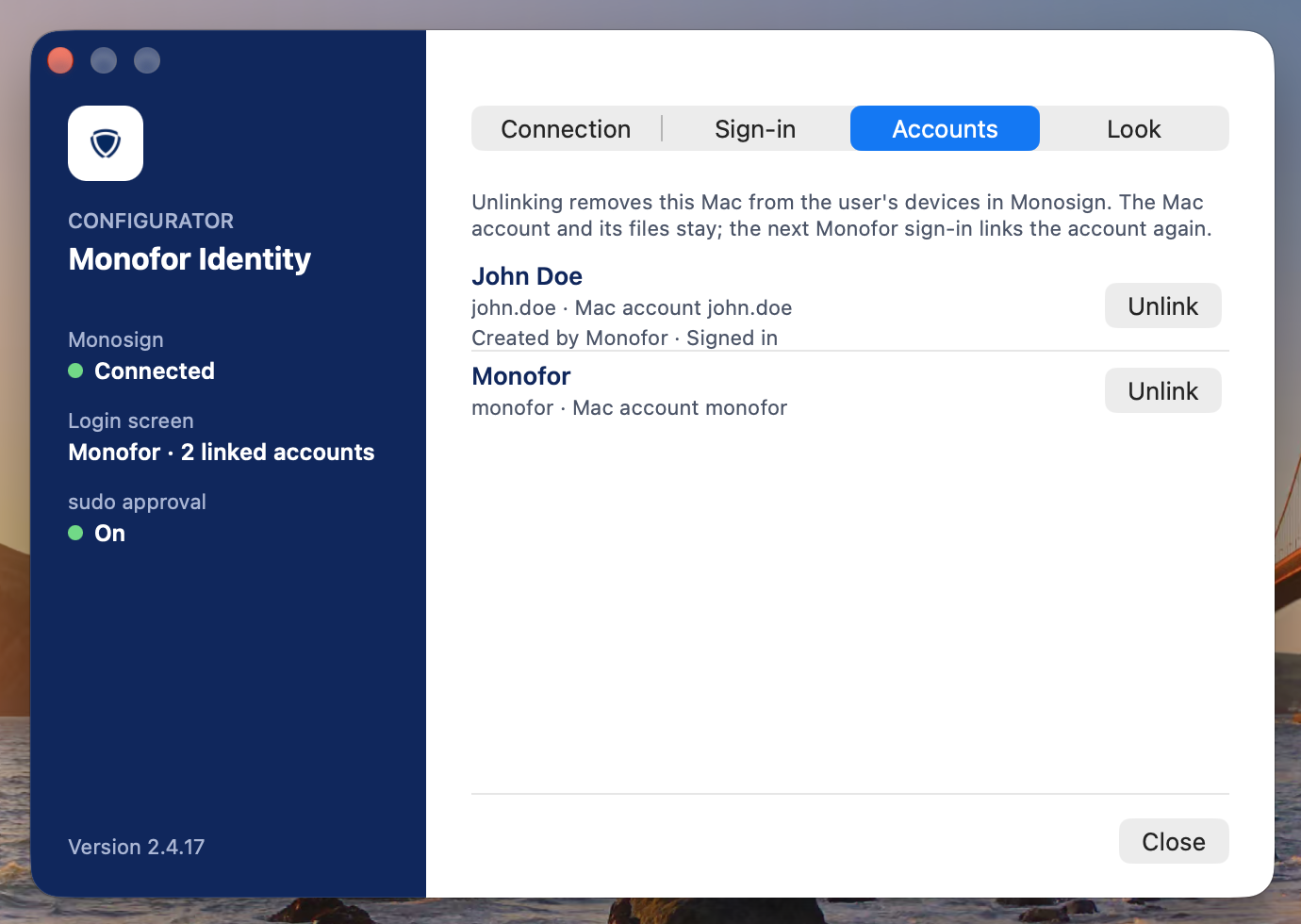
Accounts: linked accounts and Unlink
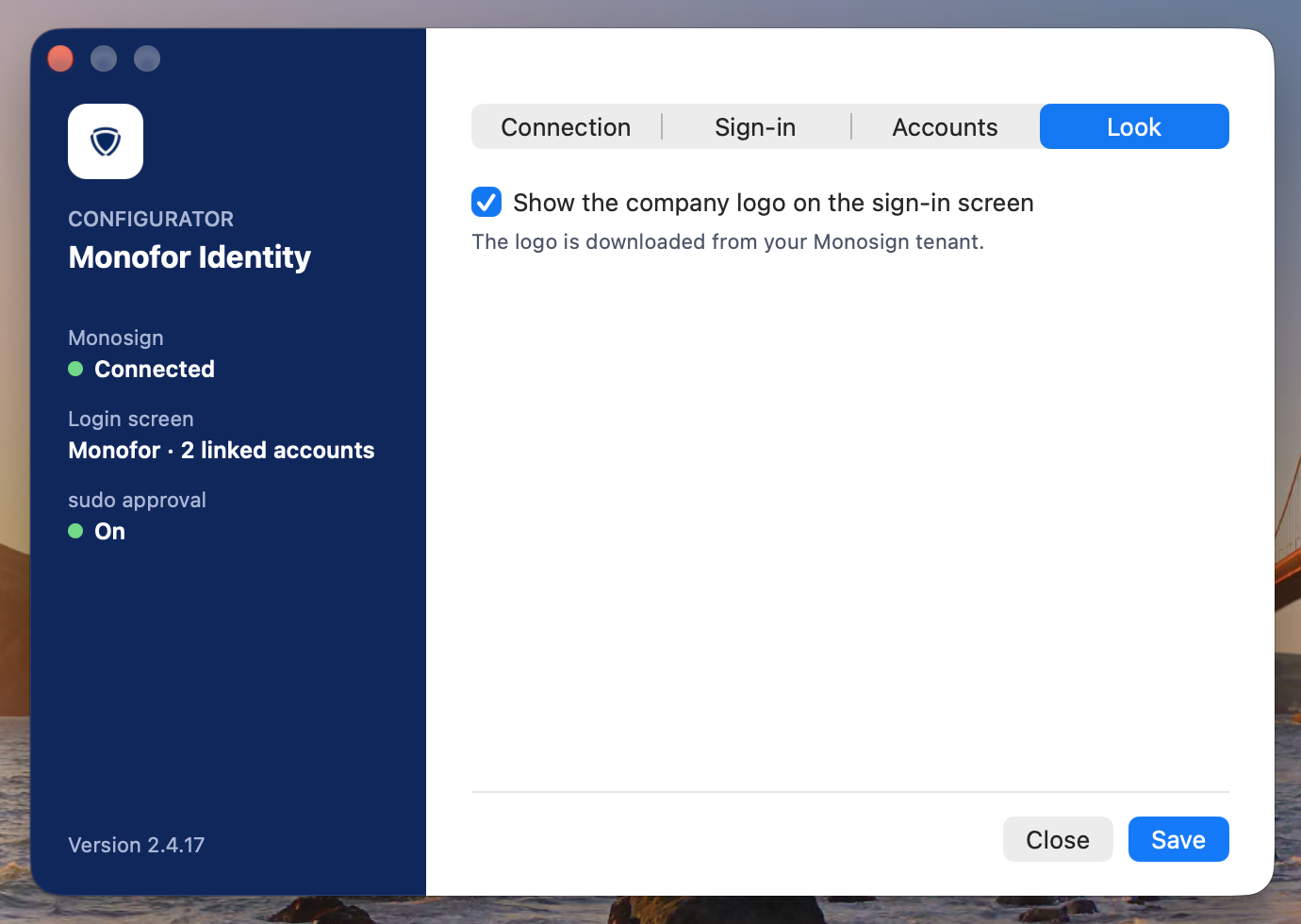
Look: company logo
Tab | Setting | Notes |
|---|---|---|
Connection | Account URL, Key, Secret, Tenant ID | The URL must start with https://. Leave Secret empty to keep the saved one. |
Sign-in | Login and lock screen | Monofor sign-in screen or macOS sign-in screen (password, Touch ID unlock). Same as |
Sign-in | Admin prompts and sudo | Monofor approval (QR code, push or offline code) or Off (macOS password). |
Sign-in | If a sudo approval is cancelled, ask for the macOS password | When off, cancelling or rejecting fails sudo. |
Sign-in | Offer the macOS password to accounts not linked on this Mac yet | On by default. Adds a macOS password tab next to QR and push for accounts not linked on this Mac yet, online or not. When off, linking is required ( |
Sign-in | Allow Touch ID (checked with Monosign each time) | On by default ( |
Accounts | Linked accounts, Unlink | Unlink removes this Mac from the user's devices in Monosign. The Mac account and its files stay; the next Monofor sign-in links the account again. If Monosign does not remove the device, the Configurator offers to unlink on this Mac only. |
Look | Show the company logo on the sign-in screen | The logo is downloaded from the Monosign tenant. |
Monosign side
Application key
Create an application key for the client (the same kind the Windows Identity Client uses). Besides sign-in and user device permissions it needs:
Permission | Used for | If missing |
|---|---|---|
System.API.Audits.Create, System.API.AuditTypes.List | Audit events | Events stay in the local queue. |
System.API.Languages.List | Texts in the tenant's language | Built-in English and Turkish texts are used. |
System.API.Policies.View | Company logo (tenant branding) | Built-in logo. |
The key needs no permission to read policies or users for local accounts: Monosign evaluates the policy at sign-in and returns only the decision.
Identity Client policy
Under Policies, the Identity Client policy for the device has two macOS settings:
Setting | Effect |
|---|---|
Local Accounts (macOS): Create a local account when a user without one signs in | A Monosign user without a Mac account gets a standard local account on first sign-in. The local password is the user's Monosign password, asked once on first sign-in and after it changes. |
Administrator Group | Members of this Monosign group (matched by group name or title, nested groups included) get administrator rights on accounts the client created. Empty: standard users only. |
How the decision is made and applied:
Monosign evaluates the Identity Client policy for the user and this Mac when the sign-in is approved (QR or push) and returns the decision with the approval: whether a local account may be created and whether the user is an administrator. The client never receives the policy settings or the user's groups.
The decision is checked again while the user stays signed in (with the remote lock poll). Removing the user from the administrator group, or from the policy's scope, removes administrator rights within about a minute; adding the user grants them. Removing rights also drops cached sudo credentials.
Only accounts the client created follow this decision. Existing Mac accounts that a user linked keep their rights.
When Monosign cannot be reached, the last applied state stays until the next online check.
Each change is recorded in the Monosign audit log as
CP_LOCAL_ADMIN_CHANGED.
The policy is chosen by the rules of the Identity Client policy, evaluated at sign-in. This can be turned off for device registration with the global setting IdentityClient.EvaluatePolicyOnRegistration.
Language and branding
Texts come from the
IdentityClient.Mac.*language keys of the tenant (English and Turkish are shipped). The client refreshes them daily and when the server signals a new version, and caches them for offline use.The logo comes from the tenant branding (QR code watermark). It is shown on the sign-in screen and in the middle of the QR code.
Audit
The client uses the same audit types as the Windows client, with "platform":"macos" in the event data:
Type | When |
|---|---|
USER_LOGIN_SUCCESS / USER_LOGIN_ERROR | Sign-in or approval with the offline code; approval with Touch ID (provider |
USER_LOGIN_SUCCESS_WITH_MFA / USER_LOGIN_ERROR_WITH_MFA | Sign-in or approval with QR or push; USER_LOGIN_ERROR_WITH_MFA also for a refused Touch ID approval |
CP_ENROLLMENT_COMPLETED / CP_ENROLLMENT_FAILED | Linking a Mac account, creating a JIT account, password sync, turning on Touch ID ( |
CP_OFFLINE_AUTH_LOCKED | Offline sign-in locked after too many wrong codes |
CP_LOCAL_ADMIN_CHANGED | Administrator rights granted to or removed from an account the client created |
USER_DEVICE_REMOVED | An account was unlinked in the Configurator |
The event data also carries the provider (QR, Push, Offline, RemoteUnlock, TouchID), the context (login or privilege), the reason, the computer name and the time the event happened. Events are queued locally and sent in batches every 30 seconds, so events from the login window and from offline periods arrive later.
Recovery and uninstall
If sign-in must go back to stock macOS (for example from an SSH session or Recovery):
sudo monofor-identity-reset              # macOS login, unlock prompt and sudo back to stock
sudo monofor-identity-reset --uninstall  # the same, then remove the client and its data
Turn Monofor back on after a plain reset:
sudo launchctl bootstrap system /Library/LaunchDaemons/com.monofor.identity-daemon.plist