
This document explains how to implement Monosign with Readeck, the open-source, self-hosted application that saves web pages as readable bookmarks to read later. It covers Single Sign-On with OpenID Connect (OIDC), which is built into Readeck. Readeck reads the Monosign addresses from the OIDC discovery document, uses the Authorization Code flow with PKCE and checks the signature and the nonce of the ID token, so the OIDC/OpenID access key of Monosign is used. Before you continue, it is better to read the Readeck documentation.
This configuration is done with Readeck 0.23.4 running on Docker (image codeberg.org/readeck/readeck:0.23.4 with the default SQLite database). If your Readeck version or deployment type is different, please check the Readeck documentation.
Readeck supports OpenID Connect only. SAML is not available. There is no single sign-on screen in the Readeck interface; the provider is configured with environment variables (or in the configuration file). The URL of the provider is the issuer of Monosign, not the address of the discovery document, and it must be identical to the issuer that Monosign announces, including the slash at the end (see step 4).
Monofor has no responsibility to do Readeck configurations. If you need support please contact the Readeck community or your Readeck support provider.
Readeck is free and open source (AGPL-3.0). Single sign-on is not limited by a license, so it works without a key.
📑 Instructions
This documentation contains 5 main steps for integration.
-
Creating an application on Monosign
-
Configuring the OIDC/OpenID settings on Monosign
-
Assign a user to the Readeck application
-
Configuration Single Sign-On for Readeck
-
Sign In Test
1- Creating an Application on Monosign
Create your application on Monosign first. Open the Applications page from the left menu and click Add New.

Readeck is not in the application catalog, so click Create from scratch.

Fill in the application details on the Application tab and click Next.
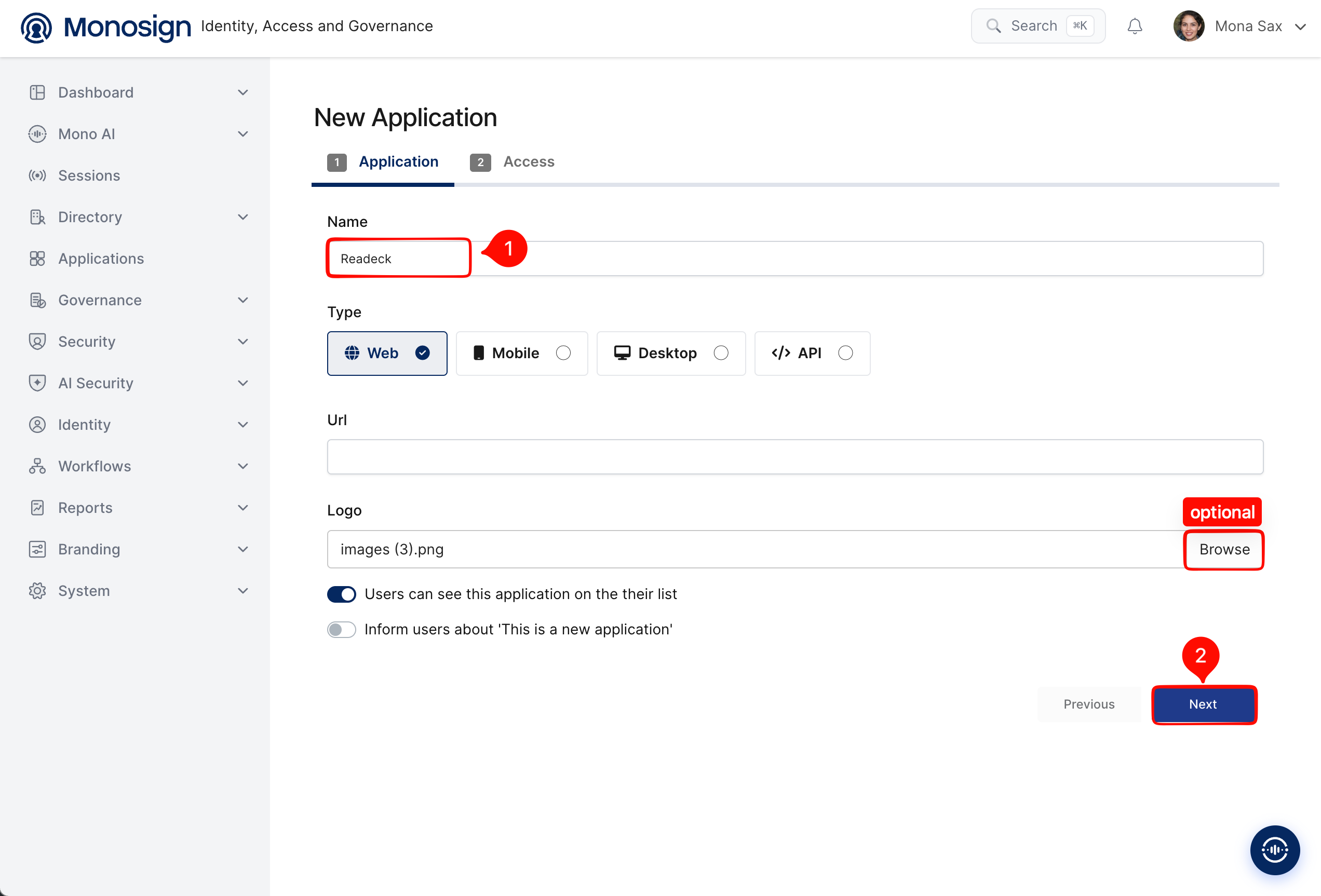
|
Property |
Value |
Description |
|---|---|---|
|
Name |
|
Name of the application shown to users on the Monosign portal and on the Monosign sign-in page. |
|
Type |
|
Readeck is accessed through a web browser. Options: Web, Mobile, Desktop, API. |
|
Url |
Optional |
Leave empty or enter the Readeck address (for example |
|
Logo |
Optional |
Browse and upload a logo; it is also shown on the Monosign sign-in page. |
|
Users can see this application on their list |
|
Displays the application on the user portal. |
On the Access tab define who can reach the application and click Create Application.

|
Property |
Value |
Description |
|---|---|---|
|
User Access Type |
|
Defines which users can access this application. Options: Only Assigned Users, All Users, System Default. |
|
User Group Access Type |
|
Defines the application’s user group access. |
|
Source Using Type |
|
Defines which user sources the application can use. |
|
Profile Access Type |
|
Defines which user profile attributes are available to the application (Options: Restricted, All). Readeck needs the e-mail address and the user name of the user. |
When user provisioning is enabled, Readeck creates an account for every Monosign user who signs in for the first time. Make sure the effective User Access Type is Only Assigned Users and give access only to the users you assign in step 3.
After the application is created, click Keys and add a new Access Key for OIDC/OpenID access.

Select OIDC/OpenID as the key type and click Create. Monosign generates the Client Id and Client Secret automatically.

|
Property |
Value |
Options |
|---|---|---|
|
Type |
|
Rest API, OAuth 2.0, JWT, OIDC/OpenID, SAML, RADIUS, Access Gateway, LDAP, AuthN/Z Server |
|
Client Id / Client Secret |
Generated automatically |
Use the eye icon next to the secret to reveal it. Both values are required in step 4. |
|
Session |
|
System Default, On-demand, Permanent |
|
State |
|
Enabled, Disabled |
|
Never Expires |
|
Turn off to define a specific expiration date for the key. |
Configuration details for the Readeck application are provided as follows:

|
Monosign value |
Example |
Used in Readeck as |
|---|---|---|
|
Client Id |
|
|
|
Client Secret |
|
|
|
Configuration Url |
|
|
2- Configuring the OIDC/OpenID Settings on Monosign
Click the Configure button of the OpenID Connect (OIDC) key to open the OIDC/OpenID settings. Enter the scopes that Readeck requests and add the callback address of Readeck to Allowed Redirect URIs, then press Update.
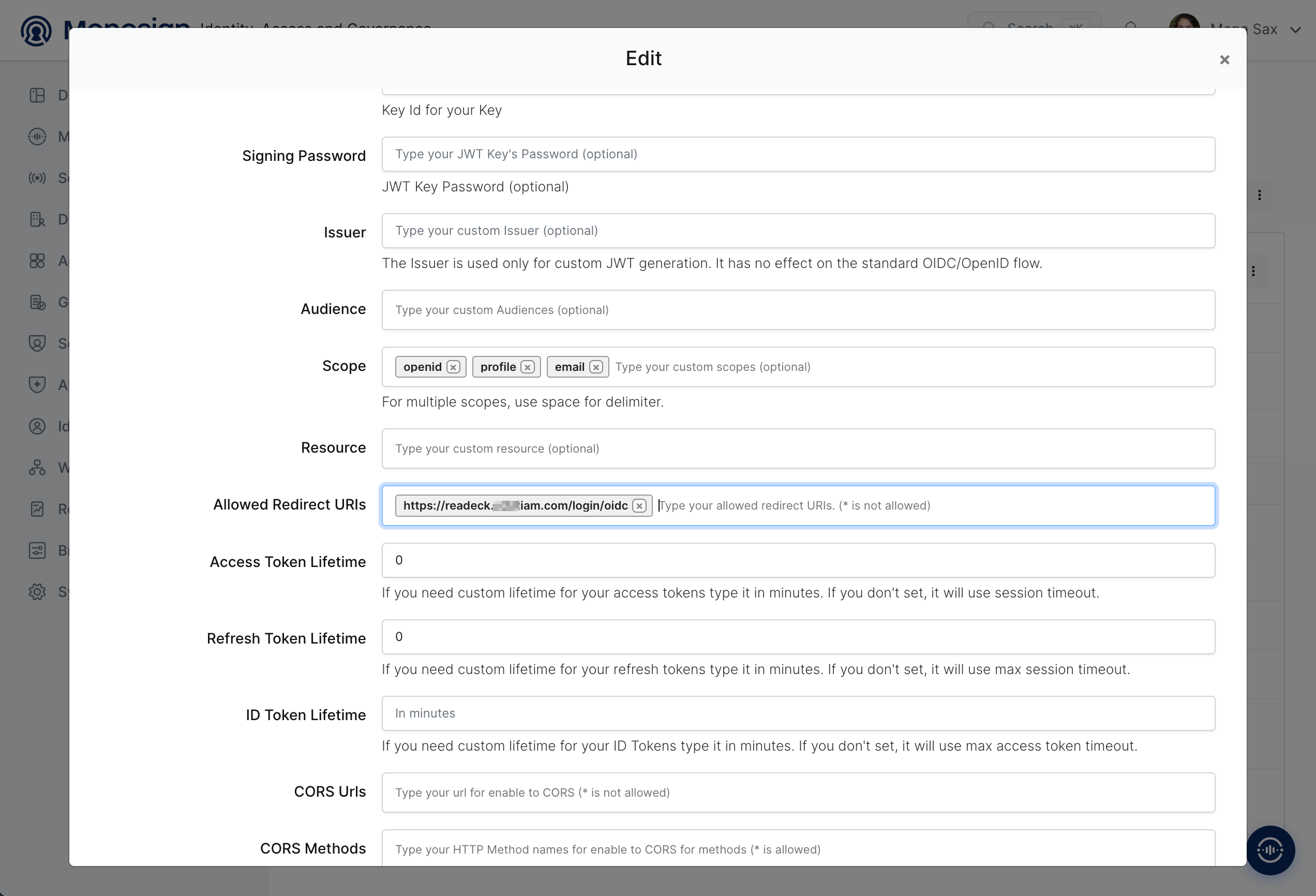
|
Property |
Value |
Description |
|---|---|---|
|
Scope |
|
Readeck asks for the scopes |
|
Allowed Redirect URIs |
|
The address where Monosign sends the user back after sign-in. The path |
|
Signing Key / Key Id / Password, Issuer, Audience, Resource |
Empty |
Optional custom JWT settings. They are not needed. Do not enter the callback address in the Resource field. |
|
Token lifetimes, CORS |
Empty |
Default values are used. |
Readeck takes the user name from the claim preferred_username (the e-mail address is used when it is empty) and the e-mail address from the claim email. Monosign returns them by default, so a claim mapping is not required. Monosign does not send a groups claim, so every new user gets the standard group user.
3- Assign a User to the Readeck Application
Open the Readeck application in Monosign, click the Assignments tab and click Assign a User.

Search and select the users who can sign in to Readeck, check the Expiration Date and save. You can select more than one user.

|
Property |
Value |
Description |
|---|---|---|
|
User(s) |
Selected users |
Users who can sign in to Readeck with Monosign. |
|
Expiration Date |
Default one year |
The assignment expires on this date. |
4- Configuration Single Sign-On for Readeck
As we mentioned at the start, please check out the Readeck documentation first. Readeck is configured with environment variables. In the Docker Compose deployment add the following variables to the environment file of the Readeck container (for example the .env file that is used with env_file) and replace the placeholder values.
READECK_AUTH_OIDC_PROVIDERS_0_NAME=Monosign
READECK_AUTH_OIDC_PROVIDERS_0_URL=https://<monosign-host>/
READECK_AUTH_OIDC_PROVIDERS_0_CLIENT_ID=<client-id>
READECK_AUTH_OIDC_PROVIDERS_0_CLIENT_SECRET=<client-secret>
READECK_AUTH_OIDC_PROVIDERS_0_PROVISIONING=true
|
Variable |
Value |
Description |
|---|---|---|
|
READECK_AUTH_OIDC_PROVIDERS_0_NAME |
|
Text on the sign-in button. The number |
|
READECK_AUTH_OIDC_PROVIDERS_0_URL |
|
Issuer of Monosign. Readeck reads |
|
READECK_AUTH_OIDC_PROVIDERS_0_CLIENT_ID / _CLIENT_SECRET |
Client Id / Client Secret |
Copied from the Monosign OIDC/OpenID Access Key Details created in the first step. |
|
READECK_AUTH_OIDC_PROVIDERS_0_PROVISIONING |
|
Creates a Readeck account at the first sign-in. When it is not set, only users that already exist in Readeck can sign in; they are matched by user name or e-mail address. |
|
READECK_AUTH_OIDC_PROVIDERS_0_GROUPS |
Optional |
Maps values of the |
The environment file contains the client secret. Restrict its permissions (for example chmod 600) and do not store it in a shared repository.
Create the first administrator before the first sign-in with Monosign, so that the first Monosign user does not become a normal user of an empty instance. An existing account is matched by its user name or e-mail address and then linked to the Monosign user, so use the same e-mail address that the user has in Monosign if the user should keep the account.
Readeck needs a user to start with. Create the administrator with the command line (the password can be read from an environment variable instead of being typed):
docker compose exec readeck /bin/readeck user -config config.toml -user <user-name> -email <e-mail-address> -group admin -password <password>
For reference, this is the Docker Compose file of Readeck with the image that was used for this document. It will be replaced by the file that was tested for this document.
services:
  readeck:
    image: codeberg.org/readeck/readeck:0.23.4
    restart: unless-stopped
    ports:
      - "8000:8000"
    volumes:
      - ./data:/readeck
    env_file:
      - .env
When Readeck is behind a reverse proxy, the proxy must send the headers X-Forwarded-Proto and X-Forwarded-Host. Readeck trusts them from the private address ranges (for example 10.0.0.0/8) by default, and it builds the redirect address that is sent to Monosign from them. After changing the environment file, recreate the container so that the new variables are loaded:
docker compose up -d --force-recreate readeck
5- Sign In Test
Now try to log in to Readeck using Monosign SSO.
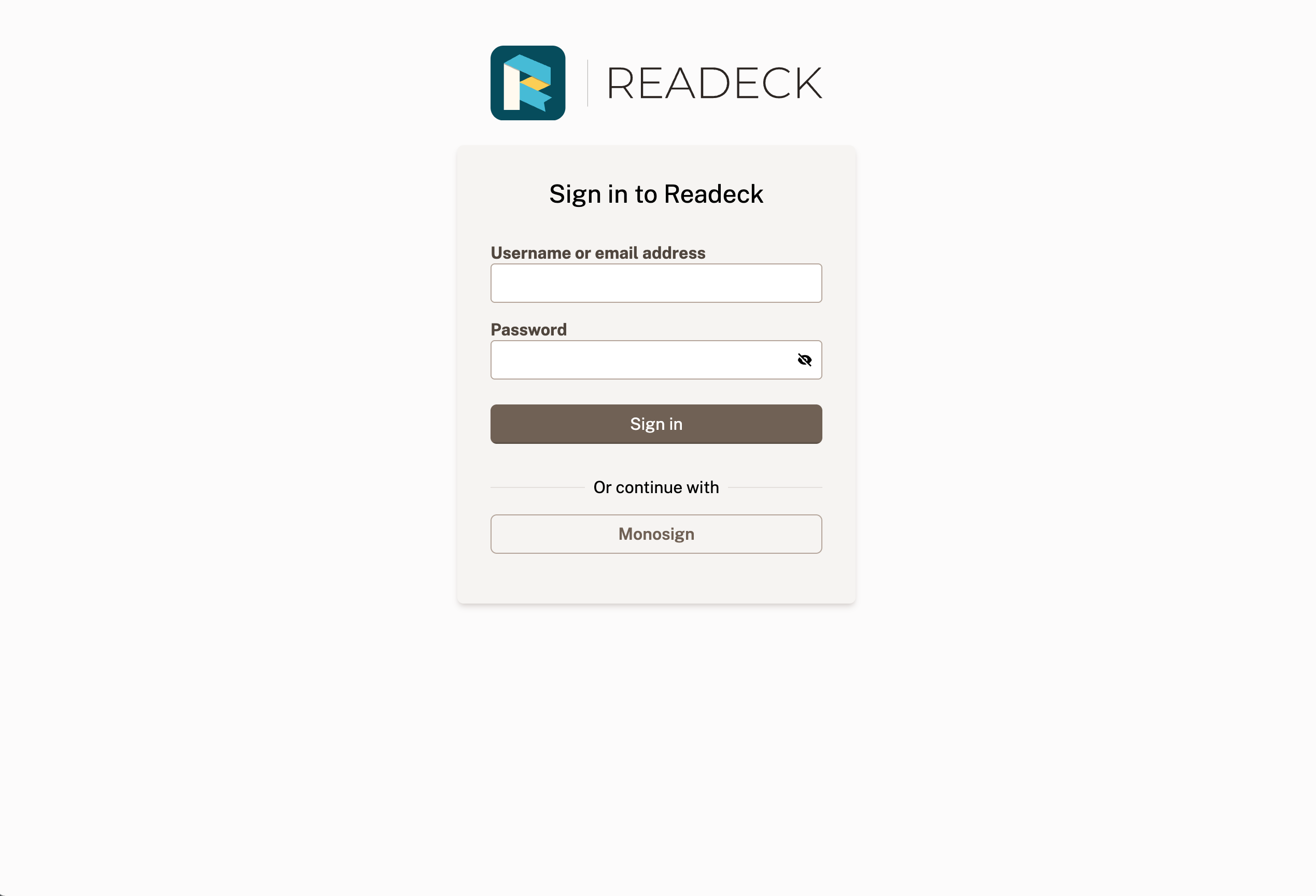
-
Open a new browser window (or a private window) and type the Readeck address. The login page of Readeck shows the user name and password form and, below it, the Monosign button.
-
Click the button. On the Monosign sign-in page log in passwordless with your QR code (Monofor Identity), with a Passkey or with your user name and password (Sign in with Password). If you are already signed in to Monosign, the page is skipped.
-
After the sign-in Monosign redirects the browser back to Readeck (
/login/oidc). At the first sign-in Readeck creates the account with the user name and the e-mail address from Monosign and opens the bookmarks page.
Troubleshooting
|
Symptom |
Cause |
Solution |
|---|---|---|
|
The Monosign button is not shown |
The |
Set the variables (step 4) and run |
|
Readeck shows an error when the button is clicked |
The issuer in |
Use the issuer with the slash at the end (step 4), and check the DNS and firewall rules of the Readeck host and the Readeck container log. |
|
Monosign shows a redirect URI error |
The redirect address that Readeck sends does not exactly match the Allowed Redirect URIs, for example because the proxy does not send |
Add |
|
An error page appears after returning from Monosign |
The Client Id or Client Secret is wrong, or the container cannot reach Monosign. |
Copy the values again from the Monosign access key (step 1) and read the Readeck container log. |
|
A user cannot sign in because provisioning is not enabled |
|
Set the variable or create the user first with the same user name or e-mail address. |
|
More than one user is associated with the user name and the e-mail address |
One Readeck account matches the user name and another one the e-mail address of the Monosign user. |
Remove or change one of the accounts in Readeck. |
|
SAML sign-in is required |
Readeck supports OpenID Connect only, not SAML. |
Use the OIDC integration in this document. |
After completing the configuration on Readeck and Monosign, it is better to test in a new private browser window if the OIDC SSO doesn’t work, because old session cookies of the Readeck address may cause errors.