This document explains how to implement Monosign with the Apache Druid web console. It covers Single Sign-On (OpenID Connect). Druid does not ship with an OIDC login page of its own, so the integration uses the druid-pac4j core extension, which turns the Druid Router (web console) into an OIDC relying party. Before you continue, it is better to read the Druid pac4j extension documentation (opens in a new tab).
This configuration is done with Apache Druid 38.0.0 running on Docker Compose (micro-quickstart profile, official distribution/docker compose files). If your Druid version or deployment type is different, please check the Druid documentation.
The druid-pac4j extension authenticates users on the web console only. Programmatic clients (Grafana data source, ingestion scripts, curl) cannot use OIDC and must keep using Basic authentication.
Monofor has no responsibility to do Druid configurations. If you need support please contact the Apache Druid community or your Druid support provider.
Instructions
This documentation contains 5 main steps for integration.
Creating an application on Monosign
Configuring the OIDC/OpenID settings on Monosign
Configuration Single Sign-On for Druid
Assign a user to the Druid application
Sign In Test
1- Creating an Application on Monosign
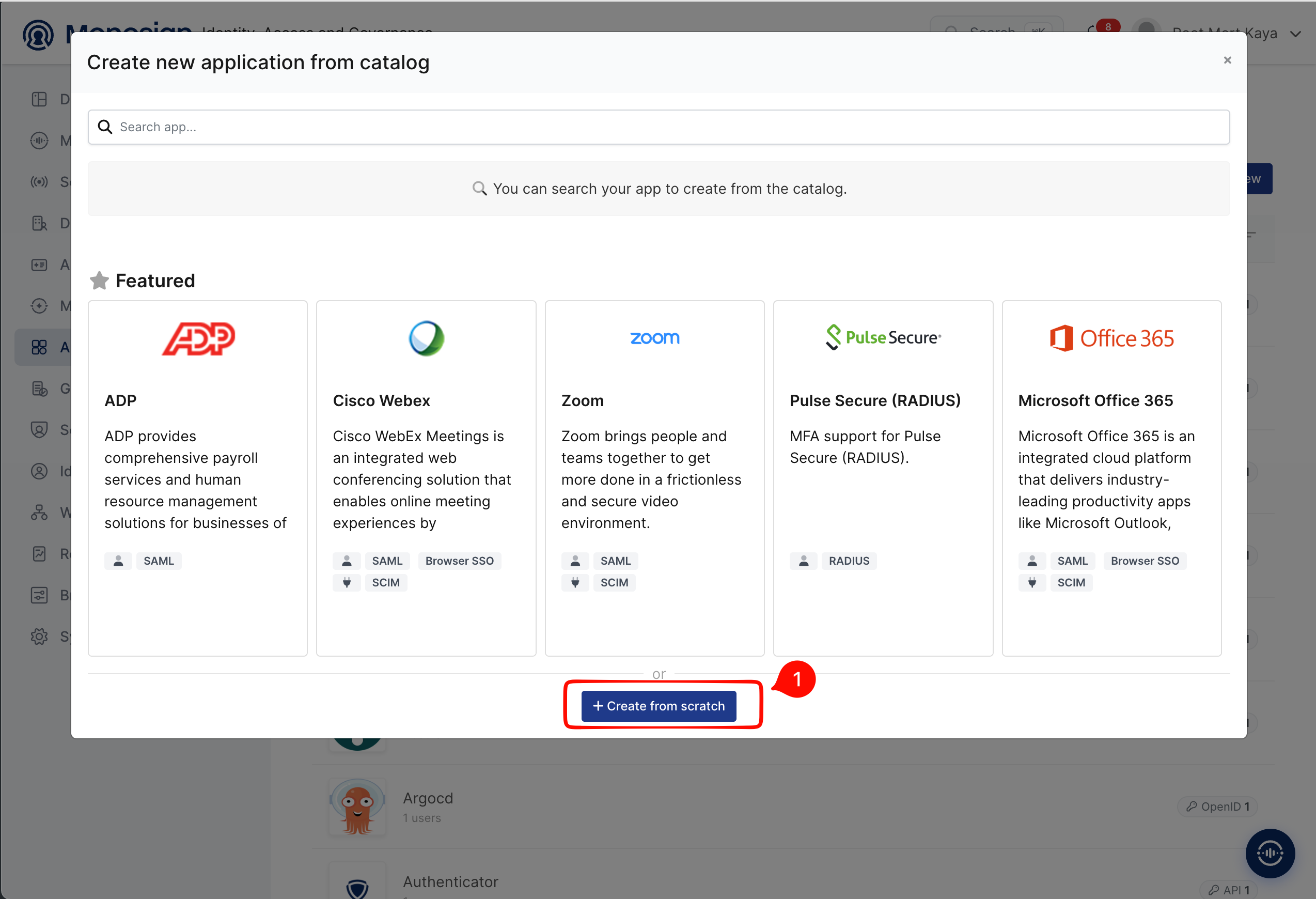
Create your application on Monosign first. On the Applications page create a new application and choose Create from scratch (Druid is not in the application catalog).
Fill in the application details on the Application tab and click Next.
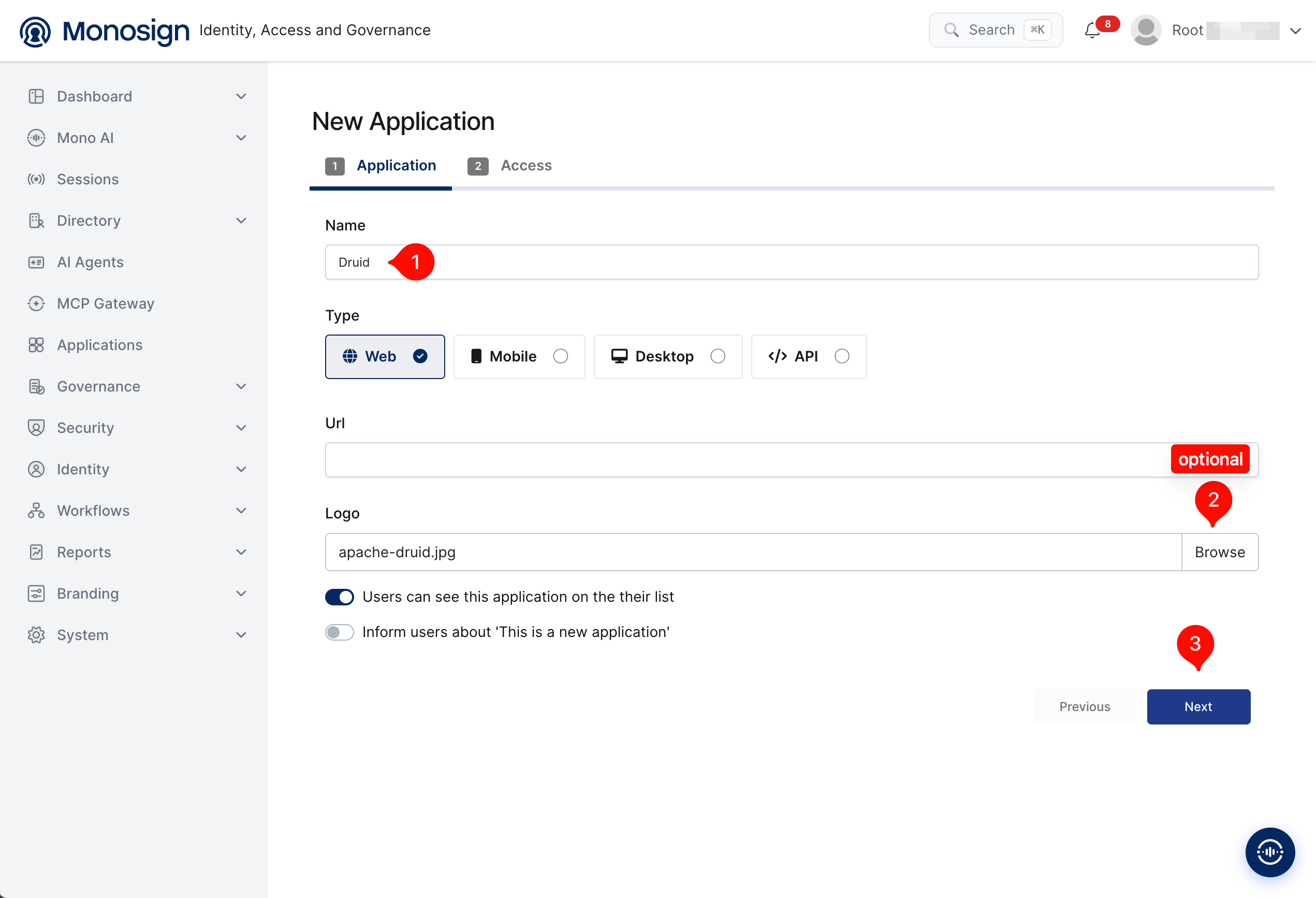
Property | Value | Description |
|---|---|---|
Name |
| Name of the application shown to users on the Monosign portal and on the sign-in page. |
Type |
| Druid is accessed through a web browser. Options: Web, Mobile, Desktop, API. |
Url | Optional | Leave empty or enter the Druid console address (for example |
Logo |
| Optional. Browse and upload a logo; it is also shown on the Monosign sign-in page. |
Users can see this application on their list |
| Displays the application on the user portal. |
On the Access tab define who can reach the application and click Create Application.
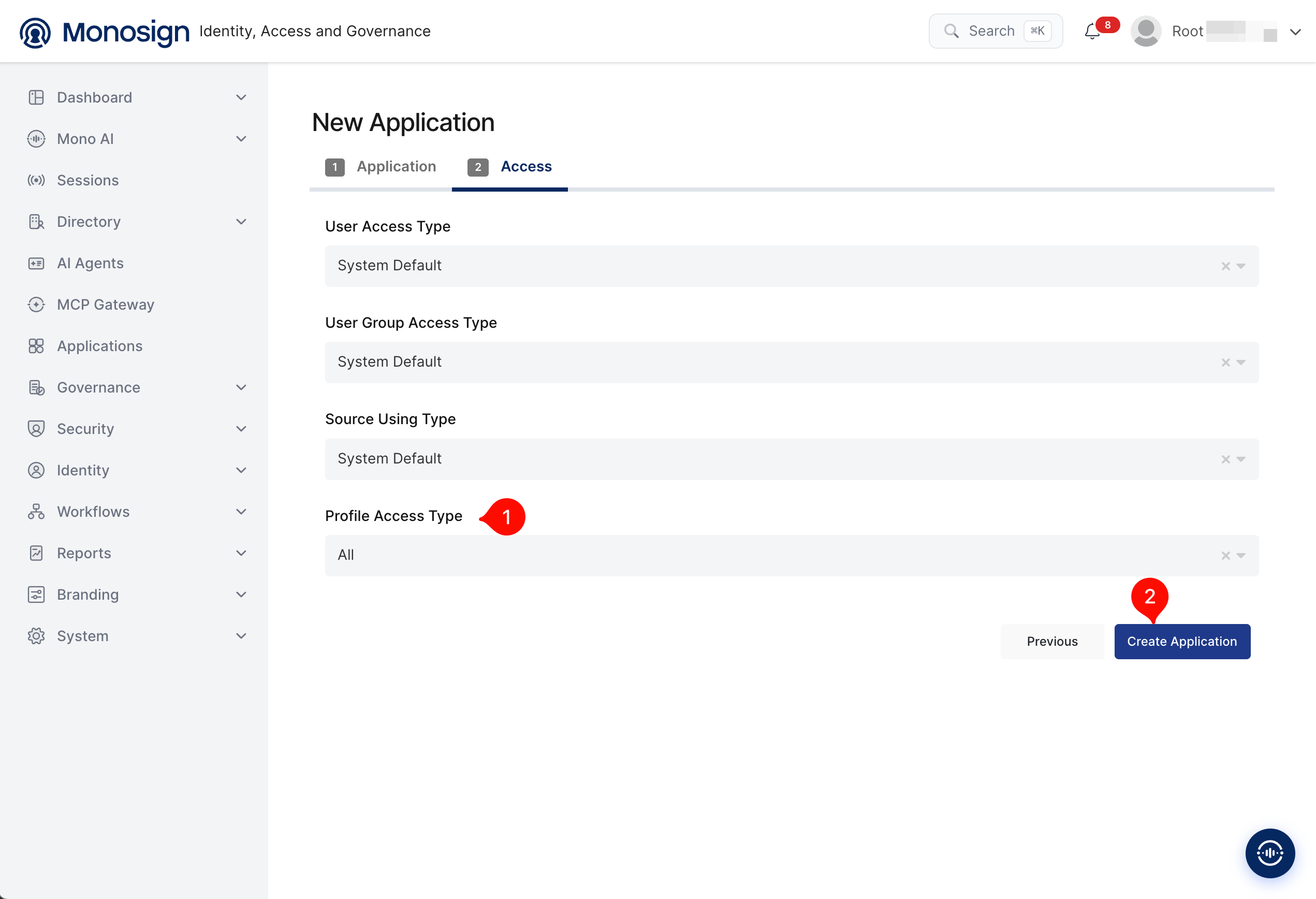
Property | Value | Description |
|---|---|---|
User Access Type |
| Defines which users can access this application. Options: Only Assigned Users, All Users, System Default. |
User Group Access Type |
| Defines the application’s user group access. |
Source Using Type |
| Defines which user sources the application can use. |
Profile Access Type |
| Defines which user profile attributes are available to the application. Options: Restricted, All. |
Every user who is allowed to sign in to Druid through Monosign gets full administrator access in this setup (see step 3, SsoAuthorizer). Make sure the effective User Access Type is Only Assigned Users and give access only to the users you assign in step 4.
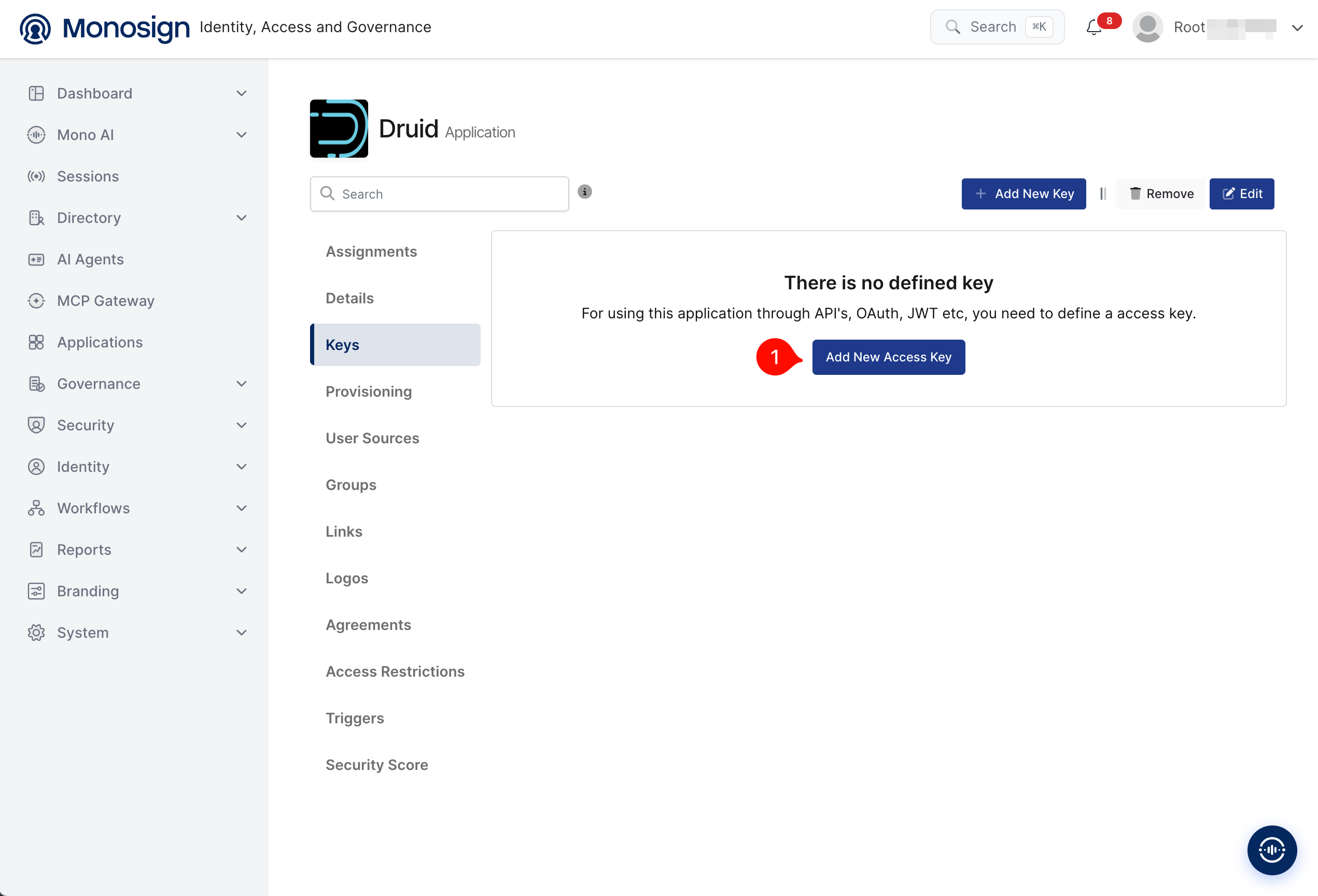
After the application is created, click Keys and add a new Access Key for OIDC/OpenID access.
Select OIDC/OpenID as the key type and click Create. Monosign generates the Client Id and Client Secret automatically.
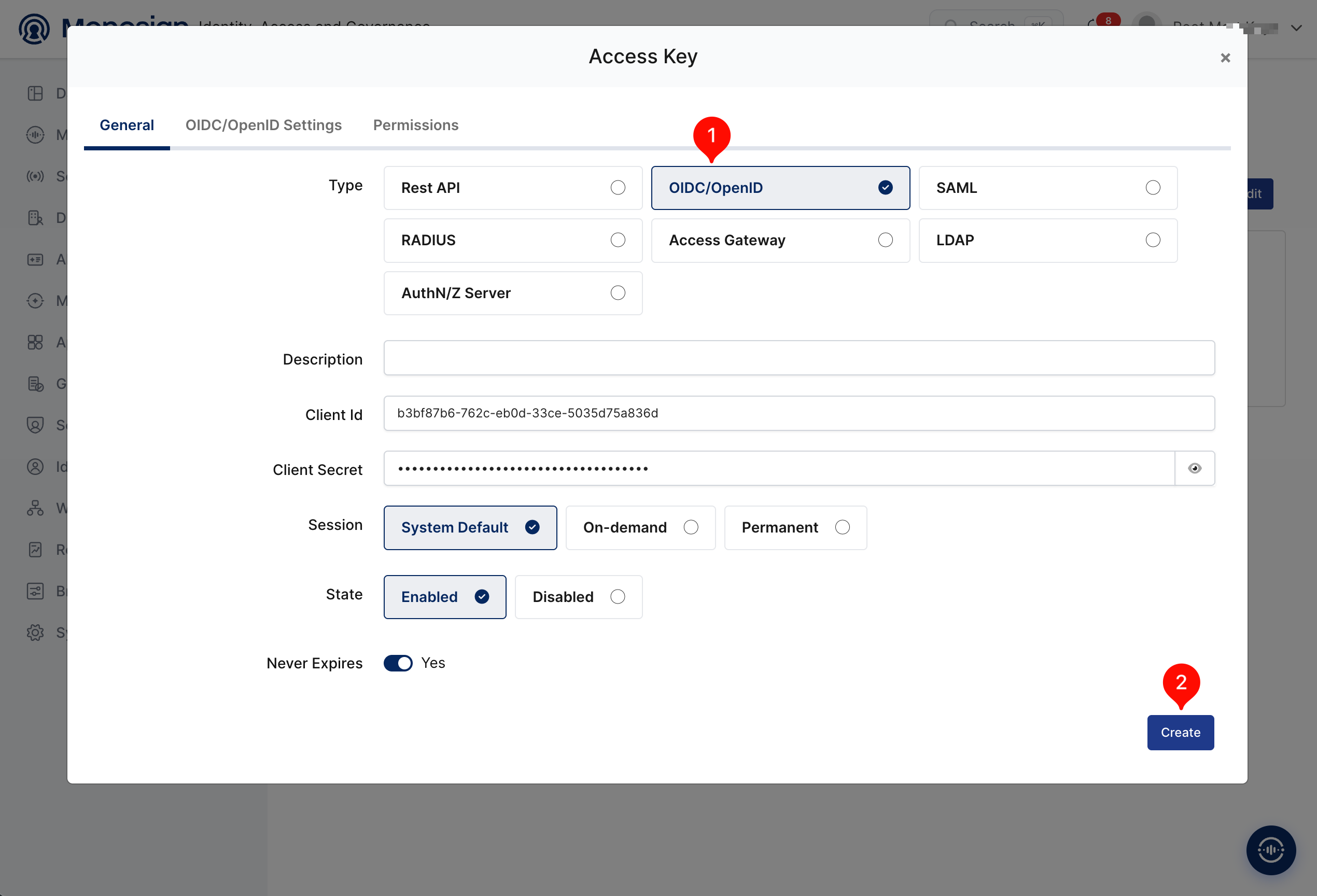
Property | Value | Options |
|---|---|---|
Type |
| Rest API, OAuth 2.0, JWT, OIDC/OpenID, SAML, RADIUS, Access Gateway, LDAP, AuthN/Z Server |
Description | Optional | Free text description of the key. |
Client Id / Client Secret | Generated automatically | Use the eye icon next to the secret to reveal it. The secret is required in step 3. |
Session |
| System Default, On-demand, Permanent |
State |
| Enabled, Disabled |
Never Expires |
| Turn off to define a specific expiration date for the key. |
Configuration details for the Druid application are provided as follows:
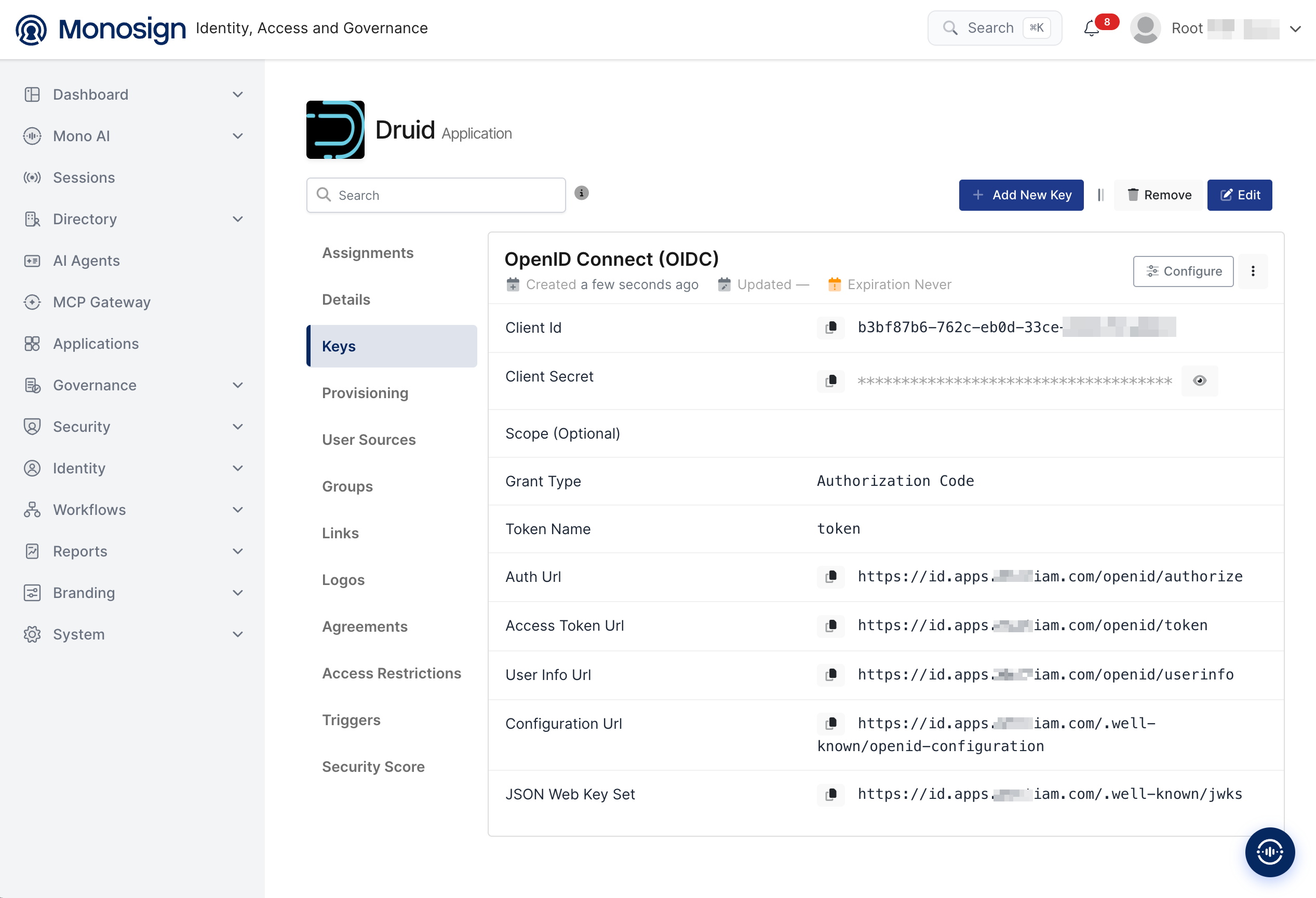
Property | Value | Description |
|---|---|---|
Client Id |
| Unique identifier of the Druid application. Used as |
Client Secret |
| Secret shared only between Druid and Monosign. Used as |
Grant Type |
| The flow used by the Druid web console. |
Auth Url |
| Authorization endpoint. |
Access Token Url |
| Token endpoint. |
User Info Url |
| UserInfo endpoint. |
Configuration Url |
| OIDC discovery document. Used as |
JSON Web Key Set |
| Public keys used to validate the ID token signature. |
The third step uses the Client Id, Client Secret and Configuration Url from the “OIDC/OpenID Access Key Details“ section above to configure the Druid pac4j settings.
2- Configuring the OIDC/OpenID Settings on Monosign
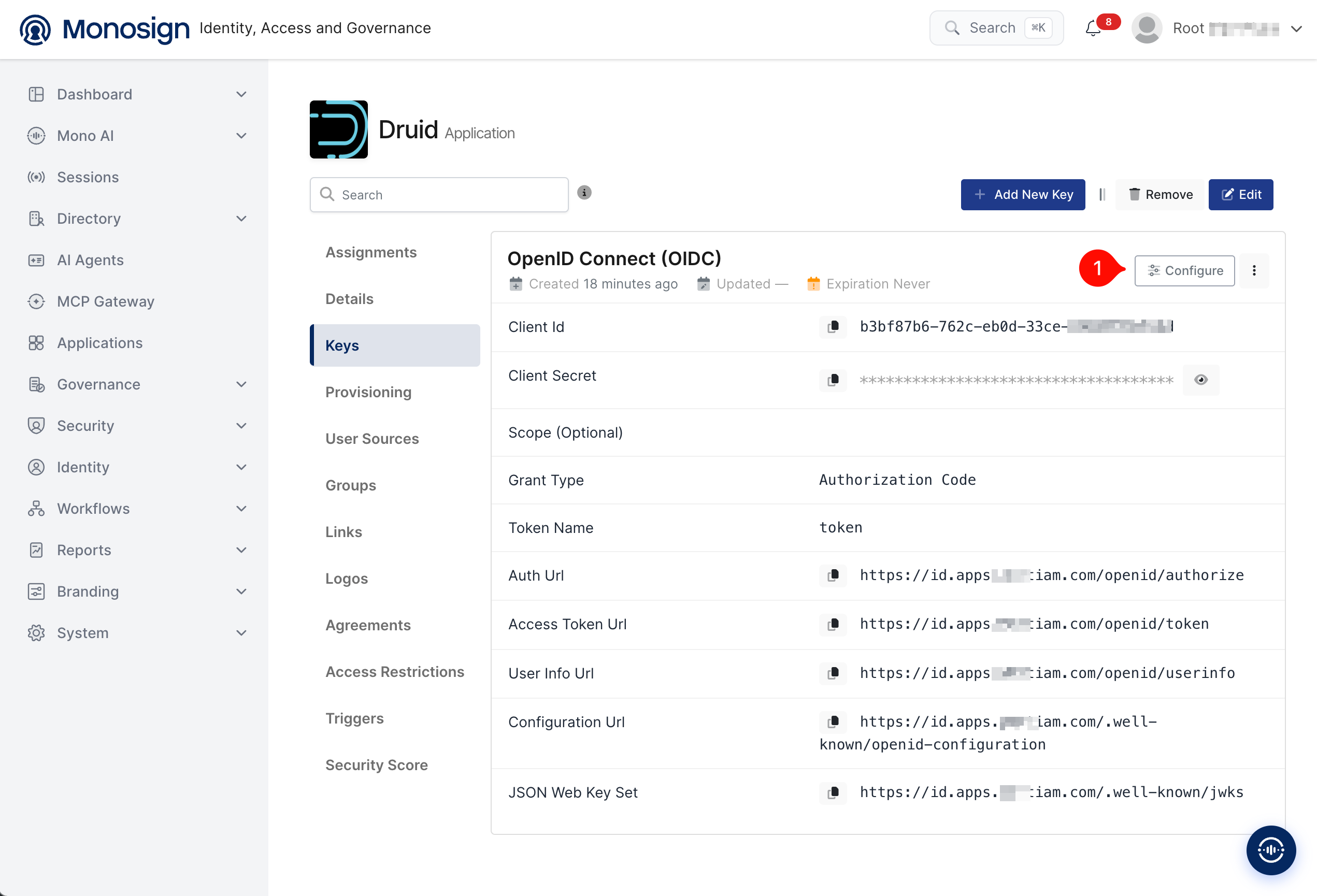
Click the Configure button on the OpenID Connect (OIDC) key to open the OIDC/OpenID settings.
On the OIDC/OpenID Settings → Configuration tab the default values are used for the Druid integration.
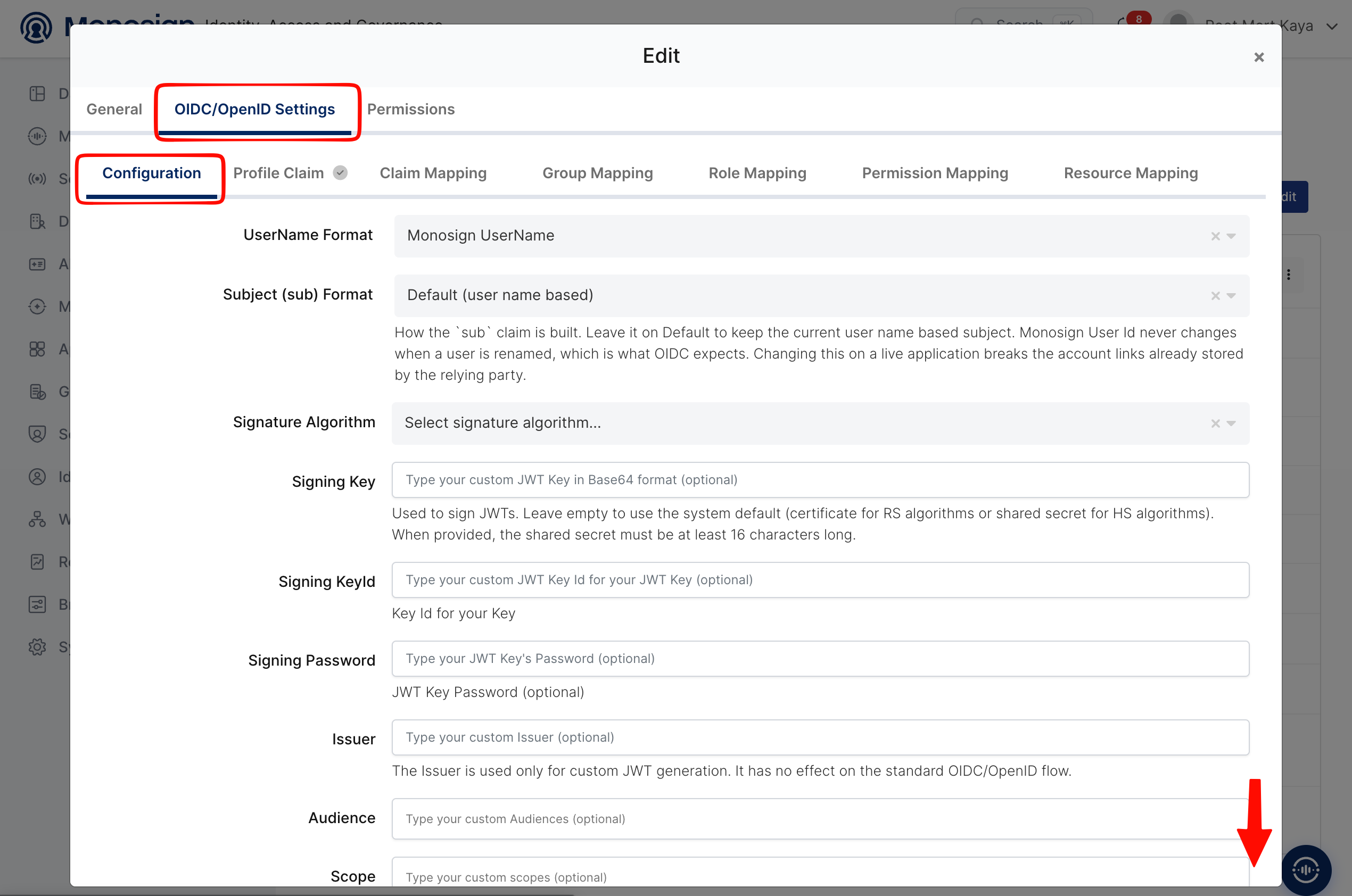
Property | Value | Description |
|---|---|---|
UserName Format |
| Defines the UserName format such as |
Subject (sub) Format |
| How the |
Signature Algorithm | Not selected | Defines the algorithm used to sign the tokens. Druid validates the token with the RS256 key that is published in the JWKS endpoint, so no change is required. |
Signing Key / Key Id / Password, Issuer, Audience, Scope | Empty | Optional custom JWT settings. They are not needed for Druid. |
Scroll down to Allowed Redirect URIs and add the callback address of the Druid web console.
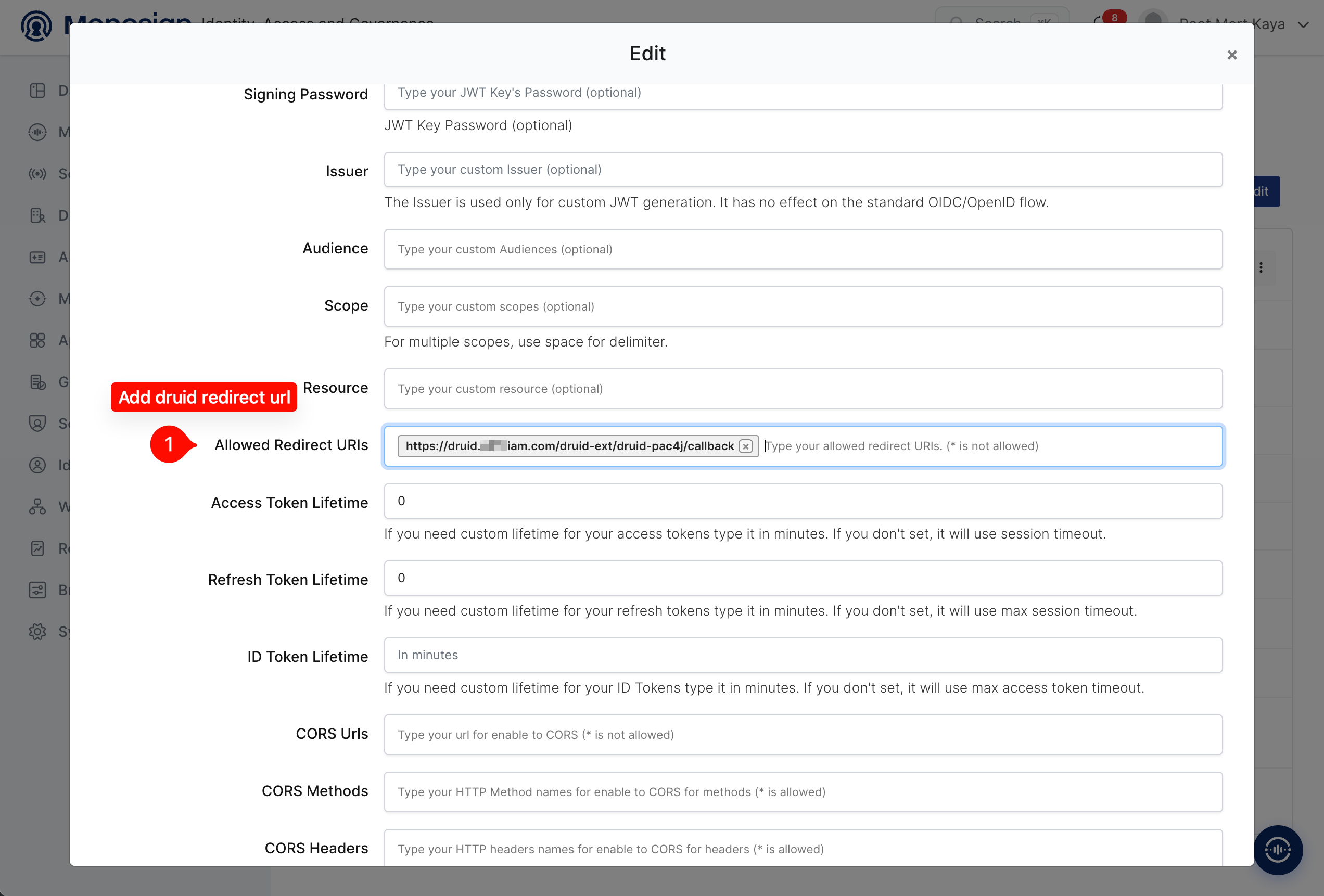
Property | Value | Description |
|---|---|---|
Allowed Redirect URIs |
| The address where Monosign sends the user back after sign-in. Use the public (HTTPS) address of the Druid Router. The host name must be exactly the same as the one users type in the browser. |
Access / Refresh / ID Token Lifetime | Empty | Default session based lifetimes are used. |
CORS Urls / Methods / Headers | Empty | CORS is not required because the sign-in is a browser redirect. |
The callback path of the extension is /druid-ext/druid-pac4j/callback. Please do not use /druid-ext/pac4j/callback or add a trailing slash. Any difference causes a redirect URI mismatch error on Monosign.
Finally enable the Use ‘state’ parameter as ‘nonce’ option and click Update.
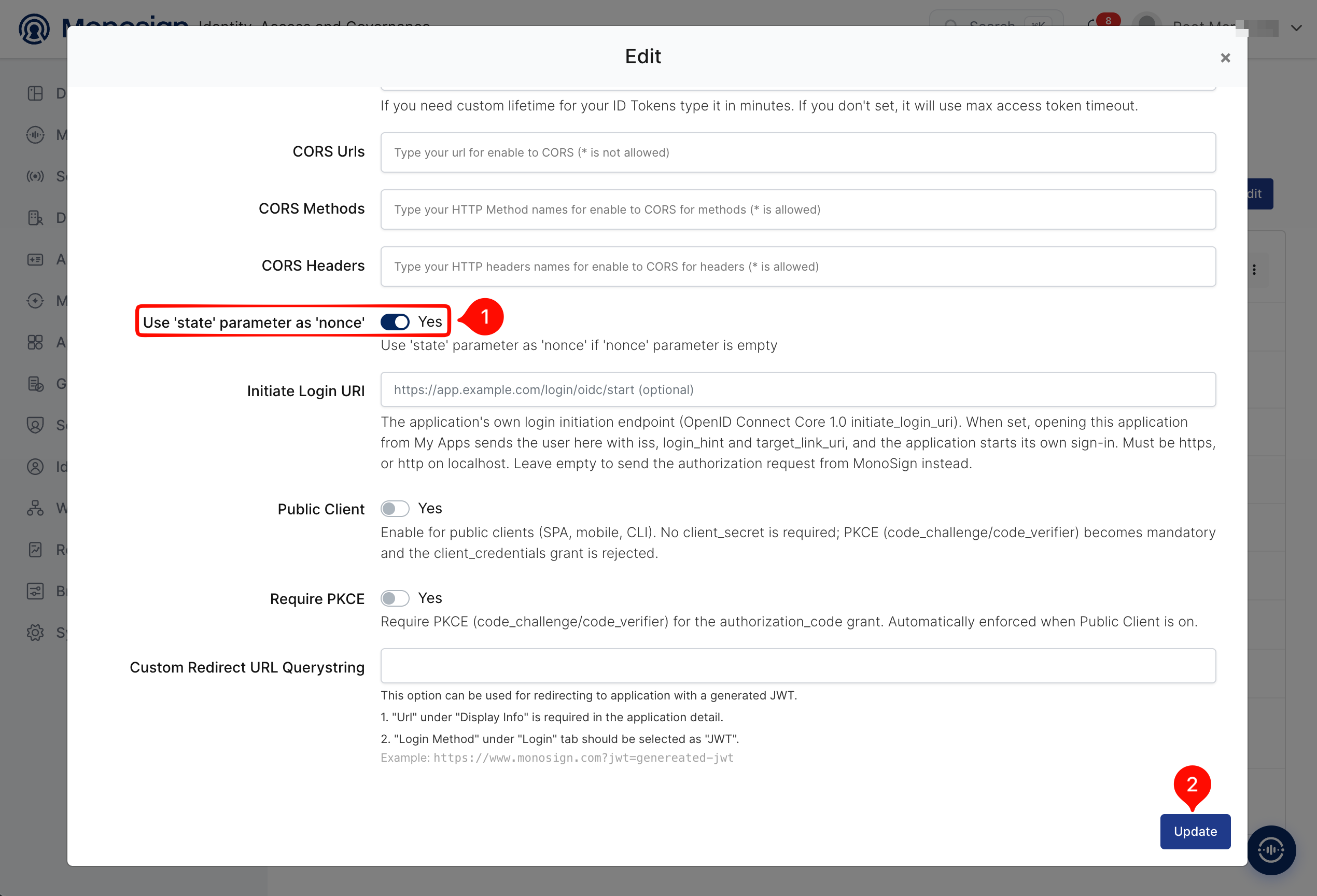
Druid’s pac4j client validates the state value in the callback request. Before this option was enabled the callback arrived without a state and Druid returned HTTP ERROR 500 org.pac4j.core.exception.TechnicalException: Missing state parameter. This option was enabled to fix that error.
Property | Value | Description |
|---|---|---|
Use ‘state’ parameter as ‘nonce’ |
| Use the ‘state’ parameter as ‘nonce’ if the nonce parameter is empty. |
Initiate Login URI | Empty | Not required. The authorization request is sent from Druid. |
Public Client / Require PKCE |
| Druid is a confidential client (Client Secret is used). PKCE is added by the Druid client by itself. |
3- Configuration Single Sign-On for Druid
Druid configuration contains the below steps:
Enable the druid-pac4j and druid-basic-security extensions and the OIDC settings
Restart the Druid services
a. Configure the Druid Services
In the Docker Compose deployment every Druid service reads the same environment file. A Druid property is written as an environment variable by replacing the dots with underscores (for example druid.auth.pac4j.oidc.clientID becomes druid_auth_pac4j_oidc_clientID). Add the following lines to the environment file and replace the placeholder values.
# Extensions (add druid-pac4j and druid-basic-security to the existing list)
druid_extensions_loadList=["druid-histogram", "druid-datasketches", "druid-lookups-cached-global", "postgresql-metadata-storage", "druid-pac4j", "druid-basic-security"]

# Authentication chain: Basic (API clients, fallback admin) then OIDC (web console)
druid_auth_authenticatorChain=["MetadataAuthenticator","pac4j"]
druid_auth_authenticator_MetadataAuthenticator_type=basic
druid_auth_authenticator_MetadataAuthenticator_skipOnFailure=true
druid_auth_authenticator_MetadataAuthenticator_credentialsValidator_type=metadata
druid_auth_authenticator_MetadataAuthenticator_initialAdminPassword=<strong-admin-password>
druid_auth_authenticator_MetadataAuthenticator_initialInternalClientPassword=<strong-internal-password>
druid_auth_authenticator_MetadataAuthenticator_authorizerName=MetadataAuthorizer
druid_auth_authenticator_pac4j_type=pac4j
druid_auth_authenticator_pac4j_name=pac4j
druid_auth_authenticator_pac4j_authorizerName=SsoAuthorizer

# Authorizers
druid_auth_authorizers=["MetadataAuthorizer","SsoAuthorizer"]
druid_auth_authorizer_MetadataAuthorizer_type=basic
druid_auth_authorizer_SsoAuthorizer_type=allowAll

# Escalator (Druid service to service calls)
druid_escalator_type=basic
druid_escalator_internalClientUsername=druid_system
druid_escalator_internalClientPassword=<strong-internal-password>
druid_escalator_authorizerName=MetadataAuthorizer

# OIDC settings (values from the Monosign Access Key Details)
druid_auth_pac4j_oidc_clientID=<client-id>
druid_auth_pac4j_oidc_clientSecret=<client-secret>
druid_auth_pac4j_oidc_discoveryURI=https://<monosign-host>/.well-known/openid-configuration
druid_auth_pac4j_oidc_scope=openid
druid_auth_pac4j_cookiePassphrase=<random-long-string>

# Required when HTTPS is terminated in front of Druid (Druid builds the https redirect URI from the forwarded headers)
druid_server_http_enableForwardedRequestCustomizer=true
Property | Value | Description |
|---|---|---|
druid.auth.authenticatorChain |
| Requests carrying Basic credentials are handled by |
pac4j.oidc.clientID / clientSecret |
| Copied from the Monosign OIDC/OpenID Access Key Details created in the first step. |
pac4j.oidc.discoveryURI |
| Configuration Url copied from the Access Key Details. |
pac4j.oidc.scope |
| The Monosign discovery document advertises only the |
pac4j.cookiePassphrase |
| Passphrase used to encrypt the session cookie. Use a long random value and keep it secret. |
SsoAuthorizer (allowAll) |
| Gives every user authenticated by pac4j full access. The users who can reach Druid are limited by the application assignments in Monosign (step 4). The Basic |
enableForwardedRequestCustomizer |
| Makes Druid honour the |
The environment file contains the client secret, the cookie passphrase and the admin password. Restrict its permissions (chmod 600) and do not store it in a shared repository.
The Druid containers print their configuration while starting, so the same values can also be seen in docker logs. Restrict access to the container logs.
In the micro-quickstart profile the Router JVM runs with a 128 MB heap by default. With pac4j enabled this is small and the console can become slow. Increase it with the environment section of the router service in docker-compose.yml:
DRUID_XMX=512m and DRUID_XMS=512m
b. Restart the Druid Services
Recreate the Druid services so that the new extensions and settings are loaded, then wait until the Router is healthy.
cd /opt/druid
docker compose up -d --force-recreate coordinator broker historical middlemanager router
curl -s http://localhost:8888/status/health   # prints: true
A request without credentials to the console must now be redirected to Monosign:
curl -s -o /dev/null -w "%{http_code} %{redirect_url}\n" http://localhost:8888/unified-console.html
The expected result is 302 and a redirect_url that starts with https://<monosign-host>/openid/authorize?scope=openid&response_type=code&redirect_uri=https%3A%2F%2Fdruid.example.com%2Fdruid-ext%2Fdruid-pac4j%2Fcallback.
4- Assign a User to the Druid Application
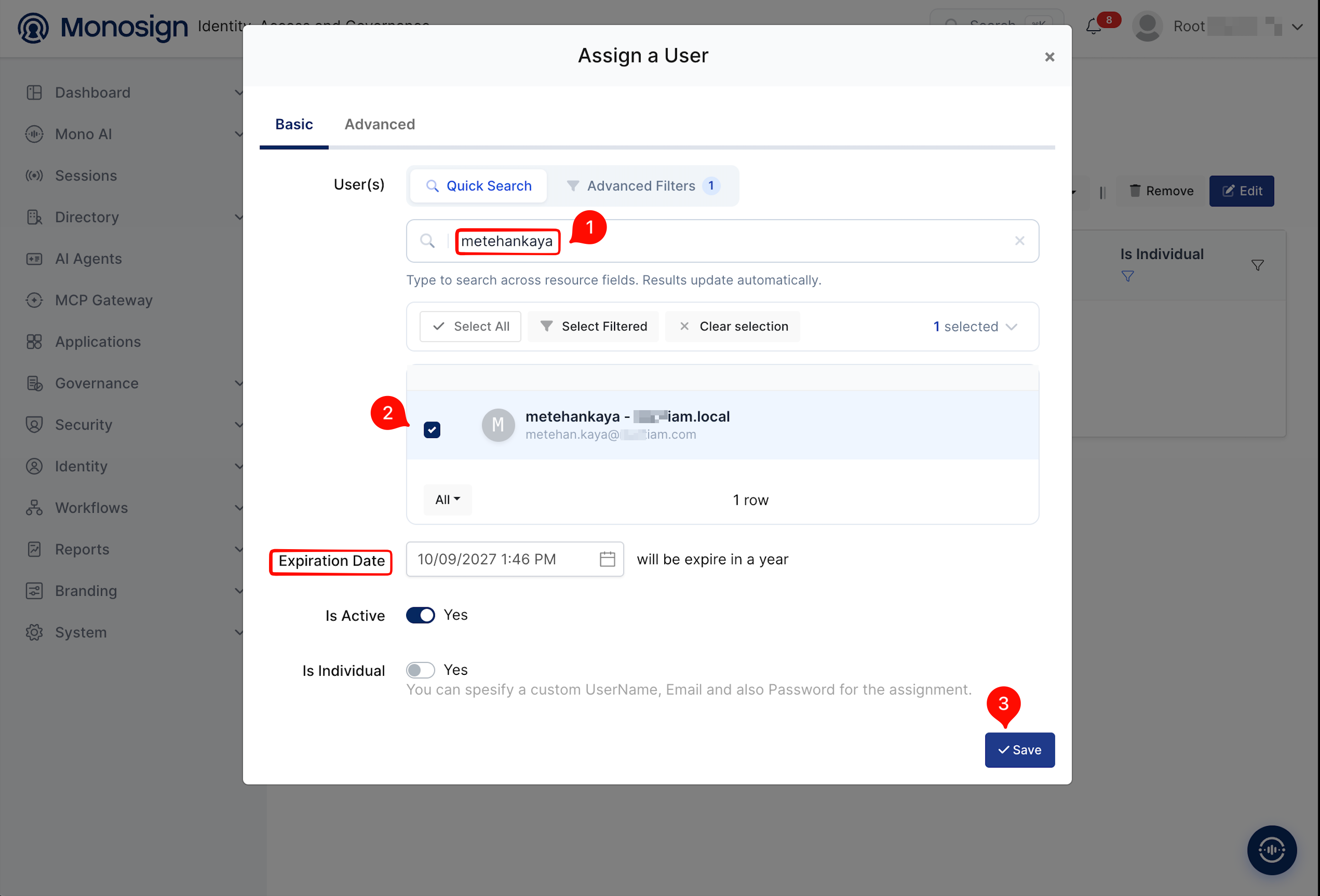
Please follow the below instructions on how to assign a user to the Druid application. Open the application, click the Assignments tab and click Assign a User.
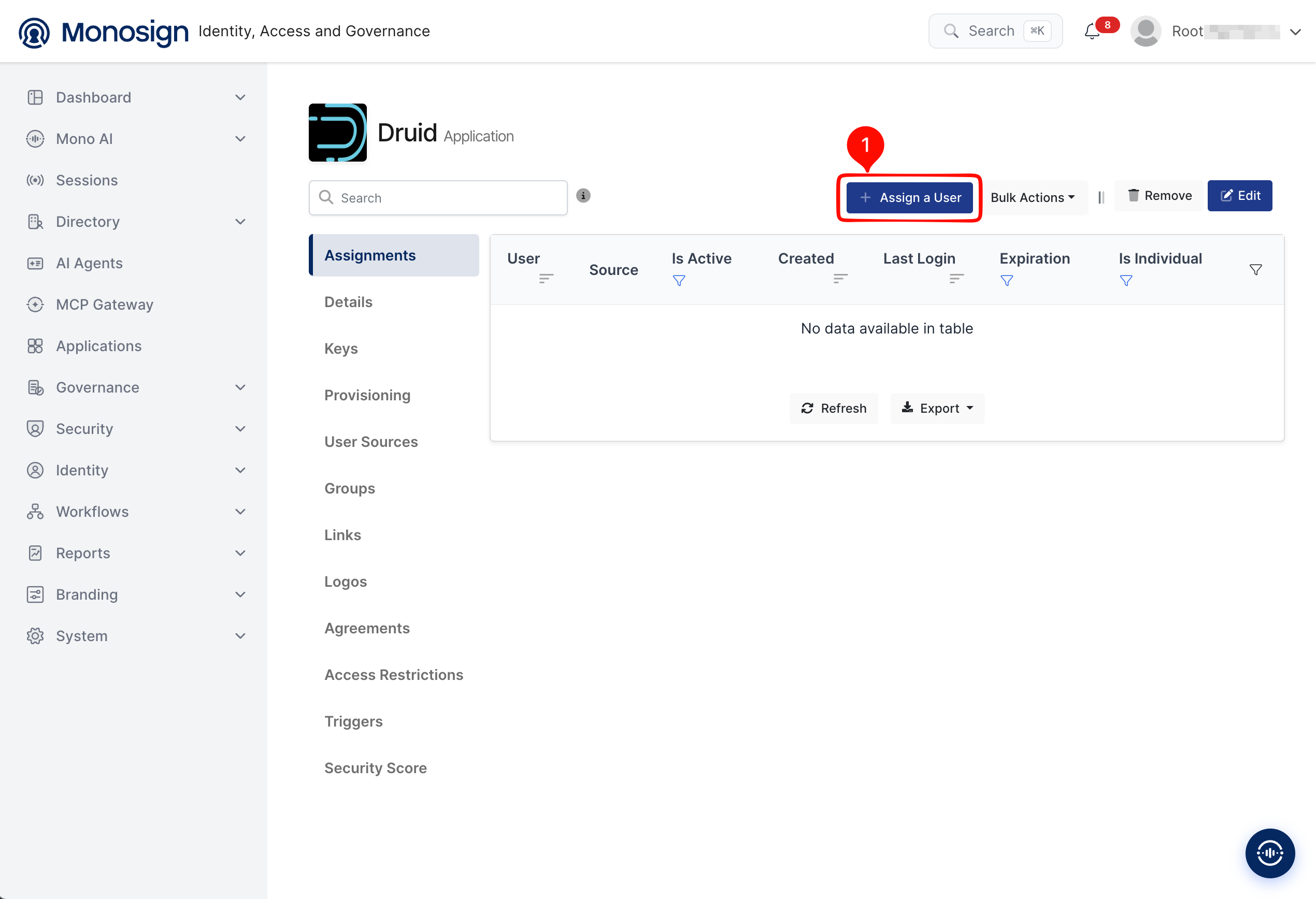
In this example metehankaya is assigned to the application access.
Search the user name in the User(s) field.
Select the user from the result list.
Check the Expiration Date and the Is Active option, then click Save.
Property | Value | Description |
|---|---|---|
User(s) | Selected users | Users who can sign in to Druid with Monosign. |
Expiration Date | Default one year | The assignment expires on this date. |
Is Active |
| Enables or disables the assignment. |
Is Individual |
| Enable only if a custom UserName, Email or Password is needed for this assignment. |
5- Sign In Test
Now try to log in to Druid using Monosign SSO.
Open a new browser window (or a private window to avoid old cookies) and type the Druid address, for example
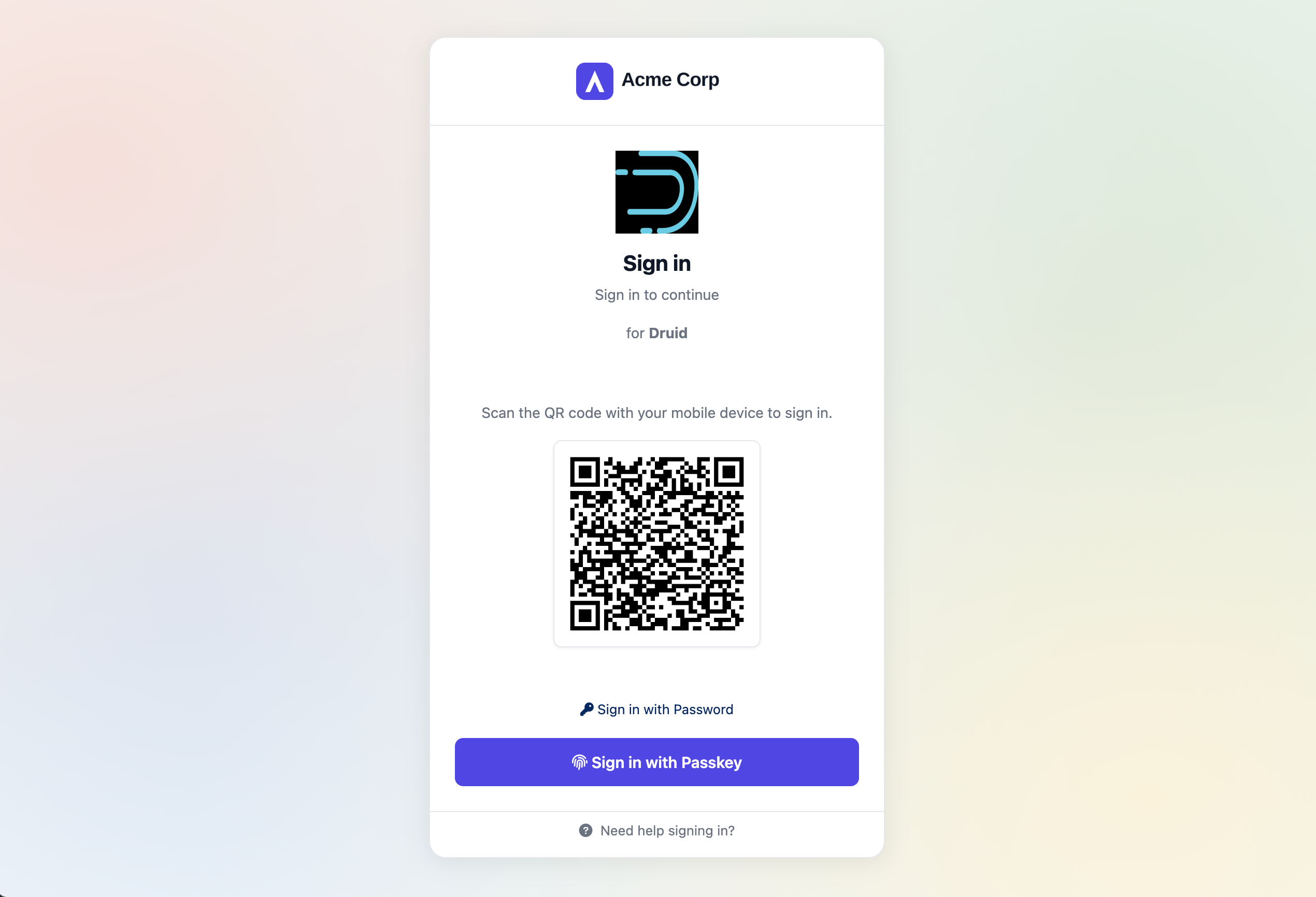
https://druid.example.com/unified-console.html.Druid redirects the browser to the Monosign sign-in page of the Druid application.
Sign in with Passwordless login (Monofor Identity), Passkey or Username and Password (Sign in with Password).
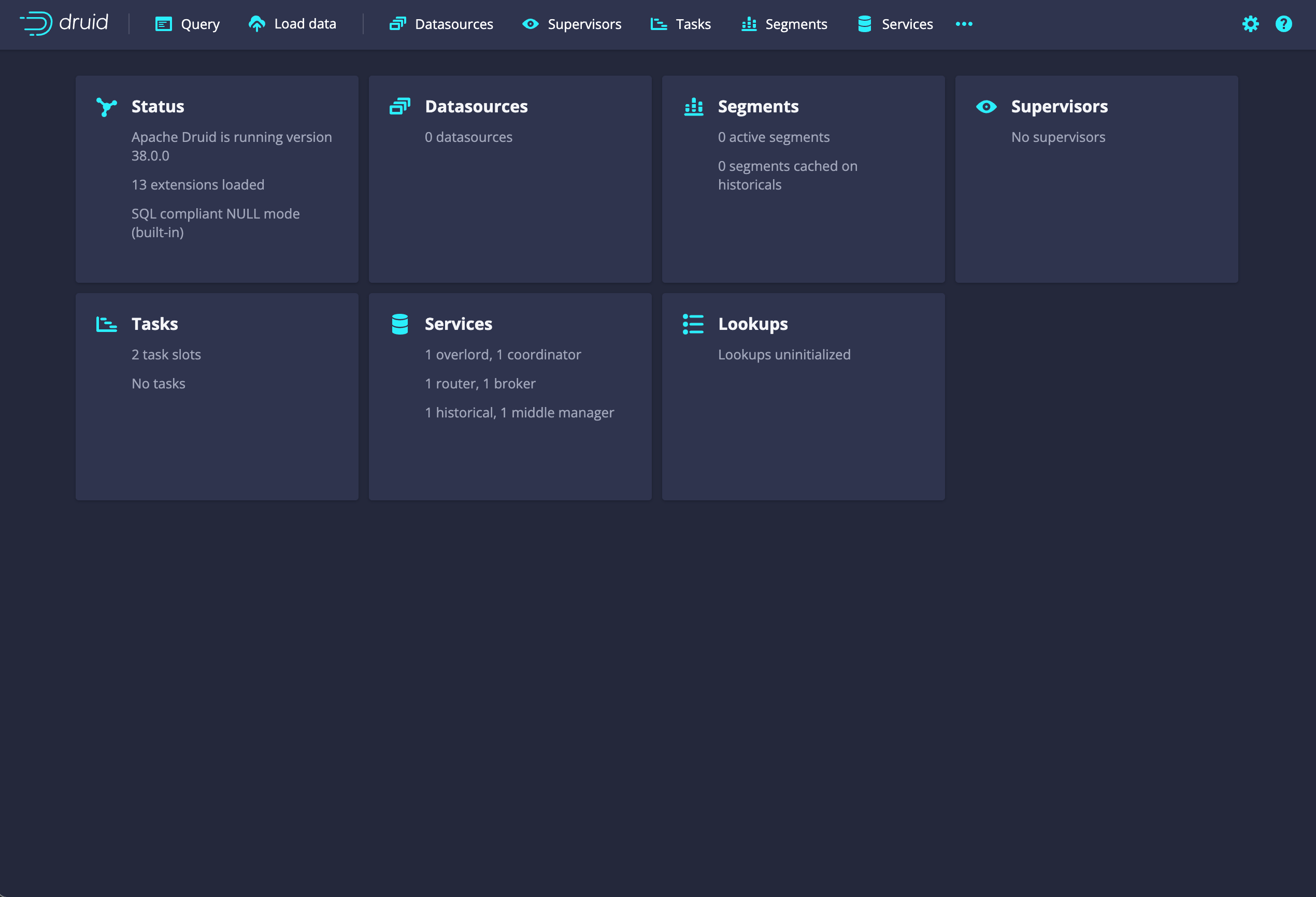
After sign-in Monosign redirects the browser back to Druid and the web console opens.
Which user is signed in?
The Druid web console does not show the signed-in user. The user name that Monosign sends (the Monosign UserName) is written as identity in the Druid broker request log when the request log is enabled (druid_request_logging_type=slf4j in the environment file). Run any query in the console and check the broker log:
docker logs broker 2>&1 | grep identity
You can also follow the sign-ins from the Monosign side, on the audit records.
Troubleshooting
Symptom | Cause | Solution |
|---|---|---|
| Monosign sent the user back without the | Enable Use ‘state’ parameter as ‘nonce’ in the Monosign OIDC/OpenID settings (step 2) and try again in a new browser window. |
Monosign shows a redirect URI error | The redirect URI that Druid sends does not exactly match the Allowed Redirect URIs ( | Check |
The console opens but cards such as Status, Tasks, Services and Lookups show | The signed-in user is authenticated but not authorized (the authorizer used by pac4j has no role for the user). | Make sure |
The authorization request contains scopes that Monosign does not advertise ( | The pac4j extension requests | Set |
The console is slow to open after SSO is enabled | The default 128 MB Router heap is small for the pac4j extension and every request carries an encrypted session cookie. | Set |
API clients (Grafana, curl, scripts) get redirected to Monosign | pac4j works for the web console only. | Use the Basic |
After completing the configuration on Druid and Monosign, it is better to test in a new private browser window if the OIDC/OpenID SSO doesn’t work, because old session cookies of the Druid address may cause errors.