
eSummary: This document explains, step by step, how to use MonoSign as an OIDC identity provider so that workloads (pipelines, services, scripts) can securely access Google Cloud resources without any static GCP service account key file, using Google Cloud Workload Identity Federation (WIF).
1. Overview
MonoSign acts as the OIDC identity provider that Google Cloud trusts via Workload Identity Federation. A workload authenticates with its own MonoSign client credentials and gets a short-lived Google Cloud token — no service account key file involved. The rest of this page is the exact setup to get that working.
2. Architecture
The diagram below shows two different teams (Team A, Team B) sharing the same MonoSign issuer and the same Google Cloud Workload Identity Pool/Provider, while remaining fully isolated from each other via different service accounts:
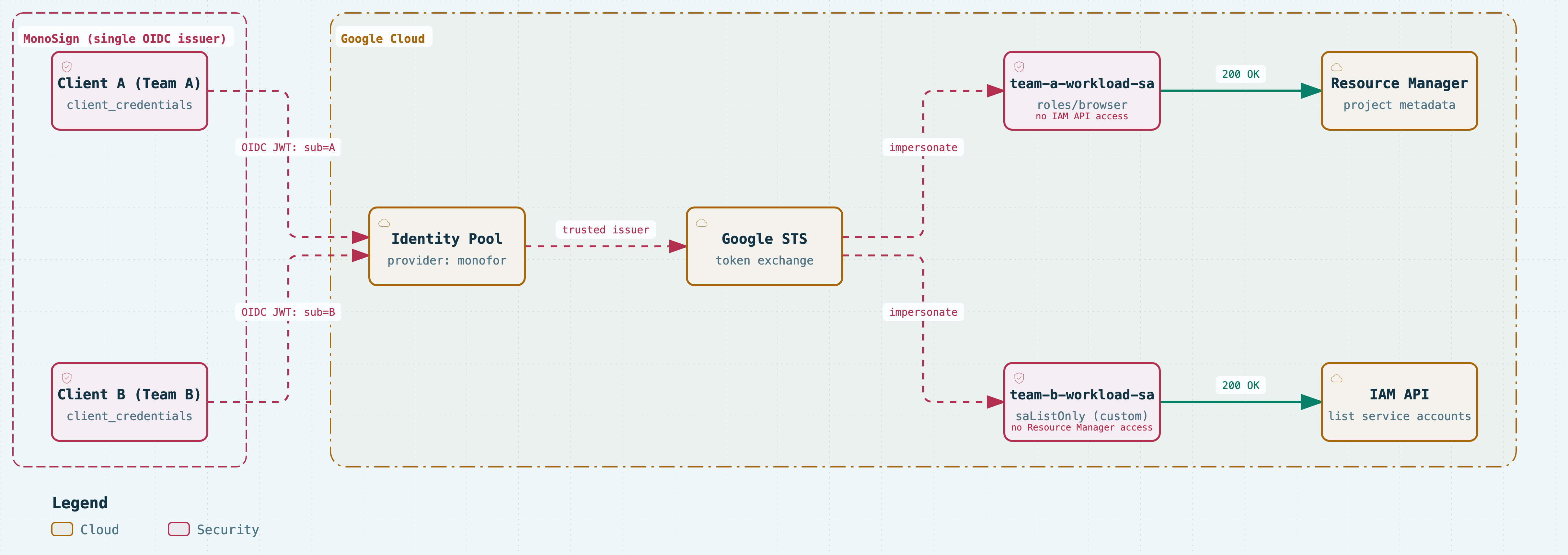
Flow summary:
-
The workload calls MonoSign with its own
client_id+client_secretusing theclient_credentialsgrant type. -
MonoSign returns a signed OIDC JWT (
access_token) representing the workload's identity. The token'ssubclaim is that client's client_id, and itsaudclaim is the Google Cloud provider's canonical resource name. -
The workload sends this JWT to Google STS (
sts.googleapis.com/v1/token) and receives a Google "federated token" in exchange. -
The federated token is used to impersonate the target service account (
iamcredentials.googleapis.com ... :generateAccessToken). -
The resulting service account access token is used to make real Google Cloud API calls.
3. Prerequisites
-
Access to IAM & Admin → Workload Identity Federation in the Google Cloud project
-
Permission to create new Applications/Clients in MonoSign
-
gcloudCLI installed locally (install withbrew install --cask google-cloud-sdk) — needed for testing and verification steps
4. Google Cloud Setup
4.1 Create a Workload Identity Pool
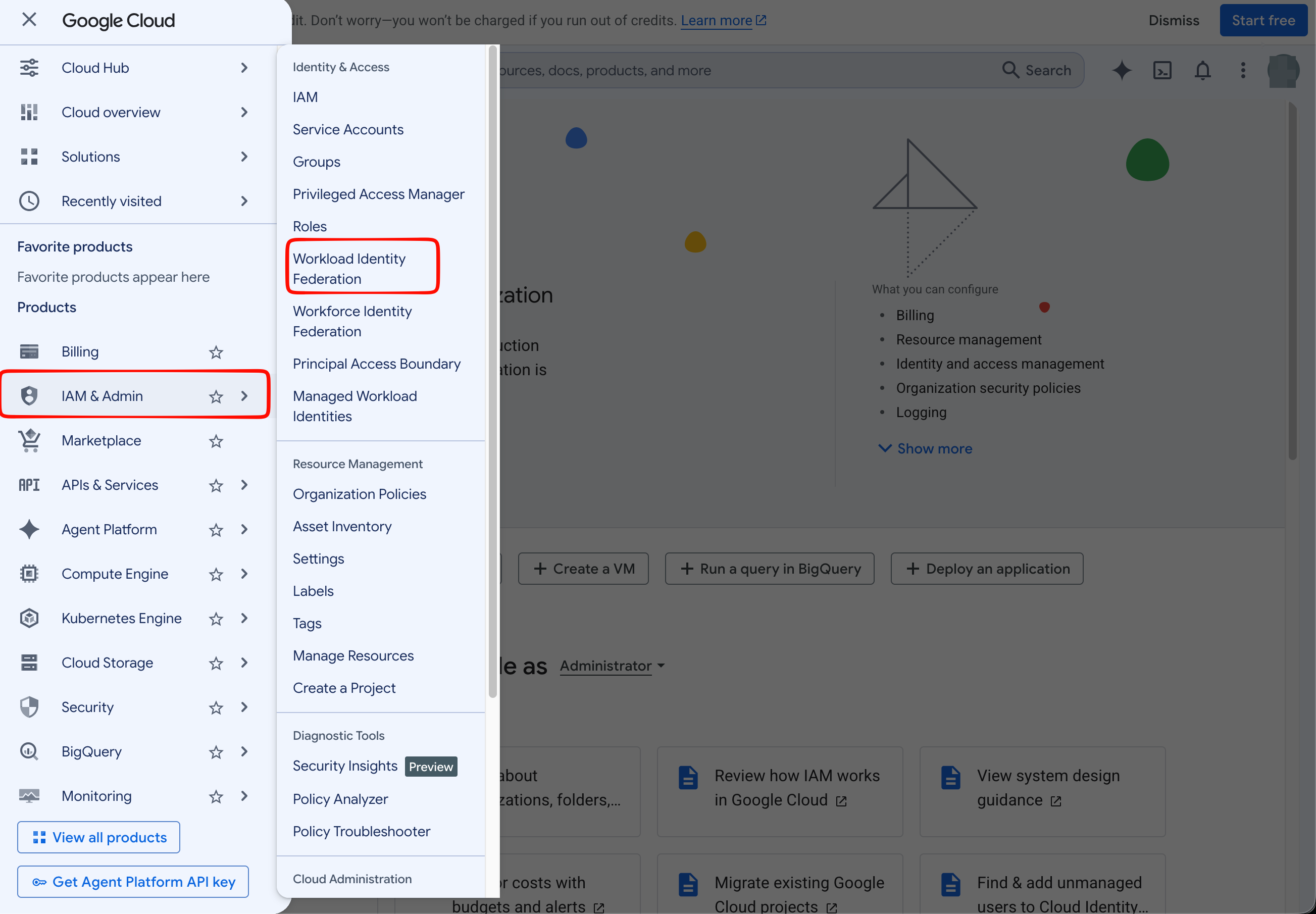
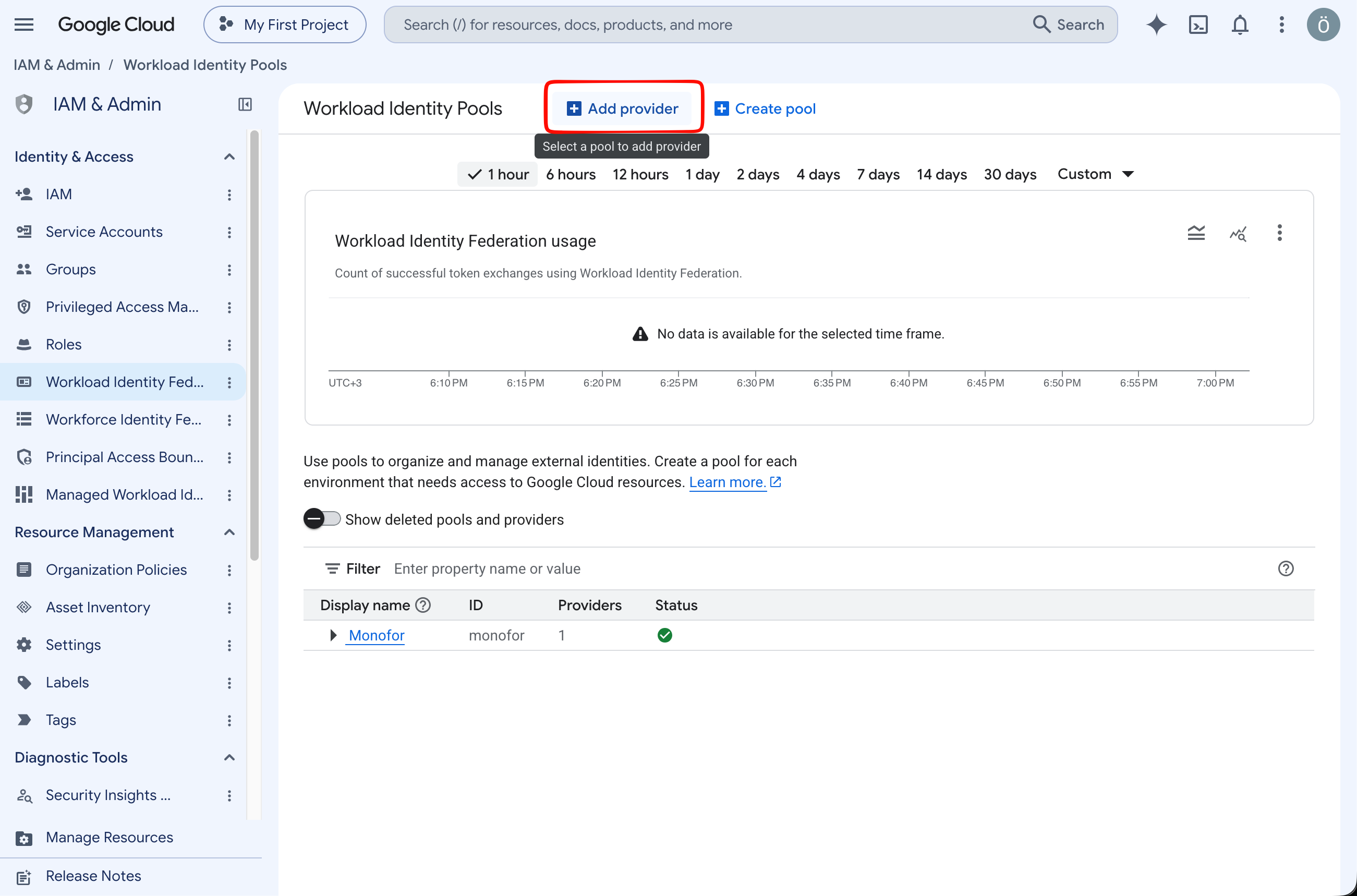
IAM & Admin → Workload Identity Federation → Get started → enter a Pool ID/Name (e.g. monofor).
4.2 Add an OIDC Provider
Select OpenID Connect (OIDC) as the provider type.
|
Field |
Value |
|---|---|
|
Provider name / ID |
|
|
Issuer (URL) |
|
|
Audiences |
Leave Default audience selected (see Section 9 — changing this caused a serious issue, details in Troubleshooting) |
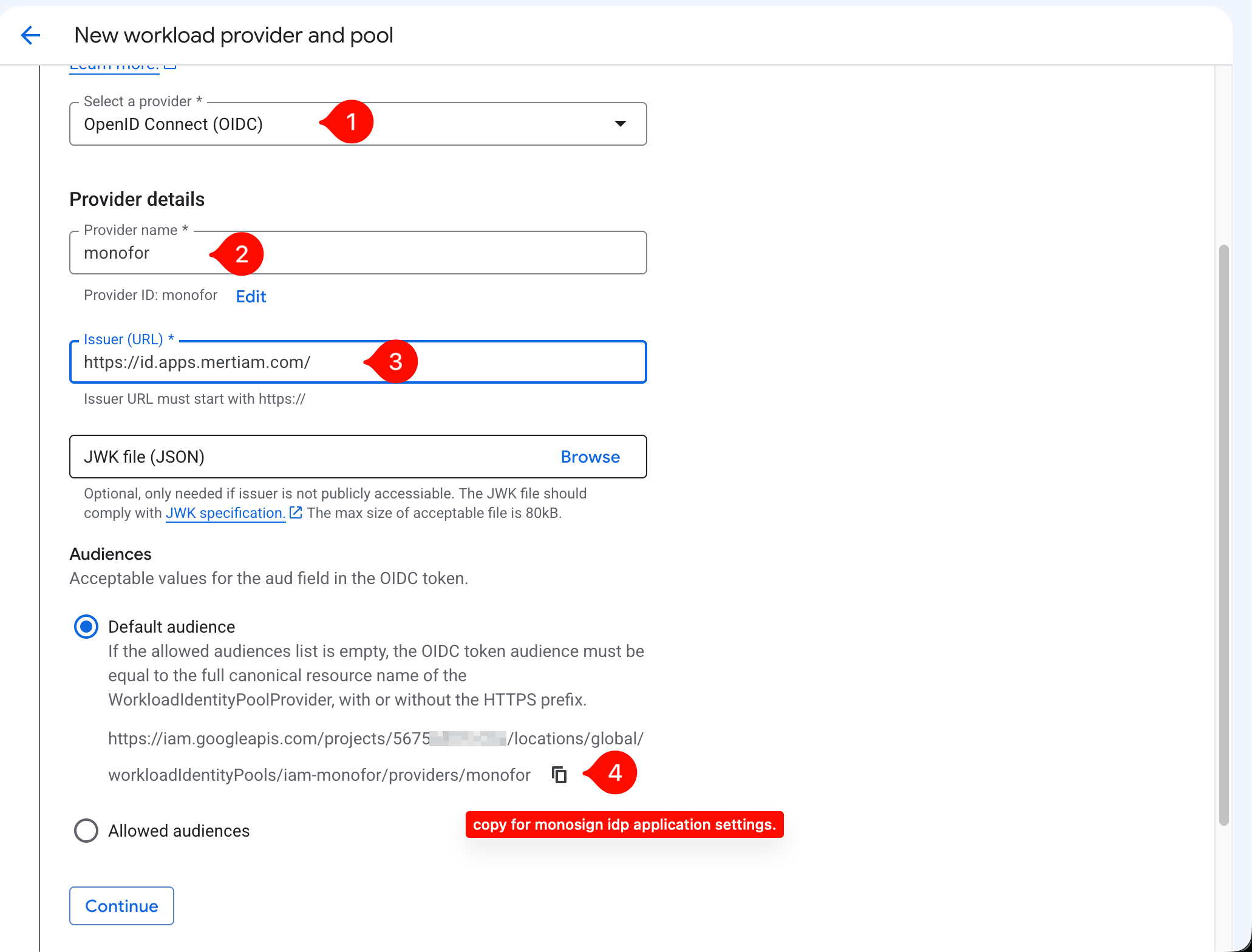
Click for next step, “Continue” button.
4.3 Attribute Mapping
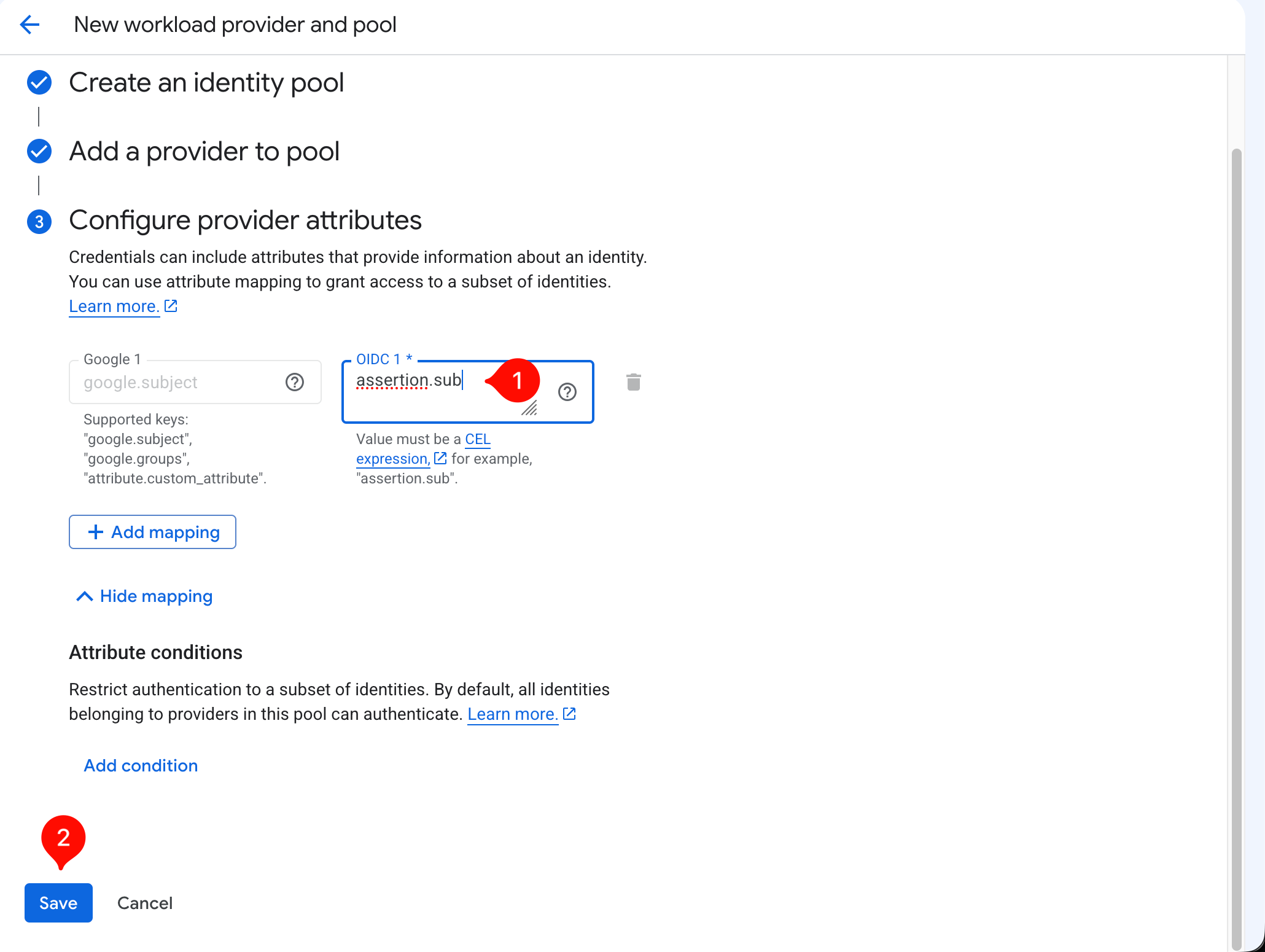
On the "Configure provider attributes" screen, the required mapping is:
google.subject = assertion.sub
This maps the sub claim from the MonoSign token (in the client_credentials flow, this value equals the client_id) to the google.subject field that Google IAM recognizes.
Caution: When entering this manually, it must be exactly assertion.sub. Due to copy-paste issues, if only sub ends up in the field, you'll get "Invalid attribute mapping. undeclared reference to 'sub'".
5. MonoSign Setup
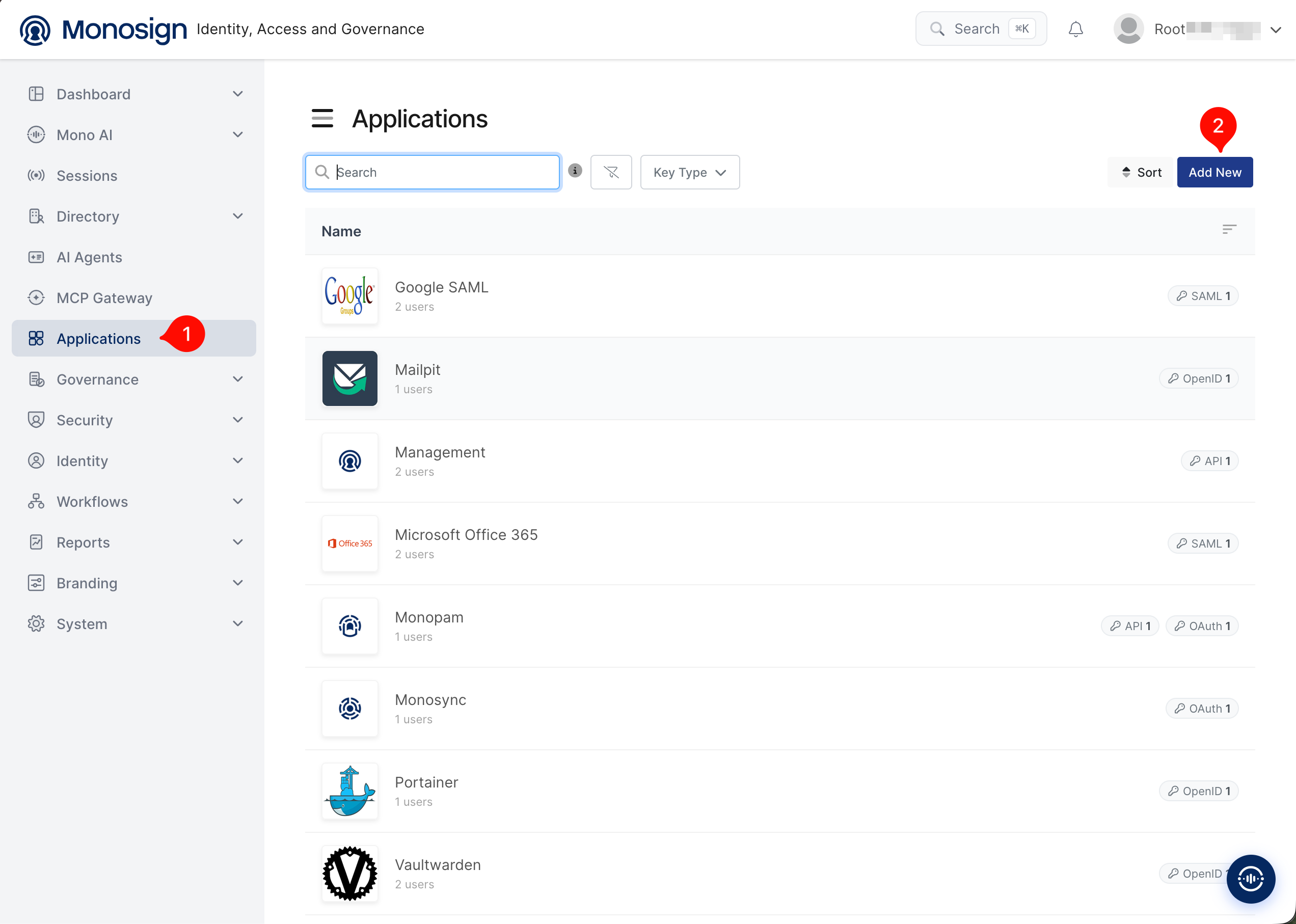
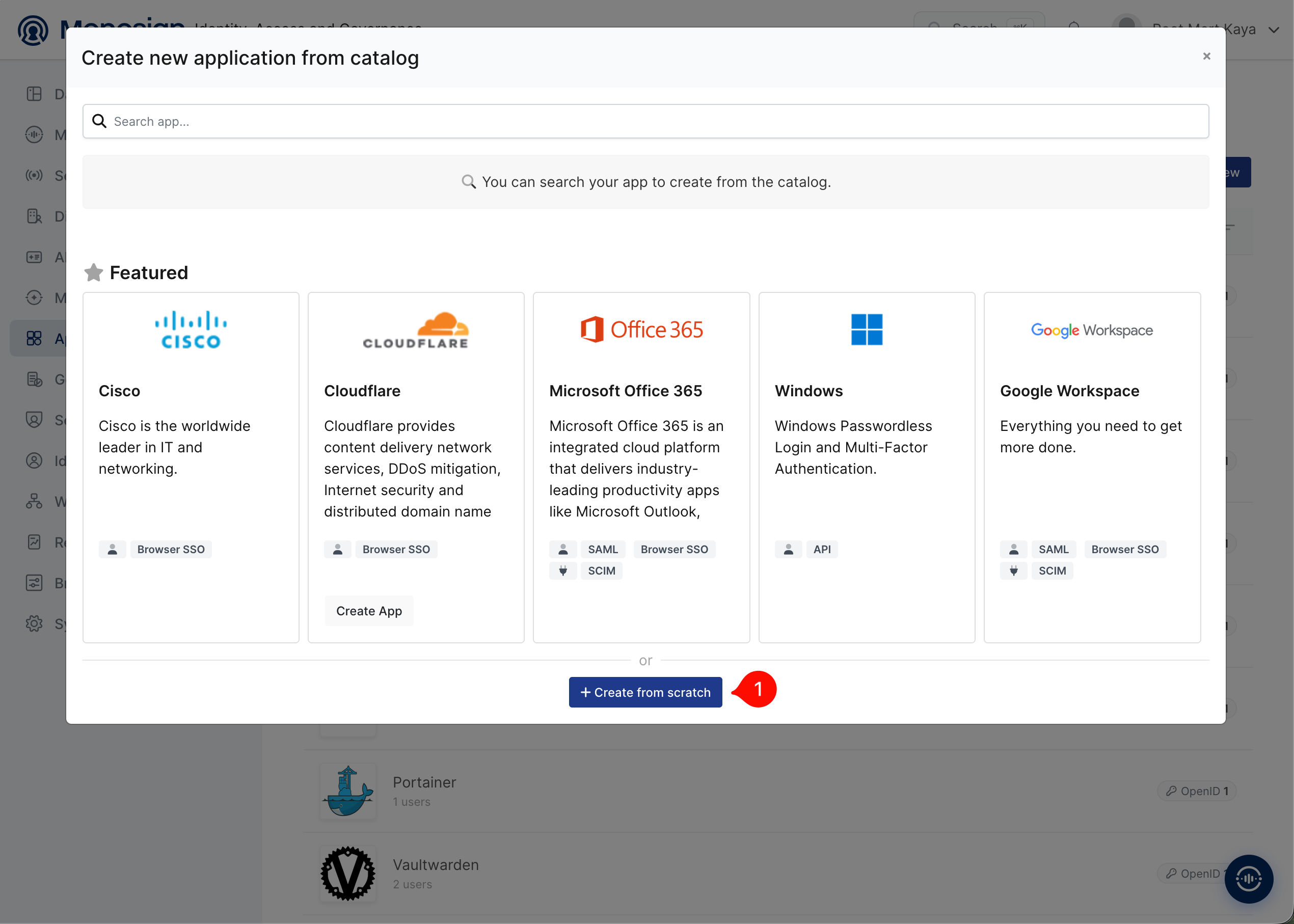
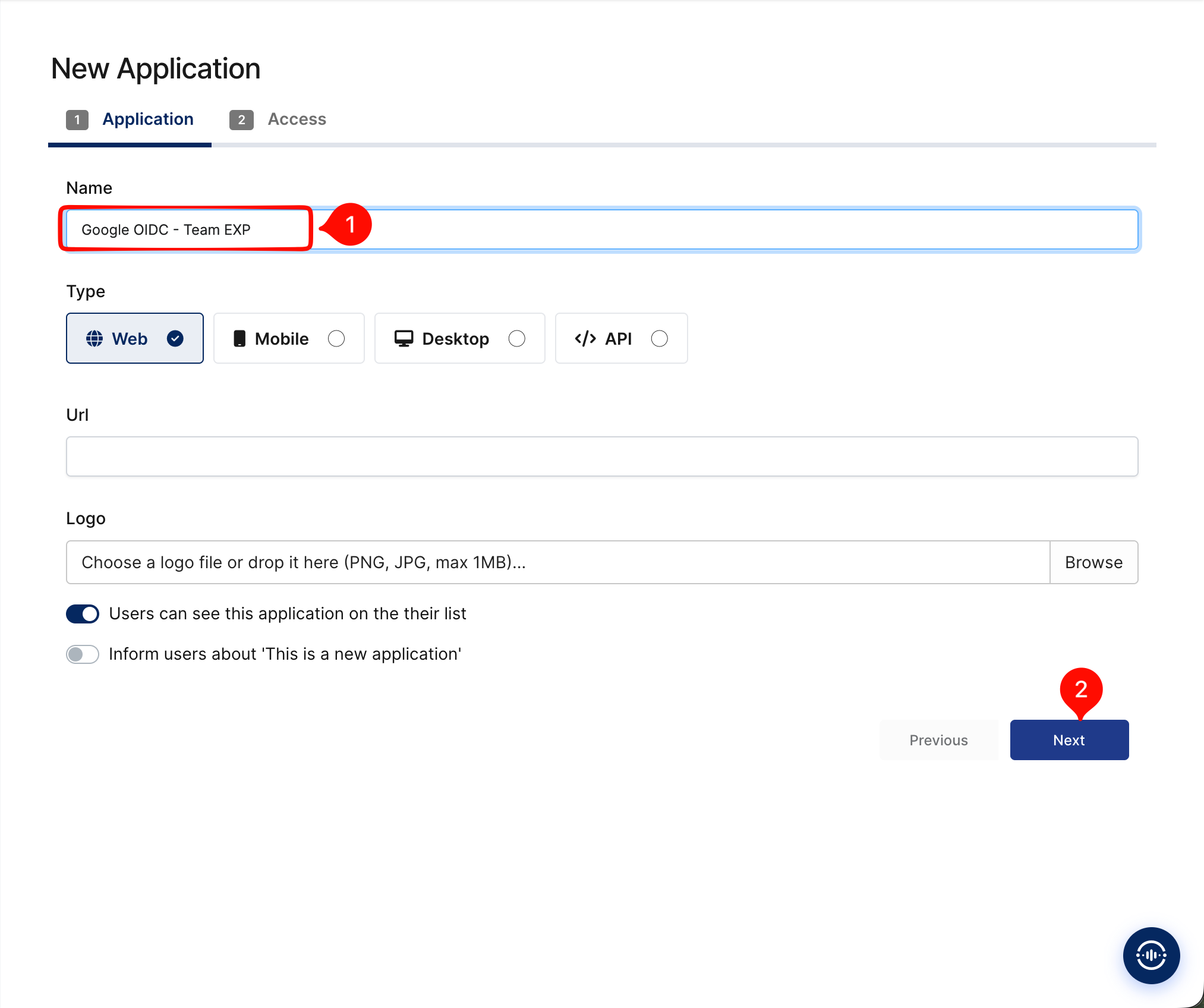
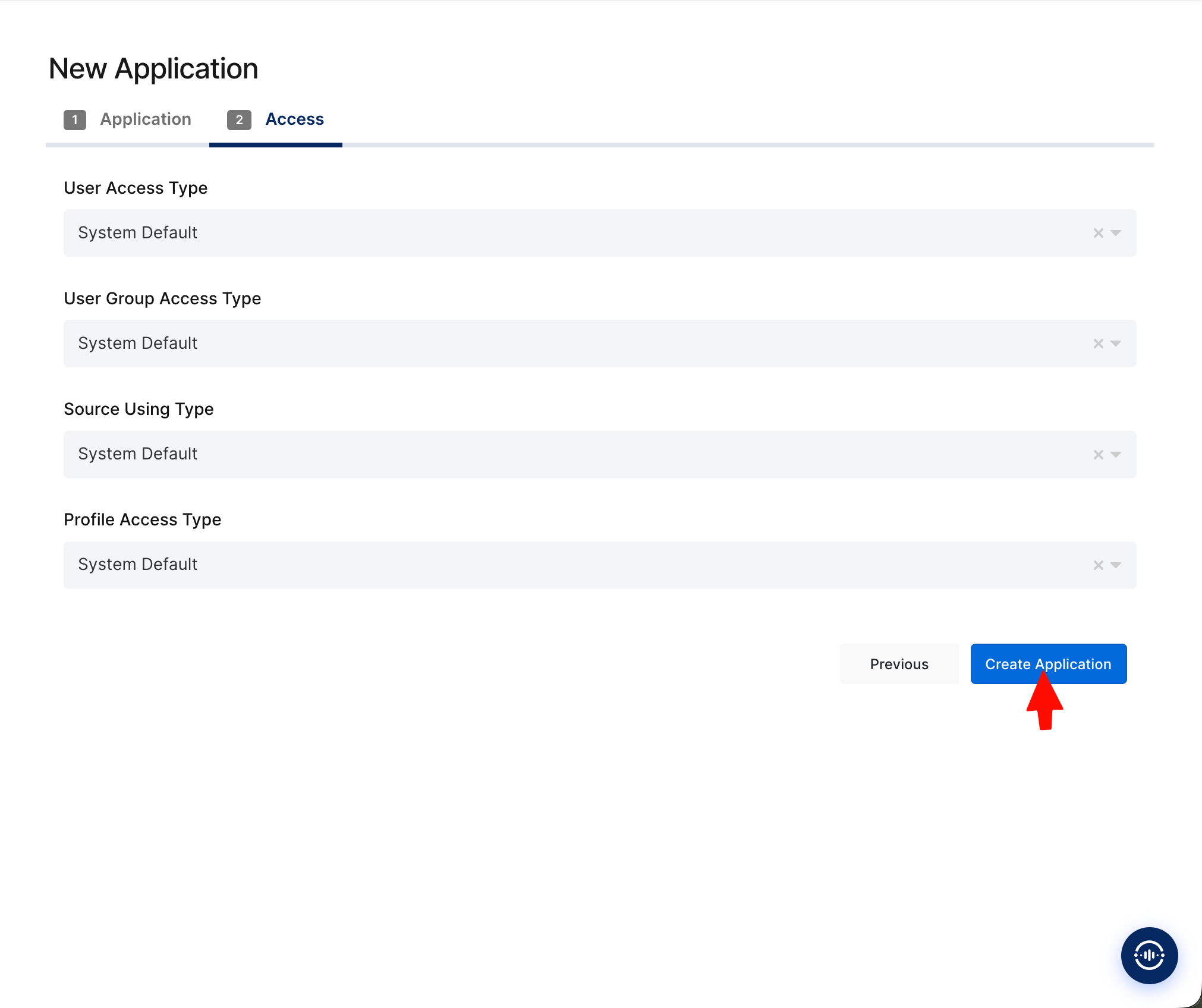
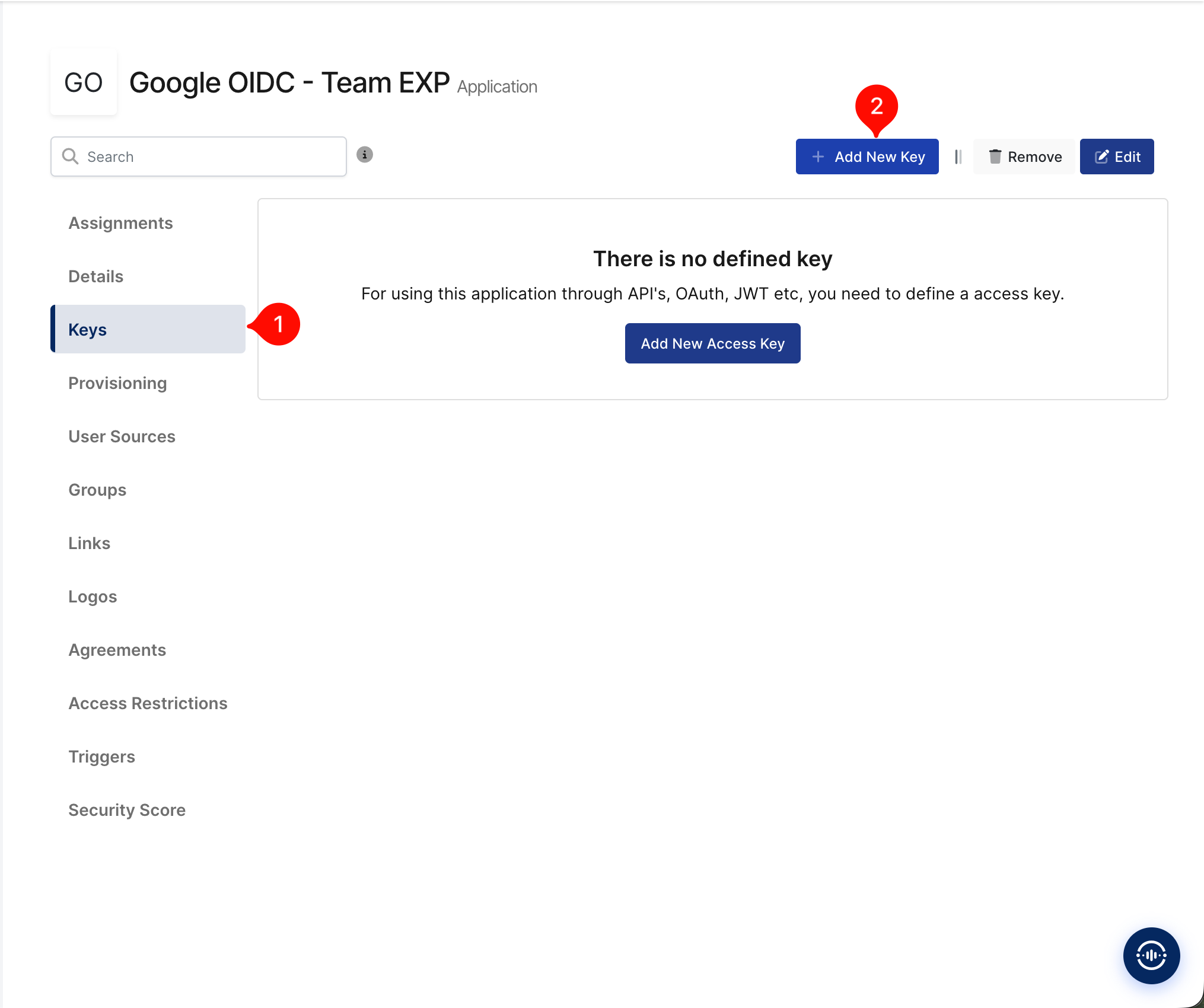
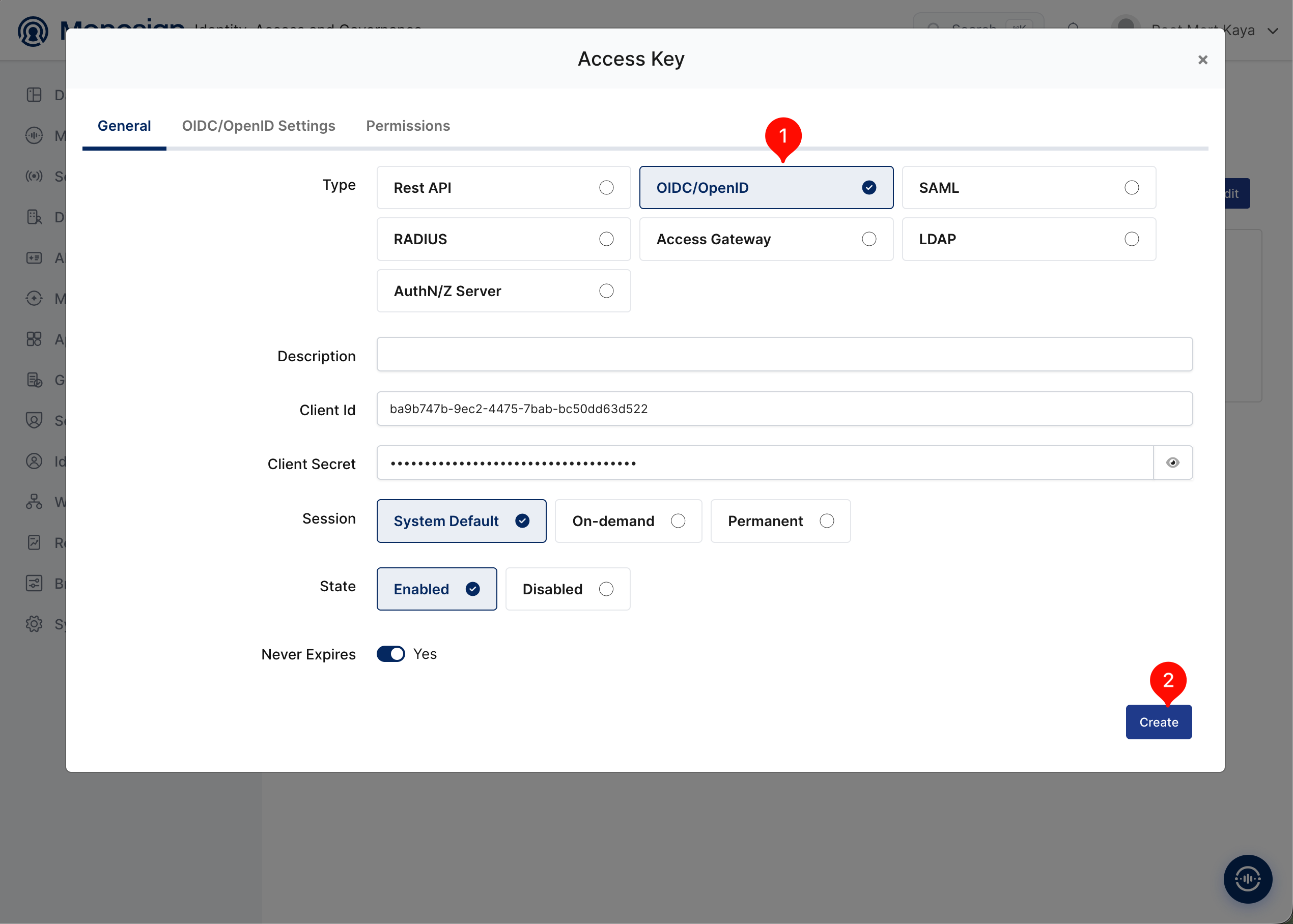
5.1 Create a New Application (OIDC/OpenID)
In the MonoSign admin panel, create a separate Application for each workload/team (Type: OIDC/OpenID).
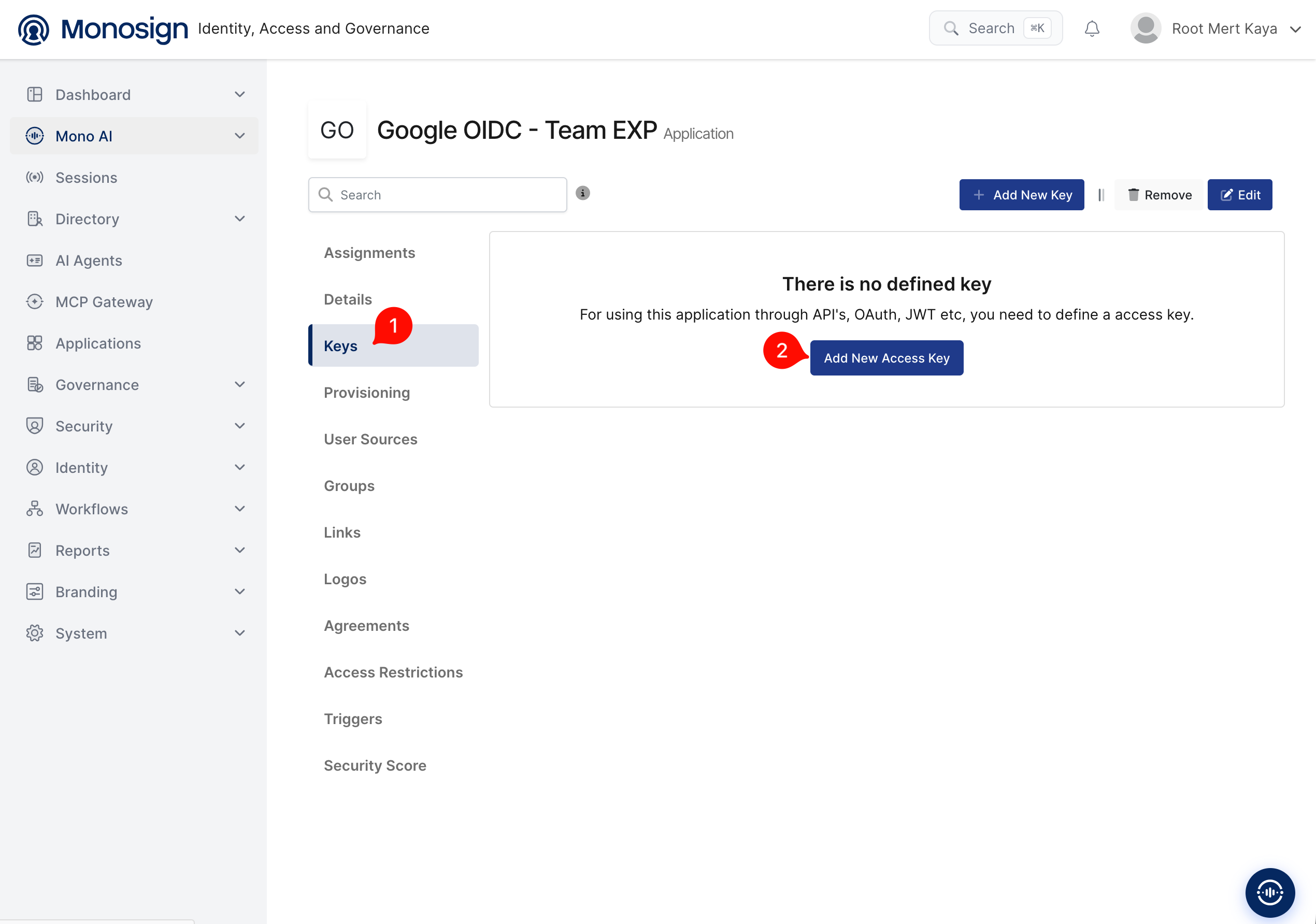
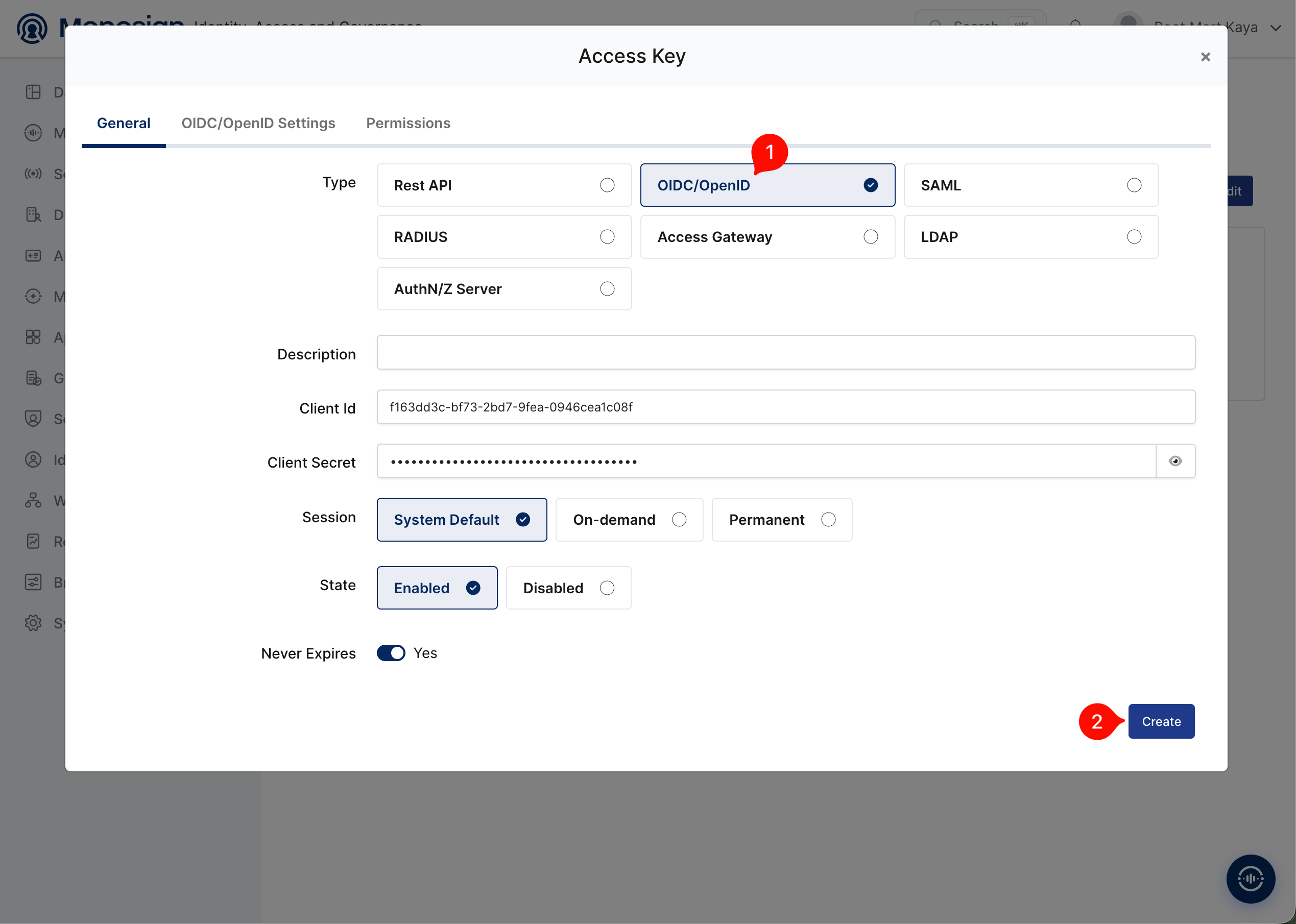
5.2 Enable the Client Credentials (M2M) Flow
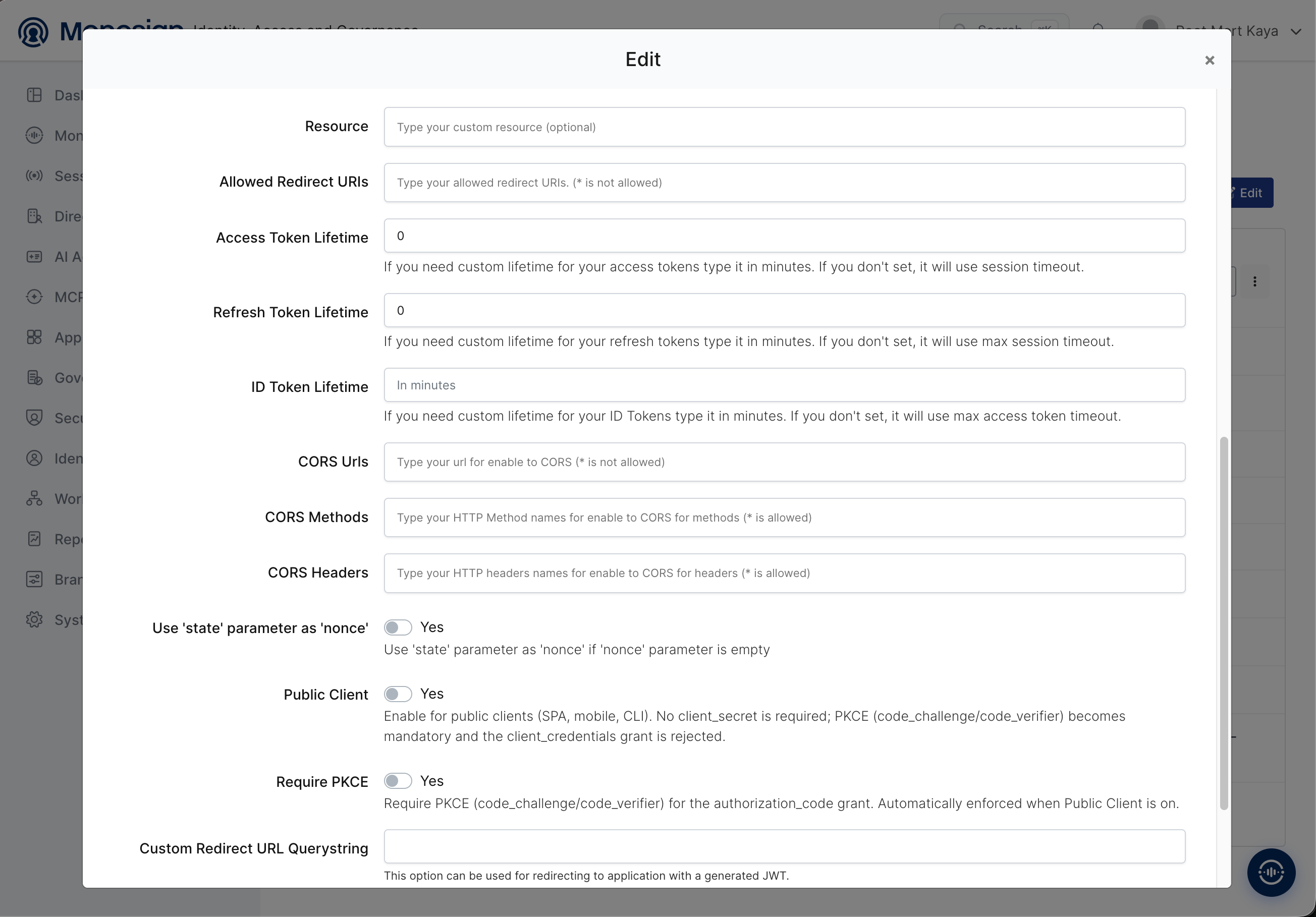
By default, MonoSign applications use the Authorization Code grant type — this requires an interactive human login via browser and is not suitable for an automated, unattended workload scenario.
Under Edit → OIDC/OpenID Settings → Configuration:
|
Field |
Value |
Why |
|---|---|---|
|
Public Client |
No |
When Public Client is on, no client_secret is required, PKCE becomes mandatory, and the client_credentials grant is rejected. For an M2M workload scenario, Public Client must be off. |
|
Allowed Redirect URIs |
Can be left empty |
The client_credentials flow never uses a browser/redirect |
5.3 Set the Audience Claim
In the same Configuration tab, set the Audience field to the Google Cloud provider's canonical resource name:
https://iam.googleapis.com/projects/PROJECT_NUMBER/locations/global/workloadIdentityPools/POOL_ID/providers/PROVIDER_ID
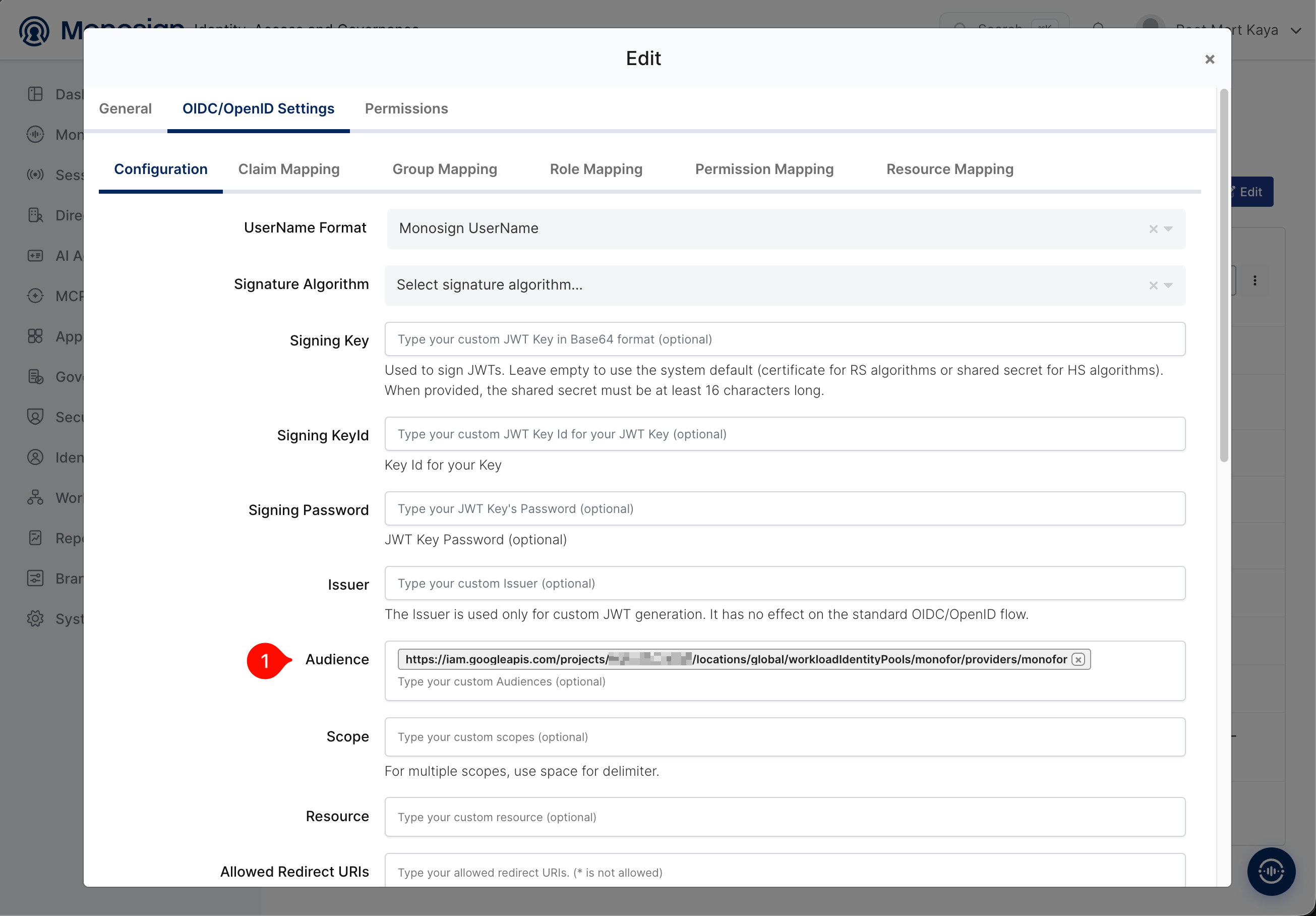
Caution: This must be entered exactly in this format, including the https:// prefix. If left empty, the issued token will have no aud claim at all, and the Google STS token exchange will fail with "invalid_grant".
6. Grant Access
Authenticating the workload isn't enough — Google Cloud also needs to know what it's allowed to do (authorization). This is done in two steps:
6.1 Create a Service Account
IAM & Admin → Service Accounts → Create Service Account. A dedicated service account per workload/team is recommended (avoid shared/general-purpose SAs).
6.2 Grant a Role to the Service Account
Grant the SA the narrowest possible role(s) it actually needs (least privilege). Example: if it only needs to read project metadata, roles/browser; for a narrower need, create a custom role:
gcloud iam roles create saListOnly \
  --project=PROJECT_ID \
  --title="SA List Only" \
  --permissions="iam.serviceAccounts.list" \
  --stage=GA
6.3 Bind the Federated Identity to the Service Account
From the service account's own Permissions → Grant Access screen (not the project's IAM — the SA's own resource-level IAM policy), map the MonoSign client's sub value to permission to impersonate this SA:
Principal: principal://iam.googleapis.com/projects/PROJECT_NUMBER/locations/global/workloadIdentityPools/monofor/subject/CLIENT_ID
Role: Workload Identity User (roles/iam.workloadIdentityUser)
IAM policy changes can take a few minutes to propagate globally ("eventual consistency"). If the first tests right after a change give unexpected results, wait a few minutes and retry.
7. Testing
End-to-end verification consists of 4 steps:
7.1 Get a Token from MonoSign
curl -s -X POST https://id.yourdomain.com/openid/token \
  -d grant_type=client_credentials \
  -d client_id=CLIENT_ID \
  -d client_secret=CLIENT_SECRET
Note: do not send a scope=openid parameter together with client_credentials — the openid scope requires a "subject" (a user), whereas in client_credentials the subject is the client itself; this can cause an invalid_scope error. Send the request with no scope parameter at all.
7.2 Exchange It for a Federated Token via Google STS
curl -X POST https://sts.googleapis.com/v1/token \
  -H "Content-Type: application/json" \
  -d '{
    "audience": "//iam.googleapis.com/projects/PROJECT_NUMBER/locations/global/workloadIdentityPools/monofor/providers/monofor",
    "grantType": "urn:ietf:params:oauth:grant-type:token-exchange",
    "requestedTokenType": "urn:ietf:params:oauth:token-type:access_token",
    "scope": "https://www.googleapis.com/auth/cloud-platform",
    "subjectTokenType": "urn:ietf:params:oauth:token-type:jwt",
    "subjectToken": "MONOSIGN_ACCESS_TOKEN"
  }'
Format warning: The audience field of this request must be in the //iam.googleapis.com/... format (no scheme / no https:). This is a different field from the https://iam.googleapis.com/... value we set in MonoSign's Audience field — the two should not be confused. Details in Section 9.
7.3 Impersonate the Service Account
curl -X POST "https://iamcredentials.googleapis.com/v1/projects/-/serviceAccounts/SA_EMAIL:generateAccessToken" \
  -H "Authorization: Bearer FEDERATED_TOKEN" \
  -H "Content-Type: application/json" \
  -d '{"scope": ["https://www.googleapis.com/auth/cloud-platform"]}'
7.4 Make a Real API Call
curl -H "Authorization: Bearer SA_ACCESS_TOKEN" \
  "https://cloudresourcemanager.googleapis.com/v1/projects/PROJECT_ID"
If this returns 200, the chain is working end to end.
8. Multi-Team / Multi-Client Pattern
Don't create a new Google Cloud provider per team. Instead:
-
Google Cloud side: keep a single Pool + single Provider.
-
MonoSign side: a separate Application/Client per team/workload (its own client_id + client_secret, its own
subvalue). -
IAM binding: each client's
subvalue is bound to its own dedicated service account, with its own minimal role.
Client secrets should never be shared with people or used manually — they belong in that pipeline's own CI/CD secret store (GitHub Actions Secrets, GitLab CI Variables, Vault, etc.) and should be called automatically by the pipeline.
9. Troubleshooting
|
Error |
Cause |
Fix |
|---|---|---|
|
|
The Issuer field was left empty when creating the provider |
Enter MonoSign's Configuration Url with the |
|
|
The attribute mapping field ended up with just |
Clear the field and type exactly |
|
|
|
Don't send a scope parameter at all |
|
Token has no |
The Audience field is empty in the MonoSign application |
Set Audience to the GCP provider's canonical resource name ( |
|
|
Format mismatch between the STS request's |
The STS request's |
|
|
An |
This field must strictly be in the |
|
|
MonoSign's |
This endpoint only works for tokens tied to a user session (from the Authorization Code flow); it's not used in the client_credentials scenario |
|
An operation unexpectedly succeeds despite lacking permission (e.g. an SA granted only |
Many of Google's predefined roles implicitly bundle baseline permissions like |
For a truly narrow demo/isolation scenario, create a custom role containing only the single permission actually needed |
|
Secret Manager API can't be enabled: |
No billing account is linked to the project |
Continue with APIs that don't require billing (Cloud Resource Manager, IAM), or enable billing/free trial from the Console |