This document explains how to integrate Looker with Monosign using Single Sign-On over OpenID Connect (OIDC). Looker is a cloud business-intelligence and data-analytics platform. It supports OIDC as an authentication backend, so Monosign acts as the identity provider and users sign in to Looker with their Monosign account. The OIDC/OpenID access key of Monosign is used. Unlike applications that read the OIDC discovery document automatically, Looker needs each endpoint (Issuer, Authorization, Token, UserInfo) entered explicitly in its admin interface. Before you continue, it is better to read the Looker OpenID Connect documentation (opens in a new tab).
This configuration was done with a Google-hosted Looker instance (*.looker.app). Looker supports Google OAuth, SAML, OIDC and LDAP; this document covers OpenID Connect only. Single sign-on is configured in the Looker admin interface (Admin → Authentication → OpenID Connect), not with environment variables.
Monofor has no responsibility to do Looker configurations. If you need support please contact Google Cloud Looker support or your Looker administrator.
An incorrect authentication configuration can lock out all users, including administrators. Always run Test OpenID Connect Authentication and confirm the result before you Save and Apply. Keep an alternate login available: the local email/password page at https://<looker-host>/login/email, or an enabled Google login.
OpenID Connect authentication is available on standard Looker instances. No additional license add-on is required for OIDC single sign-on.
Instructions
This documentation contains 5 main steps for integration.
Creating an application on Monosign
Configuring the OIDC/OpenID settings on Monosign
Assign a user to the Looker application
Configuration Single Sign-On for Looker
Sign In Test
1- Creating an Application on Monosign
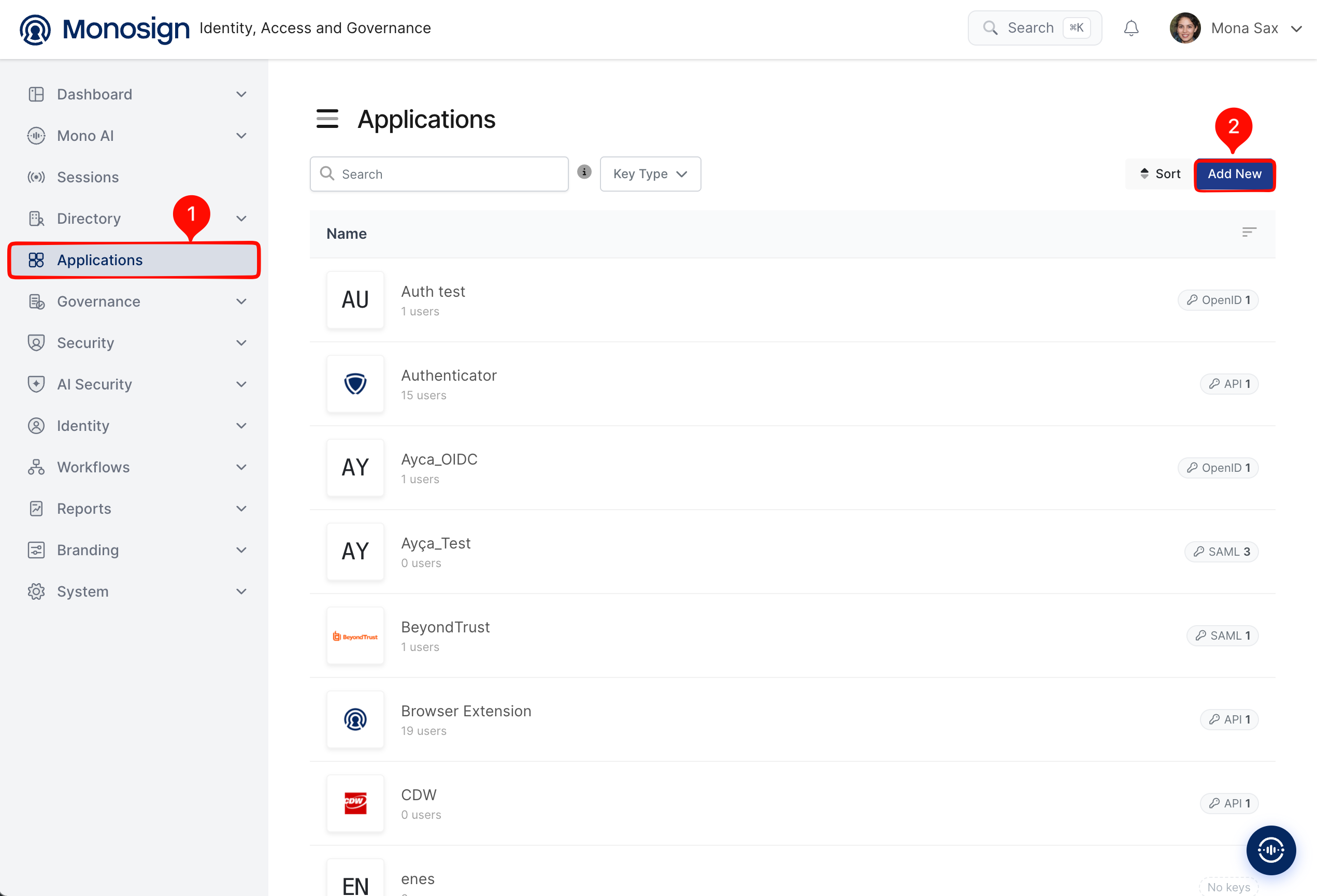
Create your application on Monosign first. Open the Applications page from the left menu and click Add New.
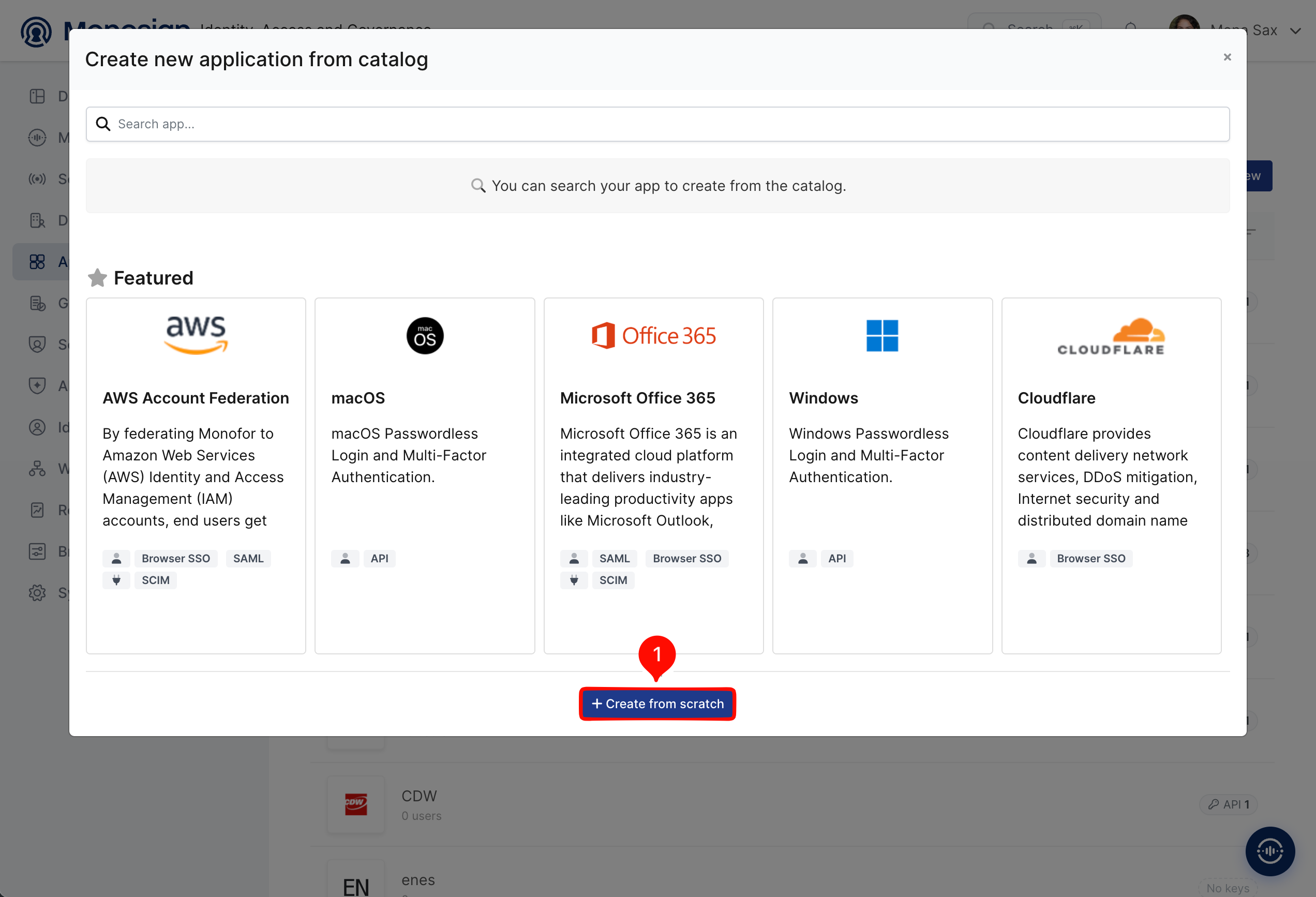
Looker is not in the application catalog, so click Create from scratch.
Fill in the application details on the Application tab and click Next.
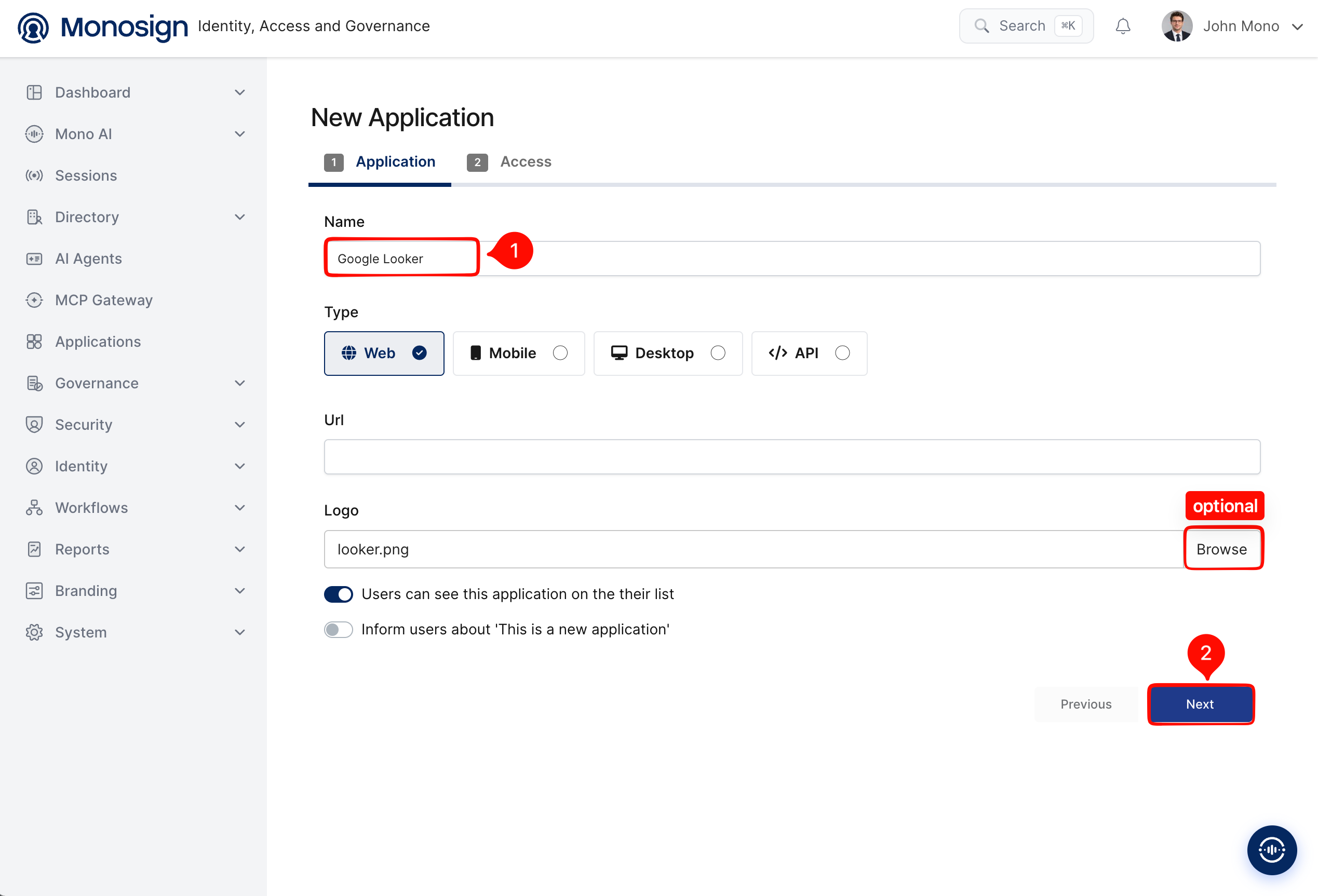
Property | Value | Description |
|---|---|---|
Name |
| Name of the application shown to users on the Monosign portal and sign-in page. |
Type |
| Looker is accessed through a web browser. Options: Web, Mobile, Desktop, API. |
Url | Optional | Leave empty or enter the Looker address (for example |
Users can see this application on their list |
| Displays the application on the user portal. |
On the Access tab define who can reach the application and click Create Application.
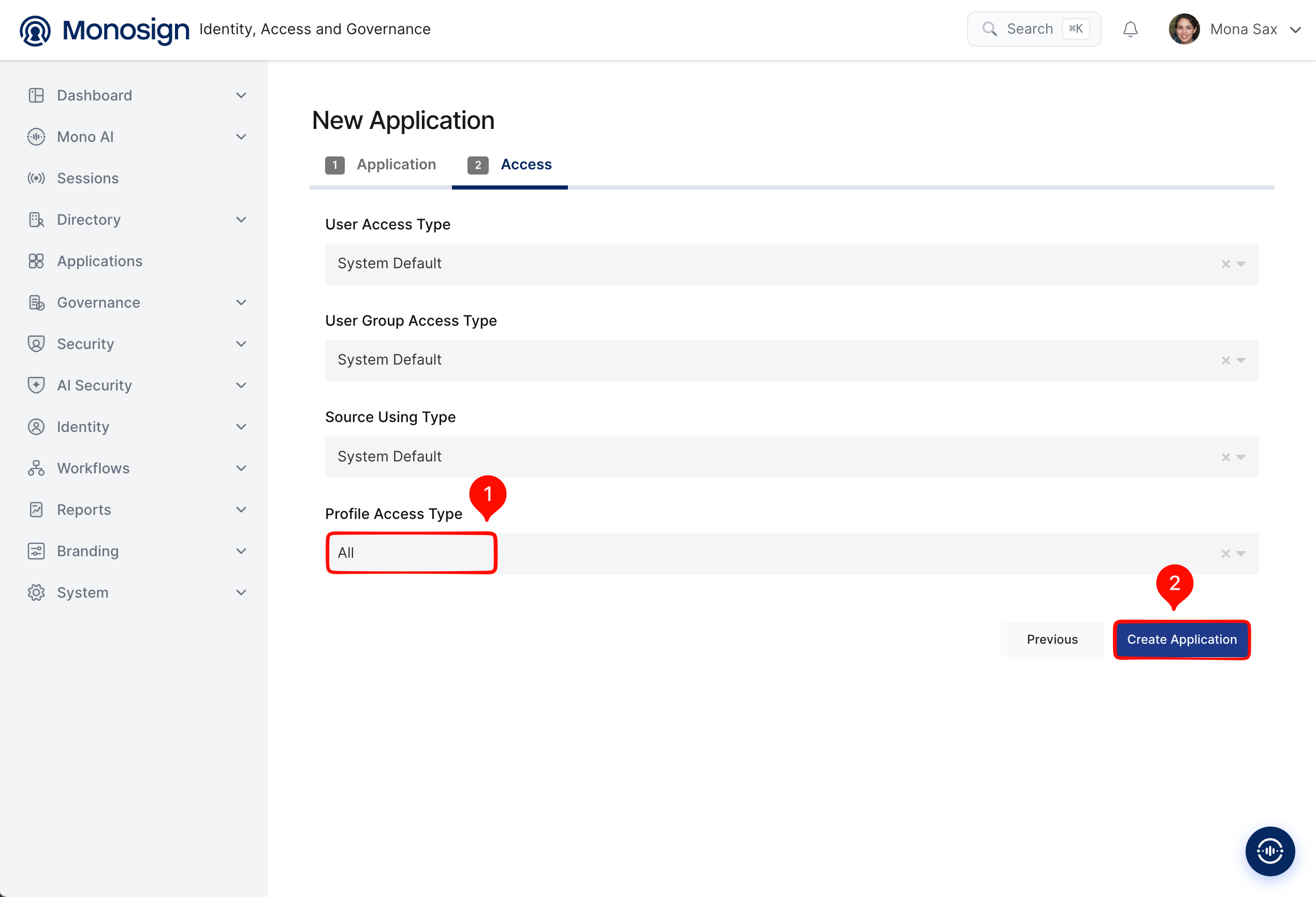
Property | Value | Description |
|---|---|---|
User Access Type |
| Defines which users can access this application. Looker creates an account on first login, so restrict this to assigned users. Options: Only Assigned Users, All Users, System Default. |
Profile Access Type |
| Defines which user profile attributes are available to the application. Looker needs the e-mail address and the name of the user. |
Looker creates an account for every Monosign user who signs in for the first time. Make sure the effective User Access Type is Only Assigned Users and give access only to the users you assign in step 3.
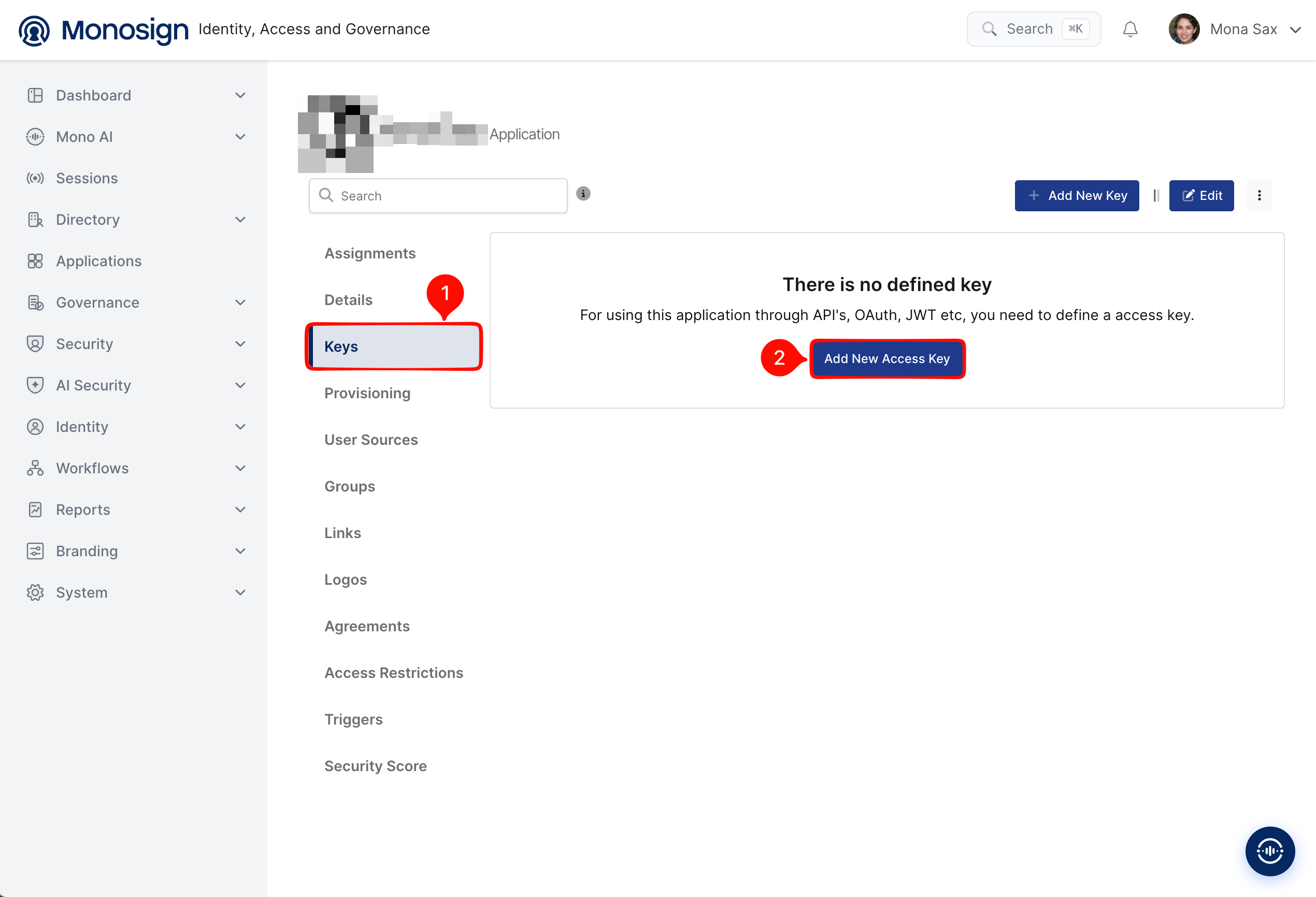
After the application is created, click Keys and add a new Access Key for OIDC/OpenID access.
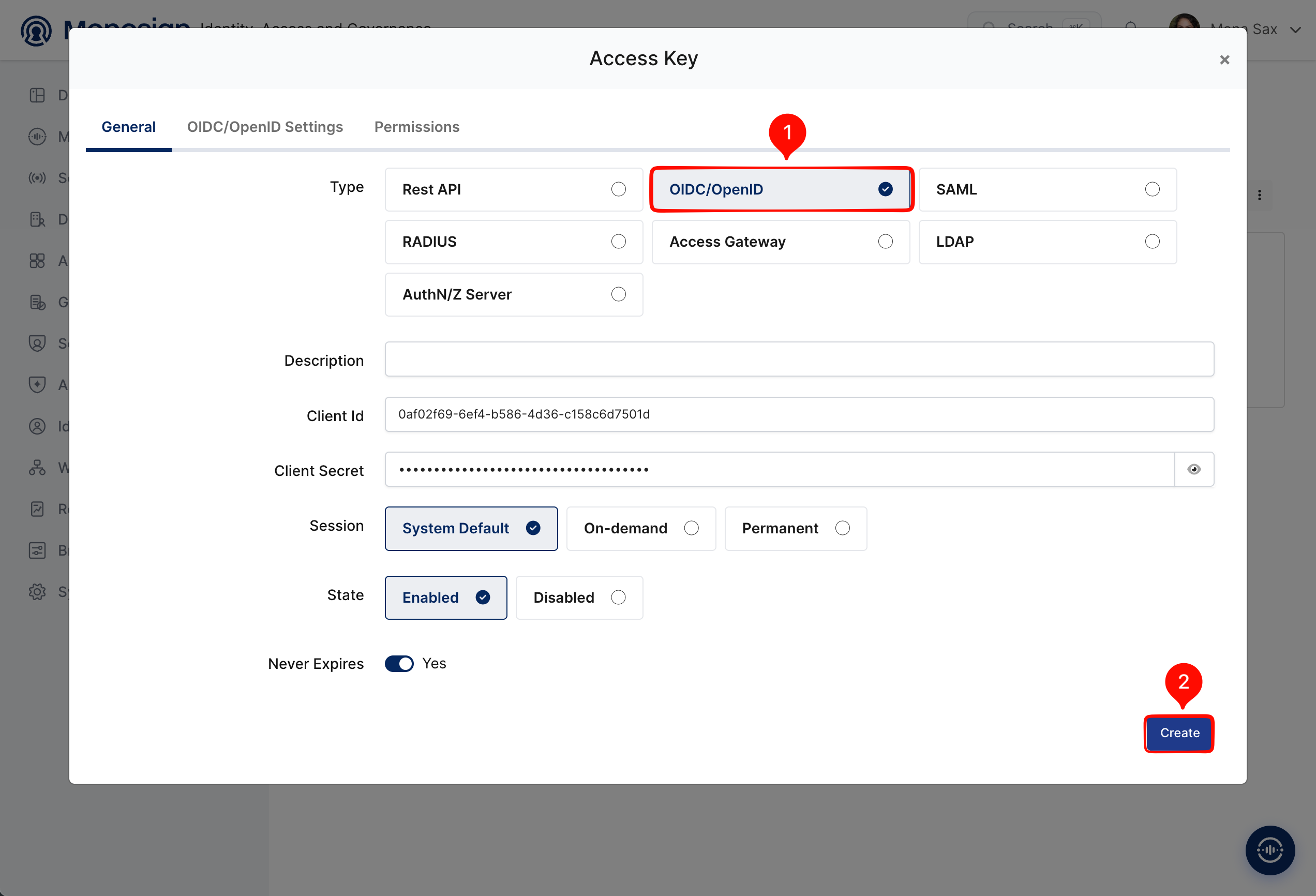
Select OIDC/OpenID as the key type and click Create. Monosign generates the Client Id and Client Secret automatically.
The key detail screen gives the values that Looker needs. Looker does not read the discovery document, so you copy each address from here into the Looker form in step 4.
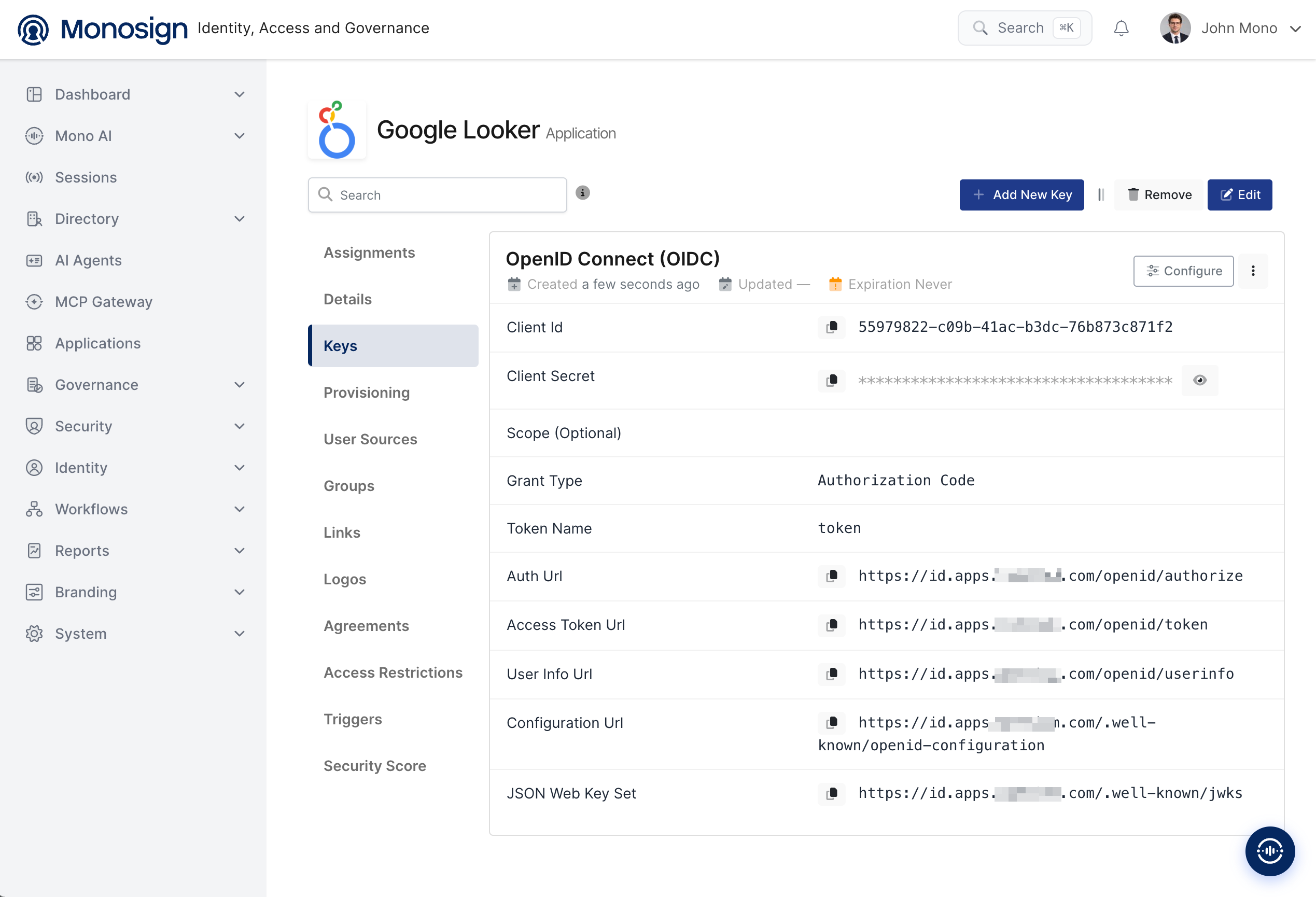
Monosign value | Example | Used in Looker as |
|---|---|---|
Client Id |
|
|
Client Secret |
|
|
Auth Url |
|
|
Access Token Url |
|
|
User Info Url |
|
|
Configuration Url |
| Reference. The |
2- Configuring the OIDC/OpenID Settings on Monosign
Click the Configure button of the OpenID Connect (OIDC) key to open the OIDC/OpenID settings. Enter the scopes that Looker requests and add the callback address of Looker to Allowed Redirect URIs, then press Update.
Property | Value | Description |
|---|---|---|
Scope |
| The scopes Looker sends in the authorization request. Add each scope separated by a space. |
Allowed Redirect URIs |
| The address where Monosign sends the user back after sign-in. Looker's OIDC callback path is |
Looker reads the e-mail, first name and last name from the claims email, given_name and family_name, which Monosign returns by default, so a claim mapping is not required. The exact claim names are entered in step 4.
3- Assign a User to the Looker Application
Open the Looker application in Monosign, click the Assignments tab and click Assign a User.
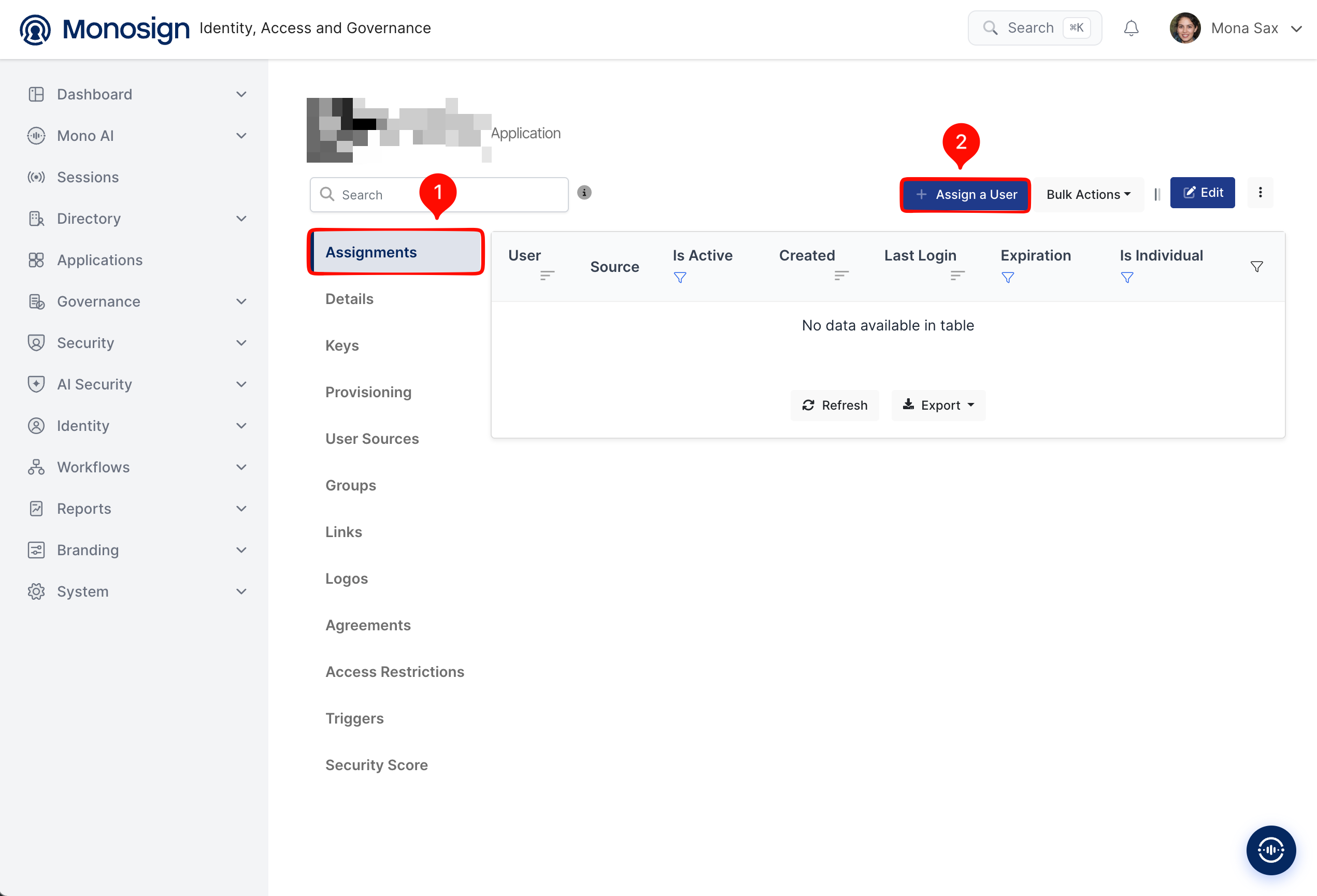
Search and select the users who can sign in to Looker, check the Expiration Date and save. You can select more than one user.
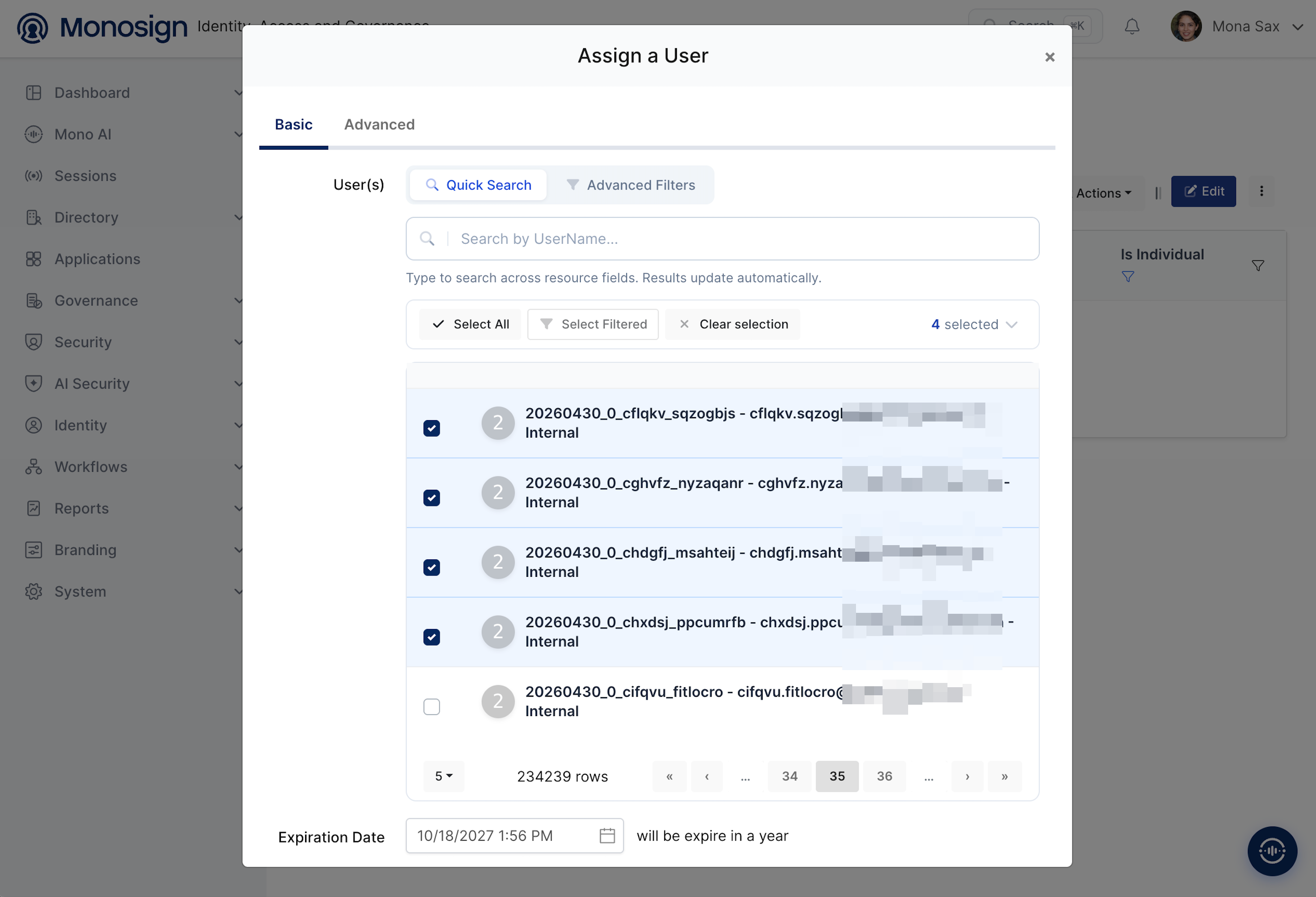
Property | Value | Description |
|---|---|---|
User(s) | Selected users | Users who can sign in to Looker with Monosign. |
Expiration Date | Default one year | The assignment expires on this date. |
4- Configuration Single Sign-On for Looker
In Looker, go to Admin → Authentication → OpenID Connect. Fill the OIDC form with the Monosign access-key values. Development Mode can be used while testing; the settings are not active until you Save and Apply.
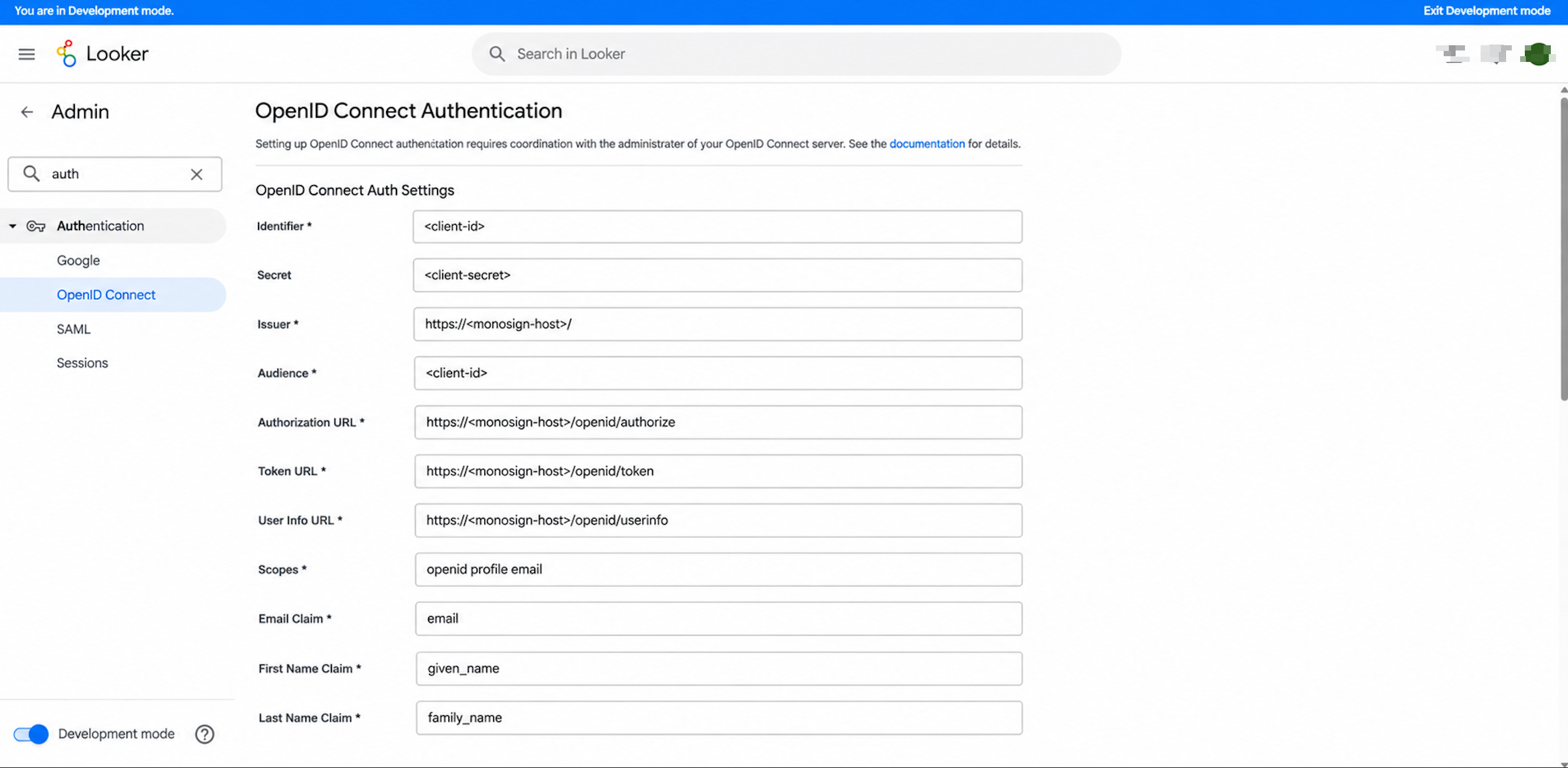
Looker field | Value | Description |
|---|---|---|
Identifier |
| Monosign key Client Id. |
Secret |
| Monosign key Client Secret. |
Issuer |
| Must match the |
Audience |
| The token audience equals the Client Id. |
Authorization URL |
| From the Monosign key (Auth Url). |
Token URL |
| From the Monosign key (Access Token Url). |
User Info URL |
| From the Monosign key (User Info Url). |
Scopes |
| Space-separated. Must match the scopes allowed on the Monosign key (step 2). |
Email Claim |
| User Attribute Settings. |
First Name Claim |
| User Attribute Settings. |
Last Name Claim |
| User Attribute Settings. |
Looker can keep Google OAuth or local email/password login enabled next to OIDC. To unify accounts by e-mail, set Merge Users Using on each authentication page to the other method, so the same person resolves to one account regardless of how they sign in.
Run Test OpenID Connect Authentication first. When the test result shows the expected e-mail, first name and last name, click Save and Apply and leave Development Mode. The configuration is not active until it is applied.
5- Sign In Test
Now try to log in to Looker using Monosign SSO.
Open a new browser window (or a private window) and go to
https://<looker-host>/login. Start the OpenID Connect login.You are redirected to Monosign. Sign in passwordless with your QR code, with a Passkey, or with your user name and password. If you are already signed in to Monosign, this page is skipped.
After the sign-in Monosign redirects the browser back to Looker (
/openidconnect) and the session opens.In the Looker test result, confirm that
email,first_nameandlast_nameare populated.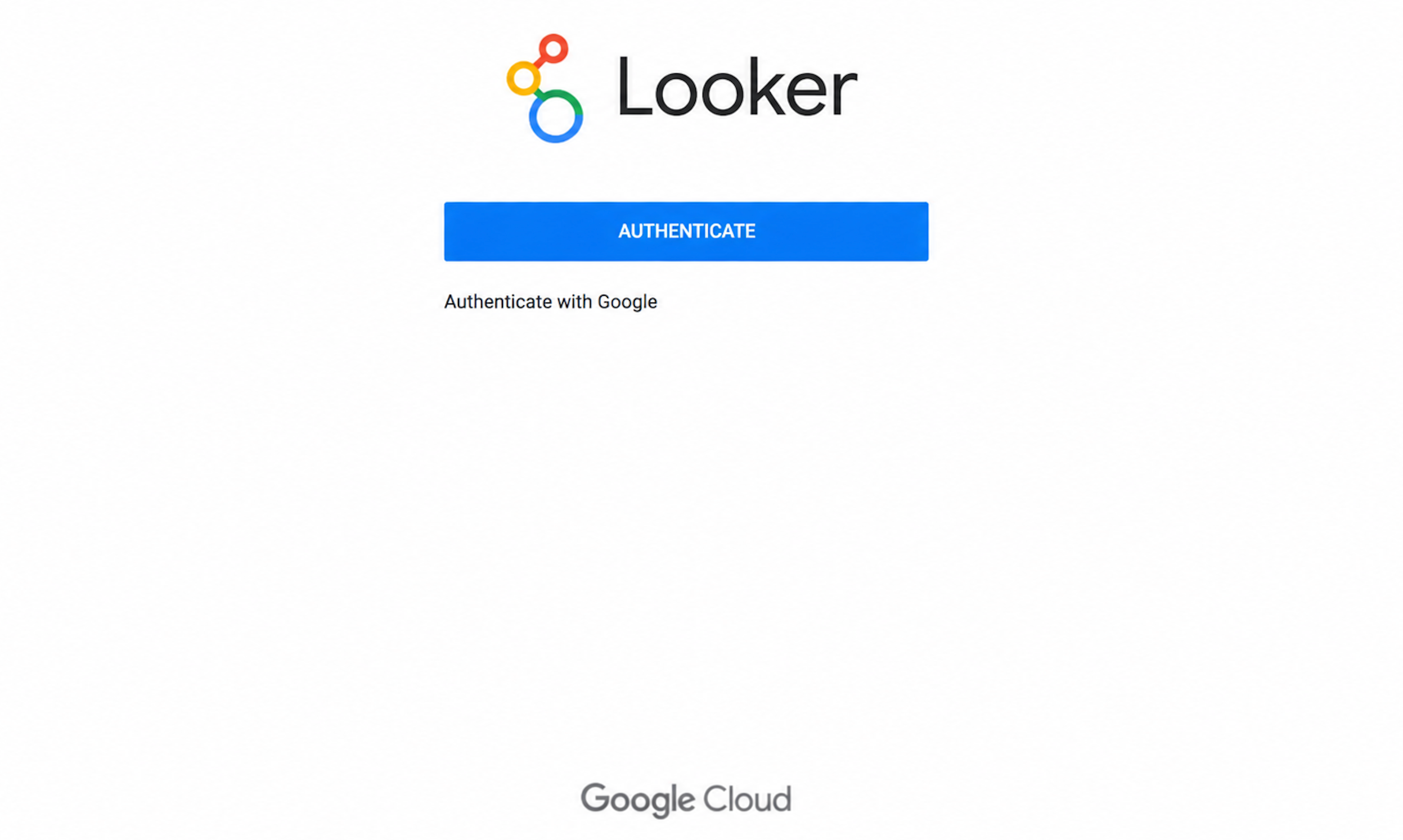
Troubleshooting
Symptom | Cause | Solution |
|---|---|---|
"The sign-in request could not be completed / this address is not registered" | Looker's redirect URI is not in the Monosign key's Allowed Redirect URIs. | Add |
404 "The page you requested could not be found" after login, URL ends in | A wrong callback path was registered or used. | Looker's OIDC callback path is |
Issuer / token validation fails | The Issuer value does not match the discovery document, usually the trailing slash. | Set Issuer to the exact |
| The Monosign key does not allow a requested scope. | Make the Looker Scopes match the key's allowed scopes (step 2); if needed reduce to |
Name or e-mail is empty after login | The claim names in Looker do not match what Monosign returns, or Profile Access Type is Restricted. | Set Profile Access Type to All (step 1) and set Email/First Name/Last Name Claim to |
A user cannot sign in | The user is not assigned to the application. | Assign the user in step 3. |
Normal (Google / local) login disappeared after enabling OIDC | The login page favours the configured SSO. | Use |
After completing the configuration on Looker and Monosign, it is better to test in a new private browser window if the OIDC SSO doesn't work, because old session cookies of the Looker address may cause errors.