This document describes the Active Directory requirements of Self Service Password Reset and Self Service Unlock Account (SSPR). Monosign resets the password and unlocks the account directly on Active Directory, so two things must be ready on the Active Directory side: an LDAPS connection and a service user with the required permissions.
Before you continue, it is better to read the How to Unlock Account & Recover Password (opens in a new tab) document.
Password Reset/Unlock Account features needed Self-Service Portal (SSP) license.
📑 Instructions
This documentation contains 2 main steps.
LDAPS Requirements
Service User and Permissions
1- LDAPS Requirements
Monosign must connect to the Domain Controller with LDAPS (TCP 636). Active Directory accepts a password change only over an encrypted connection, so plain LDAP (389) is not enough for SSPR.
Requirement | Description |
|---|---|
Domain Controller Certificate | A valid certificate issued by the enterprise CA, in the Local Computer → Personal store of the Domain Controller. |
Certificate Content | Enhanced Key Usage: Server Authentication Subject Alternative Name: FQDN of the Domain Controller |
Single Server Certificate | There must be only one Server Authentication certificate in the Personal store. Otherwise the Domain Controller selects the certificate itself and the thumbprint in Monosign may not match. |
Network | TCP 636 must be open from the Monosign server to the Domain Controller. |
DNS | The Monosign server must resolve the FQDN of the Domain Controller. |
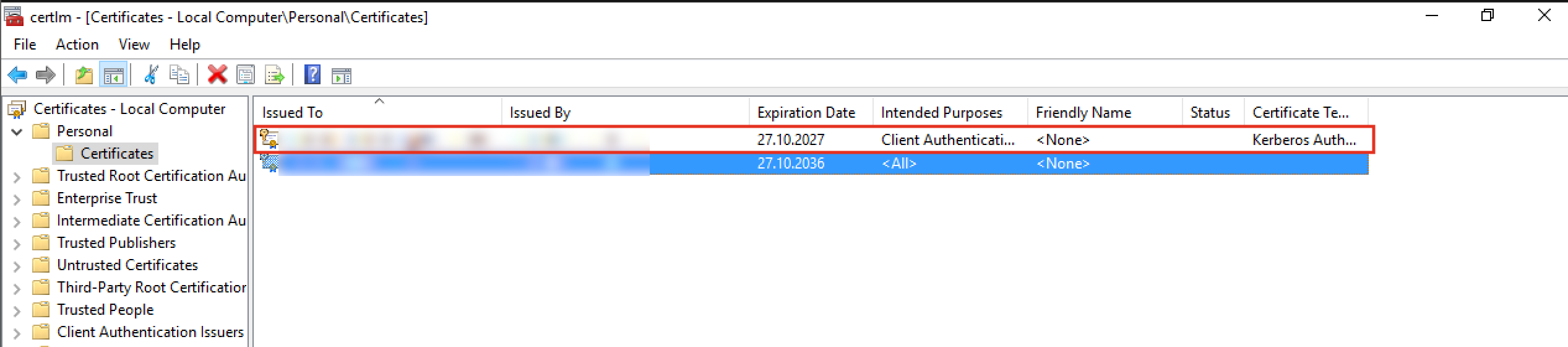
The Domain Controller certificate is seen in certlm.msc → Personal → Certificates. Its Issued To field is the FQDN of the Domain Controller.
a. Getting the Certificate Thumbprint (Optional)
Sharing the certificate thumbprint is optional. If it is shared, it is written to the SSL Certificate Thumbprint field on the SSL / TLS tab of the user source settings and Monosign verifies the Domain Controller certificate with this value.
On the Domain Controller, press Windows + R, type
certlm.mscand go to Personal → Certificates.Double-click the certificate whose Issued To field is the FQDN of the Domain Controller and open the Details tab.
Click Thumbprint and copy the value without spaces, in upper case.
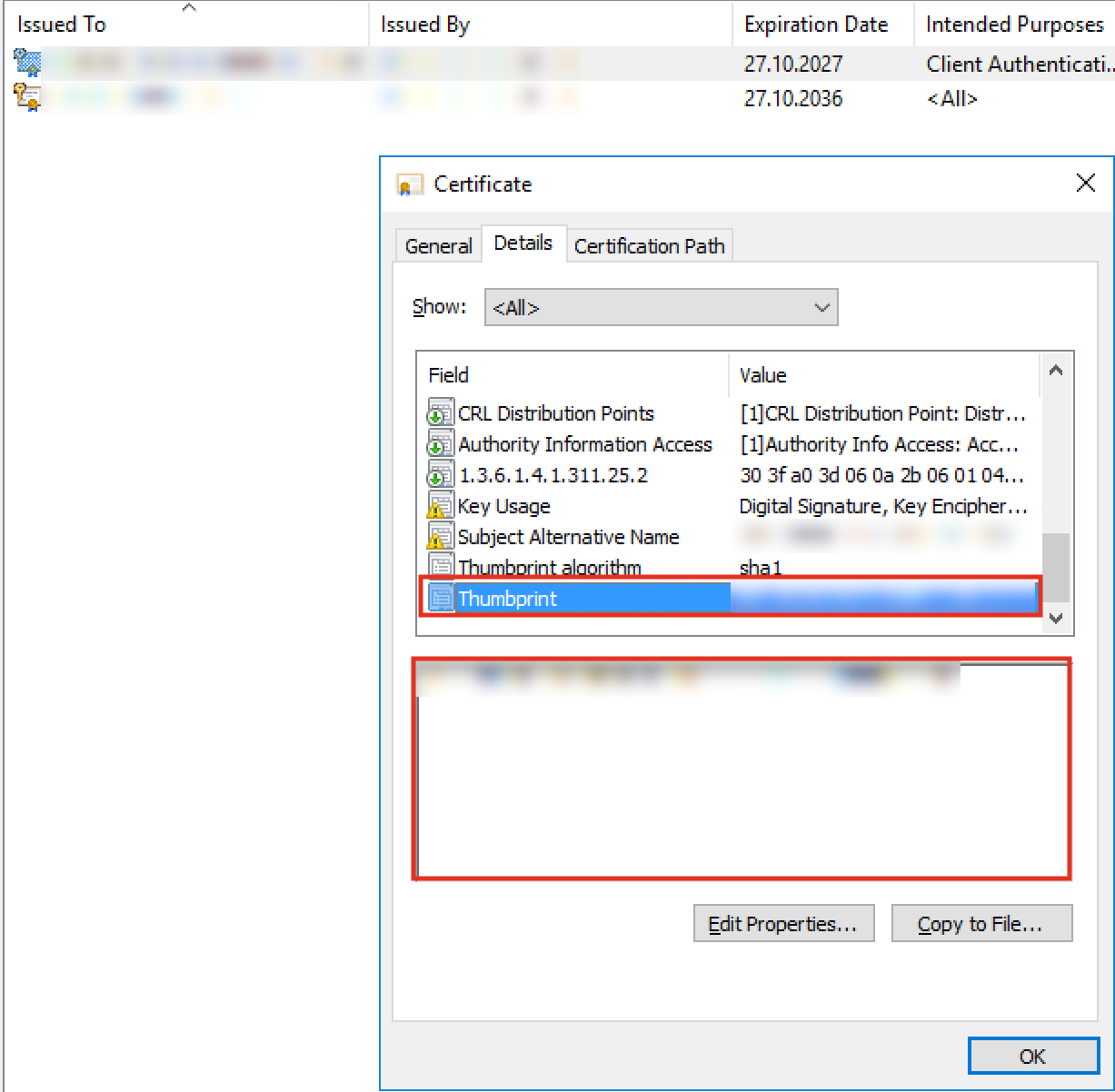
The value copied from the Thumbprint field starts with an invisible character. If it is pasted into Monosign as it is, the source test fails with a thumbprint mismatch. Type the value manually, or after pasting move the cursor to the beginning and press Delete once.
b. Testing the LDAPS Connection
On the Domain Controller, press Windows + R, type
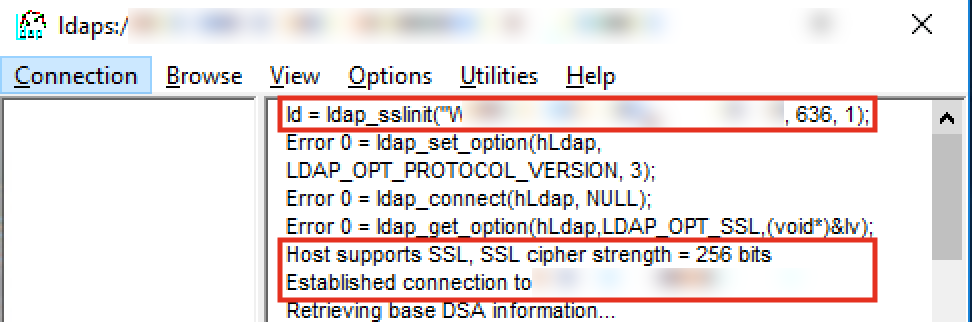
ldp.exeand click Connection → Connect.Write the FQDN of the Domain Controller as Server,
636as Port, select SSL and click OK.The output must contain Host supports SSL and Established connection to <dc-fqdn>.
2- Service User and Permissions
Monosign uses this service user for password reset and account unlock operations. It is defined on the Privileged User tab of the user source settings. The service user does not need to be a Domain Admin; the permissions below are enough.
Example service user name “svc-monosign“
Requirement | Description |
|---|---|
Account Type | Standard Active Directory user |
Password never expires | Selected. If the password expires, Monosign can not connect to Active Directory. |
Group Membership | Must not be a member of protected groups such as Domain Admins. |
a. Delegating the Permissions
On the Organizational Unit (or units) where the SSPR users are located, the following permissions are given to the service user, or to a group that the service user is a member of. The permissions are applied to Descendant User objects, so the users in the sub OUs are also covered.
Operation | Permissions | Object Type |
|---|---|---|
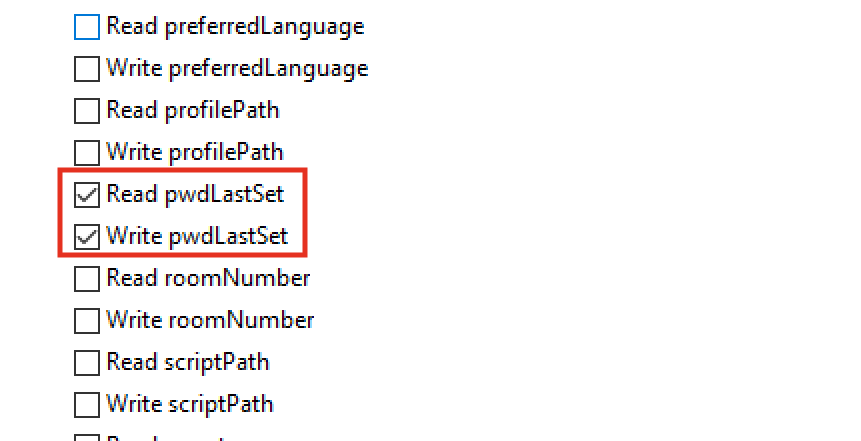
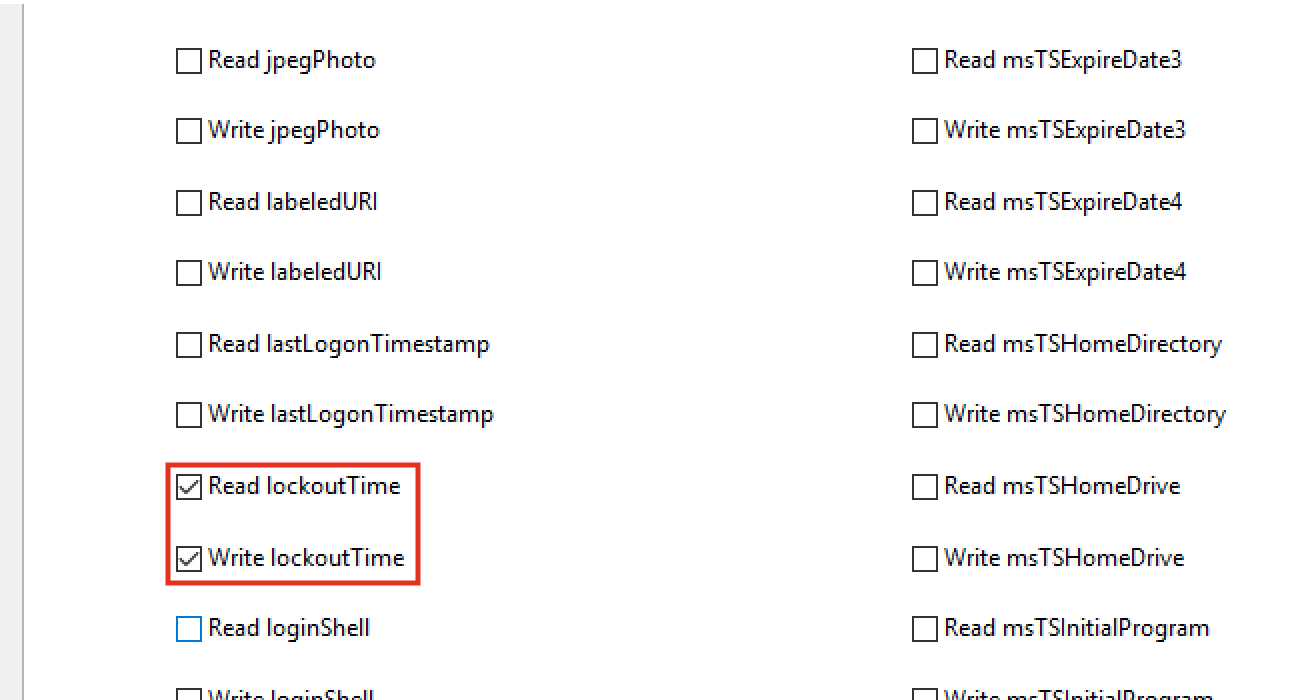
Password Reset/Unlock Account | Reset Password Read pwdLastSet Write pwdLastSet Read lockoutTime Write lockoutTime | User |
The permissions can be given with the Delegate Control wizard in Active Directory Users and Computers, or with the PowerShell script on the User Source Requirement - Latest (opens in a new tab) page. Before running the script, change the lines below.
$ou = "Monofor"
$user_delegated = "svc-monosign"
$group_delegated = "Monosign Service Group"
b. Verifying the Permissions
In Active Directory Users and Computers, select View → Advanced Features.
Right-click the OU and go to Properties → Security → Advanced. There must be three entries for the service user: one Reset password entry and two entries whose Access column is empty. An empty Access column is normal for permissions given on a single property.
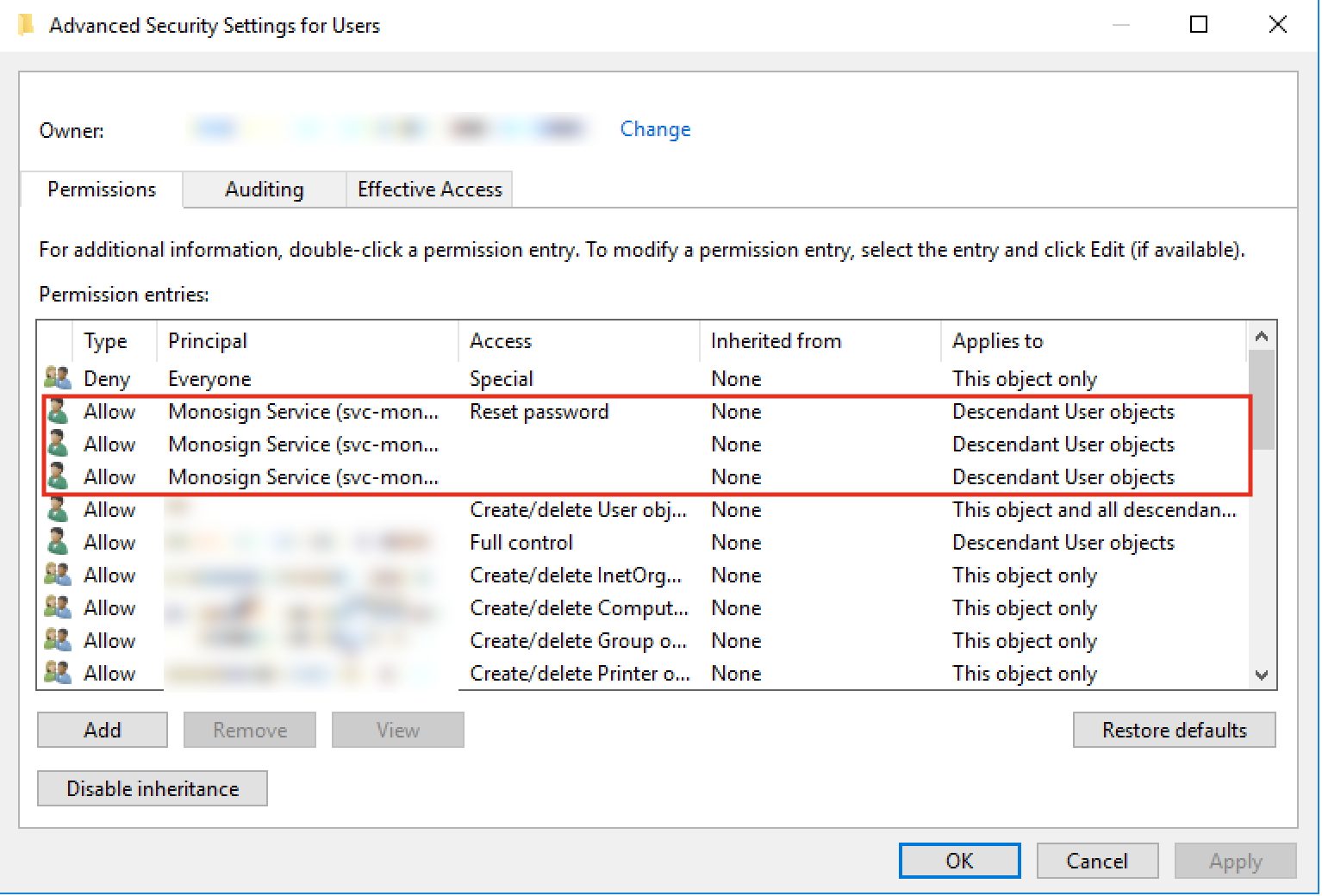
Double-click the empty entries. Read pwdLastSet / Write pwdLastSet and Read lockoutTime / Write lockoutTime must be selected. Close the windows with Cancel.
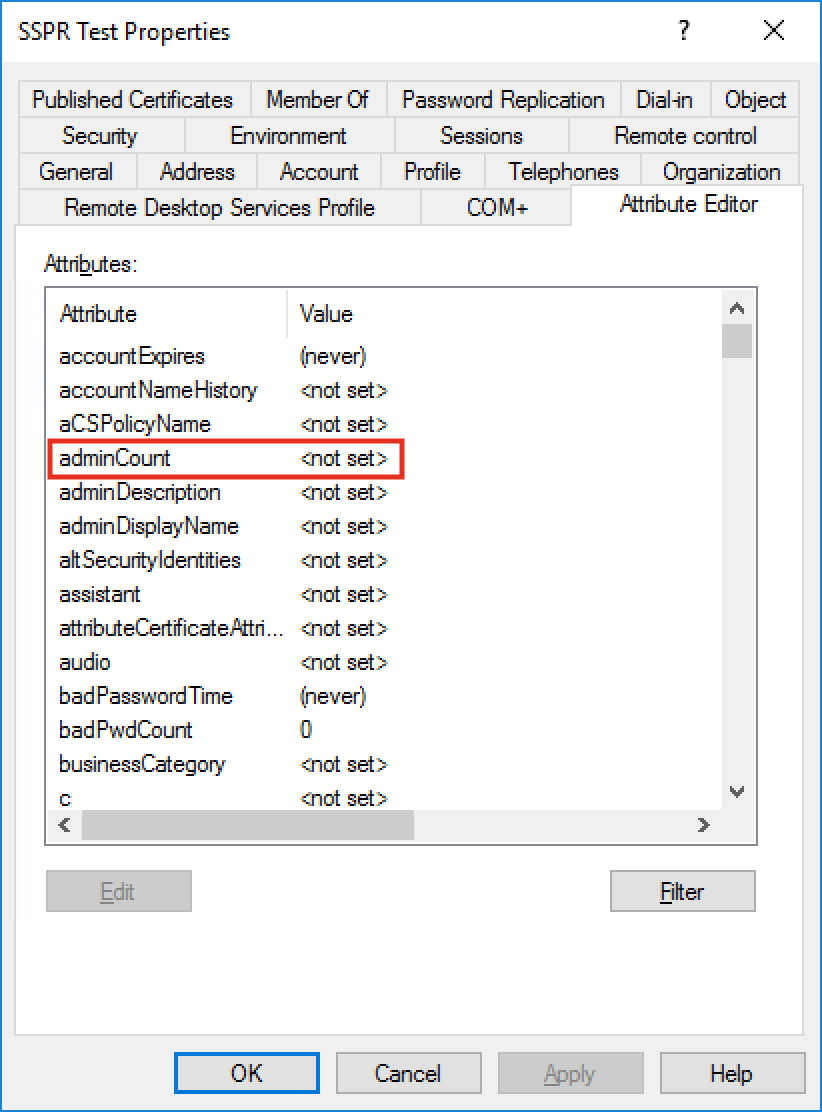
Accounts that are, or were in the past, a member of a protected group (adminCount=1) do not inherit permissions from the OU because of AdminSDHolder. The password of these accounts can not be reset with SSPR. For details, see AdminSDHolder - User Account Permission Issue (opens in a new tab).
The value can be checked on the Attribute Editor tab of the user (View → Advanced Features must be selected). For the users who will use SSPR, adminCount must be <not set> or 0.
Information to Provide
The following information is needed for the Monosign user source configuration.
Information | Example |
|---|---|
Domain Controller FQDN |
|
Certificate thumbprint (optional) |
|
Domain name and NetBIOS name |
|
Service user name and password |
|
Delegated OUs |
|
Troubleshooting
Symptom | Cause | Solution |
|---|---|---|
Insufficient Access Rights (LDAP 50) on password reset | Missing permission, or the user has | Check the delegated permissions and the AdminSDHolder note |
Unwilling to perform on password reset | The connection is not LDAPS, or the new password does not meet the password policy | Use port 636 with Use Secure Connection; use a password that meets the policy |
Source test fails with a certificate or thumbprint error | Invisible character in the thumbprint, or more than one server certificate on the Domain Controller | Type the thumbprint again; leave a single Server Authentication certificate |
Source test can not connect | TCP 636 is blocked or the FQDN can not be resolved | Check the firewall and DNS between Monosign and the Domain Controller |
After the requirements are ready, test the connection with the Test button on the user source settings page. Privileged User Authentication must be Success.