AI Query turns a question written in plain language into a report. The administrator describes the data that is needed, for example the users who have not signed in for 90 days, and AI Query prepares the report query, validates it and shows the result as a table. The administrator does not need to know the data structure or write any query.
Every question is compiled to a validated report query. AI Query never runs raw SQL, and the report is created under the permissions of the signed-in administrator. The full log of the questions can be followed on the AI Activity page.
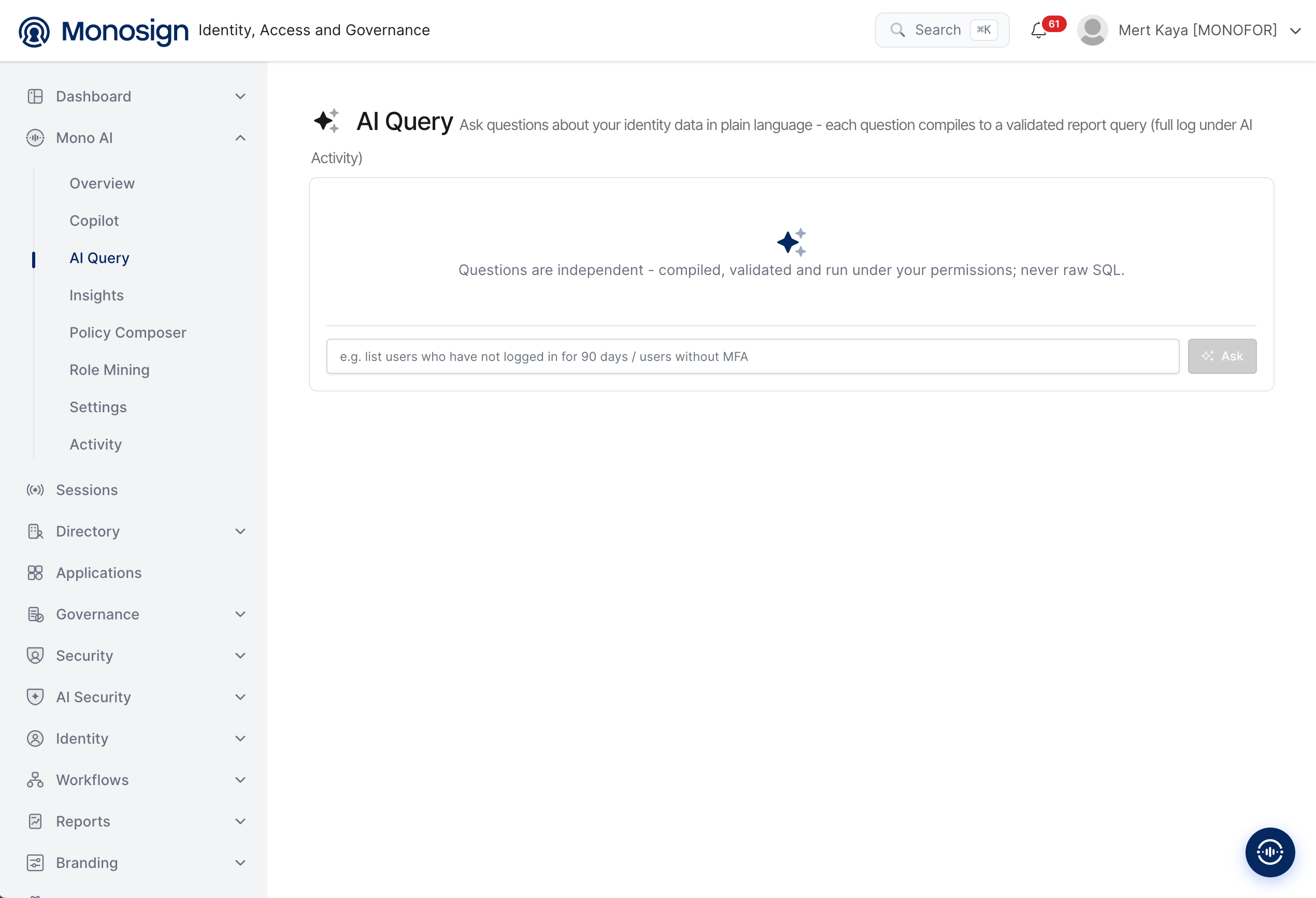
To open the page, click Mono AI in the left menu and then AI Query. The main parts of the screen are as follows.
Description line -> Explains that the questions are asked in plain language and that each question is compiled to a validated report query.
Information text -> Questions are independent from each other. They are compiled, validated and run under the permissions of the user, never as raw SQL.
Question box -> The question is typed at the bottom of the screen. The box shows examples such as list users who have not logged in for 90 days and users without MFA.
Ask -> Sends the question. The button is active only when the question box is not empty.
Asking a Question
Write the question in the question box. Any language that the AI model understands can be used.
Click Ask. AI Query prepares and validates the report query, then runs it.
Check the result table that is shown on the screen.
Each question is independent. AI Query does not use the previous question as context, so a follow-up question must contain all the details that are needed (for example the time range and the condition).
Result Screen
After a question is sent, the question is shown on the right side of the screen and the answer is shown below it.
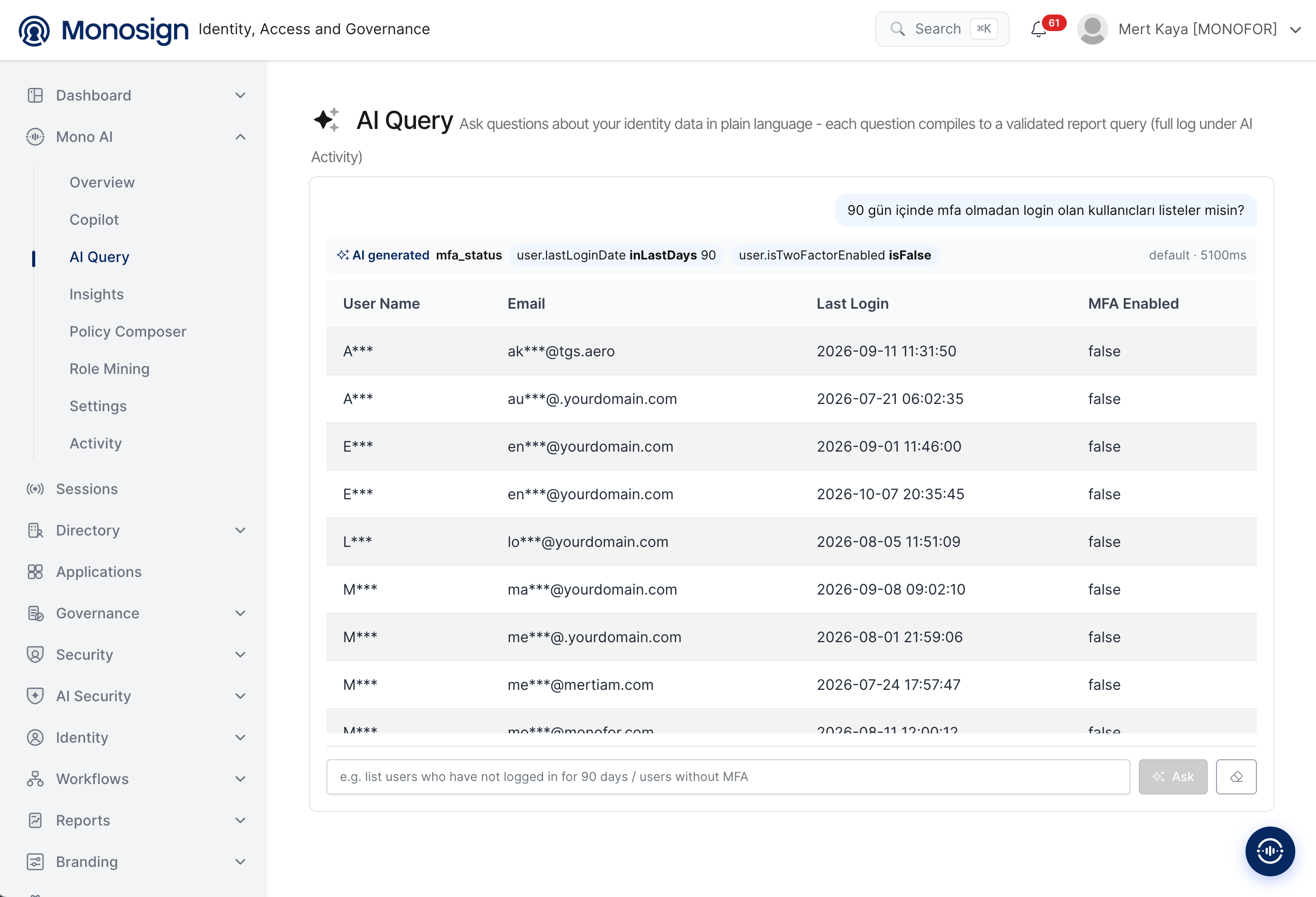
In this example the question is "Can you list the users who logged in without MFA in the last 90 days?". The result contains the following parts.
Report query summary -> The line above the table shows the AI generated report and the conditions that were created from the question. In the example the report is
mfa_status, and the conditions areuser.lastLoginDate inLastDays 90anduser.isTwoFactorEnabled isFalse. The administrator can check that the question was understood correctly.Data source and duration -> The right side of the same line shows the data source (
default) and the time that was needed to prepare the result.Result table -> The records that match the conditions. In the example the columns are User Name, Email, Last Login and MFA Enabled.
Column | Description |
|---|---|
User Name | Name of the user. The value is masked. |
E-mail address of the user. The value is masked. | |
Last Login | Date and time of the last sign in of the user. |
MFA Enabled | Shows whether the user has multi-factor authentication enabled. |
The columns of the table change according to the question and the selected report.
Security and Design Principles
No raw SQL -> AI Query does not write or run free SQL. The question is converted only to a predefined report with conditions, and the query is validated before it runs.
Personal data is masked -> Personal information in the result, such as user names and e-mail addresses, is shown masked (for example
A***andak***@domain.com).Permission based -> The report runs with the permissions of the signed-in administrator, and returns only the data that the administrator is allowed to see.
Read-only -> AI Query only reads and reports. It does not change any user, application or setting.
Traceable -> Every question is recorded on the AI Activity page.
Please check the report summary line before using the result. If the conditions are not what you expected, ask the question again with more detail, for example with an exact number of days or the name of the application.