Role Mining discovers candidate roles with AI. It finds the groups of users who share the same set of access, so the administrator can turn ad-hoc group memberships into managed roles. This makes access easier to understand, review and control, especially in environments where users get access mostly through many separate groups.
Role Mining is advisory. It analyzes the existing memberships and suggests candidate roles, and nothing is created automatically. A role is created only when the administrator clicks the button on a candidate, and it is created as a disabled role, so it has no effect until the administrator reviews and enables it.
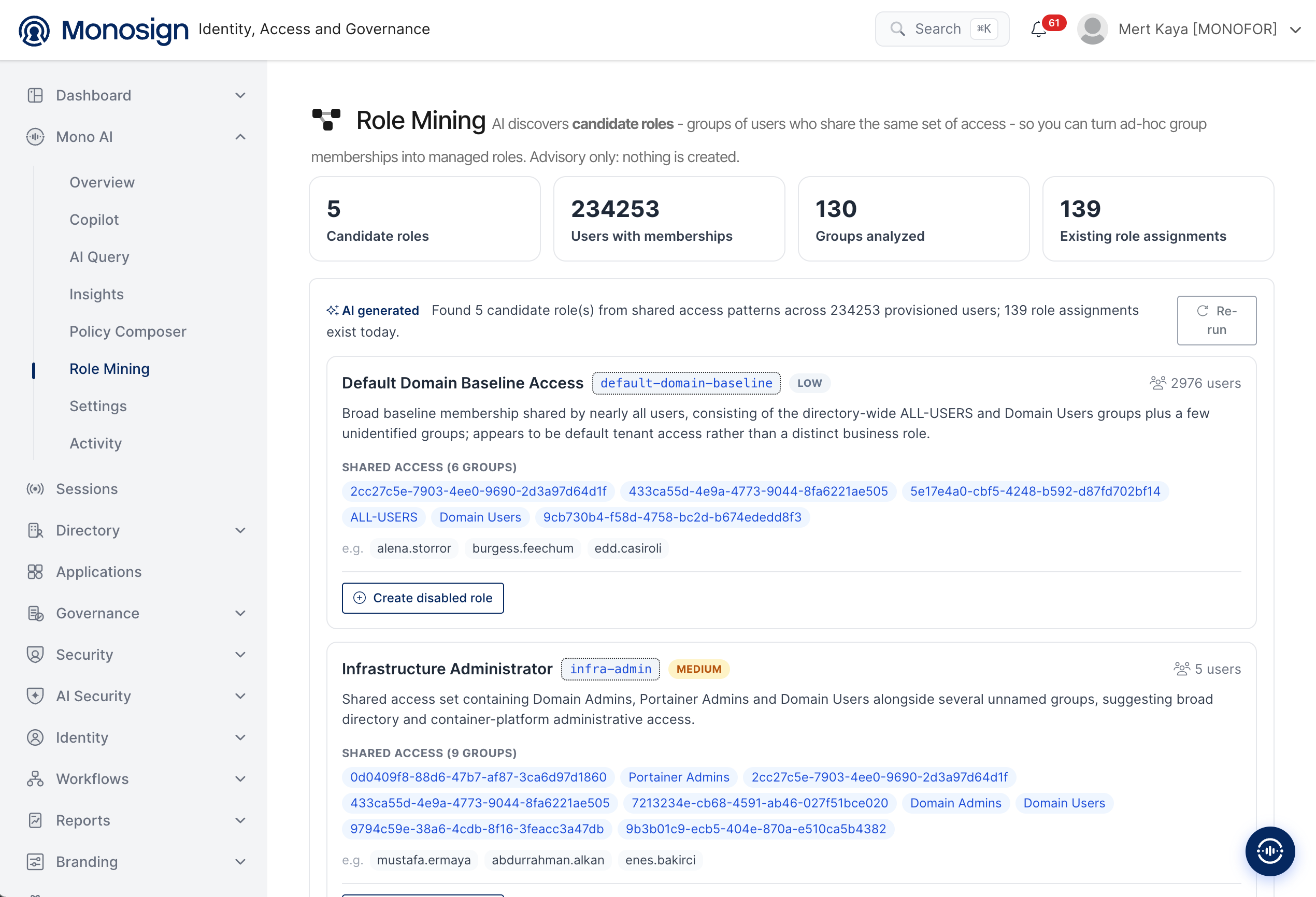
To open the page, click Mono AI in the left menu and then Role Mining. The page has three main parts.
Summary cards -> Four cards at the top show the size of the analysis.
AI summary -> A line shows how many candidate roles were found and from how many users.
Candidate roles -> Each suggested role is listed as a card with its shared access and users.
Summary Cards
Card | Description |
|---|---|
Candidate roles | Number of roles that AI suggests from the shared access patterns. |
Users with memberships | Number of users who have at least one group membership and are included in the analysis. |
Groups analyzed | Number of groups that were examined to find the shared access patterns. |
Existing role assignments | Number of role assignments that already exist in the environment. |
AI Analysis
Under the cards the AI generated label and a summary line are shown, for example Found 5 candidate role(s) from shared access patterns across 234253 provisioned users; 139 role assignments exist today.
Re-run -> Runs the analysis again with the current data. Use it after memberships or roles are changed to get a new result.
Candidate Roles
Each candidate role is shown as a card with the following parts.
Part | Description |
|---|---|
Role name | Suggested name of the role, for example Infrastructure Administrator. |
Role code | Suggested short code of the role, for example |
Risk label | Shows the impact level of the access in the role, for example LOW and MEDIUM. A role that has administrative access gets a higher label. |
Users | Number of users who have this shared access, shown on the upper right of the card. |
Description | AI explanation of what the shared access represents, for example a default access of all users or an administrative access. |
Shared access | The groups that make the shared access, with the number of groups. Groups that have no readable name are shown with their identifier. |
e.g. | A few example users who have this shared access. |
Create disabled role | Creates the role from this candidate in the disabled state. |
In the example, Default Domain Baseline Access (LOW) is shared by almost all users and consists of the directory-wide groups. AI notes that it looks like a default tenant access and not a real business role. Infrastructure Administrator (MEDIUM) is shared by a small number of users and includes the administrator groups, so it should be reviewed carefully.
Creating a Role from a Candidate
Review the description, the shared access groups and the example users of the candidate.
Check the role name and the role code. A candidate that only represents a default access, like the baseline example above, is usually not a good role.
Click Create disabled role. The role is created in the disabled state.
Open the role, check its content and enable it only when you are sure it is correct.
Security and Design Principles
Advisory only -> Role Mining only suggests candidate roles. It does not create roles, assign users or change groups by itself.
Safe by default -> A role created from a candidate is disabled, so it has no effect until the administrator reviews and enables it.
Administrator decision -> The administrator decides which candidate becomes a role.
Permission based -> The analysis uses the data that the signed-in administrator is allowed to see.
Candidate roles are generated by an AI model from group memberships only. Please check them with the application and business owners before enabling a role, especially roles that contain administrative groups.