Insights is the security posture review of Mono AI. AI reviews the environment (tenant) and reports the weak points in MFA coverage, dormant accounts, risk concentration and policy configuration. The result is a short summary and a list of prioritized findings, each with a recommendation. The administrator can see the security status of the whole environment from one screen, without checking each report separately.
Insights is read-only and advisory. It only analyzes and recommends, nothing is changed in the system. The administrator decides which recommendation is applied and does it on the related Monosign screen.
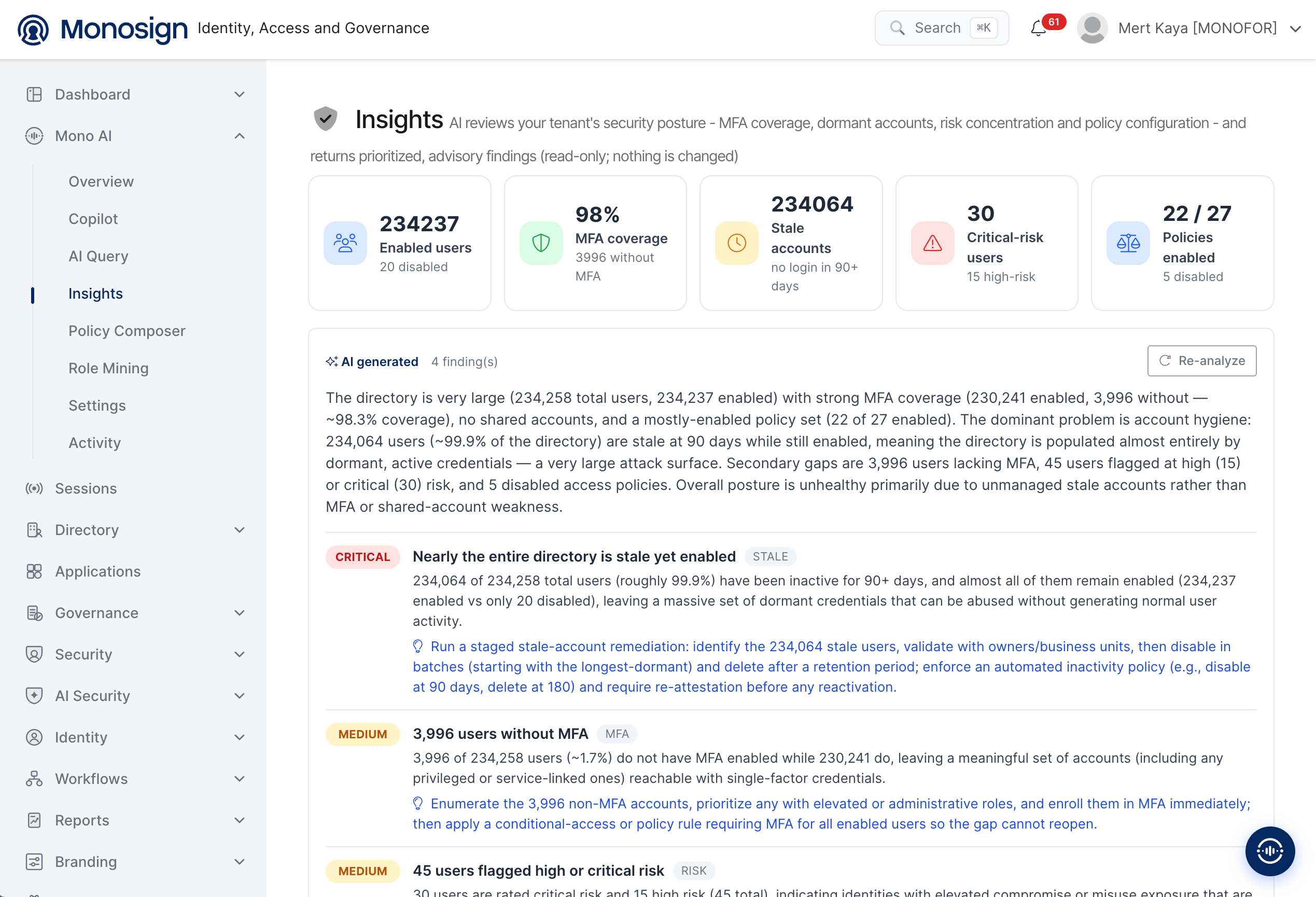
To open the page, click Mono AI in the left menu and then Insights. The page has three main parts.
Summary cards -> Five cards at the top show the current numbers of the environment.
AI summary -> A short text explains the overall security posture.
Findings -> The detected problems are listed by priority with a recommendation for each one.
Summary Cards
The cards are calculated from the real data of the environment and show the starting point of the analysis.
Card | Description |
|---|---|
Enabled users | Number of enabled users. The number of disabled users is shown under it. |
MFA coverage | Percentage of the users who have multi-factor authentication. The number of users without MFA is shown under it. |
Stale accounts | Number of accounts with no login in the last 90 or more days. |
Critical-risk users | Number of users with critical risk. The number of high-risk users is shown under it. |
Policies enabled | Number of enabled policies out of all policies, for example |
AI Analysis
Under the cards the analysis result is shown. The AI generated label shows that the content is created by AI, and the number next to it is the number of findings (for example 4 finding(s)).
Summary text -> Explains the overall posture in a few sentences: what is strong, which problem is the main one and which gaps are secondary.
Re-analyze -> Runs the analysis again with the current data. Use it after changes are made in the environment to see the new result.
Findings
Each finding is shown as a row with the following parts.
Severity -> The colored label on the left shows the priority, for example CRITICAL (red) and MEDIUM (yellow). The most important findings are at the top.
Title and category -> The short title of the problem and the category tag next to it, for example STALE, MFA and RISK.
Description -> Explains the problem with the numbers from the environment and why it is a security risk.
Recommendation -> The blue text with the light bulb icon is the suggested action to fix the problem.
Severity | Category | Example finding |
|---|---|---|
CRITICAL | STALE | Nearly all users have had no login for 90+ days but are still enabled. The recommendation is to remediate the stale accounts in stages: validate the list with the owners, disable in batches, delete after a retention period, and define an automatic inactivity policy. |
MEDIUM | MFA | Some users do not have MFA, so their accounts can be reached with a single factor. The recommendation is to list them, start with the users that have administrative roles, enroll them in MFA and add a policy that requires MFA for all enabled users. |
MEDIUM | RISK | Users flagged with high or critical risk are exposed to compromise or misuse and should be reviewed. |
The findings and the numbers depend on your environment. The analysis is created from the current data each time, so the list can be different after Re-analyze.
Security and Design Principles
Read-only -> Insights does not change any user, policy or setting. It only reports and recommends.
Recommendations, not actions -> Actions such as disabling accounts or enrolling users in MFA are always done by the administrator.
Permission based -> The analysis uses the data that the signed-in administrator is allowed to see.
Traceable -> The analysis requests are recorded on the AI Activity page.
The findings are generated by an AI model. Please verify the numbers and the affected users on the related Monosign screens (for example Directory, Security and Reports) before applying a recommendation, especially before disabling or deleting accounts.