Mono AI is the AI assistant built into Monosign. It helps administrators ask questions about their identity data, create reports, find security gaps, draft access policies and discover roles, using plain language instead of manual searching and filtering. Mono AI works on the real data of your own Monosign environment, and its answers are read-only or suggestion-based. Nothing is changed in the system until an administrator reviews and applies it.
The Mono AI menu opens on the Overview page. This page is the starting point: it shows the status of the service, how much it is used, and shortcuts to every Mono AI feature.
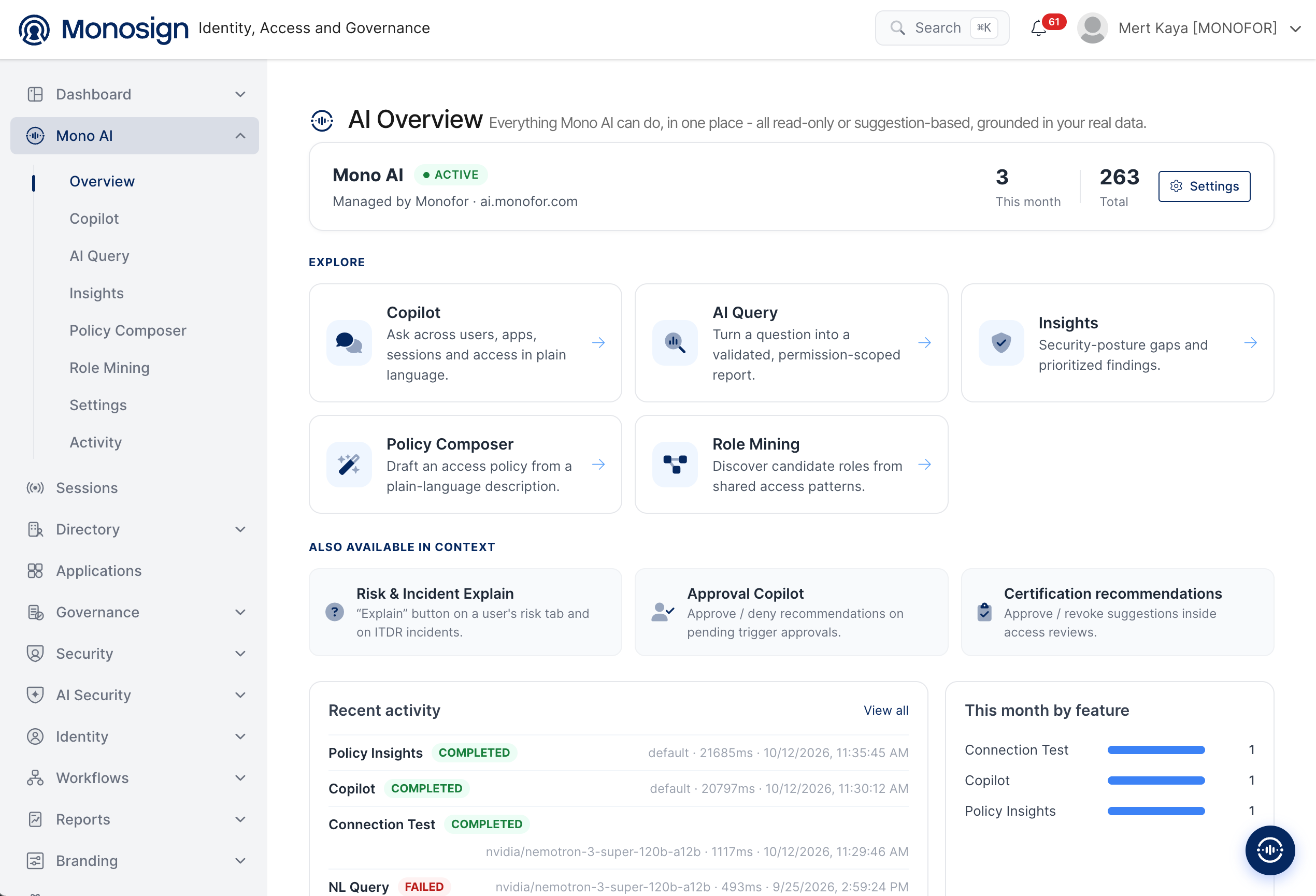
The sub menus under Mono AI in the left menu are as follows.
Overview -> Service status, usage numbers, feature shortcuts and recent activity are shown here.
Copilot -> Ask questions about users, applications, sessions and access in plain language.
AI Query -> Turn a question into a validated, permission-scoped report.
Insights -> Security posture gaps and prioritized findings are listed here.
Policy Composer -> Draft an access policy from a plain-language description.
Role Mining -> Discover candidate roles from shared access patterns.
Settings -> Mono AI service connection and configuration.
Activity -> History of the requests made to Mono AI.
Service Status
The card at the top of the page shows the Mono AI service for your environment.
The ACTIVE label shows that the service is connected and ready to use.
Managed by Monofor shows that the AI service is hosted and managed by Monofor, together with the service address (
ai.monofor.com). No AI infrastructure has to be installed on your side.This month is the number of AI requests made in the current month, and Total is the number of all requests since the service was enabled.
The Settings button opens the Mono AI settings page.
Explore
The Explore section contains one card for each main feature. Clicking a card opens the related page.
Feature | Description |
|---|---|
Copilot | A chat assistant. Ask across users, applications, sessions and access in plain language, for example "which users have not signed in for 90 days?". |
AI Query | Turns a question into a validated report. The report is limited to the data that the signed-in administrator is already allowed to see. |
Insights | Finds security posture gaps in the environment and lists them as prioritized findings. |
Policy Composer | Drafts an access policy from a plain-language description. The administrator reviews the draft before using it. |
Role Mining | Analyzes shared access patterns between users and suggests candidate roles. |
Also Available in Context
Some Mono AI features are not opened from this menu. They are shown inside the screen where the administrator is already working.
Risk & Incident Explain -> The Explain button on a user's risk tab and on ITDR incidents explains in plain language why the risk or incident was raised.
Approval Copilot -> Approve or deny recommendations are shown on pending approval triggers.
Certification recommendations -> Approve or revoke suggestions are shown inside access reviews.
Recent Activity and Monthly Usage
The lower part of the page summarizes how Mono AI is being used.
Recent activity -> Lists the latest AI requests with the feature name (for example Policy Insights, Copilot, Connection Test, NL Query), the result (COMPLETED or FAILED), the model that answered, the response time and the date. View all opens the full list on the Activity page.
This month by feature -> Shows how many requests each feature received in the current month.
Mono AI only shows and suggests. Policies, roles and approval decisions are never applied automatically, and the answers are limited to the data and permissions of the signed-in administrator.
A FAILED record in Recent activity means that the request did not return an answer, for example because the AI model did not respond in time. It does not affect other Monosign functions. Check the service connection from Settings with the Connection Test if failures continue.