The End-User Dashboard is the screen that users see after they sign in. Users reach the applications they are allowed to use from one place, request access they do not have yet, approve requests that are waiting for them, and complete access reviews, without contacting the IT team or an administrator.
The screen is shown with the organization's own branding. The company logo is in the upper left corner of the screen. By clicking the user name and photo in the upper right part of the screen, the user can reach the account page and log out.
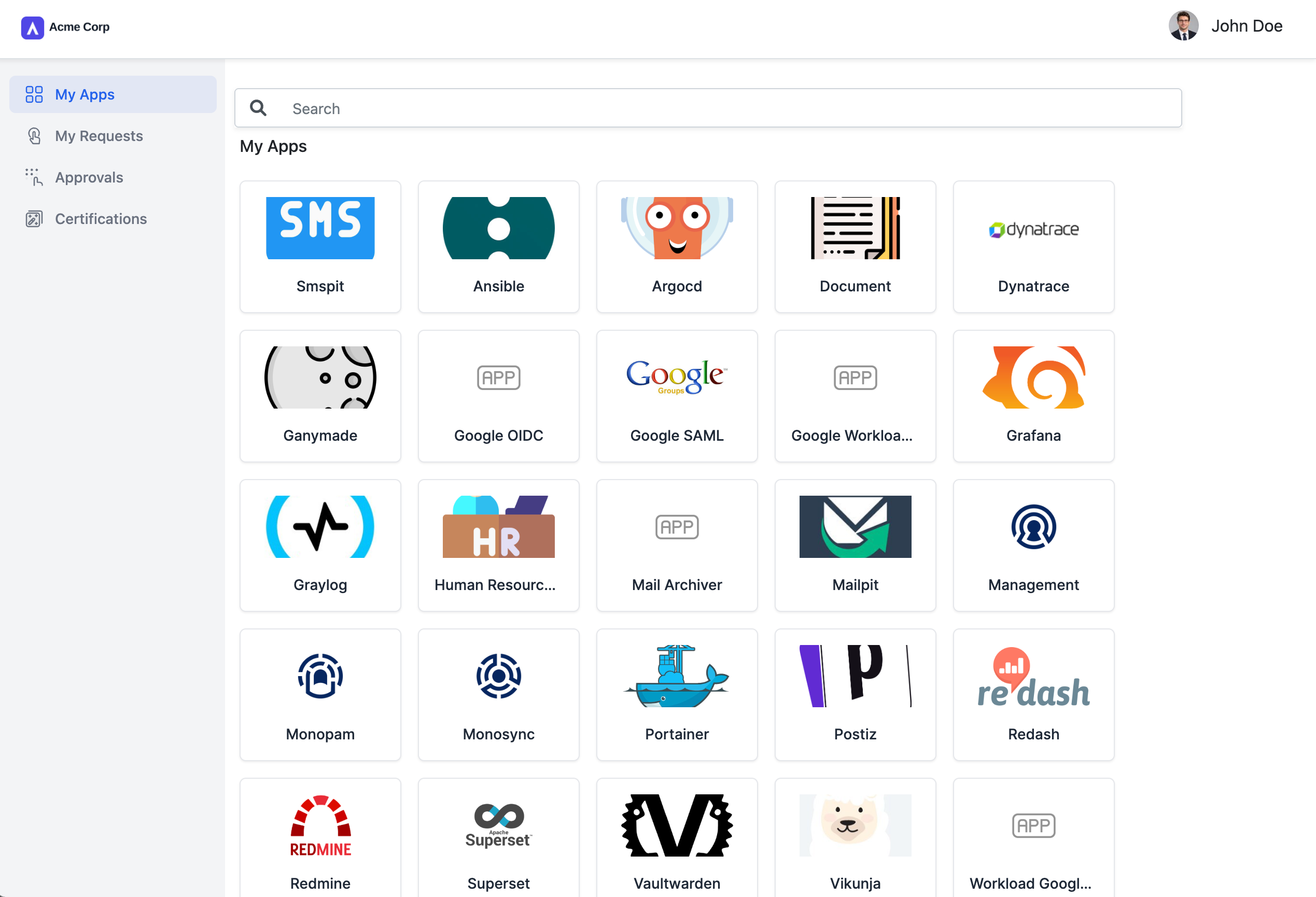
The setting and task menus can be accessed from the left menu. The search box at the top of the content area filters the items on the current screen by name. The main titles in the left menu are as follows.
My Apps -> Applications assigned to the user are listed and launched from here.
My Requests -> Access requests created by the user, and their status, are followed from here.
Approvals -> Requests waiting for the user's decision are approved or rejected from here.
Certifications -> Access review tasks assigned to the user are completed from here.
My Apps
My Apps is the landing page of the dashboard. Each application assigned to the user is shown as a tile with its logo and name. Clicking a tile opens the application. Because the user is already signed in to Monosign, single sign-on (SSO) takes the user into the application without asking for another password.
Applications can use different protocols such as SAML, OIDC or OAuth2. The user does not see this difference. All of them are opened from the same grid.
If an application has no logo defined, a generic APP placeholder icon is shown instead.
Long application names are shortened with "..." on the tile.
The user only sees the applications that are assigned to them directly or through a group or profile.
My Requests
If an application the user needs is not in My Apps, the user can ask for access instead of calling the IT team. This menu lists the requests the user has created and shows whether each one is waiting, approved or rejected.
Approvals
This menu is for users who approve other people's requests, for example managers or application owners. Pending requests are listed here and the user can approve or reject each one. Once a request is approved, the application appears in the requester's My Apps.
Certifications
Certifications are periodic access reviews. Reviewers are asked to confirm whether a user's access to an application is still needed. The reviews assigned to the user are listed here. Access that is not confirmed can be removed. This helps the organization meet audit and compliance requirements.
The menus visible on the left depend on the roles and features enabled for the user. For example, Approvals and Certifications are only useful for users who are approvers or reviewers.