The Login Page is the first screen that users see when they access the system. It is the sign-in page of the Monosign Identity Provider (IdP).
This page is common to all Monofor products. It is the login screen of Monosign, Monosync and Monopam. It is also the page that opens when a user signs in to an integrated application with single sign-on (SSO). When an application redirects the user for authentication, the user is brought to this screen. After a successful sign-in, the user is redirected back to the application or to the End-User Dashboard.
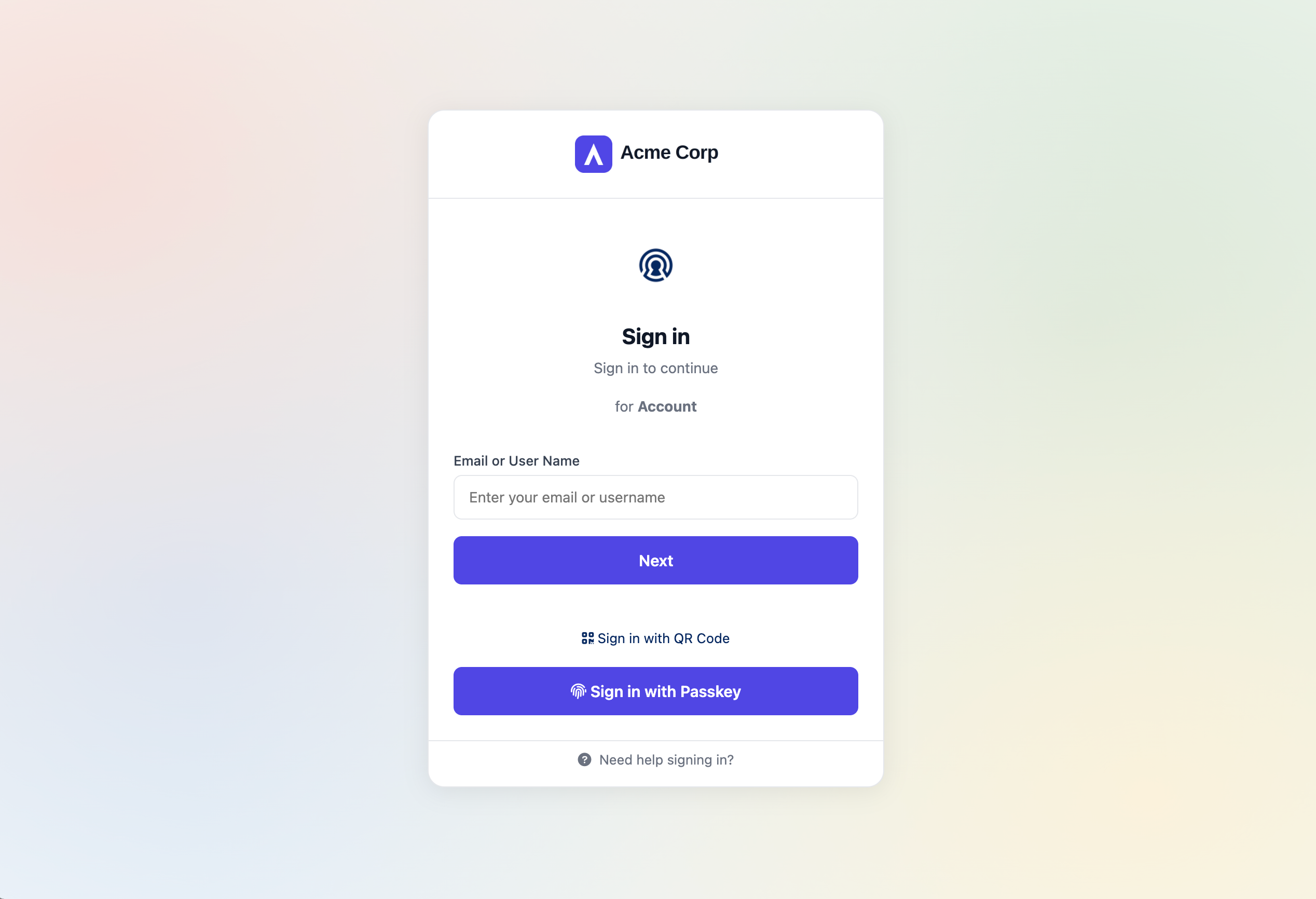
Where the Login Page Is Used
Monosign -> Users sign in to the End-User Dashboard and to applications integrated with Monosign through SAML, OIDC or OAuth2.
Monosync -> Users sign in to Monosync from the same login page.
Monopam -> Users sign in to Monopam from the same login page.
Because all products use the same Identity Provider login page, the user has a single and consistent sign-in experience. A user who is already signed in does not need to enter credentials again when moving between these products.
Signing In
The user starts on the screen shown above and continues with one of the sign-in methods below.
Email or User Name -> The user enters their email address or user name and clicks Next to continue.
Sign in with QR Code -> The user signs in by scanning a QR code with their mobile device.
Sign in with Passkey -> The user signs in with a passkey, without typing a password.
Sign in with Password -> The user signs in with the classic user name and password method.
Need help signing in? -> A help link at the bottom of the page for users who cannot sign in.
Language -> The language of the page can be changed from the language selector.
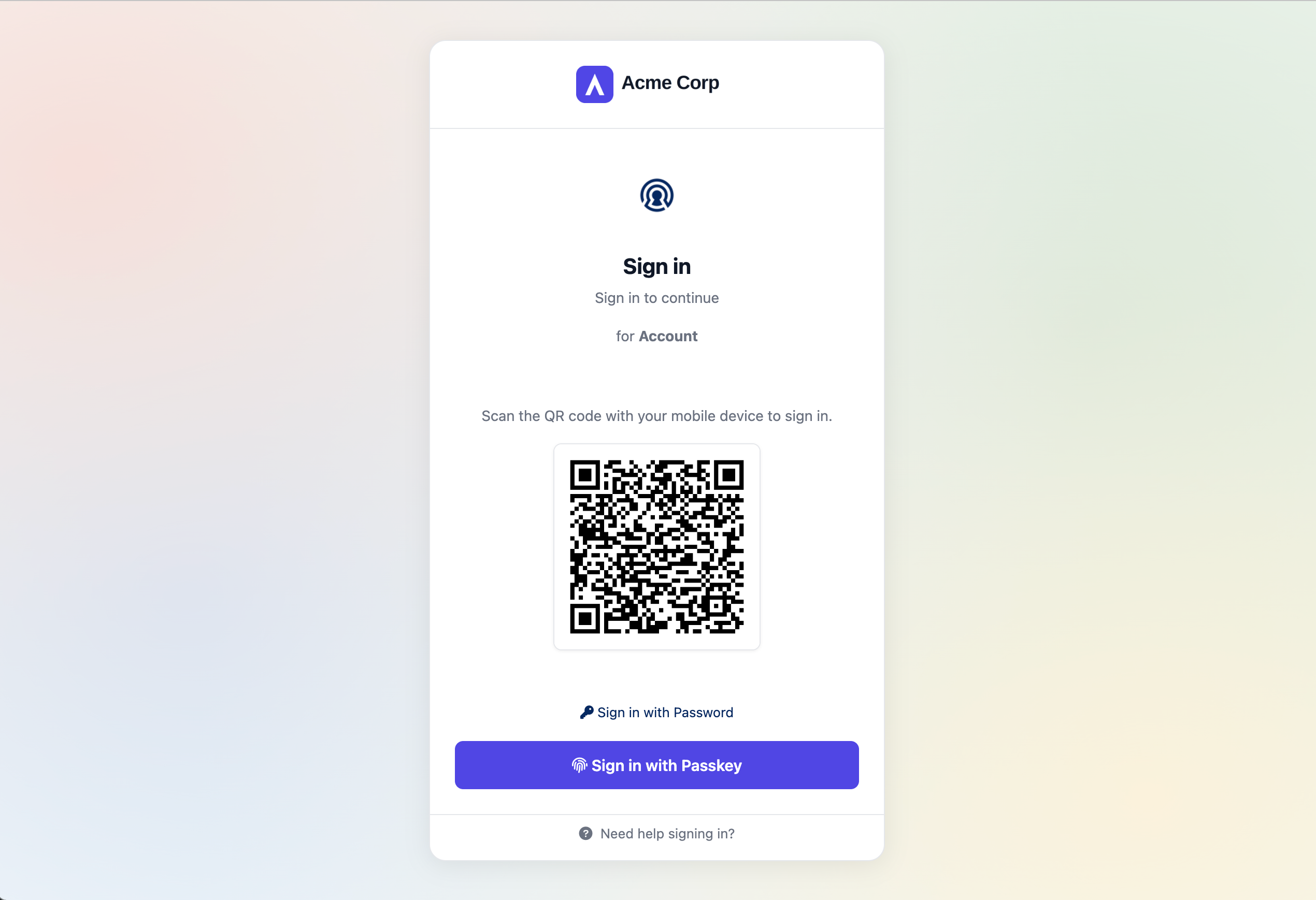
Sign in with QR Code
When the QR code method is selected, the page shows a QR code and the message "Scan the QR code with your mobile device to sign in." The user scans the code with their mobile device and approves the sign-in there. The user can switch back to Sign in with Password or Sign in with Passkey from the same screen.
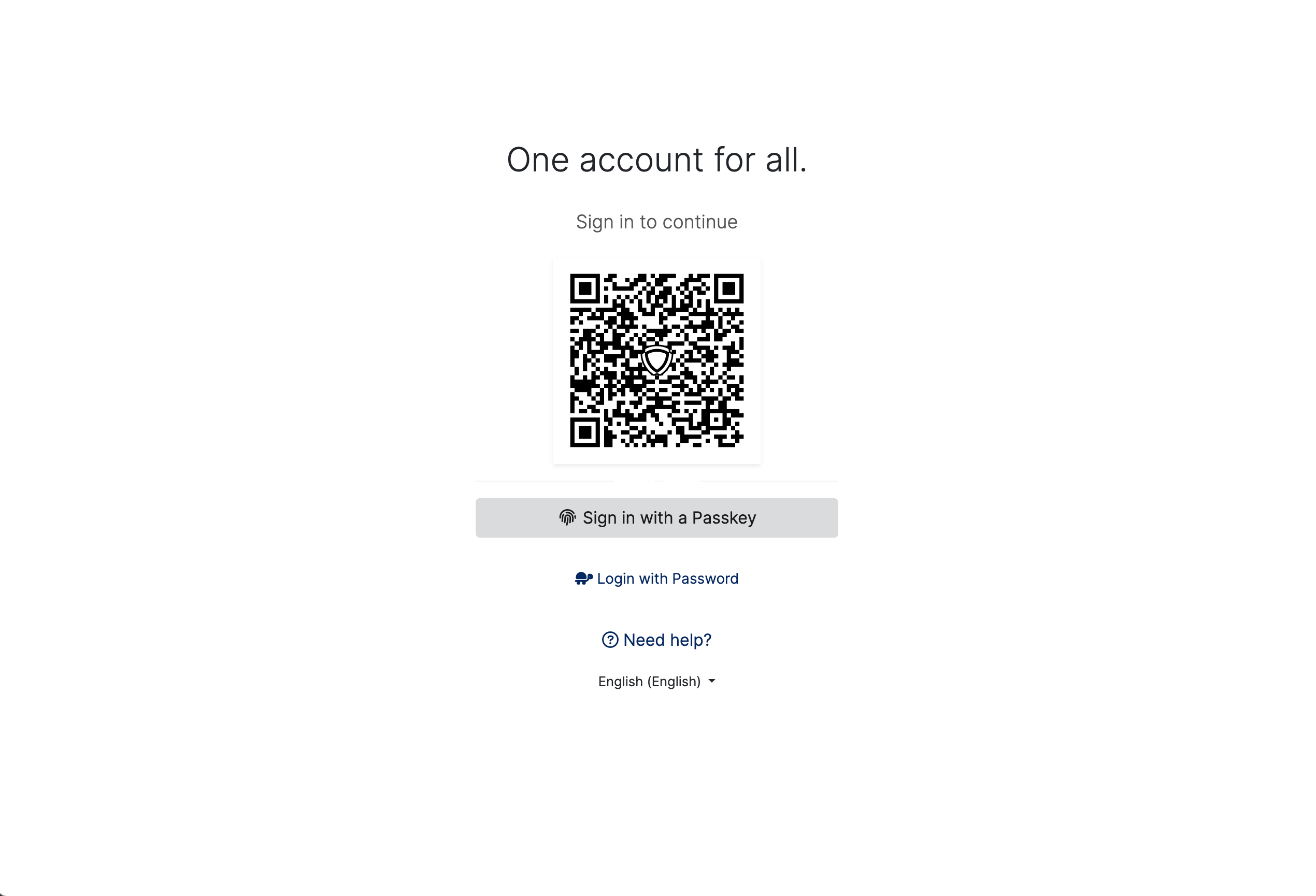
Sign in with Passkey
The login page can also be shown in a simpler layout where the QR code, Sign in with a Passkey and Login with Password are listed one under the other, together with the Need help? link and the language selector.
Customization
The Login Page can be customized to match the visual identity of the organization. The following items can be changed.
Logo -> The organization's own logo can be shown at the top of the sign-in box. In the first screenshots the logo of the example organization "Acme Corp" is used. In the screenshot below the Monosign logo is used.
Branding -> Brand elements such as the title, texts and the background image can be adapted to the organization.
Theme -> Colors and the general look of the page can be changed. For example, a light theme with a soft gradient background can be replaced with a dark theme with a dark background image and dark blue buttons.
Other customizations -> Other visual settings, such as texts and the language of the page, can be adjusted according to the needs of the organization.
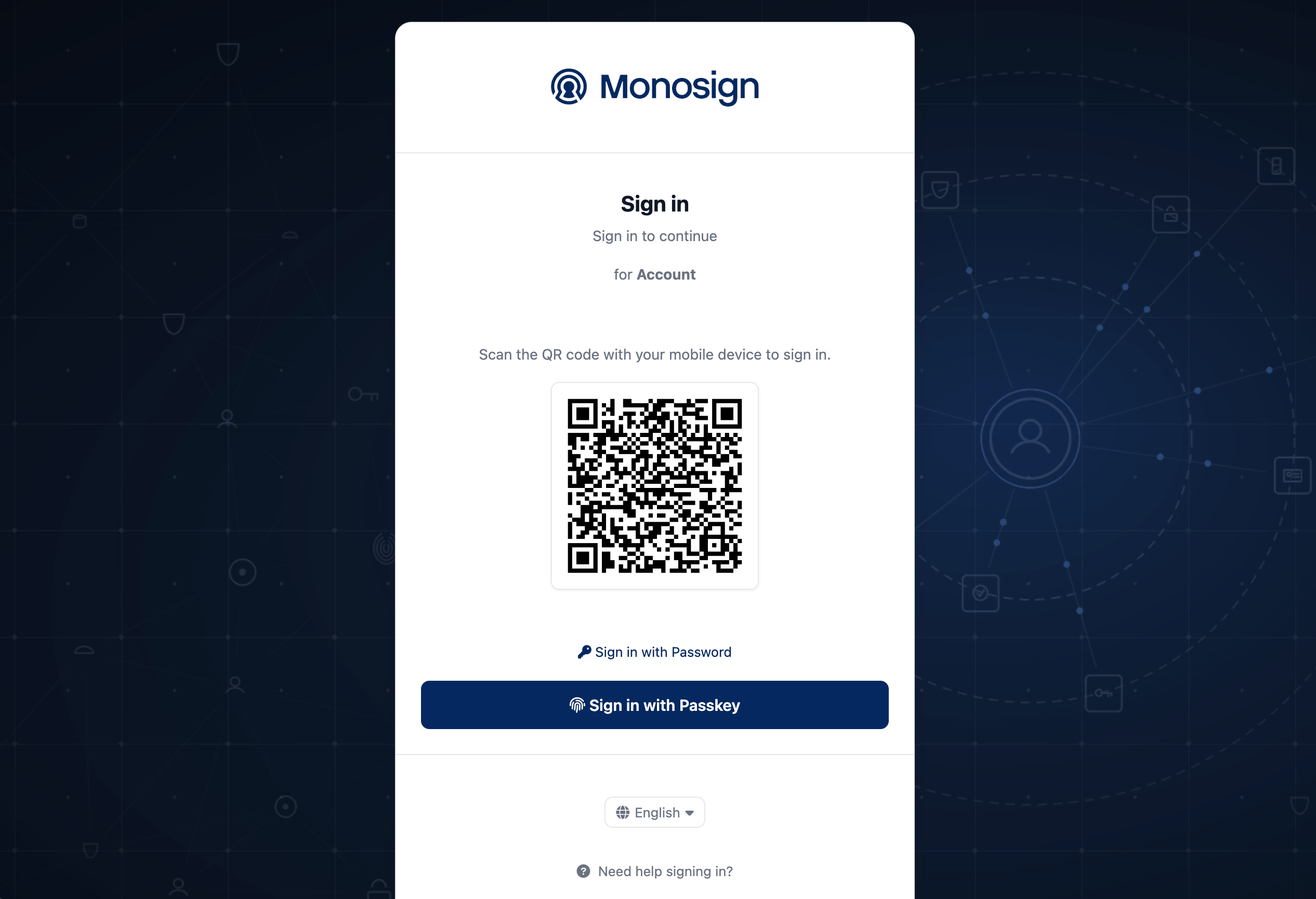
Customizations are applied to the Login Page of all products that use the same Identity Provider. The sign-in methods shown on the page depend on the authentication methods that are enabled by the administrator.