Decide pending requests from the Requests page, and end an approved grant early when the access is no longer needed.
Applies to | Who can do this |
|---|---|
Monopam v2026.10 | Approvers named on the request. To see every request in the tenant, the |
Before you begin
- You are named as an approver in the policy workflow (Workflow → Approval) or in the resource's approval settings. Requests that wait for your decision show a Decision button.
- Approving a request does not grant anything the user's policies do not already allow. It opens the requested access for the requested time window.
Approve or reject a request
- Open Requests from the menu. The Mine scope (1) shows what you asked for and what is waiting on your decision. Rows that wait for you show Waiting for Approval (2) and a Decision button (3).
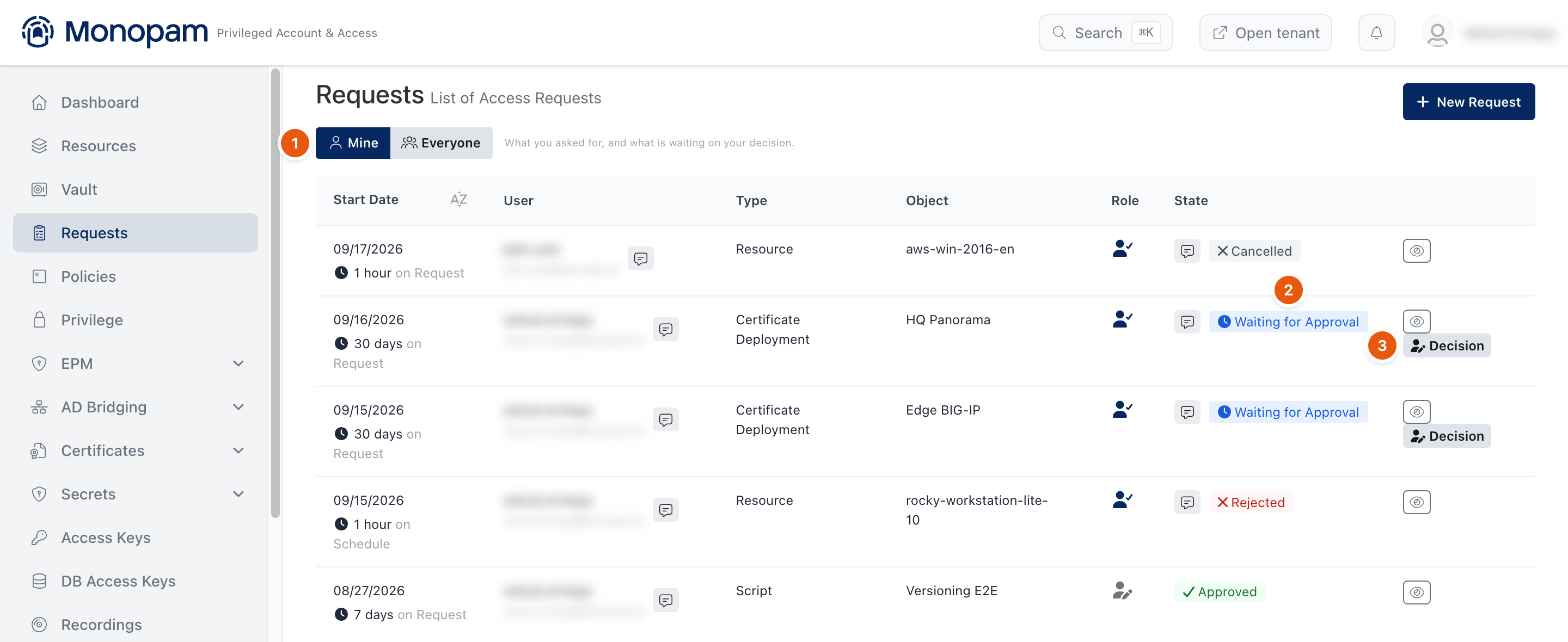
Figure 1. Requests waiting for your decision.
- Click Decision. The dialog shows who asked (Requester), what they asked for (Request) and the Requested Access Period. For a certificate request it also shows the certificate and the target.
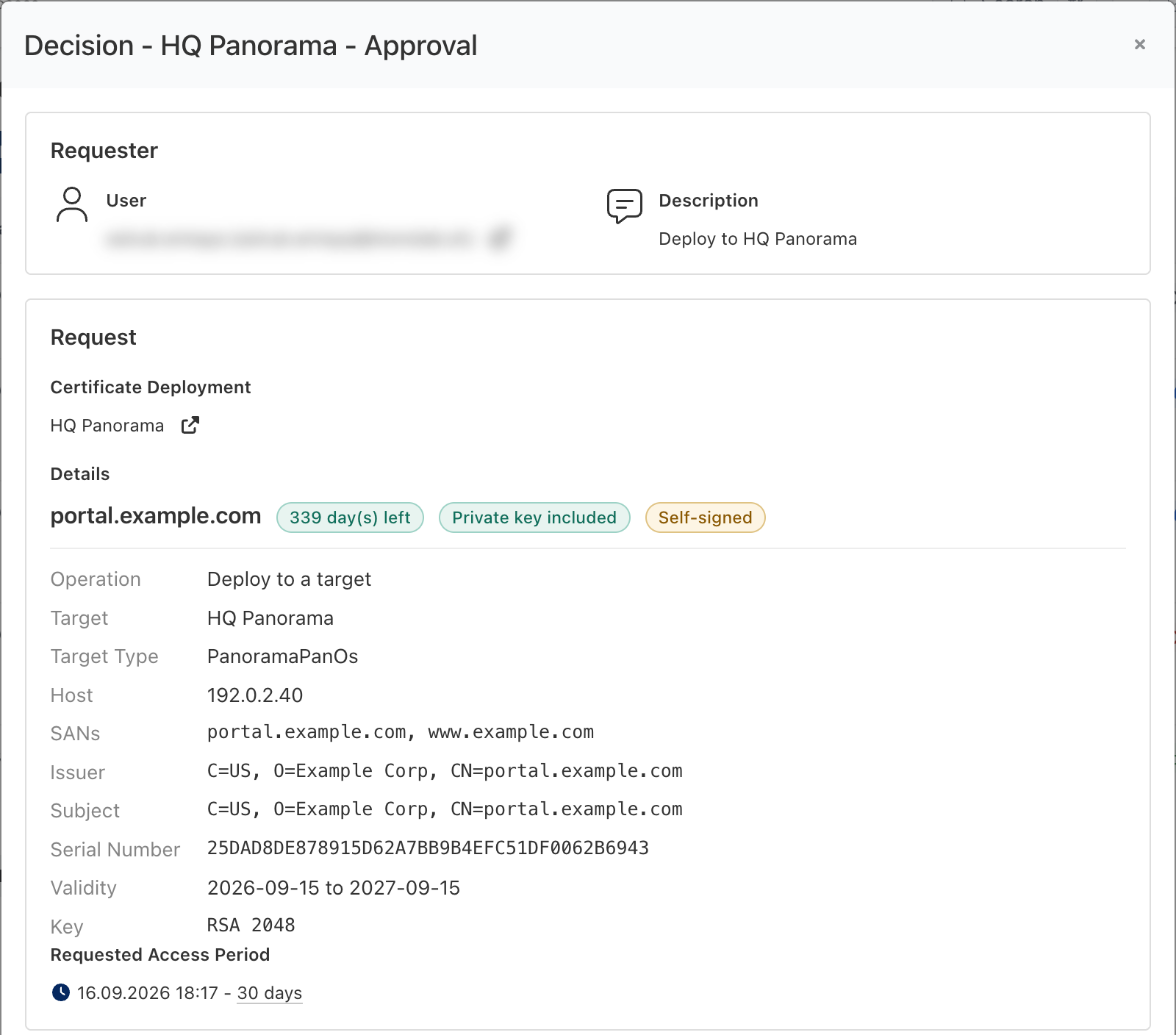
Figure 2. The decision dialog for a certificate deployment request.
- Optionally enter a description (1). It is sent to the requester and the other approvers. If the policy makes it mandatory, the field is required.
- Turn on I confirm that I have read the all information about the request. (2). Reject and Approve stay disabled until you do.
- Click Approve (3) or Reject.
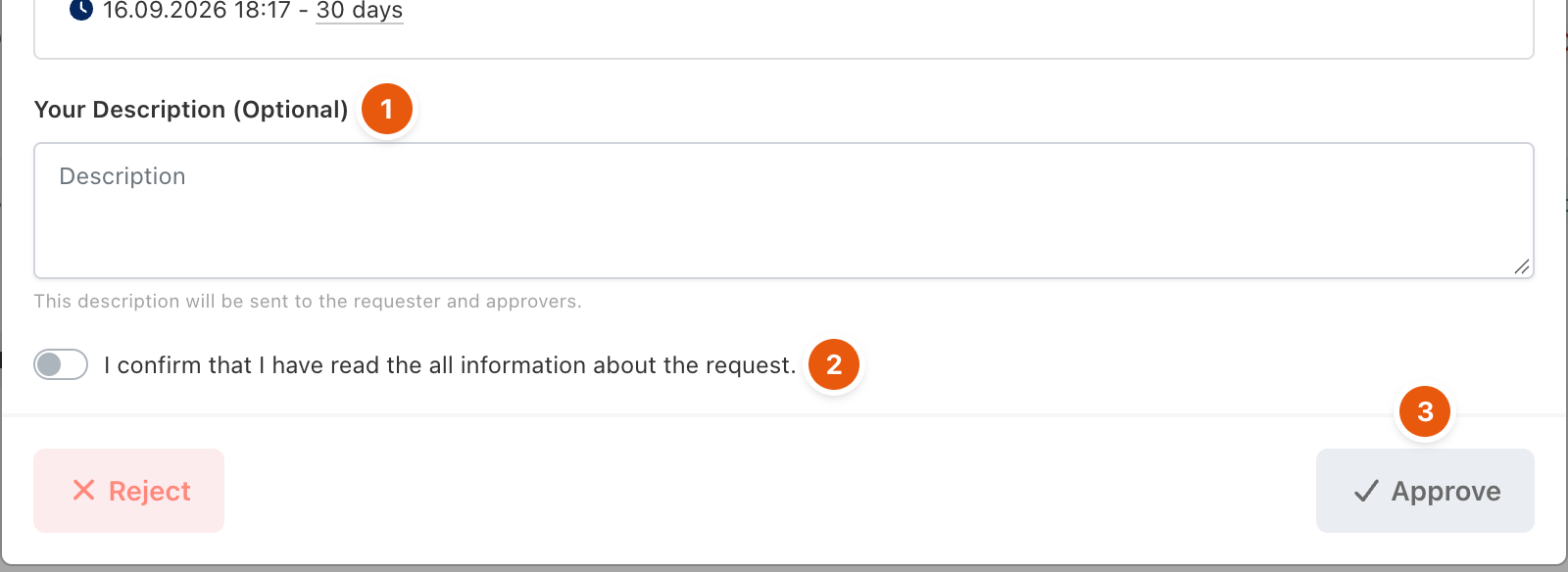
Figure 3. Confirm, then approve or reject.
The row's state changes to Approved or Rejected. When more than one approval is required, the request stays Waiting for Approval until enough approvers have decided.
Revoke an active grant
Revoke ends access immediately. Live RDP, SSH, VNC and database sessions opened under the grant are closed. There is no undo; the user has to request access again.
- Open Requests and find the Approved row. An approved grant that is still open shows a Revoke button.
- Click Revoke and confirm with Yes, Revoke!. Monopam shows The access has been revoked.
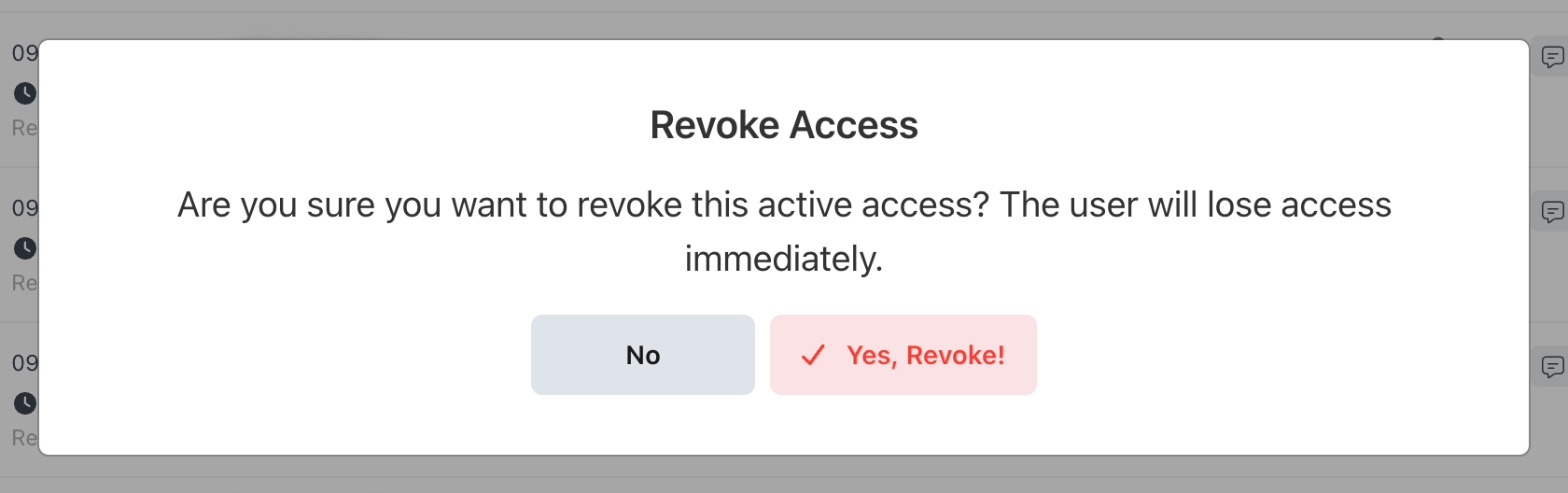
Figure 4. Confirming a revoke.
Request states
State | Meaning |
|---|---|
Waiting for Approval | At least one approver still has to decide. |
Approved | Access is allowed within the requested window. |
Rejected | An approver rejected the request. |
Cancelled | The requester withdrew the request, or the grant was revoked. |
Waiting for Service | No approver could be named. A super administrator can decide it with Decide in the Everyone scope. |
Completed | The approved operation has been carried out. |
Troubleshooting
What you see | Why | What to do |
|---|---|---|
The request stays at Waiting for Service and nobody is asked. | The policy workflow or the resource's approval settings name no approver. | Add approvers under Workflow → Approval of the policy, or to the resource's approval settings. A super administrator can decide the waiting request with Decide. |
The request is approved, but the user still cannot connect. | Approval does not grant access the policies do not allow. | Check that the user has a Resource Access Policy for the resource and a Space Access Policy for its space. |
Approve and Reject cannot be clicked. | The confirmation switch is off, or a required description is empty. | Turn on the confirmation switch and fill in the description. |
Related
- Request access
- Request Policy
- Resource Access Policy