Give integrators, maintenance contractors and consultants time-boxed, approved and recorded access to resources, without VPN or shared accounts. An external user is invited, enrolls with a passwordless link, and is disabled automatically when the access window ends. A vendor groups a supplier's people under common rules.
Applies to | Who can do this |
|---|---|
Monopam v2026.10 | Super administrators. A vendor admin can manage their own vendor's people from My Vendor Team. |
Vendors
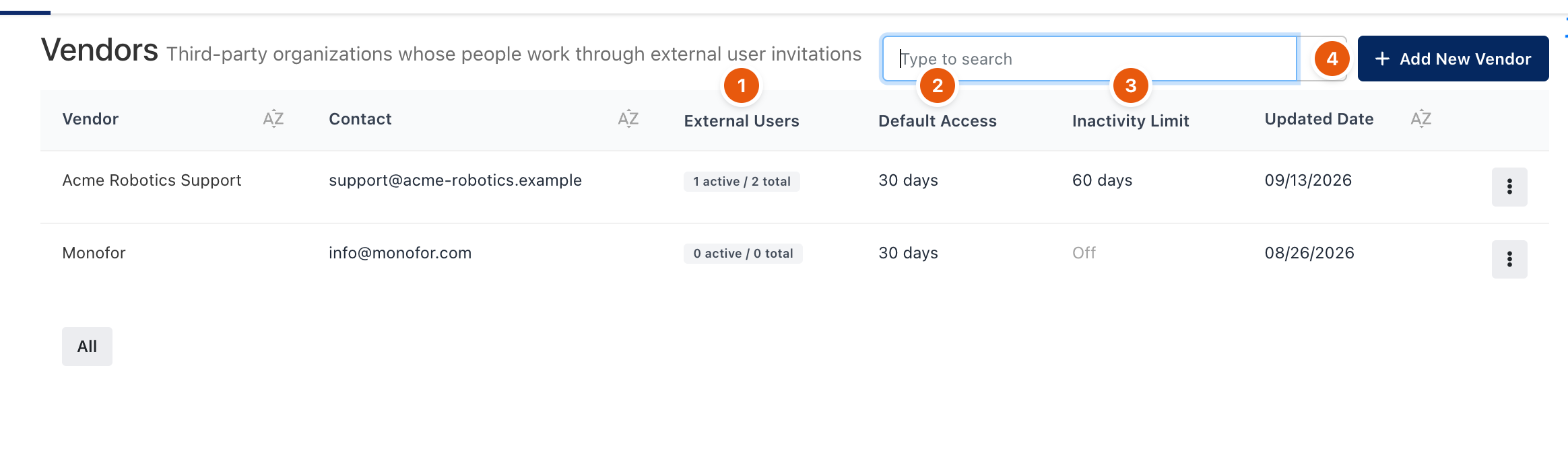
Figure 1. Users → Vendors.
The list shows each vendor's External Users (1), Default Access duration (2) and Inactivity Limit (3). Click Add New Vendor (4), or open a row's menu for Edit, External Users, Activity Report (CSV or PDF) and Start Access Review.
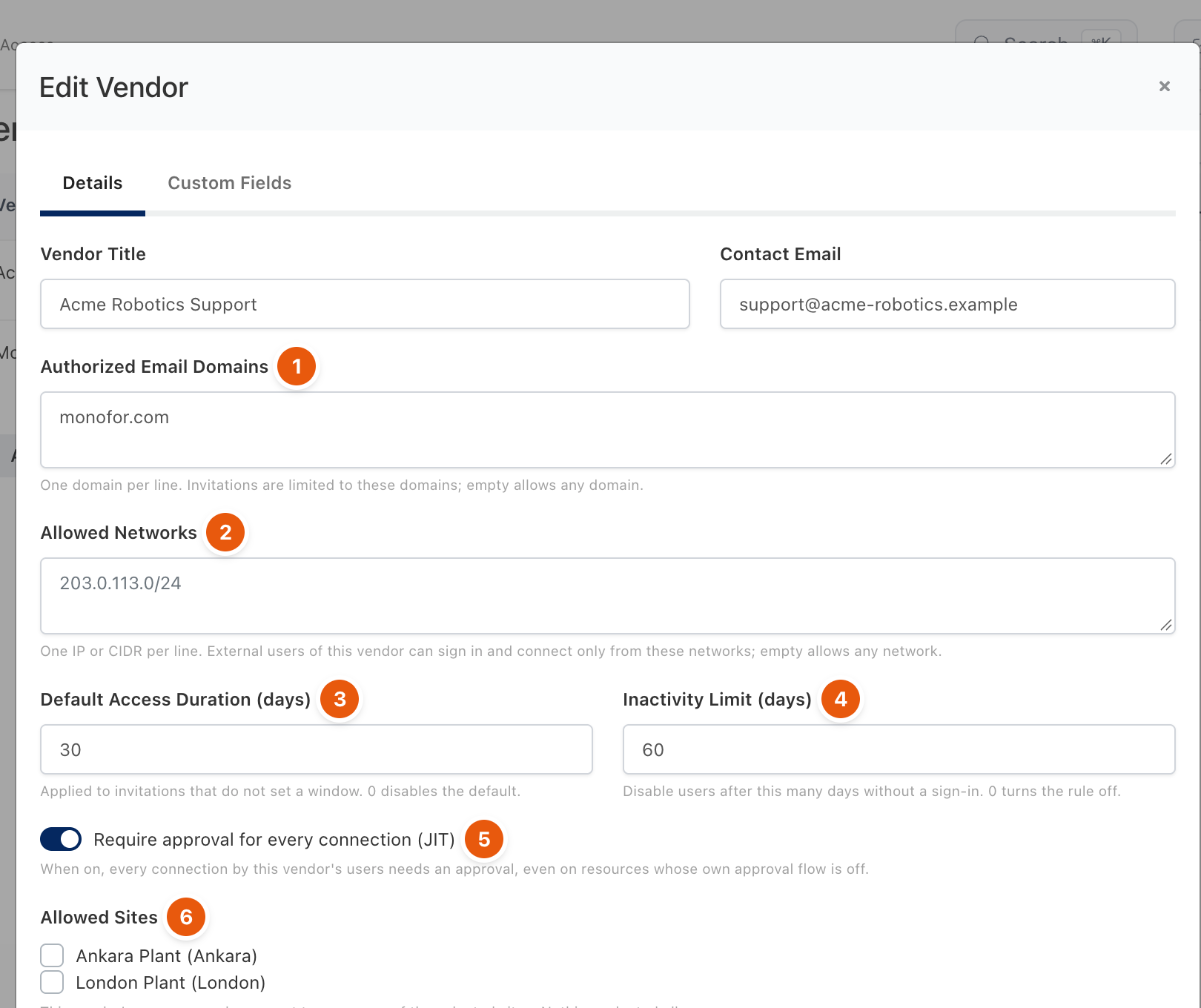
Figure 2. Vendor rules.
Field | Meaning |
|---|---|
Authorized Email Domains (1) | One domain per line. Invitations are limited to these domains; empty allows any domain. |
Allowed Networks (2) | One IP or CIDR per line. The vendor's users can sign in and connect only from these networks; empty allows any network. |
Default Access Duration (days) (3) | Applied to invitations that do not set a window. 0 disables the default. |
Inactivity Limit (days) (4) | Disables users after this many days without a sign-in. 0 turns the rule off. |
Require approval for every connection (JIT) (5) | Every connection by this vendor's users needs an approval, even on resources whose own approval flow is off. |
Allowed Sites (6) | The vendor's users can connect only to resources of the selected sites. Nothing selected allows every resource. |
Invite an external user
- Open Users and click Invite External User.
- Enter the first name, last name and email, choose the Vendor Organization, the Access Duration (1, 7, 30 or 90 days, a custom date, or no expiration) and keep Require multi-factor authentication on.
- The invitation becomes a request. After a super administrator approves it, the person gets an enrollment email with a sign-in link.
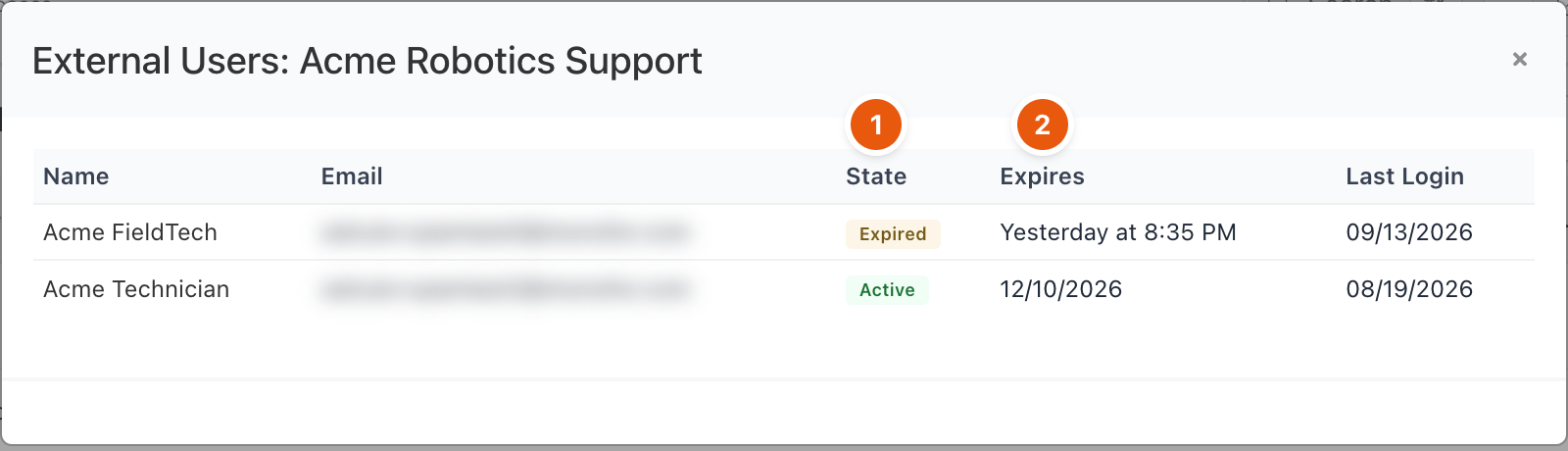
Figure 3. External users of one vendor. Email addresses are blurred.
- State (1) is Invited, Active, Expired or Disabled. Expires (2) is the end of the access window.
- When the window ends, or the inactivity limit is reached, the user is disabled and live sessions end.
- Extend Access and Resend Invitation are in the user's row menu on the Users page.
- External users' sessions are always recorded, and the person who invited them is notified when they connect.
Troubleshooting
What you see | Why | What to do |
|---|---|---|
A user with this email already exists. | The address is already a user. | Use the existing user, or extend their access. |
The invitation is refused for the domain. | The email is outside the vendor's Authorized Email Domains. | Add the domain to the vendor, or use an address in it. |
Related
- Manage users
- Sites
- Approve and revoke access
- Recordings and session notes