A privileged command rule decides what happens when someone types a given command in an SSH or Telnet session through Monopam, or when an AI assistant sends it through the MCP server: allow it, deny it, or hold it until an approver says yes. Rules are attached to accounts in a Resource Access Policy, so the same command can be free on one server and gated on another.
Applies to | Who can do this |
|---|---|
Monopam v2026.10 | Administrators with permission to manage privileged commands and policies. The menu entry is Privilege; the page is titled Privileged Commands. |
Create a rule
- Open Privilege and click Add New.
- Enter a Name (1) and the Command (2), for example
rm,killorreboot. The command is a single word without spaces. - Choose Command Matching (3): Exact Match compares the first word of the command line; Regex matches it against a regular expression.
- Choose the Behaviour (4) and click Save.
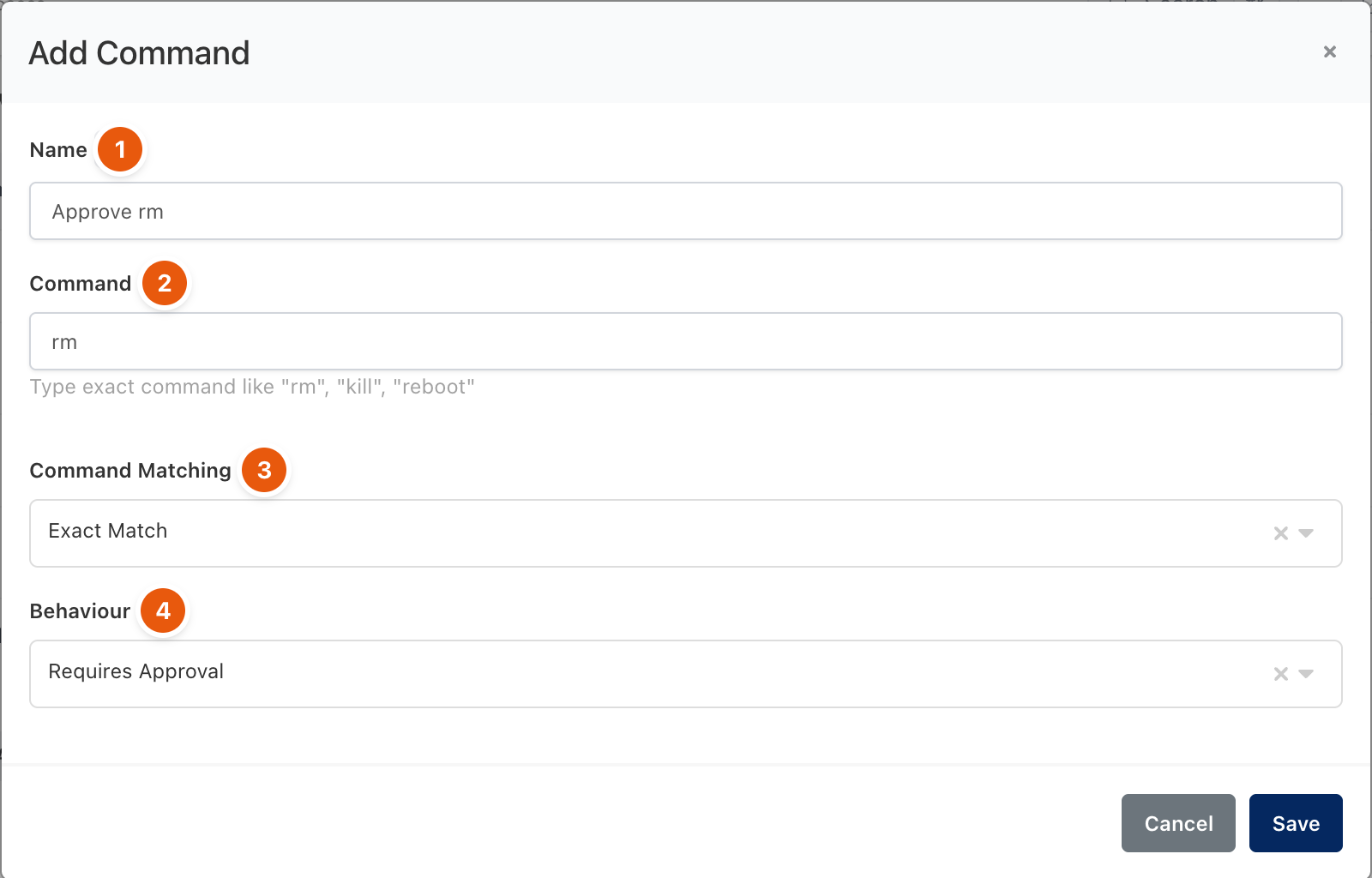
Figure 1. A rule that holds rm for approval.
Behaviour | What happens when the command is typed |
|---|---|
Allow | The command runs. |
Deny | The command is blocked. |
Deny if ... | The command is blocked only under the conditions set on the rule. |
Requires Approval | The command is held and a request is sent to the approvers. Once approved, exactly that command line can be run once within 60 minutes. |
A leading sudo is ignored when matching, and each part of a pipe is checked separately. If no rule matches, the command runs.
Attach the rule to a resource
- Open the Resource Access Policy that gives access to the resource, open the resource's row menu and click Edit.
- On the Privileged Commands tab, add the rule to Selected Commands (1). When several rules are selected, Order (2) decides which one wins: the first match applies.
- Type a command line under Simulate a Command and click Simulate to see the result (3), then click Update and save the policy.
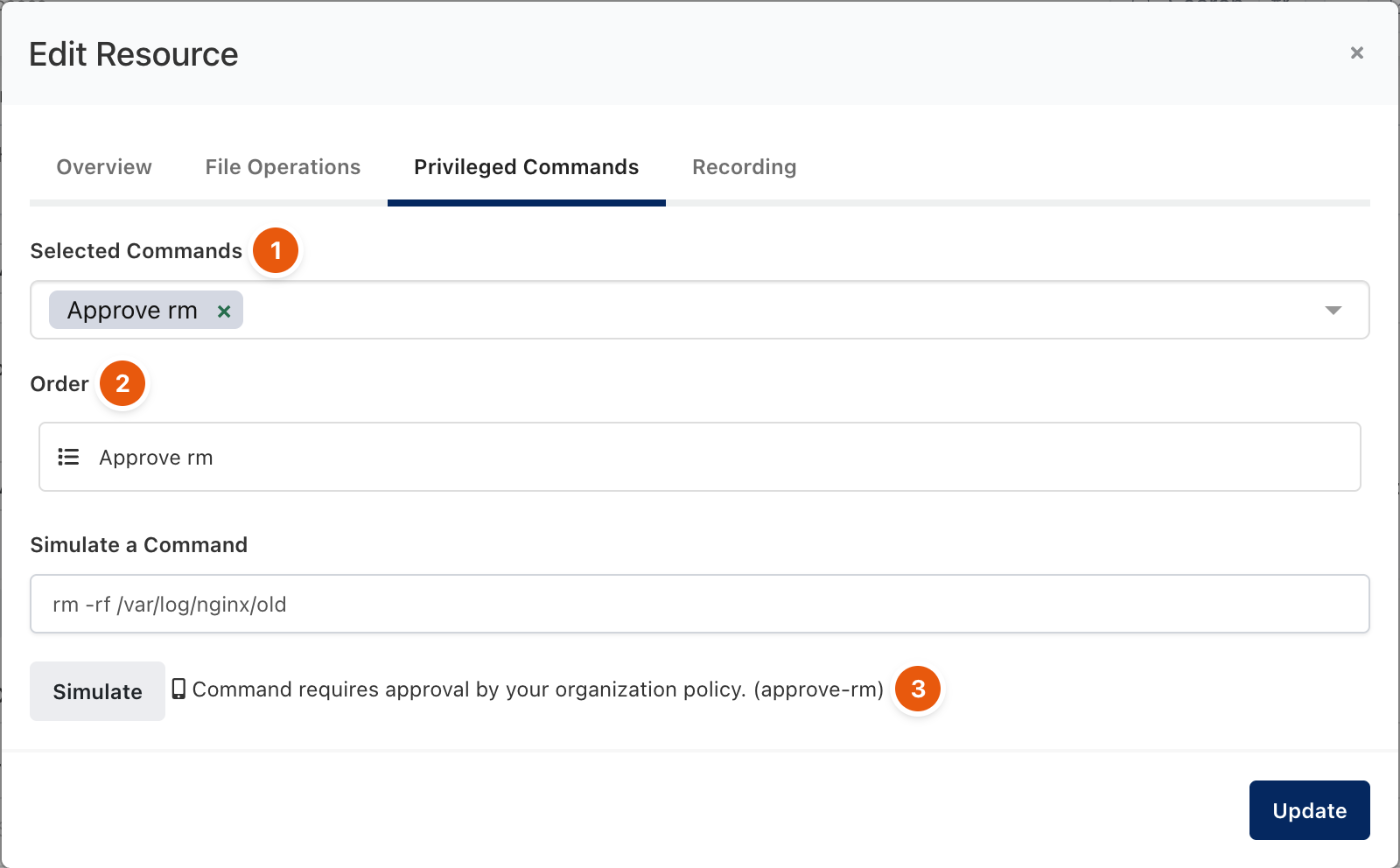
Figure 2. Attaching the rule and testing it.
What the user sees
When the user types a held command, the terminal shows a line starting with # Monopam: and the command does not run. The first time, the message says the request was sent to the approvers; if the user types the same line again before a decision, it says the request is still waiting for a decision.

Figure 3. A held command in the terminal.
The request appears in Requests. If the policy names no approver, it shows No approver (1) and a super administrator decides it with Decide (2); the requester can withdraw it with Cancel.
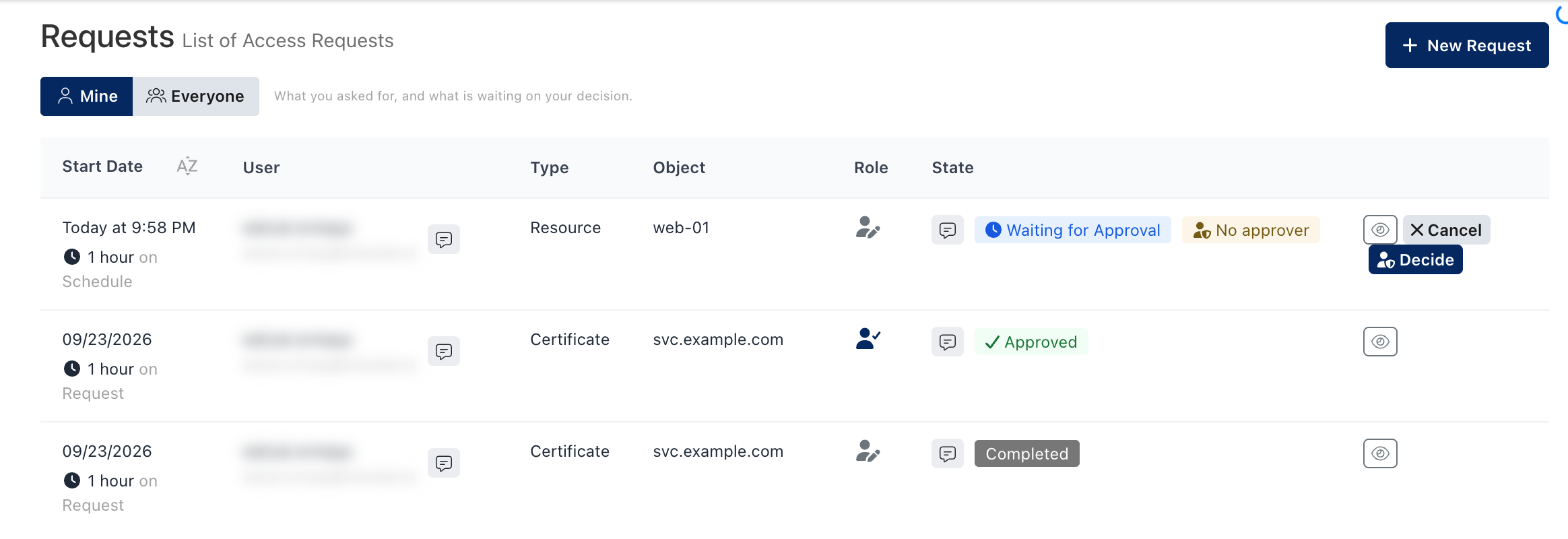
Figure 4. The request in Requests.
The decision dialog shows the exact Command (1), that the access is One-time (single run) (2), and the window it is Valid Within (3).
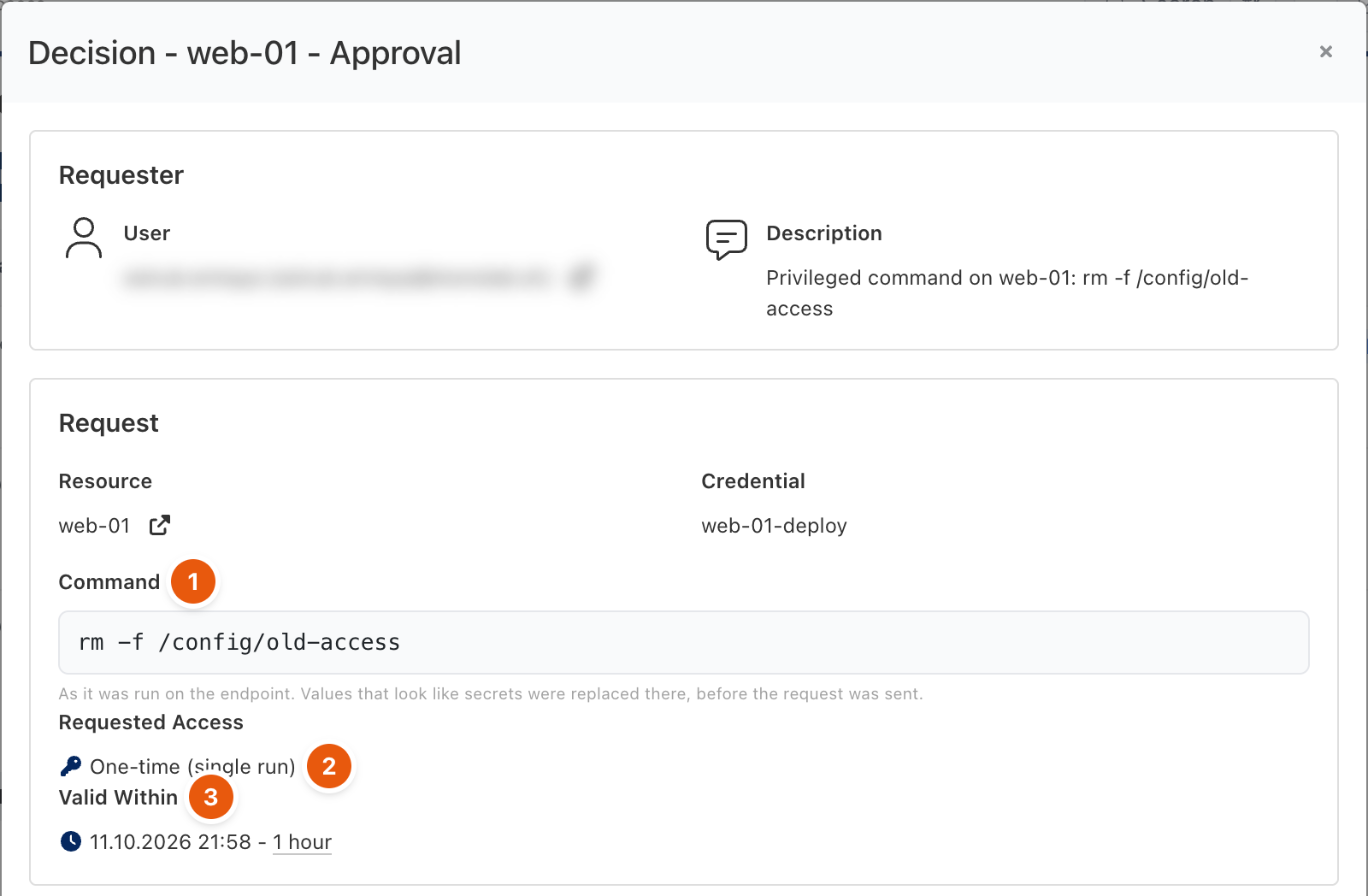
Figure 5. Deciding a privileged command.
Troubleshooting
What you see | Why | What to do |
|---|---|---|
The command runs although the rule says Deny. | The rule is not attached to that account in a policy that applies to the user, or the gateways have not picked up the change yet. | Check Selected Commands on the policy row, and use Simulate. Saving the policy refreshes the gateways' rules. |
The request shows No approver. | The policy that lists the rule names no approver. | Add approvers on the policy's Approval tab, or decide the request as a super administrator. |
Approved once, held again the second time. | By design: one approval covers one run. | Ask again; the approver sees a new request. |
Related
- Resource Access Policy
- Approve and revoke access
- Connect from the browser