The SSH bastion is an SSH server on the gateway. Users connect with their own SSH client (OpenSSH, PuTTY, MobaXterm), sign in with their Monopam account through a link or QR code shown in the terminal, pick a target from a menu and get a brokered shell. The gateway injects the vaulted credential, records the session and streams it for live monitoring.
Applies to | Who can do this |
|---|---|
Monopam v2026.10 | Administrators enable it per gateway. Users need access to the targets. |
Enable the bastion
- Open the gateway and its SSH Bastion tab.
- Turn on Enable SSH Bastion (1) and set the Listen Port (2), 4422 by default. Optionally open a separate SFTP/SCP Port for file transfer clients.
- Set the Idle Timeout and the Sign-In Timeout (how long the terminal waits for the browser sign-in, 180 seconds by default).
- Strict Host-Key Checking (3) connects only to targets whose host keys are already known; off means trust on first use and reject on mismatch. Show QR Code (4) shows the sign-in link as a QR code in the terminal. Click Save.
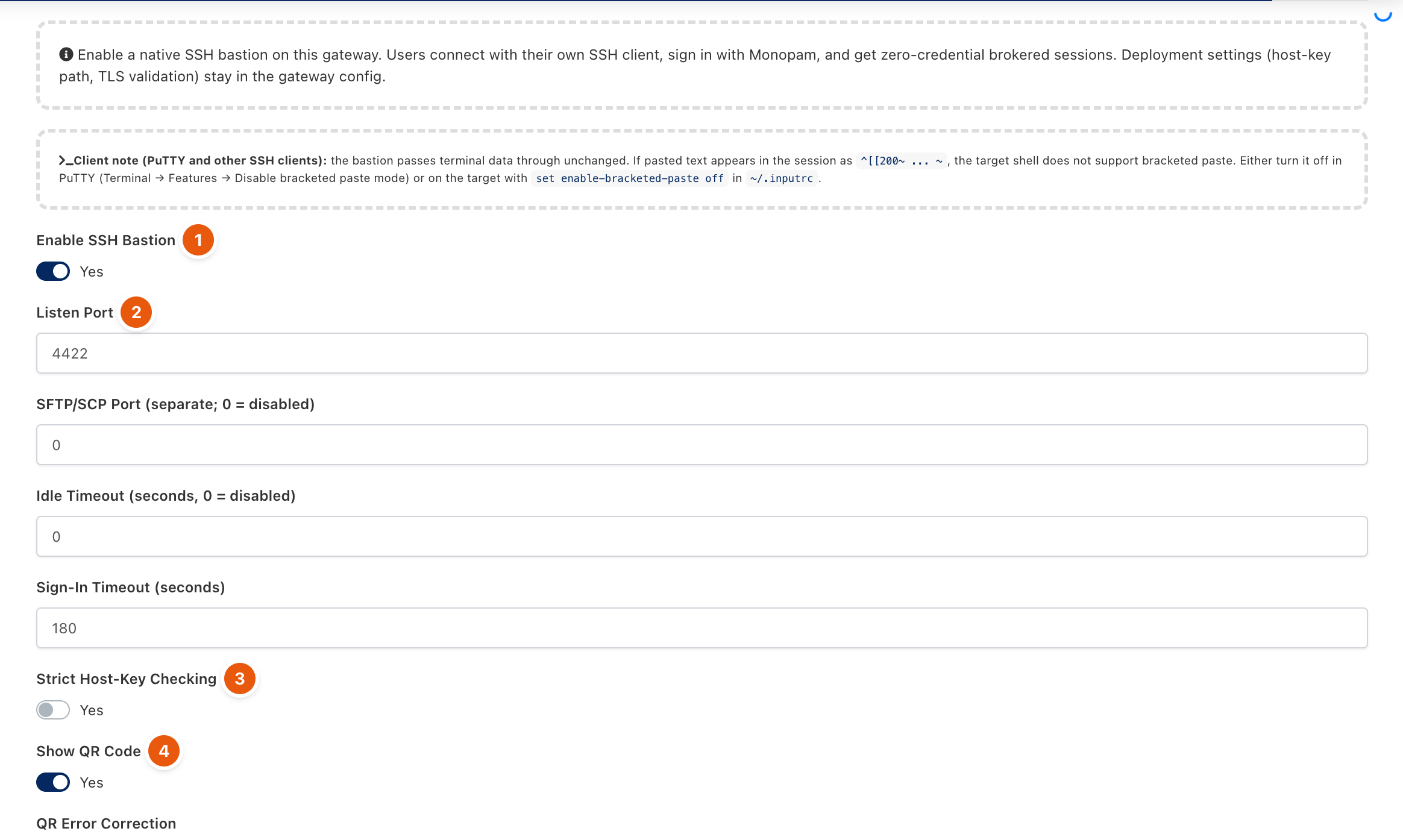
Figure 1. SSH bastion settings on a gateway.
Connect
- Connect your SSH client to the gateway on the bastion port, for example
ssh -p 4422 <gateway-address>. - Open the link (or scan the QR code) shown in the terminal and sign in with Monopam.
- Pick the target from the menu. The session starts without a password prompt.
If pasted text appears as ^[[200~ ... ~, the target shell does not support bracketed paste. Turn it off in the client (PuTTY: Terminal → Features → Disable bracketed paste mode) or on the target with set enable-bracketed-paste off in ~/.inputrc.
Related
- Manage gateways
- Recordings and session notes
- Privileged Commands