A Request Policy publishes a catalog of things users may ask for but do not have: resources as a named account, and vault items with named fields. Matching the policy grants nothing. The user asks from Requests → New Request, and the approved request opens the access for its window.
Applies to | Who can do this |
|---|---|
Monopam v2026.10 | Administrators with permission to manage policies. |
Create the policy
- Open Policies → Add New → Advanced and choose Request Policy.
- On the Resources tab, click Add Resource (2) and pick the resources. For each resource, tick the Requestable accounts (3). If only one account is ticked, the requester is never asked to choose.
- On the Vault Items tab, add vault items and tick the fields an approved request opens, such as User name and Password.
- On the Rules tab, decide who sees the catalog. On the Approval tab (5), name the approvers.
- Set the Terms (4) and click Save.
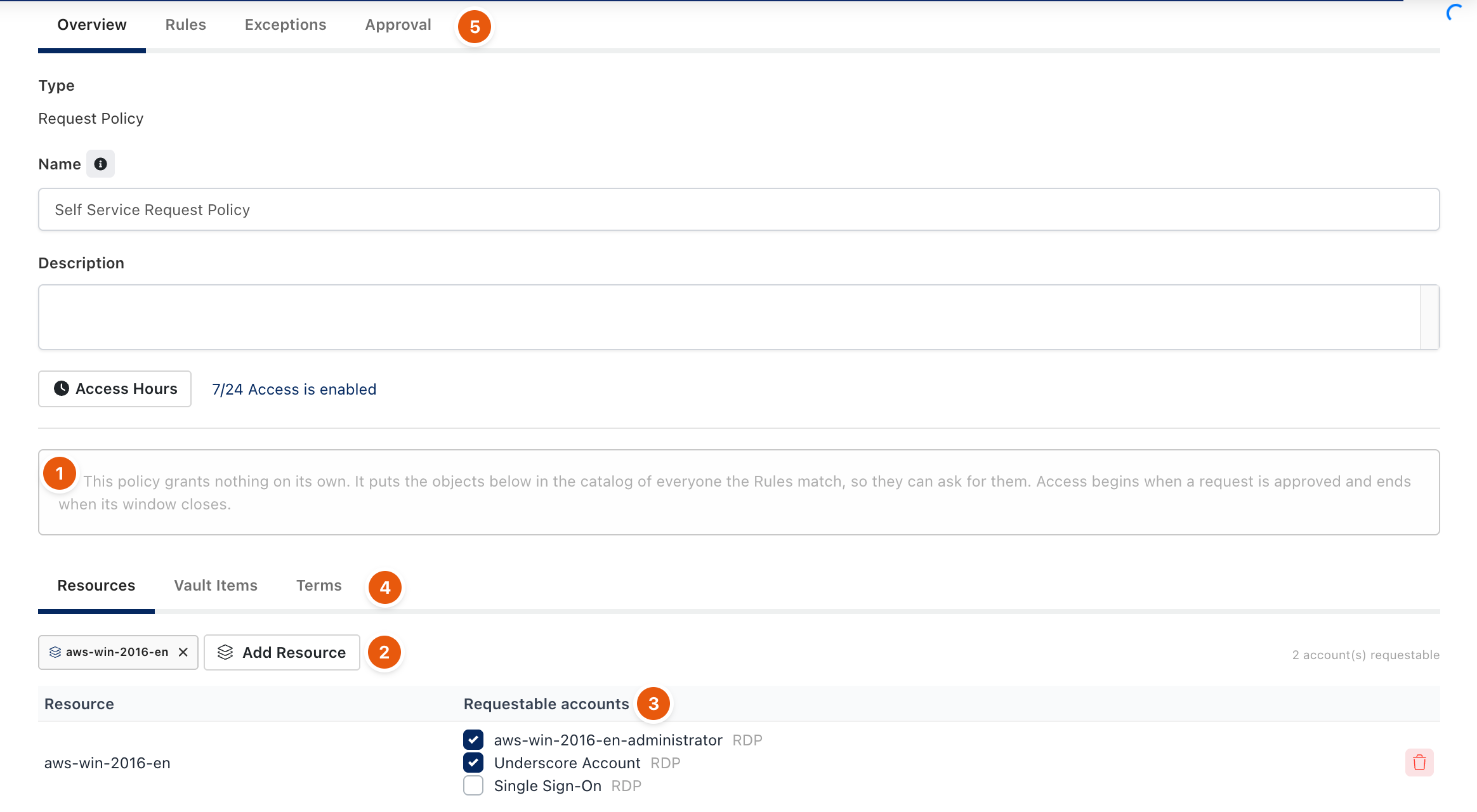
Figure 1. A Request Policy. The note (1) explains that the policy itself grants nothing.
Terms

Figure 2. Terms of the requests.
# | Field | Default | Meaning |
|---|---|---|---|
1 | Default duration (minutes) | 60 | Pre-filled on the request form. |
2 | Maximum duration (minutes) | 240 | The longest window a requester may ask for. A longer ask is shortened to this. |
3 | Open requests per user | 0 | Undecided requests one user may hold against this policy. |
4 | Require a reason | off | A request without a description is refused. |
5 | Approve automatically | off | Grants on submission without asking anybody. The approvers on the Approval tab are not consulted, and the request button reads Get access. |
Troubleshooting
What you see | Why | What to do |
|---|---|---|
A user says There is nothing for you to request. | No Request Policy matches the user, or the user can already reach everything in it. | Check the policy's Rules with Preview. Objects the user can already reach are left out of the catalog. |
The request was approved, but the user still cannot connect. | The user also needs to see the resource's space. | Check the Space Access Policy for the resource's space. |
Related
- Request access
- Approve and revoke access
- How policies work