Instead of the browser, users can open an RDP session in their own Remote Desktop client. Monopam gives them a short-lived connection file; the credential is still injected by the gateway, so the user never sees the password.
Applies to | Who can do this |
|---|---|
Monopam v2026.10 | Users with access to the resource, when Connect with Client is enabled. |
Before you begin
- An administrator has enabled Connect with Client under System → Configurations (Connection settings).
- The gateway is prepared for client and RemoteApp connections (see the Installation Guide), and users can reach the gateway on the RDP port.
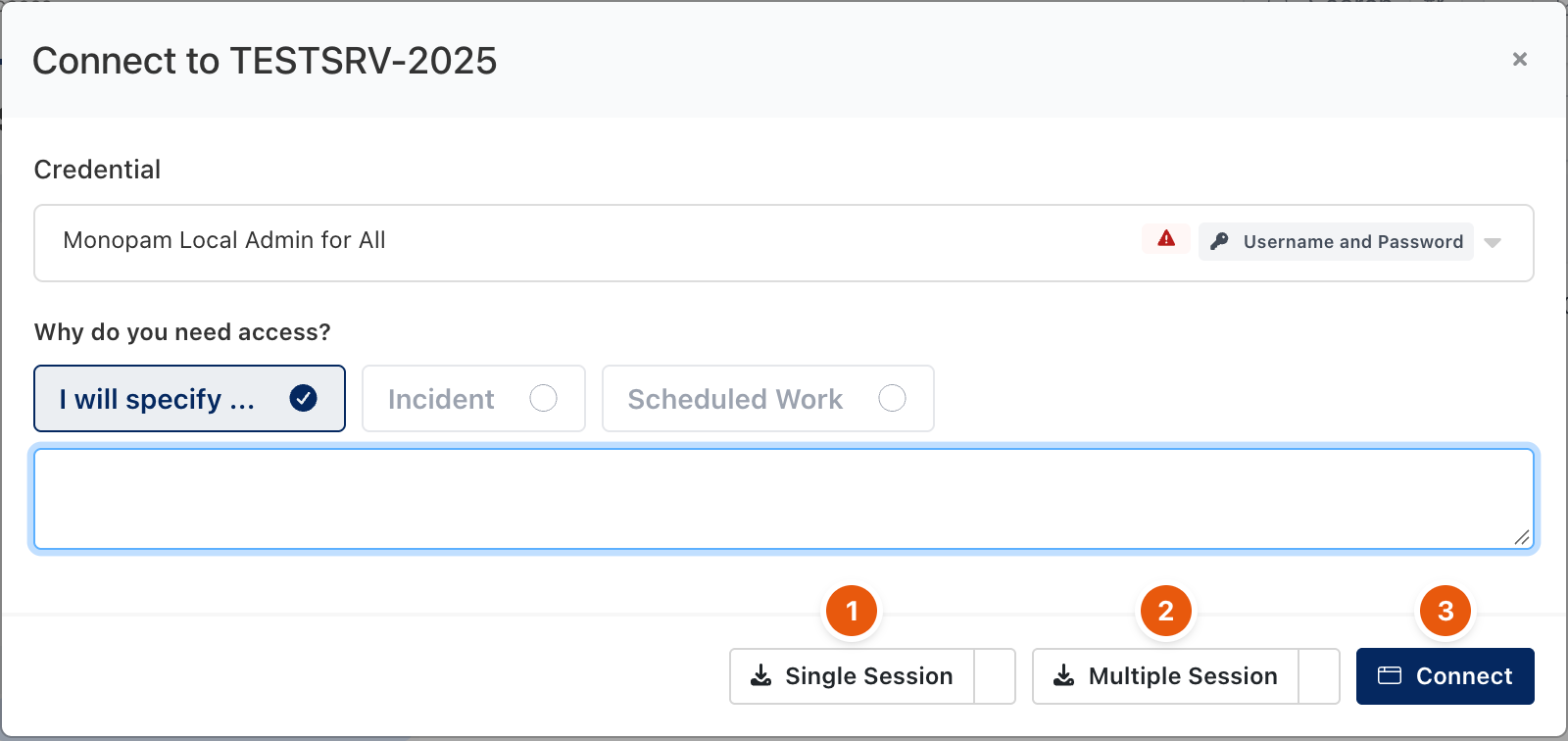
Figure 1. Connection options for an RDP resource.
# | Button | What it does |
|---|---|---|
1 | Single Session | Downloads a connection file for one session. It expires after a short time. The menu next to it offers Single Session (Legacy), compatible with mRemoteNG. |
2 | Multiple Session | Downloads a reusable connection template that can be opened several times until it expires. The count and expiry come from the Connect with Client settings. |
3 | Connect | Opens the session in the browser instead. |
Enter the reason under Why do you need access? first; it is recorded with the session like any other connection. Open the downloaded file with the Remote Desktop client.
Troubleshooting
What you see | Why | What to do |
|---|---|---|
The downloaded file no longer connects. | The file expired or reached its usage count. | Download a new file from the Connect dialog. |
Single Session and Multiple Session are not shown. | Connect with Client is disabled, or the resource is published through the application proxy. | Ask an administrator to enable Connect with Client under System → Configurations. |
Related
- Connect from the browser
- Manage gateways