A Resource Access Policy decides who may connect to which resources, with which accounts, at what times, and under which session rules (clipboard, file transfer, recording, privileged commands, Kubernetes and database rules).
Applies to | Who can do this |
|---|---|
Monopam v2026.10 | Administrators with permission to manage policies. |
Create the policy
- Open Policies, click Add New, then Advanced.
- Set Type (1) to Resource Access Policy, and enter a Name (2) and a description.
- Optionally limit Access Hours (3); by default access is allowed 7/24. Turn on Disconnect When Access Ends to end live sessions when the window closes.
- Click Add Resource (5) for every resource the policy covers.
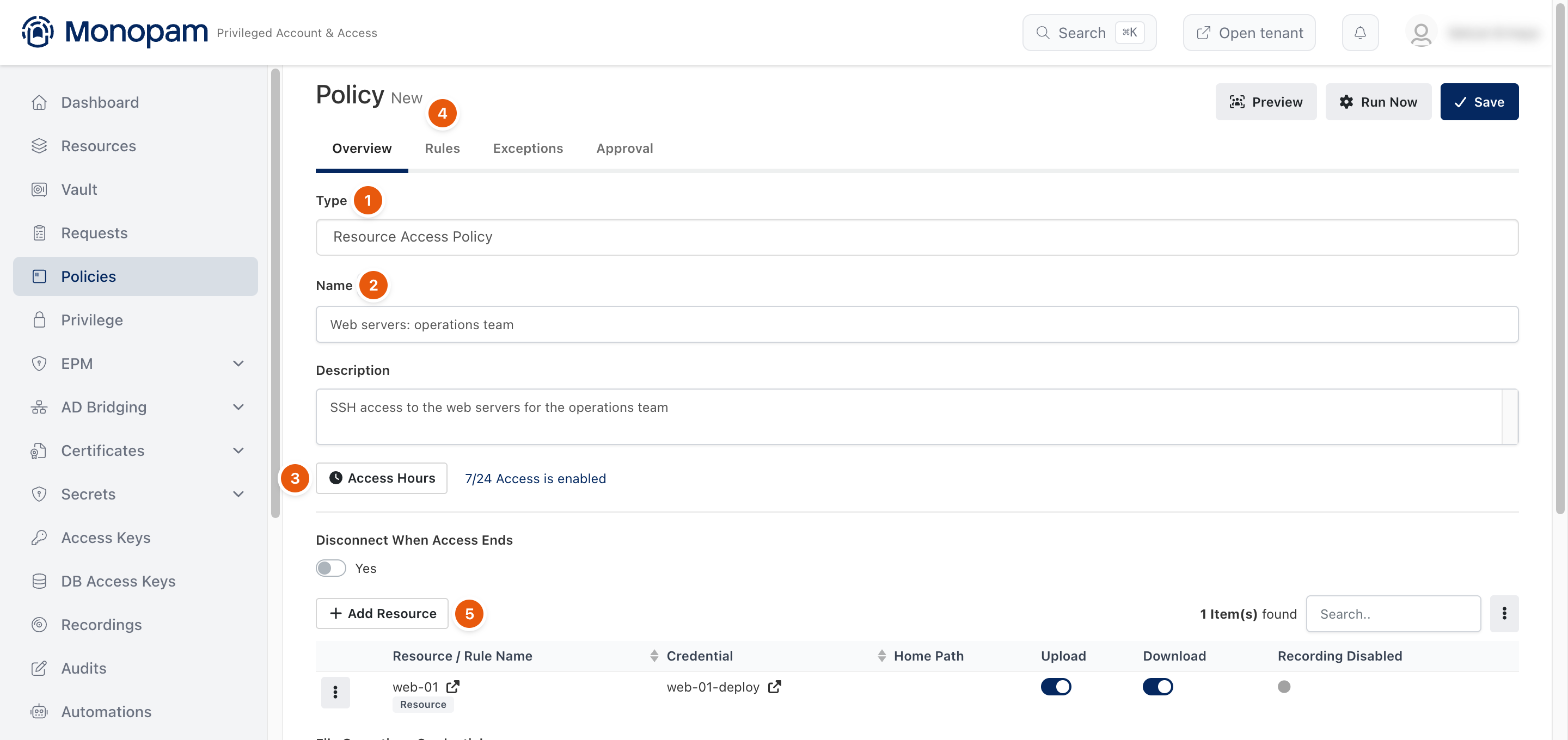
Figure 1. The policy overview.
Add a resource to the policy
- Choose By Resource to pick one resource, or By Rule to match resources by their properties.
- Select the Resource (1) and the Credential (2) users connect with.
- Set the clipboard switches, and use the other tabs (3) for File Operations, Privileged Commands and Recording. For Kubernetes and database resources, Kubernetes Rules and Database Rules tabs appear here.
- Click Add (4).
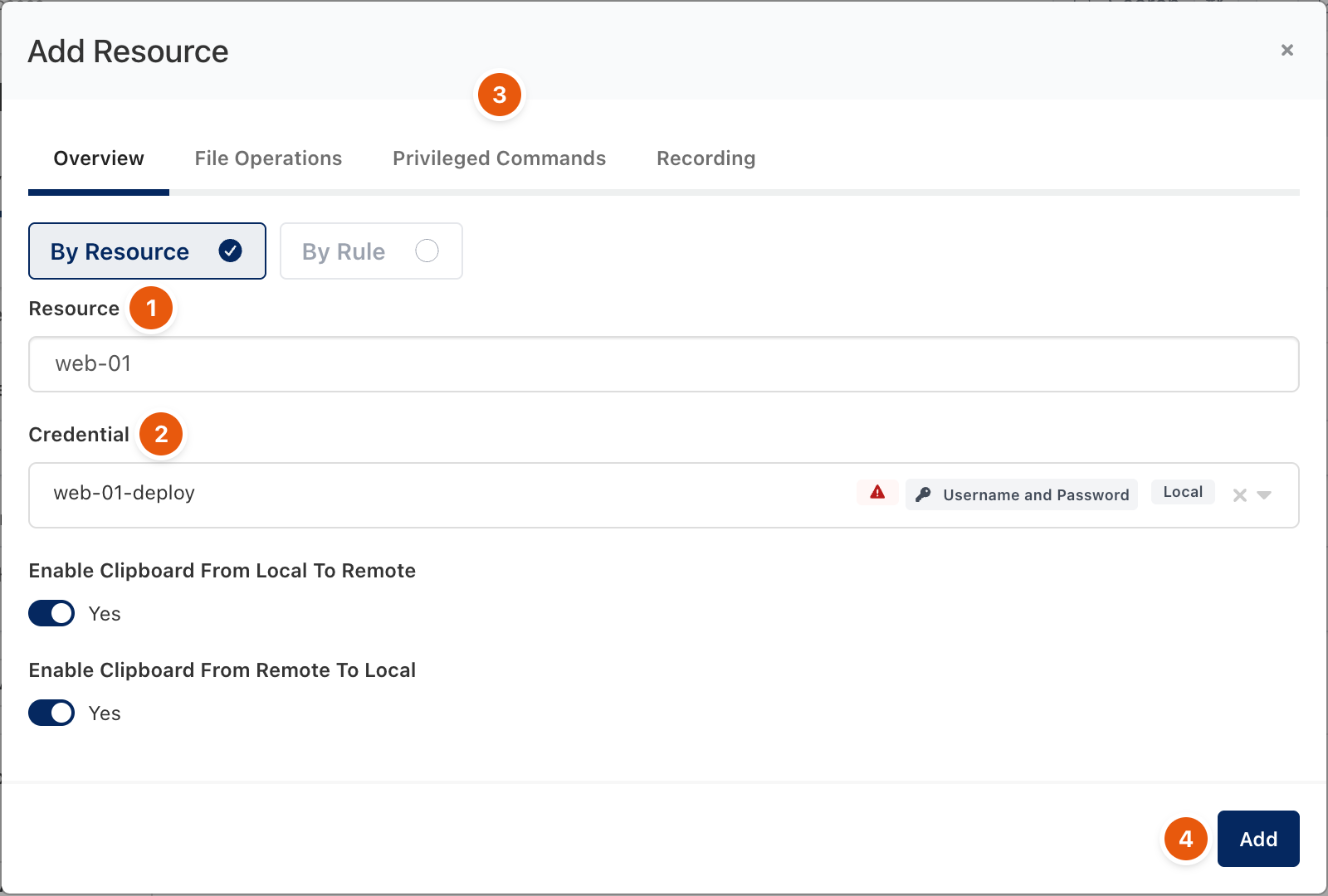
Figure 2. Adding web-01 with its account.
Decide who the policy applies to
- Open the Rules tab (4 in Figure 1) and click Add.
- Build the condition (1, 2), for example User → Group → in → <group>. Use Group (3) to combine conditions.
- Click Preview (4) to list the users who match, then Save.
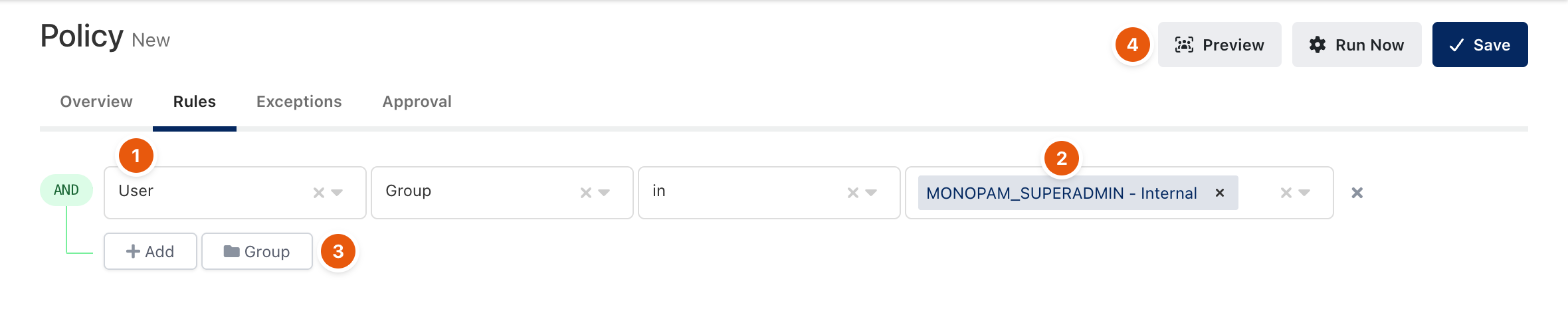
Figure 3. Applying the policy to a group.
Monopam shows Policy created successfully. and refreshes the gateways' privileged command rules. Use the Approval tab to require approval before a connection, and Exceptions to exclude users the rules would match.
Troubleshooting
What you see | Why | What to do |
|---|---|---|
A user in the group still cannot see the resource. | No Space Access Policy gives the user its space. | Add a Space Access Policy for the resource's space, or check the user with Preview. |
The Credential list is empty. | No vault item is assigned to the resource for a connection type. | Assign an account on the resource first. See Add a resource. |
Related
- How policies work
- Add a resource
- Privileged Commands
- Approve and revoke access