Endpoint Privilege Management (EPM) lets people work without local administrator rights. The Monopam agent on Windows, Linux and macOS endpoints decides, application by application, whether to block it, let it run, run it elevated, or ask for approval first, and records what happened.
Applies to | Who can do this |
|---|---|
Monopam v2026.10 | Administrators define applications and endpoint policies. Approvers decide requests. |
Before you begin
- The Monopam agent is installed on the endpoints and the endpoints are resources in Monopam; see Agents.
Applications
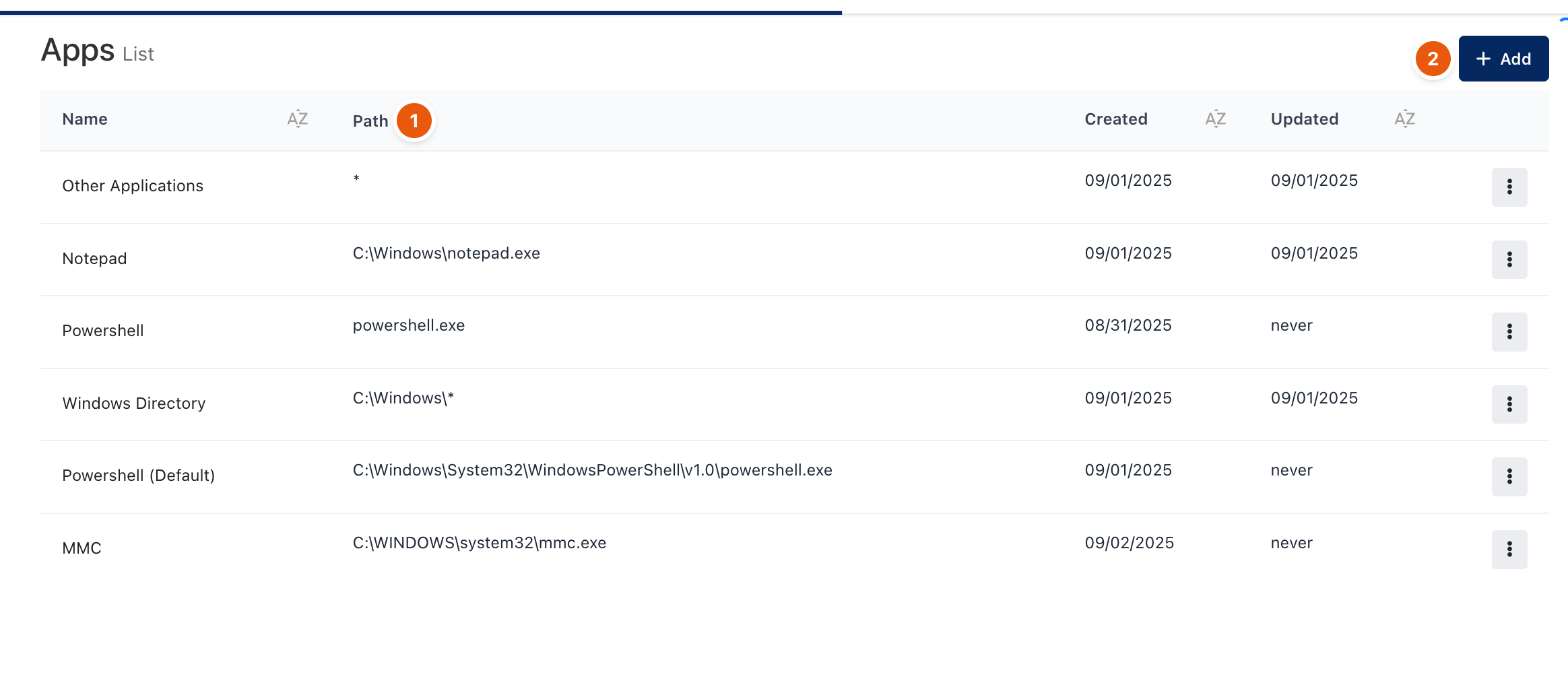
Figure 1. EPM → Apps.
An application is a name and a Path (1): a full path, a file name such as powershell.exe, or a pattern such as C:\Windows\*. Add (2) creates one. Applications are used in endpoint policies.
Endpoint policies
Create a policy of the endpoint type under Policies, choose the endpoints it applies to, and give each group of applications a behaviour:
Behaviour | What the agent does |
|---|---|
Block | The application does not start. The user sees the message you set. |
Approve | The user gives a reason and an approval request is sent. The application runs after approval, for the requested time. |
Elevate | The application runs with administrator rights without the user being an administrator. |
Allow | The application runs normally. |
Audit | The application runs and the start is recorded. |
When several rules match, the strictest wins: Block, then Approve, then Elevate, then Allow, then Audit.
Effective policy
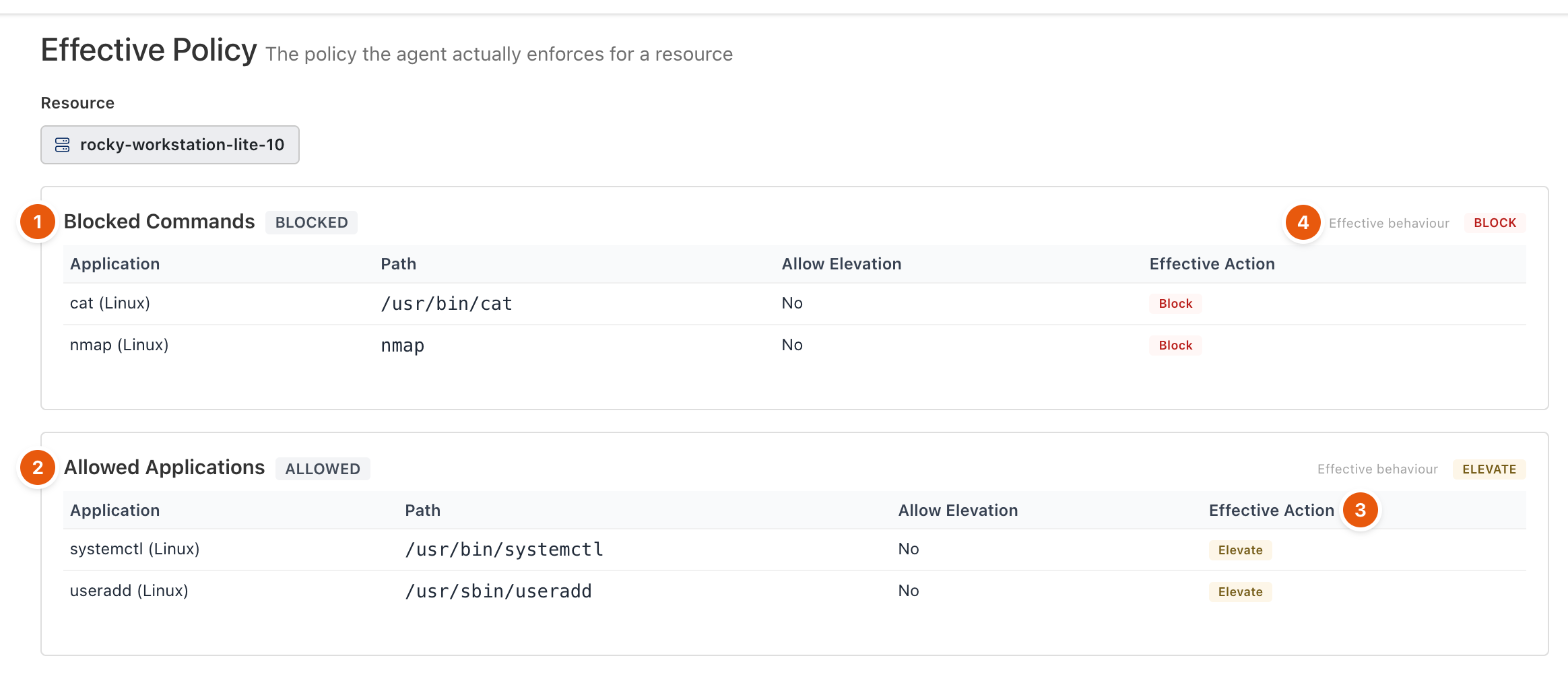
Figure 3. EPM → Effective Policy.
Pick an endpoint to see what its agent actually enforces: the Blocked Commands (1) and Allowed Applications (2) groups, each application's Effective Action (3), and the group's Effective behaviour (4). Use it to check a policy change before users report it.
Approvals
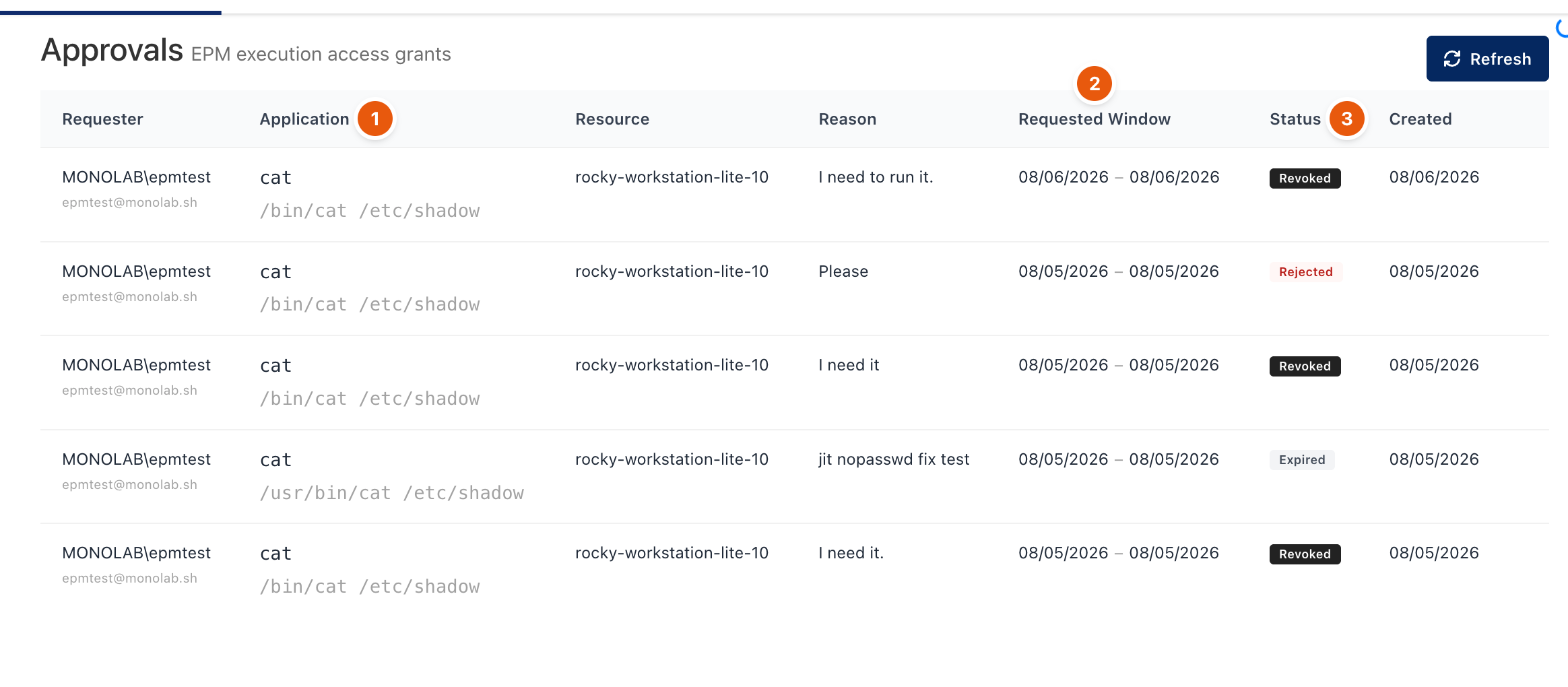
Figure 2. EPM → Approvals.
Each request shows the requester, the Application (1) with its command line, the endpoint, the reason, the Requested Window (2) and the Status (3): pending, approved, rejected, revoked or expired. Approvers decide pending requests here or under Requests.
Offline approval
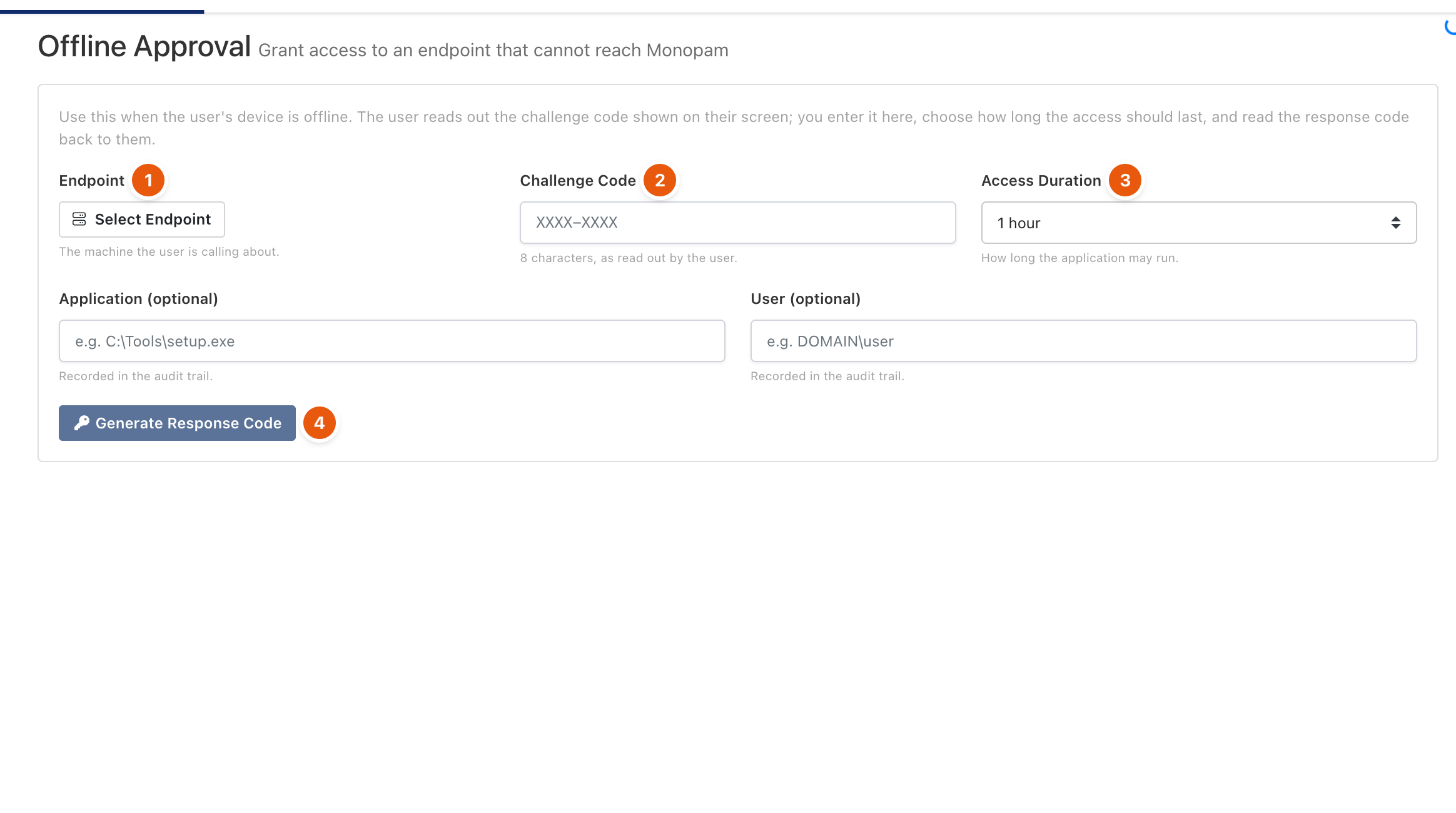
Figure 4. EPM → Offline Approval.
When an endpoint cannot reach Monopam, the user reads out the challenge code shown on their screen. Choose the Endpoint (1), type the 8-character Challenge Code (2), choose the Access Duration (3), optionally note the application and user for the audit trail, and click Generate Response Code (4). Read the response code back to the user.
Audit
EPM → Audit lists what agents reported: blocked starts, elevations, approvals and audited runs, per endpoint and user.
Related
- Agents
- Approve and revoke access
- How policies work