Open an SSH, RDP, VNC or Telnet session in the browser. Monopam injects the account's credential through the gateway, so you never see the password or key.
Applies to | Who can do this |
|---|---|
Monopam v2026.10 | Users with a Resource Access Policy (and a Space Access Policy) for the resource. |
Before you begin
- The resource appears in your Resources list or under Quick Connect on the dashboard.
Start a session
- Click Connect on the resource, in Resources or under Quick Connect.
- Choose the Credential (1) if more than one account is offered.
- Under Why do you need access? (2), choose I will specify ..., Incident or Scheduled Work, and describe the reason. The reason is written to the audit log with the session.
- Click Connect (3). The session opens in a new browser tab.
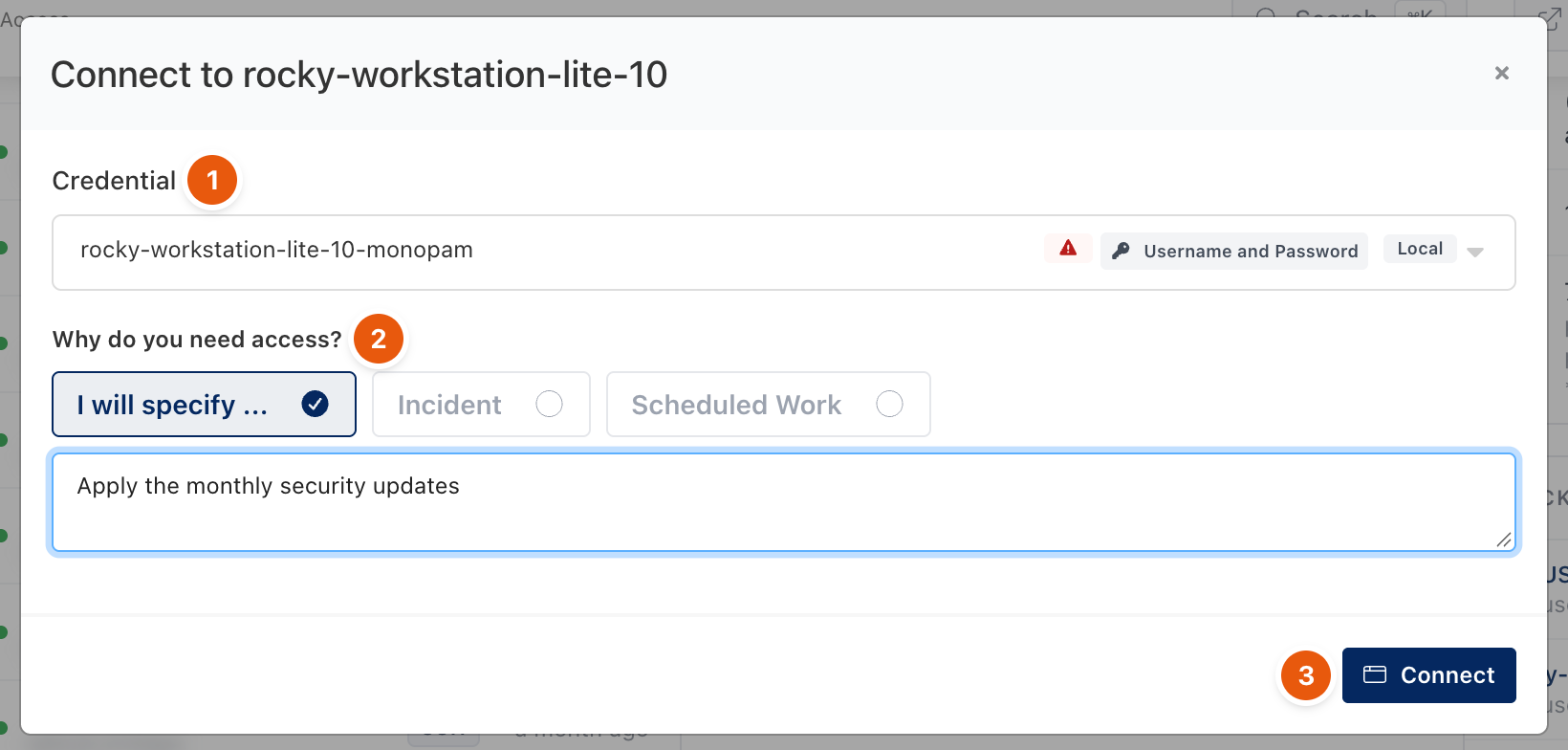
Figure 1. Starting a session.
If the resource requires approval, Connect sends a request to the approvers and the dialog also offers a scheduled window. You can connect once the request is approved. See Approve and revoke access.
Work in the session
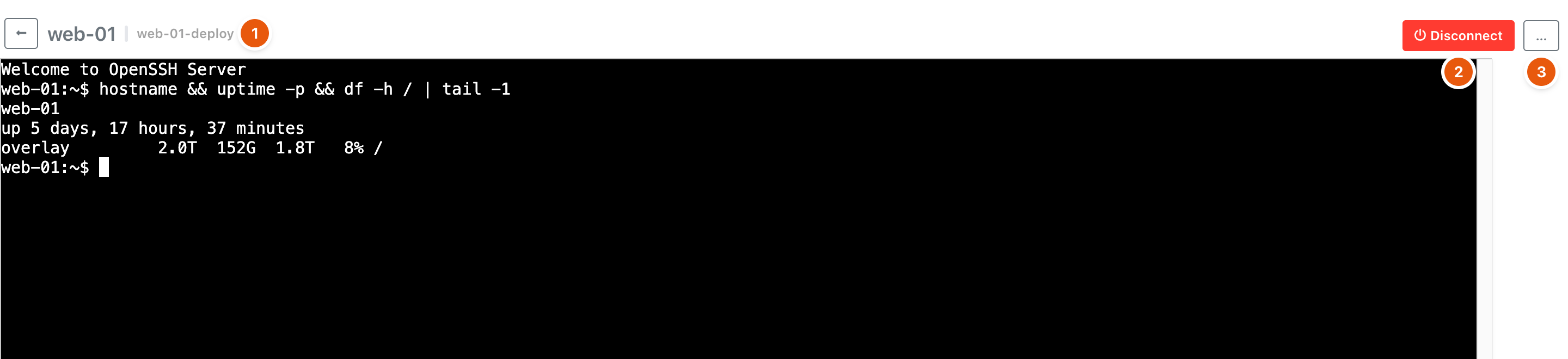
Figure 2. An SSH session in the browser.
# | Control | What it does |
|---|---|---|
1 | Resource and account | The resource you are connected to and the vault item used. |
2 | Disconnect | Ends the session. The recording is uploaded and listed under Recordings. |
3 | … (Actions) | Session actions. For SSH: Upload File, Download File and Connection Details. Other connection types add their own actions, such as Ctrl + Alt + Del or Send Break. |
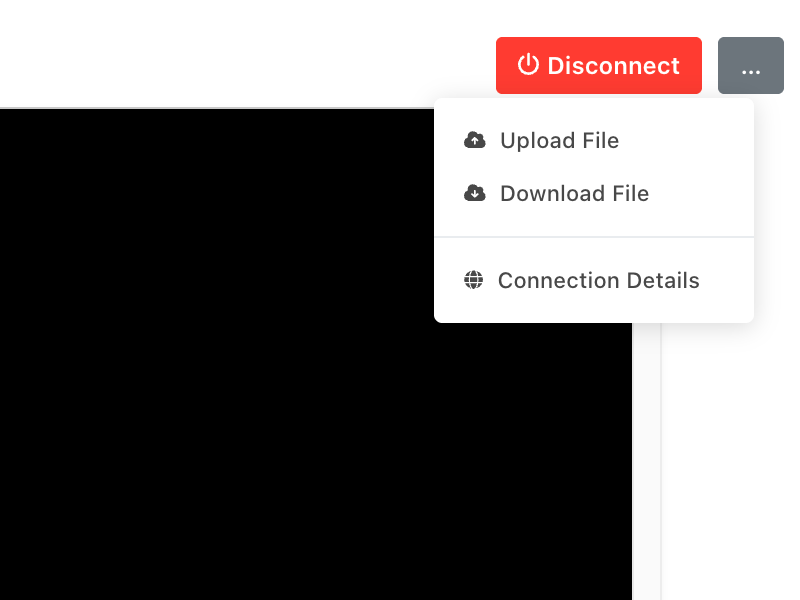
Figure 3. The actions menu of an SSH session.
Commands you type can be checked against privileged command rules: a rule can block a command or hold it for approval. See Privileged Commands.
Troubleshooting
What you see | Why | What to do |
|---|---|---|
The new tab opens and closes again, or returns to Resources. | The gateway could not reach the server or authenticate. | Ask an administrator to check the resource with Test, the port on the Advanced tab, and the account in the vault. |
Connect is not shown for a resource. | No policy gives you access to it. | Ask for access with Requests → New Request, or ask an administrator for a Resource Access Policy. |
Related
- Dashboard and live sessions
- Recordings and session notes
- Approve and revoke access
- Privileged Commands