A vault item is an account or secret Monopam keeps for you: a user name and password, an SSH key, secret text, an OTP seed, a token. Its secret is encrypted, every saved version is kept, and every reveal or copy is audited.
Applies to | Who can do this |
|---|---|
Monopam v2026.10 | Creating and editing: administrators with permission to manage the vault. Revealing a field: users whose Vault Access Policy allows that field. |
Create a vault item
- Open Vault and click Add, or click Add New Credential while assigning an account to a resource.
- Enter a Name (1). The name is also how automation refers to the item, for example in
{{Vault.<name>.Password}}. - Choose the Type (2) and, for a user name and password, where the account lives: Local User (an account on one resource), Domain User (an Active Directory account), Vault User (not tied to a resource) or Shared Local User (the same local account on several resources).
- For a Local User, choose the Resource (3) the account belongs to.
- Enter the Username (4) and Password (5), choose a Password Policy if rotation should follow one, and click Add.
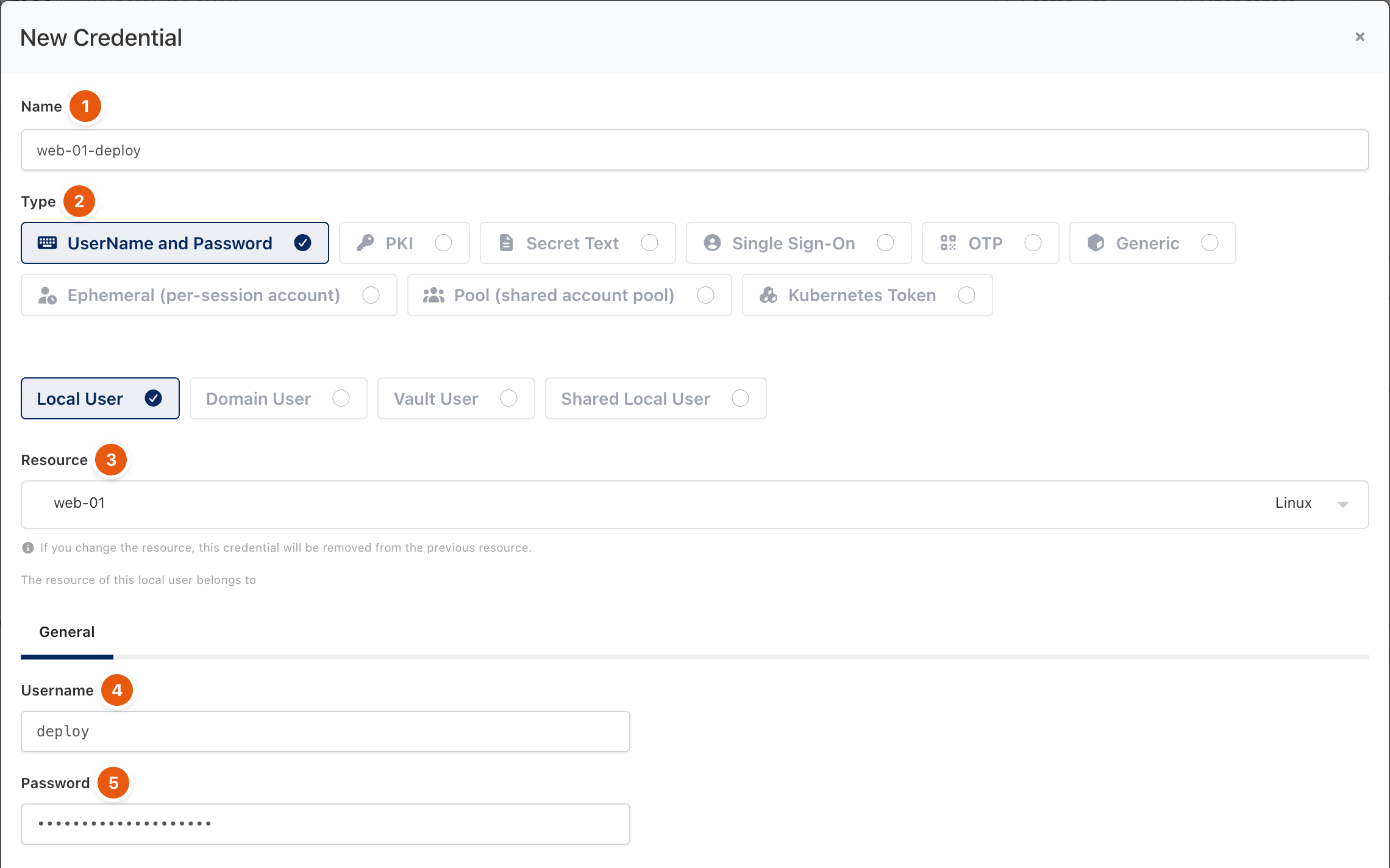
Figure 1. A new local account for web-01.
Types
Type | Holds |
|---|---|
UserName and Password | An account. Local, domain, vault or shared local. |
PKI | A user name with a private key, public key and passphrase. Generate new key pair creates one. |
Secret Text | Free text, such as an API token. |
Single Sign-On | Connects each user with their own account instead of a shared one. A vault pattern can map user names to vault items. |
OTP | A one-time password seed (Base32), with digits, period and algorithm. |
Generic | Your own structure, defined under Generic Types. |
Ephemeral (per-session account) | An account created for one session and removed afterwards. |
Pool (shared account pool) | Several member accounts. One is checked out per session and released when it ends. |
Kubernetes Token | A token for a Kubernetes or OpenShift cluster. |
View, reveal and copy
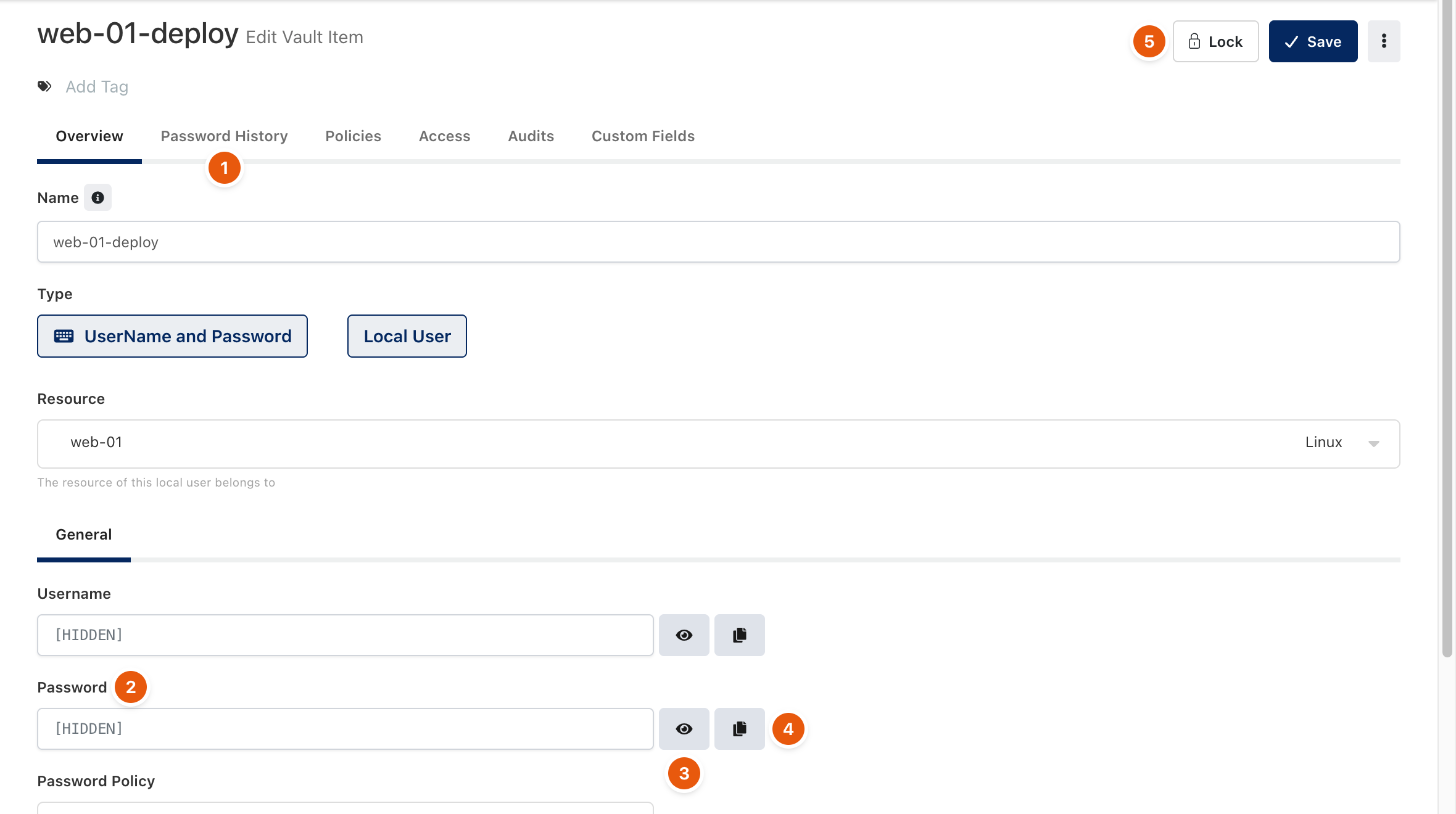
Figure 2. A saved vault item.
# | Control | What it does |
|---|---|---|
1 | Password History | Earlier versions of the secret, with who changed them and when. |
2 | Field | Secret fields show |
3 | Reveal (eye) | Shows the value for 30 seconds. Allowed only if your Vault Access Policy permits the field; otherwise you can request access. |
4 | Copy | Copies the value without showing it. |
5 | Lock | Locks the item. Nobody can reveal its data while it is locked. |
Every reveal and copy is written to the audit log as Vault Revealed / Copied. The other tabs show the Policies that apply to the item, who has Access, its Audits and Custom Fields.
Troubleshooting
What you see | Why | What to do |
|---|---|---|
The reveal button asks for a request instead of showing the value. | The Vault Access Policy requires approval for this field. | Send the request; the value can be revealed once it is approved. See Approve and revoke access. |
Connections fail with an authentication error after the password was changed on the server. | The vault holds the old password. | Update the item, or use Reconcile to push the vault's password to the server. See Password rotation and reconcile. |
Related
- Add a resource
- Vault Access Policy
- Password rotation and reconcile
- Discover privileged accounts